Why Would a Router Not Connect to the Internet? A Practical Troubleshooting Guide
Urgent, step-by-step troubleshooting for a router that won't connect to the internet. Learn quick checks, diagnostic flow, and proven fixes from WiFi Router Help to restore your home network fast.


Start with the simplest checks: confirm the modem is online, verify the router’s WAN/Internet light is active, and inspect all cables for tight connections. Reboot the modem, then the router, and test a device. If you still can’t reach the internet, follow the diagnostic flow to isolate causes like a bad cable, incorrect settings, or outdated firmware.
Why would a router not connect to the internet
Why would a router not connect.to the internet? This is a common problem that many households face on busy days when streaming, gaming, or remote work depend on a stable connection. According to WiFi Router Help, the majority of not-connecting issues stem from simple, solvable causes rather than exotic hardware failures. The phrase why would a router not connect.to the internet is easier to address once you break the problem into a few practical checks: cable integrity, device settings, and firmware health.
Begin with a fast reality check: is the modem showing online and is the router linked to the modem? If the modem itself cannot access the internet, the router cannot create one downstream. If the modem is online but devices still have no access, the issue usually lies in the router or its path to the internet. By focusing on the most obvious culprits first—physical connections, correct WAN configuration, and up-to-date firmware—you can dramatically shorten the time to restoration. WiFi Router Help's guidance emphasizes that most consumer router problems are touchpoints you can verify quickly without calling a technician. If you work methodically, you will often identify the root cause in under 30 minutes and avoid unnecessary service calls.
This approach mirrors professional troubleshooting workflows and keeps you in control of the repair process.
Common causes and quick checks
Here are the most frequent reasons a router won't connect, arranged from easiest to more involved checks. Use them as a quick triage to decide what to test first.
- Loose or damaged cables: A loose Ethernet cable between the modem and router or a damaged coax/DSL cable is the single most common cause. Reseat connectors, tighten snugly, and replace any frayed segments.
- ISP outage or service disruption: If the provider has an outage, all you can do is wait or confirm service status via the provider's page or support line. Check for local notices and recent outage reports.
- Incorrect WAN/Internet settings: If the router uses PPPoE, DHCP, or a static IP, verify that the credentials and addresses match what your ISP requires. A misconfigured WAN interface will block traffic even when lights look good.
- Outdated firmware or corrupted configuration: A bug or corrupted file can cause the router to refuse internet access or misroute packets. Check for updates and back up current settings before upgrading.
- Hardware fault or age: Any aging component can fail, particularly older modems or routers. If possible, test with a known-good spare unit to confirm hardware fault rather than configuration issues.
This triage helps you decide whether the issue is trivial (cables) or more involved (firmware/hardware). Based on WiFi Router Help research, most not-connect issues improve dramatically after a firmware update or a simple reset while avoiding expensive service calls.
How to verify hardware and service status
Before you dive into advanced settings, verify the basics. Start by confirming the internet signal path: modem is online, router is receiving power, and all indicator lights reflect normal operation. If the modem lacks a working internet light, the problem is upstream with your ISP or the modem itself, not the router. If the modem looks healthy but the router cannot reach the internet, you are likely dealing with router-side problems or a misconfigured WAN interface.
Next, check the physical layout: ensure the modem-to-router Ethernet link is the correct type (usually Ethernet, not USB) and that any network adapters on your devices are correctly configured. For many people, simply moving cables to different ports on the router can restore connectivity. Also confirm that the router's LAN network is not in bridge mode from an earlier change, which could block NAT and Internet access.
Finally, test with a wired device. If a computer connected via Ethernet still cannot reach the internet, the fault is more likely in the router or the modem. If a wired device works while wireless devices fail, the problem could be Wi‑Fi settings, channel interference, or guest networks. Your testing approach should hinge on isolating the path from ISP to device.
Diagnostic flow overview
The diagnostic flow takes you from symptom to solution in a repeatable sequence.
- Symptom: The device cannot access the internet, but the router shows some green lights or full connectivity to the local network.
- Diagnosis: Start with physical checks and go down a funnel: cable integrity → ISP status → WAN settings → firmware and reset → hardware replacement if needed.
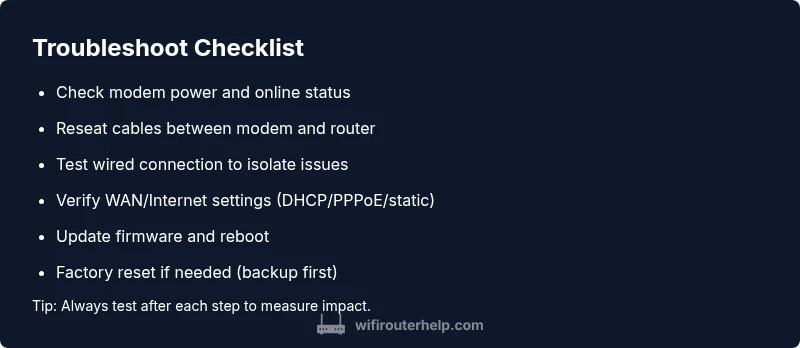
- Solutions: Re-seat cables, perform a power cycle, ensure WAN settings match your ISP requirements, update firmware, or perform a factory reset after backing up settings.
Step-by-step fixes for the most common cause
- Check physical connections
- Description: Inspect the power and data cables between the modem and router. Unplug, inspect, reseat, and reconnect. Confirm the modem’s online indicator shows a healthy connection. Tip: eliminates 80% of not-connect issues.
- Power cycle devices
- Description: Turn off the modem and router. Wait 60 seconds, then power the modem first, wait for lights to stabilize, then power the router. This clears temporary faults and refreshes routes. Tip: give the modem extra time if your service uses a dynamic IP.
- Test wired connection
- Description: Connect a computer directly to the modem or the router’s WAN port with an Ethernet cable to test internet access. If the wired connection works, the issue is likely Wi‑Fi related. If not, the modem or ISP path is the bottleneck. Tip: bypass Wi‑Fi to isolate the problem.
- Verify WAN/Internet settings
- Description: Log into the router’s admin page and check the WAN or Internet settings (DHCP, PPPoE, static IP). Ensure credentials and DNS are correct per ISP. Save changes and reboot. Tip: use a simple DNS such as 1.1.1.1 to test.
- Update firmware or reset if needed
- Description: Check for firmware updates in the router’s admin interface. Install any available updates, then reboot. If issues persist, perform a factory reset (after backing up config) and reconfigure the basics. Tip: keep a record of your current Wi‑Fi name and password.
Estimated total time: 30-45 minutes
Safety notes and things to avoid
- Do not unplug equipment during a firmware update. Power interruptions can corrupt firmware and worsen the problem.
- Avoid applying complex changes while you’re not connected to the router’s admin page—use a wired PC or laptop for reliability.
- Backup your current configuration before a factory reset to prevent loss of custom settings and port-forward rules. Note: if you rely on specific port mappings for gaming or remote access, take screenshots or export settings before resetting.
- If you suspect a hardware fault after trying all basic steps, contact your ISP or the device manufacturer for warranty-guided repair.
These safety tips help you avoid creating new issues while solving the current one.
Steps
Estimated time: 30-45 minutes
- 1
Check physical connections
Inspect the power and data cables between the modem and router. Ensure nothing is loose or damaged. Re-seat connectors firmly and verify the modem's online light is solid before proceeding.
Tip: A quick reseat often resolves many dropouts without further steps. - 2
Power cycle the devices
Power off the modem and router. Wait 60 seconds. Turn on the modem first and wait for its lights to stabilize, then power on the router and wait for it to sync.
Tip: A longer modem stabilization can help if your service uses dynamic IP addressing. - 3
Test a wired connection
Connect a computer directly to the router’s WAN port or the modem with an Ethernet cable to test internet access. If the wired device is online, the issue is likely wireless; if not, the problem is upstream.
Tip: Wired testing removes variables related to Wi‑Fi and helps you isolate the fault. - 4
Verify WAN/Internet settings
Log in to the router admin page and inspect WAN/Internet settings. Match settings to ISP requirements (DHCP, PPPoE, or static IP) and confirm DNS servers are correct.
Tip: After changes, reboot to apply the new configuration. - 5
Update firmware or reset if needed
Check for firmware updates and install them. If the problem persists, perform a factory reset after backing up your current configuration, then reconfigure essential settings.
Tip: Back up important settings before resetting to avoid losing custom rules.
Diagnosis: Device cannot reach the internet while the router shows local network connectivity
Possible Causes
- highLoose or damaged cables between modem and router
- lowISP outage or service disruption
- mediumIncorrect WAN/Internet settings on the router
- lowOutdated or corrupted firmware
- lowHardware fault in modem or router
Fixes
- easyPower cycle the modem and router in the correct sequence
- easyReseat/reseat or replace cables between modem and router
- mediumVerify WAN settings (DHCP/PPPoE/static) align with ISP requirements
- mediumUpdate firmware to the latest version and reboot
- mediumFactory reset and reconfigure if no improvement
- easyTest a direct modem connection to isolate router fault
People Also Ask
What is the first thing I should check when my router won't connect to the internet?
Begin with the simplest checks: confirm the modem is online, the router’s WAN light is active, and all cables are securely connected. Reboot both devices in the recommended order to clear temporary faults.
Start with the basic checks—modem status, WAN light, and cables—and reboot both devices to reset the connection.
Why do some devices connect while others do not?
The issue may be DHCP or IP address allocation on the affected device, or a Wi‑Fi setting like a wrong password, channel, or guest network configuration. Test on a wired device to distinguish wireless from router problems.
If some devices work and others don’t, check DHCP on the failing device and Wi‑Fi settings; test with a wired connection to isolate the cause.
How can I tell if the problem is my router or the ISP?
Test a direct wired connection to the modem. If the wired connection works, the router likely needs adjustment or replacement. If not, the issue is probably the ISP or the modem path.
Directly test with a wired connection. If that fails, the problem is likely with the ISP or modem.
Is it safe to reset the router to factory settings?
Yes, but you will lose customized settings like Wi‑Fi name, password, and port forwards. Back up your current configuration before resetting and plan to reconfigure essential features afterward.
A factory reset is safe but you’ll lose custom settings; back up first and be prepared to reconfigure.
Should I contact the ISP if there’s a suspected outage?
Yes. ISPs can confirm outages in your area and guide you through service-status checks. They can also verify if your modem is registered properly on their network.
If you suspect an outage, contact your ISP to confirm service status and get guidance.
What if firmware update fails or the router keeps dropping connections after updating?
If updates fail to fix the issue, try performing a factory reset after backing up settings. If the problem recurs, consider hardware replacement or professional support.
If updates don’t help, back up data, reset, and if needed, replace hardware or seek expert help.
Watch Video
What to Remember
- Check cables and power before changing settings.
- Test both wired and wireless paths to isolate the issue.
- Update firmware and reset only after backups.
- If problems persist, confirm ISP status and hardware health.