Why Is My Router Not Connecting to Internet? A Troubleshooting Guide
Urgent, step-by-step troubleshooting to diagnose why your router isn’t connecting to the internet. Learn fast checks, a diagnostic flow, and safe fixes to restore service and prevent future outages.


The most common cause is a disruption in the link between your modem and router, or a failed IP lease. Start with a simple power cycle of both devices, check all cables for damage, and verify the modem’s sync and WAN LED. If the issue persists, avoid factory resets unless absolutely necessary and follow the diagnostic flow.
Quick Diagnostic Overview
If you’re asking, “why is my router not connecting to internet,” you’re not alone. In most homes, the problem isn’t the wireless signal itself but the path from the modem to the router and onward to your devices. Start by confirming a live internet signal from your ISP and then verify the physical connections. WiFi Router Help recommends a methodical approach: isolate the issue by testing with both wired and wireless devices, and document what changes as you proceed. This approach reduces guesswork and speeds up a fix. According to WiFi Router Help, most outages are caused by wiring, power, or IP lease issues rather than complex configuration errors.
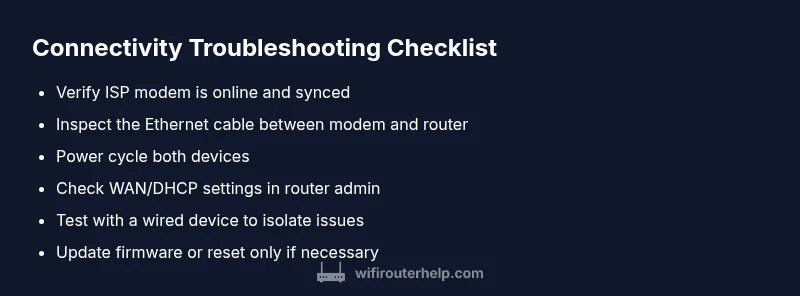
- Check that the modem is online and synchronized with the provider.
- Confirm the Ethernet cable between modem and router is secure and not damaged.
- Test with a wired laptop to determine if the problem is wireless or broader.
- If you must reset, use a targeted factory reset rather than multiple reboots.
These steps set a baseline and help you decide if you need professional help or if the problem is within your home network.
-bolderTitleKey_1
Steps
Estimated time: 30-60 minutes
- 1
Power cycle devices
Unplug both modem and router for at least 60 seconds. Plug the modem back in first, wait for it to fully initialize, then reconnect the router. This clears temporary IP leaks and refreshes DHCP.
Tip: Give the modem 2 minutes to boot fully before turning on the router. - 2
Check physical connections
Ensure the Ethernet cable between the modem and router is secure. Inspect coax or any line for damage. Loose connectors are a frequent, fixable cause of no internet.
Tip: Wiggle the connector gently to confirm a solid seat, then re-test. - 3
Verify modem status LEDs
Look at the modem’s LEDs: online/ds-sync/busy indicators. If lights indicate a problem, contact your ISP or try a different coax/line if you have one.
Tip: Document LED color patterns for ISP support calls. - 4
Log into the router and inspect WAN settings
Access the router admin page and confirm the WAN status. If it shows DHCP but you’re not getting an IP, try renewing the lease or switching to a fresh IP via the interface.
Tip: Save a screenshot of original settings before changes. - 5
Test with a wired device
Connect a laptop directly to the router via Ethernet to confirm whether the issue is wired or wireless. If the wired device can browse, the problem is likely wireless configuration.
Tip: Disable any guest networks temporarily to rule them out. - 6
Consider a firmware update or reset
If issues persist, update firmware from the official site or admin UI. As a last resort, perform a factory reset and reconfigure from scratch.
Tip: Factory reset should be your last step; back up settings first.
Diagnosis: Router shows connected to Wi-Fi but no internet access or devices cannot reach websites
Possible Causes
- highFaulty modem connection or service outage
- mediumIncorrect WAN/Internet settings on the router
- highLoose or damaged Ethernet/coaxial cables
- mediumExpired or corrupted DHCP address lease
- lowOutdated firmware or misconfigured router settings
Fixes
- easyPower cycle the modem and router by unplugging both for 60 seconds, then plug back in starting with the modem.
- easyInspect all cables (coax, Ethernet) for damage and reseat connections firmly.
- easyLog in to the router admin page and verify WAN/Internet settings (DHCP vs PPPoE).
- mediumTest connectivity by bypassing the router: connect a device directly to the modem to confirm ISP is up.
- mediumUpdate router firmware and restore default settings only if needed to fix misconfigurations.
- hardIf the problem persists, perform a factory reset and reconfigure from scratch, or contact the ISP if an outage is suspected.
People Also Ask
Why is my router not connecting to the internet after a firmware update?
Firmware updates can change network settings or temporarily disrupt connectivity. Try rebooting, then rechecking WAN settings and DNS. If problems persist, rollback the update or perform a clean reinstall of the firmware.
Firmware updates can disrupt settings. Reboot, review WAN and DNS, and if needed, rollback the update or reinstall firmware.
My devices see the Wi-Fi network but can’t reach the internet. What should I check first?
Confirm the modem is online and the router has a valid IP lease. Check cables, power cycle, and verify that the router’s DHCP server is enabled. If the issue remains, test with a wired connection to isolate wireless issues.
If you’re on Wi‑Fi but no internet, check the modem and IP lease, then test with a wired device to pinpoint the problem.
Is it normal for the internet to work on some devices but not others?
Partial connectivity often means the issue is device-specific (IP lease conflict, static IP on one device) or a guest network isolation problem. Check each device’s network settings and ensure they’re set to obtain an IP automatically.
If some devices work and others don’t, check each device’s IP settings and guest network configurations.
Should I reset the router to factory settings?
Only if you’ve exhausted other fixes. A reset wipes all custom settings, including Wi‑Fi names and passwords. Back up configurations and reconfigure carefully after the reset.
Factory reset is a last resort; back up first and reconfigure all settings afterward.
What can I do before calling the ISP?
Check outage maps, verify your account status, and collect modem/router serial numbers and LED statuses. Having this information ready speeds up support and helps determine if the fault is on their end.
Before calling, check for outages and gather device IDs and LED status to speed up support.
Watch Video
What to Remember
- Identify the path: modem to router, then router to devices
- Power cycle first; it fixes many transient issues
- Isolate the problem by testing with wired connections
- Reserve factory resets as a last resort and back up settings