Why Is My Router Not Connecting to Internet? A Practical Troubleshooting Guide
Urgent, step-by-step troubleshooting for a router that won't connect. Learn quick fixes, diagnostic flow, and when to contact your ISP for help in 2026.


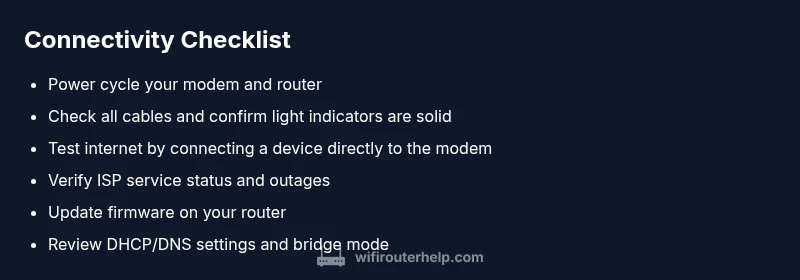
Why is my router not connecting to internet? Start with the basics: power-cycle the modem and router, check all cables and lights, and confirm your ISP status. In most homes, a loose connection, a pending firmware update, or a simple misconfiguration is the culprit. If this quick fix doesn’t solve it, follow the diagnostic flow for targeted steps and escalate if needed.
Common causes of router-not-internet issues
According to WiFi Router Help, most home connectivity problems come from a short list of repeatable causes. The leading culprits include loose or damaged cables between the modem and router, a modem that needs a reboot or reset, a misconfigured network setting on the router, and occasional service outages from the ISP. Less common but still worth checking are interference from nearby electronics, outdated firmware, and security features like a firewall blocking essential traffic. Understanding these root causes helps you apply the right fix quickly and avoid unnecessary changes to your network.
Start with the basics: cables, power, and lights
Begin with the simplest checks first. Ensure the power adapters are firmly plugged in and the modem and router are powered on in the correct sequence. Inspect all cables for frays or loose connectors, especially the coax or phone line feeding the modem and the Ethernet cable linking the modem to the router. Look at the LED indicators: a solid power light and stable online/DSL light usually mean hardware is ready. If a light is blinking or red, that signals a problem that needs attention before touching software settings. This foundational step is the most common reason for the question, "why is my router not connecting to internet?" and often resolves the issue without further steps. The WiFi Router Help team emphasizes that many outages disappear after a clean re-seat of cables and a power cycle.
Test the modem and ISP status
If basics are solid, verify the modem’s status first. Directly connect a computer to the modem with an Ethernet cable to check if you can access the internet. If you can, the router is likely at fault; if you can't, the issue may be with the modem or the ISP. Check your service status page or contact your provider to confirm whether there is a known outage in your area. If the ISP reports an outage, you can’t fix it locally—keep an eye on their updates and perform in-network checks while waiting. This step is essential because most cases where a router fails to connect are due to external service problems rather than device malfunctions.
Reboot, reset, and firmware: when to use each
Rebooting should be your first software-based fix after basic checks. Power off both devices, wait 30–60 seconds, then power them back on in the same order: modem, then router. If rebooting doesn’t help, consider a soft reset of the router (not a full factory reset) to restore default network behavior without losing saved configurations. A firmware update can also resolve known bugs; run the update from the router’s admin page if available, or check the manufacturer’s site. Only perform a factory reset if other fixes fail, and be sure to back up your config, Wi‑Fi name (SSID), and password beforehand.
Check router settings: DHCP, NAT, DNS, and bridge mode
Misconfigured settings are a common source of internet connectivity problems. Ensure DHCP is enabled so devices obtain an IP address automatically, and verify NAT is configured correctly to allow internet access. Confirm that DNS servers are reachable (you can temporarily use public DNS like 8.8.8.8). If your network uses a separate modem/router, verify whether bridge mode is enabled and ensure it’s configured properly—double-NAT can cause connectivity issues. These checks are often overlooked, yet they fix many cases where devices appear connected but have no internet.
Advanced checks: IP addressing and network conflicts
If you still have issues, dig deeper into IP addressing. Check whether the router has a conflicting IP address with another device on the network, or an incorrectly set static IP. Run a quick ping test to 8.8.8.8 and to your router’s IP to determine where the path breaks. Review your device’s network adapter settings and ensure there’s no VPN or proxy misconfiguration interfering with traffic. In rare cases, malware or malware-like software can disrupt traffic; run a trusted scan if you notice suspicious behavior.
When to escalate: professional help and service outages
If the problem persists after all the above steps, contact your ISP to rule out outages or account-level problems. If the ISP confirms service is normal, the issue may be a hardware fault with the modem or router, or a need for an advanced configuration courtesy of the device manufacturer. Document the steps you’ve taken and any error messages to share with support. The time to escalate is when you’ve exhausted safe, user-level fixes and still have no internet.
Prevention: keep your network healthy
To minimize future outages, keep firmware up to date, change default passwords, enable automatic security updates, and document any changes you make. Regularly reboot on a schedule to refresh connections, and keep a simple troubleshooting checklist handy for future incidents. Establishing a routine maintenance habit ensures you’re quicker to identify and resolve issues before they become prolonged outages. The habit of proactive maintenance reduces downtime and improves overall reliability.
Steps
Estimated time: 45-90 minutes
- 1
Power cycle the modem and router
Power off both devices, wait 60 seconds, then power the modem first, followed by the router. Give each device a minute to boot fully and observe the lights for a stable online status.
Tip: Label the power cycle as a maintenance step so you repeat it reliably. - 2
Check all cables and connections
Inspect the coax or phone line feeding the modem, and ensure the Ethernet link between modem and router is snug. Replace frayed cables and remove kinks to restore a clean physical path for data.
Tip: A loose Ethernet cable is a common culprit; reseat both ends firmly. - 3
Test a direct modem connection
Connect a laptop directly to the modem via Ethernet to see if you can browse. If you can, the issue is likely with the router; if you can't, the problem is modem/ISP related.
Tip: If you don’t have a spare device, borrow one for this quick test. - 4
Check ISP status and router admin page
Visit the ISP status page or call support to confirm outages. While there, log into the router admin panel to check basic settings (DHCP, NAT, DNS).
Tip: Use a wired computer connection to access the admin page for stability. - 5
Update firmware or reset cautiously
If the issue persists, update the router firmware or perform a soft reset. Only use a factory reset as a last resort after backups.
Tip: Back up Wi‑Fi credentials and settings before resetting. - 6
Re-test connectivity after changes
After each fix, test devices to confirm internet access. Repeat the diagnostic steps if the problem returns.
Tip: Document which step fixed the issue for future reference. - 7
Consider advanced configurations
Review DHCP range, DNS settings, and whether bridge mode is needed if using a separate network device. Adjust as needed based on your network layout.
Tip: Keep a written map of your network topology. - 8
Escalate when necessary
If nothing works, contact your ISP or the router/modem manufacturer for professional support. Have your test results on hand to speed up diagnosis.
Tip: Don’t delay escalation if you suspect a hardware fault.
Diagnosis: Router not connecting to internet
Possible Causes
- highPower or hardware issue (loose cables, modem needs reboot)
- mediumModem/ISP outage or provisioning problem
- lowRouter misconfiguration or firmware bug
Fixes
- easyPower cycle modem and router; reseat all cables
- easyCheck ISP outage status; if outage exists, wait for resolution
- mediumUpdate router firmware or reset settings as needed; backup first
- easyTest direct modem connection to rule out router fault; replace hardware if needed
People Also Ask
What should I do first when my router won't connect to the internet?
Power cycle the modem and router, check cables, and confirm service status with your ISP. These basics fix most problems quickly.
Start by rebooting and checking cables; you’ll likely fix it fast.
Is it safe to reset my router to factory settings?
Only after other fixes fail. Back up your settings, then be prepared to reconfigure your Wi‑Fi name and password.
Factory reset can solve stubborn issues, but back up first.
How can I tell if the problem is the modem or the router?
Connect a device directly to the modem with Ethernet. If you have internet, the router is at fault; if not, the modem or ISP is likely causing the issue.
Test with a direct modem connection to isolate the problem.
What should I do during a service outage?
Check your ISP outage status page and follow their guidance. Use this time to review local settings but avoid making unnecessary changes to service features.
If an outage is confirmed, wait for updates and avoid risky tinkering.
What is bridge mode and when should I use it?
Bridge mode disables the router's NAT so another device handles routing. Use it if you have a separate modem/router combo to avoid double NAT.
Bridge mode helps when you have another main router; it prevents double NAT.
What to Remember
- Power cycle first to rule out simple issues.
- Check cables and lights before touching settings.
- Test with a direct modem connection to isolate the problem.
- Update firmware and back up settings before resets.
- Escalate to ISP or manufacturer when hardware or outages are suspected.