What to Do If Your Router Isn’t Connecting to the Internet
Urgent, step-by-step guide to fix a router that won't connect. Learn checks, diagnostic flow, and prevention with WiFi Router Help.


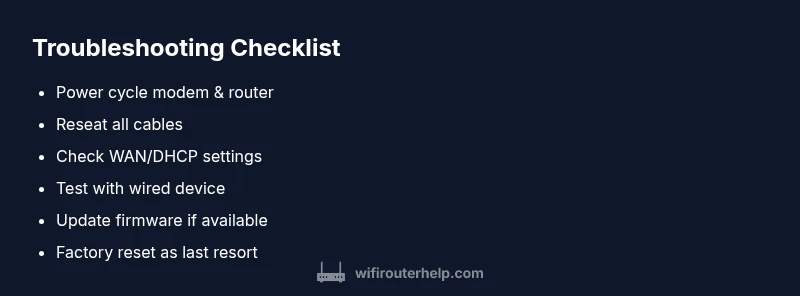
To troubleshoot what to do if your router is not connecting to internet, start with the basics: verify power and all cables, reboot the router and modem, and check for a solid link light. Then log into the router’s admin page to verify WAN/DHCP settings, run a quick diagnostic, and test with a wired PC. If it persists, try a factory reset and contact your ISP if needed.
Why this happens and how to approach it
According to WiFi Router Help, what to do if router is not connecting to internet often begins with simple, solvable issues. When the internet vanishes, homeowners often assume a service outage, but in most cases the cause is local. Power glitches, loose cables, or misconfigured WAN settings are common culprits that you can verify in minutes. Understanding how your home network communicates helps you pinpoint whether the problem is on the device side, the modem, or the ISP. By following a structured approach, you can avoid unnecessary service calls and get back online quickly. This guide keeps you focused on practical steps, not fear, so you regain control in the shortest possible time.
Common causes you can rule out quickly
Most not-connectivity problems fall into a few predictable buckets. A transient ISP outage can affect everyone on your street, but that’s less common than local issues. Loose cables between the modem and router are incredibly common, as are power cycling glitches that leave devices in a partially powered state. Misconfigured WAN settings, such as incorrect DHCP, PPPoE credentials, or VLAN tagging, are frequent culprits after a firmware update or a reset. Finally, hardware faults or overheating can occasionally cause intermittent drops. The goal is to confirm or deny these causes with simple tests, so you don’t waste time chasing improbable problems.
How to read your devices’ indicators and logs
LED indicators on the modem and router offer quick, tangible signals about where the fault lies. A solid power light, an online/WAN light, and a healthy LAN light on the router usually point away from a local wiring problem. If WAN shows offline or blinking patterns, focus on the modem connection, the cable between devices, and the router’s WAN settings. Many routers provide a basic diagnostic tool in the admin interface; using it can reveal DHCP failures, IP conflicts, or DNS resolution issues. Keep a simple log of LED changes and test results to avoid rechecking the same items.
Immediate checks you can perform without tools
Start with the simplest actions: unplug both modem and router, wait 60 seconds, and plug them back in in the order recommended by your manufacturer. Confirm every Ethernet cable is firmly seated, including the one from the modem to the router. If you have a spare ethernet cable, swap it to rule out a faulty wire. Try a wired device directly to the router to determine if Wi‑Fi itself is the problem or if the entire network is down. If these steps don’t restore service, proceed to the diagnostic flow.
Understanding the diagnostic flow at a high level
A systematic flow helps avoid guesswork. First, isolate the problem to your local network or the ISP by testing with a wired device and checking the modem’s status. Then verify WAN settings (DHCP vs PPPoE), credentials, and firmware status. If the local device signals are correct but the internet remains offline, the issue is more likely an ISP-side event or a modem problem. Finally, escalate to more involved fixes like factory resets only after you’ve tried safer, reversible steps.
Safety, warnings, and best practices
Always unplug power when changing cables to avoid shock or equipment damage. Don’t perform firmware updates on devices that currently exhibit instability unless you’re on a stable power source and a wired connection. Back up settings if you can before any reset, since a factory reset will erase custom configurations. If you’re uncomfortable with any step, seek professional help to prevent data loss or further damage.
When to escalate and what to expect from your ISP
If you’ve exhausted the basic steps and the problem persists, it’s time to contact your ISP. Outline the checks you performed (power cycle, cable reseating, WAN status, and any error messages). Ask about outages in your area and whether your account is in good standing or if there are provisioning issues. If the ISP confirms an outage, ask for an estimated restoration time and whether a temporary modem swap is possible.
Steps
Estimated time: 25-40 minutes
- 1
Verify power and cables
Check that both modem and router are powered on and that every cable is firmly connected. Look for stable, steady LED indicators indicating a healthy link. If any cable appears damaged, replace it before proceeding.
Tip: Use the original power adapter and avoid extension cables during testing. - 2
Power-cycle the devices
Unplug both devices, wait 60 seconds, then plug the modem back in first. After the modem stabilizes, plug in the router. If you have a separate switch or hub, reconnect it last. This resets most simple miscommunications.
Tip: Patience pays off—some modems take longer to boot than routers. - 3
Check the WAN status in the router admin
Log into the router’s admin interface and check the WAN/Internet status. Ensure DHCP is active if you’re using dynamic IP, or enter PPPoE credentials if your service requires them. Confirm the LAN side is functioning as well.
Tip: Take a screenshot of current settings before making changes. - 4
Test with a wired device
Connect a laptop or desktop directly to the router via Ethernet and run a quick speed test. If the wired device reports internet but Wi‑Fi doesn’t, the issue is likely wireless configuration or interference.
Tip: Disable guest networks temporarily to test a clean connection. - 5
Update firmware or reset if needed
If firmware is out of date, apply the update using a wired connection. If all else fails, perform a factory reset and reconfigure the basics (SSID, password, WAN type).
Tip: After a reset, keep a list of your settings to simplify reconfiguration. - 6
Call your ISP if issues persist
If you’ve completed all local steps and the problem remains, contact your ISP. Document the steps you’ve taken and any outage notices; request a line test or a possible modem replacement.
Tip: Ask for an escalation if the agent can’t identify a fault on the line.
Diagnosis: Router not connecting to internet
Possible Causes
- highISP outage or service interruption
- highModem/gateway not powered or locked up
- highLoose or damaged Ethernet cable between modem and router
- mediumIncorrect WAN settings (DHCP/PPPoE/VLAN)
- lowOutdated firmware or hardware fault
Fixes
- easyPower-cycle modem and router; unplug for 60 seconds and plug back in in the correct order
- easyInspect and reseat all cables between modem, router, and devices; replace visibly damaged cables
- mediumLog into the router’s admin page and verify WAN/DHCP settings; re-enter PPPoE credentials if applicable
- mediumUpdate router firmware if available; perform the update while connected via Ethernet
- hardIf necessary, perform a factory reset and reconfigure from scratch; back up settings first
People Also Ask
Why is my router not connecting to the internet after a power outage?
Power outages can reset your equipment. Replug both devices, wait for boot, and verify lights and WAN status. If the connection remains offline, test with a wired device to isolate the issue.
Power outages can reset your gear. Reconnect and reboot, then test with a wired device.
Can a firmware update fix not-connect issues?
Yes, updating firmware can fix known bugs or compatibility issues. Do this over a wired connection and review release notes before applying.
Updating firmware can resolve bugs; use a wired connection and review notes first.
What should I do if the WAN port shows no connection?
Inspect cables between modem and router, verify DHCP/PPPoE settings, and ensure the modem is online. If needed, test with a different cable to rule out a faulty wire.
Check cables and WAN settings, and confirm the modem is online.
When should I call my ISP?
If the outage lasts beyond a few hours or you’ve ruled out local issues, contact your ISP for line tests and outage information.
If outages persist, call your ISP for tests and updates.
Is a factory reset safe?
A factory reset erases settings. Backup data if possible, then reconfigure Wi‑Fi name and password after the reset.
Factory resets erase settings; back up first and reconfigure afterward.
How can I test internet on a wired device?
Connect a laptop via Ethernet, run a speed test, and ping a reliable address (like 8.8.8.8) to verify connectivity.
Use a wired computer to test connectivity and run a quick ping.
Watch Video
What to Remember
- Start with the basics: power, cables, and reboot
- Use the router's status page to identify WAN issues
- Power-cycle and reseat cables before advanced steps
- Reset only when necessary and reconfigure afterward
- Call your ISP for outages or persistent problems