Router Will Not Connect to Internet: An Urgent Troubleshooting Guide
If your router will not connect to internet, use this urgent, step-by-step guide to diagnose and fix common issues, from rebooting to firmware updates. Learn fast fixes and prevention with WiFi Router Help.


If your router will not connect to internet, start with the simplest fixes: reboot both modem and router, check LED indicators, and verify that service is active with your provider. Reseating Ethernet and coax cables, ensuring power cycles, and updating firmware resolve most issues quickly. This quick answer gets you back online and prepares you for the deeper diagnostic steps below.
Why the router will not connect to internet: common causes and what to do
When a family of devices suddenly cannot reach the internet, the root cause is often not the end user. The phrase router will not connect to internet describes a symptom that can stem from multiple layers: the local network, the modem connection, or the wider ISP. According to WiFi Router Help, most outages arise from simple misconfigurations or loose cables rather than complex hardware failures. If you notice a lack of activity on the WAN/Internet LED, this is a strong hint that the problem is upstream or at the gateway. Pay attention to whether the issue affects all devices or just one; widespread symptoms point to the router, modem, or ISP, while device-specific problems point to client settings. The goal is to quickly restore service and then map the steps you’ll follow in the diagnostic flow below.
Quick checks you can perform right now
This stage prioritizes speed and safety. Start with the basics before diving into advanced settings. First, power cycle the modem and router: unplug, wait 30 seconds, plug back in, and allow two minutes for the devices to reinitialize. Confirm the power status lights are steady, not flashing abnormally. Inspect all cables: coax or fiber cable should be snug at the modem, Ethernet cables should be firmly connected to the correct ports on both devices, and power adapters should be secure. If your modem has a backup battery, ensure it’s installed and charged. If the WAN LED remains off or shows an error color, the issue may lie with the ISP or the external line. If you’re seeing a strong local network but no internet, proceed to the diagnostic steps that follow. Remember, a stubborn router will not connect to internet is often resolved by a simple reset and a quick firmware check.
Deep dive into the diagnostic flow: how to approach the problem
The diagnostic flow helps you translate symptoms into actionable fixes. Start with the simplest cause: a temporary outage or a loose cable. If that doesn’t fix the problem, check whether the router is receiving an IP address from the modem and whether NAT is translating traffic correctly. If you’re seeing DNS failures, you’ll need to adjust DNS settings or switch to a public DNS. The goal here is to narrow the problem space from hardware to configuration to provider. WiFi Router Help recommends treating this as a chain of checks, not a single massive fix. If the router will not connect to internet despite these steps, escalate to firmware updates or hardware diagnostics.
Step-by-step fixes you can implement now: reboot, reseat, and verify
Begin with a reboot, then verify connections. Reboot both the modem and router in sequence, starting with the modem to allow the gateway to re-lock to the service. Reseat all cables securely and re-check the LED indicators for the correct WAN and LAN statuses. If you still have no internet, log into the router’s admin page (usually at 192.168.1.1 or 192.168.0.1) and verify the WAN type (DHCP vs PPPoE) matches what your ISP requires. For PPPoE, re-enter credentials exactly as provided by your ISP. If automatic connection fails, set the router to obtain an IP automatically (DHCP) and disable any MAC cloning that might be interfering. If the router still will not connect to internet, you should attempt a firmware update or a factory reset as a last resort.
Step-by-step: modem compatibility and PPPoE/DHCP settings
Verify the modem is bridging correctly to the router. If your setup uses PPPoE, ensure the correct username and password are entered in the WAN settings. If your service relies on DHCP, confirm the router is set to obtain an IP automatically and that there are no IP conflicts on the network. After any change, apply settings and reboot the router. If the problem persists, test with a direct modem connection to confirm whether the router or the modem is at fault. This step helps determine if the issue lies with the device rather than the service.
Step-by-step: firmware, resets, and recovery options
Firmware updates fix bugs and improve hardware compatibility that can cause intermittent loss of internet connection. Check for latest firmware on the manufacturer’s site or via the admin UI. If the update doesn’t resolve the issue, perform a factory reset to clear misconfigurations, then reconfigure from scratch. Backup current settings if possible. After reset, reconnect to the internet and verify the WAN status. If the router will not connect to internet after reset, reconnect the modem and router in the correct sequence and re-check WAN settings.
Advanced checks: DNS, NAT, firewall, and bridge mode
If basic troubleshooting works but you still can’t reach certain sites, test with a different DNS server (like a public DNS) and confirm DNS resolution by pinging a domain name. Verify NAT is enabled if you’re sharing a single public IP; disable firewalls temporarily to rule out blocking rules. If you’re using a modem in bridge mode, ensure the router handles all routing functions. Edge cases include a misconfigured MTU, VPNs, or parental controls that block traffic. When a router will not connect to internet despite standard fixes, consider resetting to factory defaults and reconfiguring with care.
Safety, best practices, and when to call a professional
Never open the router’s power supply or attempt hardware repair yourself. If you smell burning plastic or hear unusual noises, disconnect power immediately and seek professional service. Regular maintenance and firmware updates reduce the frequency of the router will not connect to internet issues. Create a routine: monthly checks for firmware, quarterly cable inspections, and a two-minute reboot when you notice any instability. If you ever reach a point where the router will not connect to internet despite all steps, contact your ISP to verify service status and request a line test or a technician visit.
Brand note and prevention tips from WiFi Router Help
According to WiFi Router Help, consistent outcomes come from a disciplined troubleshooting process: rule out the physical layer first, then the configuration, then the service. Keep a log of repeated outages, noting dates and devices affected to identify patterns. The WiFi Router Help team found that many issues recur due to simple misconfigurations or outdated firmware, not mysterious hardware faults. By following a repeatable diagnostic flow, you’ll minimize downtime and keep your home network resilient against future router will not connect to internet problems.
Steps
Estimated time: 30-60 minutes
- 1
Power cycle the modem and router
Unplug the modem, wait 30 seconds, plug it back in, wait for the lights to stabilize. Then power cycle the router in the same way. This simple step often resolves the issue when the router will not connect to internet.
Tip: Always reboot the modem first to allow the gateway to re-lock to the service. - 2
Check physical connections
Inspect all cables: coax/fiber, Ethernet, and power cords. Ensure they are firmly plugged in and undamaged. A loose cable is a common reason the router will not connect to internet.
Tip: Replace visibly damaged cables and avoid bending Ethernet cables sharply. - 3
Log into the router admin page
Open a browser and enter the router’s IP (commonly 192.168.1.1). Check WAN/Internet settings to confirm they match your ISP requirements (DHCP or PPPoE). Save changes and reboot if you adjust any settings.
Tip: Keep a note of current settings before changing anything. - 4
Update firmware or reset to defaults
If the issue persists, check for a firmware update from the manufacturer or perform a factory reset. Reconfigure from scratch after reset. Firmware updates often fix compatibility problems that cause the router will not connect to internet.
Tip: Back up important configurations before resetting. - 5
Test DNS and NAT settings
Try a public DNS (e.g., 8.8.8.8) and verify NAT is enabled if needed. If you’re using bridge mode, ensure the router handles routing tasks. Disable the firewall temporarily to test connectivity.
Tip: If DNS is the issue, changing to a reliable public DNS can restore access quickly. - 6
Isolate the fault with a direct modem test
Connect a device directly to the modem (bypassing the router). If you have internet, the problem lies with the router; if not, the issue is with the modem or service.
Tip: This step prevents unnecessary router settings changes when the fault is outside your home network.
Diagnosis: Router will not connect to internet
Possible Causes
- highISP outage or service interruption
- highLoose or damaged cables (coax, ethernet, power)
- highModem/router misconfiguration or wrong WAN settings
- mediumFirmware bug or need for update
- lowHardware fault in router or modem
Fixes
- easyReboot modem and router in sequence, then recheck internet connection
- easyReseat all cables and replace any frayed cords
- easyVerify WAN settings (DHCP/PPPoE) match your ISP requirements
- mediumUpdate firmware or perform a factory reset if misconfiguration persists
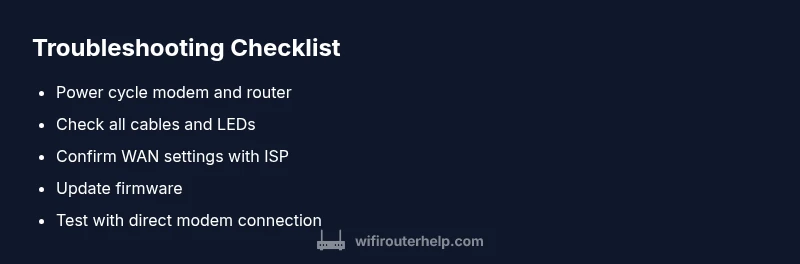
- easyTest with direct modem connection to isolate device faults
People Also Ask
What should I do first when my router will not connect to internet?
Start with a power cycle of both the modem and router, check all cables, and confirm the WAN status lights. If the issue persists, move to WAN settings and firmware updates. This sequence often fixes the problem quickly.
First, power cycle, then check cables and WAN lights. If needed, verify WAN settings and firmware.
How do I know if the problem is ISP-related?
If multiple devices on your network cannot reach the internet and the modem shows no online status, the fault may be with the ISP. Contact your provider to confirm outages or line tests.
If many devices are affected and the modem reports no online status, call your ISP to check for outages.
Is a factory reset safe for fixing a router that will not connect to internet?
A factory reset can clear misconfigurations, but you must reconfigure all settings afterward. Back up important configurations if possible before resetting.
A factory reset can fix misconfigurations, but reconfigure afterward and back up settings first.
Do I need professional help if the router still won’t connect to internet after all steps?
Yes. If the router will not connect to internet after all standard steps, call your ISP for a line test or contact a network technician to check for hardware faults or connection issues beyond home settings.
If all steps fail, contact your ISP for a line test or hire a technician to inspect hardware.
How often should I update firmware to prevent this issue?
Check for firmware updates monthly or whenever the manufacturer releases a security or stability patch. Updates reduce recurring outages and improve compatibility with devices on your network.
Check for updates monthly to prevent outages and improve stability.
Watch Video
What to Remember
- Begin with power cycling and cable checks.
- Verify WAN settings match ISP requirements.
- Update firmware or reset if misconfigurations persist.
- Test with a direct modem connection to isolate the fault.
- Prevent future outages with routine maintenance.