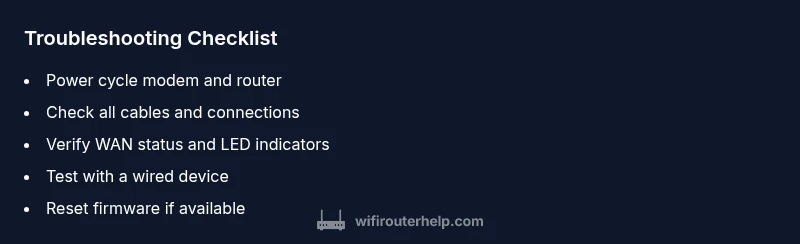
Why is Router Not Connecting? A Step-by-Step Troubleshooting Guide
Urgent troubleshooting guide to fix a router not connecting. Step-by-step checks, diagnostic flow, and prevention tips to restore internet fast.


According to WiFi Router Help, the most common connectivity issues stem from a simple chain problem—often the modem, router, or the cable between them. Start with a quick power cycle and basic cable checks, then follow a diagnostic flow to identify whether the problem is local, with the modem, or with your ISP. Act quickly to restore access.
Start with the basics: power, cables, and indicators
If your router won’t connect, begin with the simplest checks. Ensure all devices are powered on and that every cable is seated firmly in its proper port. Inspect the power, WAN, and LAN LEDs on both the modem and the router. A dark or flashing light can signal a loose connection or a device that hasn’t finished booting. According to WiFi Router Help, the most common issues come from loose cables, misconnected ports, or devices that haven't booted fully. Take a few minutes to reseat connections and confirm the physical path from the service entry to your devices. If the modem shows activity but the router does not establish Internet, proceed to the next steps for a deeper check.
Common misconfigurations that break connectivity
Even when hardware seems fine, software settings can prevent Internet access. Double-check your WAN type (dynamic IP vs static), DHCP is enabled, and that the router password is correct. If a recent change introduced a new SSID or password, devices may still be attempting to connect to the old network. The WiFi Router Help team found that many users forget to save changes after updating settings, leaving the router in a non-functional state. Review the router admin page for WAN, LAN, DNS, and DHCP settings, and ensure DNS servers are correctly configured. If you're unsure, restore to a known-good configuration and reapply settings deliberately.
Diagnosing connectivity: local vs modem vs ISP
To pinpoint the fault, run a quick three-way test. Connect a device directly to the modem with an Ethernet cable to see if you reach the Internet. If yes, the issue is likely related to the router or its Wi-Fi configuration. If no, the problem could be with the modem or your ISP. If the direct connection works but other devices don't, try disabling VPNs or security software that might block traffic. WiFi Router Help notes that many outages are caused by ISP problems rather than home hardware, so check service status before replacing equipment.
How to test with alternate hardware and networks
If possible, borrow another router to test with your modem, or temporarily set your current router to bridge mode and connect a single device to the modem. If the new setup goes online, the fault likely lies with your original router or its settings. If nothing works, verify service status with your provider and schedule a repair visit if outages or line issues are detected. This step helps you avoid unnecessary hardware purchases while isolating the root cause.
Safety considerations and things to avoid
Do not open the router power supply or internal components. Unplug devices before handling cables, and avoid touching connectors during active surges. Do not repeatedly reset the router if you suspect a hardware fault—though resets can fix misconfigurations, excessive resets can stress components. Always handle firmware updates separately from factory resets to prevent accidental loss of configuration.
When to reset and reconfigure: firmware and settings
Factory resetting the router can restore default settings but will erase custom configurations. Before resetting, document or export current settings (SSID, password, WAN type, DNS servers). After resetting, reconfigure from scratch, ensuring WAN/DHCP settings match your ISP requirements. Check for available firmware updates and apply them after you regain access to the admin page. This ensures security and compatibility with your ISP and connected devices.
Troubleshooting proactively: documentation and backups
Keep a troubleshooting log: note the exact symptoms, steps taken, and the results. Maintain a backup of the router configuration if supported, especially after successful fixes. Documenting changes makes future troubleshooting faster and reduces downtime. This proactive habit helps you recover quickly when issues recur.
Steps
Estimated time: 60-90 minutes
- 1
Power cycle everything
Power off the modem and router. Wait 30 seconds, then power the modem back on first, followed by the router. Reconnect any Ethernet cables and retry the connection on a wired device to confirm basic Internet access.
Tip: Allow 2 full boot cycles to ensure devices reset properly. - 2
Check physical connections
Inspect all cables between service entry, modem, and router. Ensure the coax/Phone line is tight, Ethernet cables are snug, and the power adapters are firmly seated. A loose cable is a common cause of no Internet.
Tip: Swap in a known-good Ethernet cable if you have one. - 3
Check LED indicators
Look at the modem and router lights. A solid Internet light on the modem and a healthy WAN light on the router indicate a path to the Internet. If lights are off or flashing abnormally, note the pattern for troubleshooting.
Tip: Document LED patterns to spot changes quickly next time. - 4
Review router settings
Log in to the router admin page and confirm WAN type (dynamic vs static), DHCP is enabled, and the correct DNS servers are set. Save changes and reboot the router if you edit settings.
Tip: Use a wired device for admin access to avoid Wi-Fi dropouts. - 5
Test with direct modem connection
Connect a computer directly to the modem via Ethernet to verify Internet access independent of the router. If the direct connection works, the problem is likely with the router or its Wi-Fi configuration.
Tip: If direct connection fails, contact the ISP for outages or modem issues. - 6
Try a firmware update
Check for firmware updates on the router and apply them if available. Updates can fix bugs that cause connectivity problems and improve stability.
Tip: Only update firmware from the official vendor page or router admin UI. - 7
Consider a factory reset
If misconfigurations persist, perform a factory reset and reconfigure from scratch. Back up settings if possible before resetting.
Tip: Back up configurations and write down essential settings you’ll need after reset. - 8
Escalate when needed
If the Internet remains unavailable after these steps, contact the ISP or a professional technician with the observed symptoms and LED patterns.
Tip: Provide your logs and steps taken to speed up support.
Diagnosis: Router won't connect to the Internet
Possible Causes
- highPower issue or loose cable between modem and router
- mediumISP outage or service interruption
- mediumIncorrect router settings or changed password
- lowFaulty router hardware
- lowModem in bridge mode or gateway-mode mismatch
Fixes
- easyPower cycle all devices (modem, router, and connected devices)
- easyCheck all cables and connectors for damage and ensure secure connections
- mediumVerify WAN/DHCP/DNS settings on the router admin page
- mediumReset router to factory defaults if misconfiguration is suspected
- easyUpdate router firmware if a newer version is available
- easyIf the issue persists, contact your ISP or a professional technician
People Also Ask
What is the first thing I should check when my router won\u2019t connect?
Start with power cycling, verify cables are secure, and confirm the Internet light on the modem is solid. Then test a wired device to separate hardware from wireless issues.
First check the power and cables, then test with a wired device to rule out Wi-Fi problems.
Why is my WiFi connected but there\'s no Internet access?
This usually points to a gateway or ISP issue rather than your device. Check WAN settings, DNS, and confirm service status with your provider.
WiFi connected but no Internet usually means a gateway or ISP problem; check settings and service status.
How can I tell if the problem is with the modem?
Test by connecting a device directly to the modem via Ethernet. If you still have no Internet, the issue is with the modem or ISP.
Direct modem test helps decide whether the issue lies with the modem or the ISP.
Is a factory reset safe to perform?
A factory reset restores defaults but wipes custom settings. Back up configurations before resetting and be prepared to reconfigure.
A factory reset wipes settings, so back up first and reconfigure after reset.
Should I contact my ISP for this issue?
Yes, if you suspect an outage or if the modem shows unusual activity. They can confirm service status and reset lines remotely.
If you suspect an outage, contact your ISP for status and possible line issues.
Watch Video
What to Remember
- Restart modem and router first
- Isolate issue using diagnostic flow
- Document changes for faster troubleshooting
- Call ISP if outages suspected
- WiFi Router Help guidance speeds recovery