Why Will Router Not Connect to Internet: Urgent Troubleshooting Guide
Urgent, step-by-step guide to diagnose and fix a router that won't connect to the internet. Learn quick checks, diagnostic flow, and safe fixes from WiFi Router Help.


Most often, the router won’t connect because the internet service is down, the WAN cable is loose, or the router’s settings are misconfigured. Start by checking power, the modem connection, and the Wi‑Fi status. If the issue persists, try a quick reset and verify your ISP login details are current.
Understanding why will router not connect to internet
When your home network suddenly loses access, many homeowners ask themselves: why will router not connect to internet? The short answer is that the path between your devices and the outside world has been disrupted. According to WiFi Router Help, most outages fall into a few predictable categories: a service problem with the ISP, a fault in the modem, or a misconfiguration or fault within the Wi‑Fi router itself. In practical terms, your router acts as the gatekeeper between your local network and your Internet Service Provider. If either link fails, you’ll see a connected Wi‑Fi signal but no actual internet access. This section explains how these pieces fit together and why simple, methodical checks almost always resolve the problem without expensive service calls.
Recognizing the distinction between a complete outage and a device-specific issue is crucial. If multiple devices report “no internet,” the fault likely sits beyond your router. If only one device cannot reach the internet, suspect that device or its connection to the network. Throughout this guide, you’ll find a practical flow designed to restore service quickly while minimizing risk and confusion.
Quick checks you can do before diving in
Before you dive into deep diagnostics, run a few quick checks that often resolve the problem or illuminate the next steps. These checks are fast and safe for most households.
- Confirm service status with your ISP using their outage page or phone line. If there’s an outage, you’ll need to wait for resolution. WiFi Router Help recommends checking multiple sources (official status page, social channels) to confirm.
- Verify power and indicator lights on both the modem and the router. A blinking or red light often signals a hardware issue or a failed sync. If needed, power cycle both devices in the correct order: modem first, then router.
- Inspect the physical connections. Ensure the coaxial/DSL line is secure at the modem, and the Ethernet cable linking the modem to the router is firmly seated. A damaged or loose cable is a common culprit.
- Test with a wired device. Connect a laptop or a desktop directly to the router via Ethernet to confirm whether the problem is Wi‑Fi specific or network-wide. If wired access works, focus on wireless settings such as SSID, password, and channel.
- Compare devices. If only one device can’t browse, the issue may lie with that device’s configuration, DNS settings, or a captive portal. If many devices fail, your router/ISP path is more likely to blame.
Distinguishing modem vs router roles
Understanding the difference between a modem and a router helps you diagnose faster. The modem communicates with your ISP and converts the signal into a digital stream your home network can use. The router creates your local network, assigns IP addresses, and routes traffic between devices and the internet. If the modem reports internet access but devices still can’t reach the web, the problem often lies with the router’s WAN settings, firmware, or Wi‑Fi configuration. Conversely, if the modem shows no internet at all, you’re dealing with an ISP outage, a faulty connection to the provider, or an incompatible modem.
Diagnostic flow: symptom to solution
Symptom-driven diagnosis helps you avoid unnecessary changes. Start with the most common, easiest fixes and move toward targeted hardware checks. For example, if you see a connected Wi‑Fi network but no internet:
- Check ISP status and reboot both devices.
- Verify WAN/Internet settings in the router’s admin page.
- Test wired connectivity to rule out wireless issues.
- If the problem persists, consider firmware updates or a factory reset as a last resort.
Mapping symptoms to likely causes reduces guesswork and speeds recovery, and it aligns with best practices from WiFi Router Help.
Step-by-step: Fix for the most common cause
Below is a practical, action-oriented sequence targeting the most frequent failure mode: a loose WAN connection or a misconfigured WAN setting. Follow each step in order and stop if you see improvement.
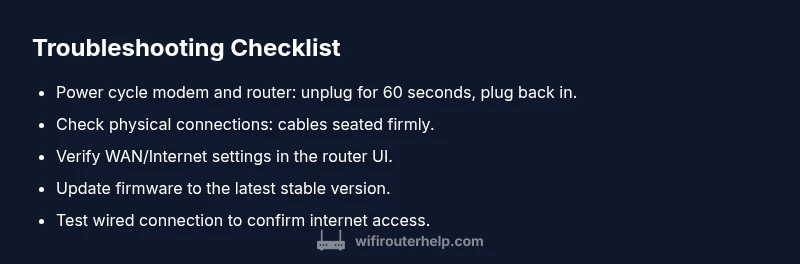
- Power-cycle devices: unplug the modem and router, wait 60 seconds, plug the modem back in, wait for it to re-sync, then plug the router back in. 2) Check all cables: reseat the coax/ethernet cables; replace any frayed or damaged ones. 3) Confirm WAN settings: log into the router admin page and set WAN to DHCP if your ISP uses dynamic addressing; if PPPoE is required, enter the correct credentials. 4) Update firmware: check for and install the latest stable firmware. 5) Test with a wired device: ensure a wired connection works; if not, the issue may lie with the modem or ISP. 6) If all else fails, reset to factory defaults and reconfigure from scratch.
Tip: Back up current settings before major changes so you can revert easily if needed.
Safety tips and common mistakes to avoid
Safety matters when working with networking hardware. Always unplug devices before handling cables to avoid electrical hazards. Avoid using unofficial firmware or third‑party tools that void warranties. Do not publish your login credentials in forums or apps. If you’re unsure about a setting, document the current configuration before changing it, so you can revert if an adjustment causes more issues.
Prevention: keeping your home network stable
Prevention beats reactive fixes. Schedule regular firmware updates, monitor connected devices, and configure automatic reboots during low‑usage windows. Maintain a clean network layout: separate guest networks from main networks, standardize passwords, and document your WAN settings. Keeping cables organized and labeling ports reduces future confusion. A stable DNS configuration, such as using reputable public DNS services, can also improve reliability and speed during outages.
Final verification: when to seek professional help
If you’ve exhausted the above steps and still have no internet, it’s time to escalate. Before contacting support, collect your evidence: ISP outage status, modem and router logs, firmware version, and a summary of changes you made. Share this with your service provider or a qualified technician. The WiFi Router Help team recommends seeking professional help when there is repeated hardware failure, persistent outages despite resets, or if your equipment is out of warranty and showing hardware symptoms.
Steps
Estimated time: 45-60 minutes
- 1
Power cycle devices
Shut off the modem and router, wait 60 seconds, then turn them back on in the order: modem first, then router. This clears transient errors and re-syncs connections.
Tip: Allow each device to fully boot before testing. - 2
Check physical connections
Inspect all cables for damage and reseat every connection firmly. Replace damaged cables to prevent intermittent faults.
Tip: Tug gently on cables to test for a loose connection. - 3
Verify WAN settings
Access the router’s admin page and confirm WAN/Internet settings match your ISP requirements (DHCP, PPPoE, or static IP).
Tip: If unsure, temporarily switch to DHCP to test connectivity. - 4
Run a firmware update
Check for and install the latest stable firmware from the vendor’s site or app.
Tip: Back up current settings before updating. - 5
Test with a wired device
Connect a computer via Ethernet to verify if a wired connection reaches the Internet.
Tip: If wired works but wireless doesn't, focus on Wi‑Fi settings. - 6
Reset to factory defaults if needed
If problems persist, reset the router to factory settings and reconfigure from scratch.
Tip: Note: you’ll lose custom settings; record config.
Diagnosis: Router shows connected to WiFi but no internet access
Possible Causes
- highISP outage or service disruption
- mediumModem in bridge mode or not in sync with ISP
- highLoose or damaged cables between modem and router
- mediumRouter firmware bug or misconfigured WAN settings
- lowWrong DNS or IP conflict
Fixes
- easyConfirm ISP status via outage page or call support; wait if outage is reported
- easyPower cycle modem and router, then reconnect in proper order
- easyCheck cables (coax/ethernet) for damage and reseat all connections
- mediumReset WAN settings to DHCP (or PPPoE if required) and update firmware
- easySet DNS to public DNS (e.g., 1.1.1.1) if DNS issues suspected
People Also Ask
Why does my router show a connected network but no internet?
This often means the ISP is down, the modem isn’t syncing, or the router’s WAN settings are incorrect. Start by checking ISP status, then test wired vs. wireless connectivity and verify your WAN configuration.
Connected Wi‑Fi with no internet usually means an outage, a syncing issue, or WAN settings that need adjustment. Check ISP status and WAN configuration to begin.
How can I check if my ISP is down?
Visit your ISP’s status page or call support. Check social channels for real-time updates. If outages are reported, you’ll need to wait for service restoration.
Check the ISP status page and announcements. If there’s an outage, waiting usually resolves the problem.
What should I do if a factory reset doesn’t help?
A factory reset eliminates custom settings and often fixes stubborn issues. If it doesn’t resolve the problem, you may have a hardware fault or ISP-side problem.
If a factory reset doesn’t fix it, the issue could be hardware or the service provider.
When should I contact a professional?
Contact a technician if the problem recurs after resets, the modem shows hardware failures, or you’re unsure about configuring ISP credentials. You may also need warranty support.
Call a professional if problems persist after basic fixes or if you’re uncomfortable with settings.
Does updating firmware fix connectivity issues?
Firmware updates address known bugs and improve compatibility. Ensure you back up settings and use the official vendor release to minimize risk.
Updating firmware can fix bugs that cause connectivity problems, but back up first.
Is it safe to change DNS settings to fix browsing issues?
Changing DNS to a reputable public server can resolve certain DNS resolution problems, but it won’t fix physical connectivity issues. Do it as part of a broader troubleshoot plan.
Changing DNS can help if DNS is the bottleneck, but it won’t fix a broken connection entirely.
Watch Video
What to Remember
- Start with quick physical checks and power cycle.
- Verify ISP status before deeper fixes.
- Match WAN settings to your ISP (DHCP/PPPoE).
- Update firmware for stability and bug fixes.
- Document changes to prevent recurrence.