Why Router Blinking Red: A Step-by-Step Troubleshooting Guide
If your router shows a blinking red light, you may face urgent connectivity issues. This WiFi Router Help guide walks you through quick checks, a diagnostic flow, and step-by-step fixes to restore your home network fast.


A blinking red LED on a router usually signals a serious issue with power, hardware, or internet synchronization. Start with a quick power cycle, reseat all cables, and confirm the outlet works. Update firmware if possible, then reset to factory settings only if the blinking continues. If the light stays red after these steps, contact support.
What blinking red means for your router
When your router displays a blinking red LED, you should treat it as a high-priority signal. It often indicates a problem with power delivery, a hardware fault, or a failure to negotiate a proper connection with your internet service provider. For homeowners and tech enthusiasts, understanding the cause is crucial to restore stability quickly. In this guide from WiFi Router Help, we walk through the most common reasons and the practical steps you can take. Remember, the exact meaning of the blinking pattern can vary by model, so refer to your user manual as well. In the context of this article, the phrase why router blinking red is used to describe the situation and guide you toward a fast, safe resolution. Until the light stays solid or returns to normal after a reset, treat the issue as potentially urgent and prioritized. We'll cover safe checks first, then deeper diagnostics, and finally when to call in professional help to prevent damage or data loss in 2026.
According to WiFi Router Help, a blinking red LED is a warning signal that demands immediate attention. This initial diagnosis frame helps homeowners focus on the simplest fixes first while keeping more complex steps ready if needed.
Quick checks you can do right now
Before diving into technical diagnostics, perform these quick checks. They are low-risk and can resolve many blinking red issues:
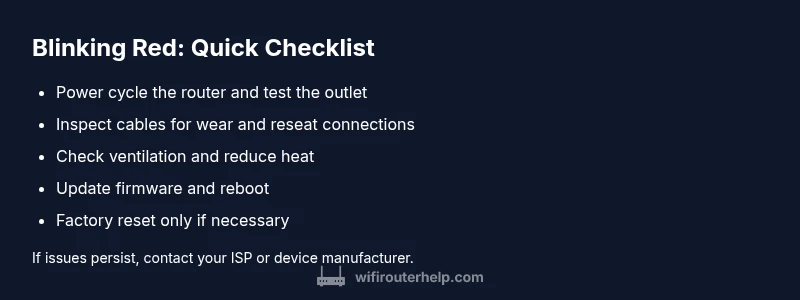
- Power cycle the router: unplug, wait 30 seconds, plug back in.
- Test a different power outlet or use a surge-protected strip to rule out a faulty outlet.
- Inspect all cables (power, Ethernet, WAN) for damage, looseness, or improper connections.
- Ensure the router has adequate ventilation and isn’t overheating; clear nearby obstructions.
- Observe the blink rate and pattern; note if it changes after a reboot or persists after a reset.
If these checks don’t restore normal operation, proceed to more in-depth diagnostics and firmware checks.
Common causes of a blinking red LED
Red blinking patterns can point to several core issues. Knowing the most common ones helps you prioritize fixes:
- Power supply fault or unstable outlet, which can cause intermittent resets.
- Overheating due to blocked vents or crowded placement.
- Firmware glitch or corrupted settings that disrupt normal operation.
- ISP outage or modem misbehavior, especially if the router can’t sync with the network.
- Loose or damaged cables, particularly the WAN/Internet cable.
- Port-level faults or hardware degradation in the router itself.
In many cases, a combination of these causes exists, so a systematic approach improves your odds of a quick recovery.
Step-by-step diagnostic flow you can follow
This section guides you through a practical diagnostic flow designed for home networks. It emphasizes safety and a logical order of operations:
- Confirm the LED pattern and note changes after each action. 2) Power cycle and verify the outlet’s stability. 3) Check all physical connections and reseat cables. 4) Update or reinstall firmware via the admin interface. 5) If needed, perform a factory reset and reconfigure settings from scratch. 6) Recheck connectivity with a direct device test. 7) If problems persist, test with a different modem or contact your ISP. 8) Escalate to professional help if you suspect hardware failure, persistent outages, or data-loss risks.
This flow helps you isolate whether the issue is simple (cable or power) or complex (hardware or ISP-related).
Safe fixes you can try now
Some fixes are safe to perform without professional help and can resolve many blinking red scenarios:
- Power cycle and verify outlet stability to rule out power delivery issues.
- Re-seat all cables; ensure the WAN port is firmly connected and the Ethernet cables are undamaged.
- Update your router’s firmware to the latest release from the manufacturer’s site or app.
- Temporarily disable VPNs or custom firewall rules to check if they trigger the LED state.
- If allowed by your model, back up configurations before performing a factory reset.
If blinking continues, a factory reset is warranted to restore default settings and regain control of the device.
When to contact your ISP or a technician
Not all red LED scenarios are resolved by DIY steps. If you observe persistent blinking after a factory reset, or you notice outages in multiple devices, contact your ISP to verify network status and modem provisioning. If the problem persists after ISP confirmation, or you suspect a hardware fault, engage a technician or the router manufacturer’s support for advanced diagnostics, potential RMA, or board-level repair. Document the blinking pattern and steps you’ve taken to streamline the support process.
Prevention tips to keep your network stable
Preventive measures reduce the odds of future red LED trouble. Consider these practices:
- Place the router in a cool, well-ventilated area away from heat sources and obstructions.
- Keep firmware updated and enable automatic updates if available.
- Use a surge protector and avoid power fluctuations.
- Periodically reboot on a schedule to refresh device state and prevent firmware drift.
- Maintain a current backup of your router configuration so resets are quick.
By incorporating these habits, you minimize the risk of recurring red blinking and improve overall network reliability in 2026.
Steps
Estimated time: 60-90 minutes
- 1
Power cycle the router
Unplug the router from power, wait 30 seconds, then plug back in. Give the device a minute to boot and observe the LED behavior. This simple step often clears minor glitches that trigger a red blink.
Tip: If using a surge protector, temporarily bypass it to rule out protector-induced power issues. - 2
Check power supply and outlet
Test the outlet with another device to confirm power stability. If the outlet is unstable, relocate to a known-good outlet or use a different power strip with surge protection.
Tip: Avoid cheap adapters that deliver fluctuating voltage. - 3
Inspect and reseat cables
Inspect the WAN and LAN cables for wear or damage. Reseat both ends firmly and ensure the LED indicators on ports show activity when tested.
Tip: Use new cables if you notice kinks, cuts, or fraying. - 4
Ventilation and placement
Ensure the router has ample space around vents and is not obstructed by walls or furniture. Overheating can trigger red indicators and throttle performance.
Tip: Keep the device in a cool room away from direct sunlight. - 5
Update firmware
Log in to the router's admin interface and check for firmware updates. Install the latest stable release and reboot the router after update.
Tip: Back up current settings before updating if possible. - 6
Factory reset if needed
If updates don’t resolve the issue, perform a factory reset following the manufacturer’s instructions. Reconfigure your network from scratch to ensure clean settings.
Tip: Only reset if you’ve saved your current configuration or are comfortable re-creating it. - 7
Test connectivity again
After reset, test by connecting a single device directly. If you regain internet, gradually reintroduce other devices to identify any problematic clients.
Tip: Document each change to identify the trigger. - 8
Escalate if unresolved
If the red blink persists after all steps, contact your ISP or the router manufacturer for advanced diagnostics or possible repair/replacement.
Tip: Provide the LED pattern, device model, and firmware version to support.
Diagnosis: Router shows blinking red LED and no internet
Possible Causes
- highPower issue
- highFirmware glitch
- mediumISP outage or misconfiguration
- lowOverheating
Fixes
- easyPower cycle the router and test a different outlet if needed
- easyCheck and reseat all cables (power, Ethernet, WAN)
- easyUpdate firmware via admin panel or mobile app; reboot after update
- easyFactory reset if the LED remains red after updates, then reconfigure
People Also Ask
What does a blinking red router LED mean?
A blinking red LED usually indicates a hardware fault, power issue, or failed internet synchronization. It requires immediate attention, but many cases are resolved with power cycling, cable checks, and firmware updates. If unresolved, escalate to support.
A blinking red light usually means a hardware or power issue that needs attention. Start with basic checks and firmware updates, and contact support if it continues.
Is blinking red dangerous for my network or equipment?
Generally not dangerous to you, but it signals your network may be unreliable. It can indicate potential hardware failure or misconfigurations that could affect data integrity or security if left unresolved.
It's not dangerous, but unresolved blinking red can compromise reliability or security. Act promptly.
Should I reset my router if it blinks red?
A factory reset can clear corrupted settings, but you should only perform it after trying power, cable, and firmware updates. Back up configurations if possible, then reconfigure from scratch.
Reset only after trying safer fixes. Be prepared to reconfigure your network afterward.
Can overheating cause blinking red?
Yes. Overheating can trigger red indicators and degrade performance. Improve ventilation, remove obstructions, and relocate the router if needed.
Overheating can cause the red blink. Improve airflow and move the router to a cooler spot.
What if the steps don’t fix the issue?
If DIY steps fail, contact your ISP to rule out network outages and request advanced diagnostics. If ISP is clear, reach out to the router manufacturer for possible hardware repair or replacement.
If it stays unresolved after fixes, contact your ISP or manufacturer for deeper diagnostics.
How long should firmware updates take?
Firmware updates can take several minutes to complete. Do not interrupt the process. Once finished, reboot and verify connectivity.
Updates usually take a few minutes. Let them finish, then reboot and test.
Watch Video
What to Remember
- Identify the LED pattern and pattern changes.
- Rule out power, cables, and overheating first.
- Update firmware before risky resets.
- Factory reset as a last resort.
- Prevent recurrence with maintenance and backups.