Why Is Your Router Flashing Red? An Urgent Troubleshooting Guide
Discover why your router’s red LED is flashing and how to fix it fast. This urgent guide covers quick checks, a diagnostic flow, and step-by-step fixes.


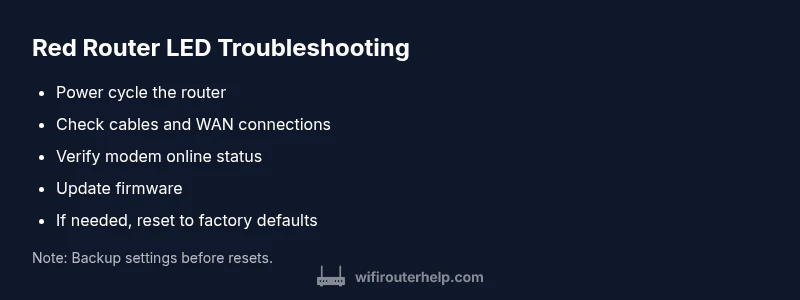
Typically, a flashing red LED on a router signals a critical fault or loss of internet service. Start with the basics: power cycle the router, check cables, and ensure the modem is online. If the red light persists after a reboot, verify firmware status, reset only after saving settings, and contact your ISP or a qualified technician.
Why the LED Flashes Red: What It Signals
According to WiFi Router Help, a red router LED usually signals a serious fault or loss of connectivity that requires prompt attention. In most homes, the symptom is triggered by a power hiccup, a modem that isn't online, or corrupted router firmware. The WiFi Router Help team recommends treating a flashing red LED as higher priority than a simple blip of light, because delays can leave devices disconnected and can hide a larger problem with your network stack. Understanding the cause early helps you choose the right fix and reduces downtime for your home office, streaming, or smart-home devices. This section clarifies what the red LED often means across common brands and what you should check first before diving into more technical steps.
Quick Checks You Can Do Right Now
- Power: Ensure the router’s power adapter is firmly plugged in and the outlet is live. If you use a surge protector, try plugging directly into the wall to rule out a power strip issue. - Cables: Confirm the WAN/Internet cable from your modem to the router is seated securely; reseat both ends. Inspect Ethernet cables for damage. - Modem status: Check the modem’s lights; if the modem shows offline or intermittent activity, reboot the modem first, then the router. - Service status: Visit your ISP’s outage page or use a mobile network to verify there isn’t a service outage in your area. - Firmware: Log into the router’s admin panel and note the firmware version. If it’s out of date, start a firmware update and avoid interrupting the process. - If you cannot access the admin UI due to the red LED, perform a safe power cycle and try again.
Diagnostic Flow: Symptom → Diagnosis → Solutions
This section maps common symptoms to likely causes and practical fixes. A red LED usually means one of several issues: power instability, modem offline, firmware corruption, or a hardware fault within the router. Start with the simplest explanations and progress to more involved steps. By following a clear diagnostic path, you’ll resolve most red-light scenarios quickly without guessing.
Step-by-Step Fixes for the Most Common Causes
- Power cycle the router
- Title: Power cycle the router
- Description: Unplug the router from power, wait 60 seconds, then plug back in. Allow 2–3 minutes for a full boot. Observe whether the LED changes from flashing red to solid green or orange, or resumes normal operation. Tip: Treat regular reboots as part of routine maintenance to prevent stale firmware caches.
- Check cables and connections
- Title: Check cables and connections
- Description: Re-seat the WAN/Internet cable at both ends and inspect for visible damage. If you use a modem, ensure the coax/DSL/ fiber connection is stable and that the modem’s own lights indicate online status. Tip: Use a known-good Ethernet cable to rule out faulty wiring.
- Verify modem status and ISP outage
- Title: Verify modem status and ISP outage
- Description: Confirm the modem is online and providing a stable signal. If the modem shows a persistent offline state, contact your ISP or check their status pages. Tip: If you have a mobile hotspot available, test connectivity to verify if the issue is network-wide or device-specific.
- Update or reinstall firmware
- Title: Update or reinstall firmware
- Description: Access the router’s admin interface and check for the latest firmware. If the update fails, retry after a factory reset or attempt a manual upgrade if the option exists. Tip: Back up your current settings before performing firmware changes.
- Reset to factory defaults (if needed)
- Title: Reset to factory defaults
- Description: If other fixes fail, perform a factory reset from the router’s UI or hardware button, then reconfigure from scratch. This step erases customized settings, so have your passwords and configs ready. Tip: Only reset after saving current configurations.
- Consider hardware replacement
- Title: Consider hardware replacement
- Description: If the red LED persists after all fixes, the router may have a hardware fault. In that case, consider replacement or professional diagnostics. Tip: Verify warranty status before purchasing a new device.
Safety, Warnings, and When to Call a Pro
- Safety: Always unplug the power before handling any internal components or cabinet access. Never open the power supply module yourself. - Warranty: Opening the case can void warranties; contact manufacturer support for guided service. - When to call a pro: If you’ve exhausted all fixes without success, or the device overheats, or there are signs of electrical damage, professional help is indicated. - ISP involvement: Some red-light conditions require ISP involvement to confirm a line fault, service outage, or modem compatibility issues.
Prevention: Keeping Your Router Healthy
- Keep firmware up to date to minimize vulnerabilities and stability issues that could trigger red-light faults. - Place the router in a central, ventilated area away from heat sources to prevent thermal faults. - Use a UPS or surge protector to guard against power fluctuations that could cause boot loops. - Create a backup of your configuration before performing any major changes so you can restore quickly if needed. - Regularly reboot on a scheduled basis to clear caches and refresh connections without waiting for a problem to arise.
Real-World Scenarios: Quick Troubleshooting Paths
- Scenario A: You notice a flashing red LED after a storm causes a power surge. Action: power cycle, reseat cables, and monitor modem status. - Scenario B: The WAN light on your modem is offline post-update. Action: verify modem reboot and ISP status; if unresolved, contact ISP and consider rolling back the router firmware. - Scenario C: The red LED persists after a factory reset. Action: review warranty status, plan for replacement or professional service, and consider a different router model that supports your ISP.
Conclusion and Next Steps
A red router LED is a clear signal that something in your home network needs attention. By following a structured diagnostic flow and sticking to safe, reversible fixes, you can usually restore service quickly. If problems persist, don’t hesitate to reach out for professional help, and remember to keep firmware current to minimize future outages.
Steps
Estimated time: 45-60 minutes
- 1
Power cycle the router
Unplug the router, wait 60 seconds, plug back in, and allow 2–3 minutes for a full boot. Observe the LED behavior as it comes back online. If it stabilizes, test devices on the network.
Tip: Mark this step as routine maintenance to prevent stale firmware caches. - 2
Check cables and connections
Inspect the WAN/Internet cable connection and reseat both ends. Replace any visibly damaged Ethernet cables and confirm the modem is connected properly. Reboot the modem if needed.
Tip: Use a known-good cable to rule out faulty wiring. - 3
Verify modem status
Make sure the modem shows online and has a stable signal. If the modem is offline, contact your ISP or check outages. After modem is online, reboot the router again.
Tip: If you can access the modem's admin page, note any error codes for support. - 4
Update firmware
Log into the router’s admin interface and check for a firmware update. Apply the update and avoid powering off during the process. If the update fails, retry or perform a manual upgrade if available.
Tip: Back up your current settings before upgrading. - 5
Reset to factory defaults
If problems persist, perform a factory reset from the UI or hardware button. Reconfigure the network from scratch, using saved passwords and settings when possible.
Tip: This step erases customizations; have your credentials ready. - 6
Evaluate hardware or replacement
If the red LED persists after all fixes, the router may have a hardware fault. Check warranty status and consider replacement or professional diagnostics.
Tip: Keep receipts and warranty information handy for service calls.
Diagnosis: Router LED flashing red
Possible Causes
- highPower issue or unstable supply
- highModem not online or ISP outage
- mediumFirmware corruption or outdated software
- lowHardware fault in router
Fixes
- easyPower cycle the router by unplugging, waiting 60 seconds, then plugging back in
- easyCheck and reseat all cables between modem and router; replace damaged cables
- easyVerify modem online status and check for ISP outages; reboot modem if needed
- easyUpdate or reinstall router firmware from the admin UI
- mediumReset to factory defaults if other steps fail and reconfigure the network
- hardReplace router if hardware fault is suspected or under warranty
People Also Ask
What does a flashing red LED on my router mean?
A flashing red LED usually indicates a critical fault or loss of connectivity. Start with power cycling, then check cables, ensure the modem is online, and verify firmware status. If unresolved, reset cautiously and contact your ISP or technician.
A flashing red LED usually means a serious fault. Start with power cycling, check your cables and modem, and update firmware. If it doesn’t clear, reset carefully and contact your ISP.
Should I reset my router if the red light stays on?
Resetting is an option when other fixes fail, but back up all settings first. If the light remains red after a reset, the device may have a hardware issue and professional help is advised.
Only reset after backing up settings. If the red light stays after a reset, you may need professional help.
What’s the first thing I should check when I see red?
First, confirm power supply and reboot, then verify the modem is online and the WAN cable is properly connected. This quickly rules out the most common causes.
First check power and reboot, then ensure the modem is online and the WAN cable is secure.
Can a red LED be caused by an outage?
Yes. An ISP outage can cause the router to show red as it loses service. Check your provider’s outage page or call support for confirmation.
Yes, outages can cause a red LED. Check your provider’s status page or contact support.
Is a red light always a hardware failure?
Not always. Software glitches, misconfigurations, or temporary power issues can also trigger a red LED. If problems persist after software updates, hardware fault becomes more likely.
Not always. It can be software or power-related too; if it persists after updates, hardware fault is more likely.
When should I contact the manufacturer or a pro?
If you’ve exhausted all fixes and the red LED remains, contact the manufacturer or a qualified technician. Document any error codes and your device’s warranty status beforehand.
If the red LED won’t clear after fixes, contact a professional with your warranty details and any error codes.
Watch Video
What to Remember
- Power cycle first to reset the connection.
- Check ISP status and modem online state.
- Back up settings before major changes.
- Keep firmware up to date to prevent red lights.
- Call a pro if the light stays red after fixes.