Urgent Troubleshooting: router is red LED
An urgent, step-by-step troubleshooting guide to diagnose and fix a router that shows a red LED, with safe fixes, diagnostic flow, and prevention tips.


The most common causes are power issues, loose cables, or a startup fault. Quick fix: power cycle all devices, reseat Ethernet cables, and verify Internet from the modem. If the router is red, that LED often signals a boot or firmware error—reset or reflash if you have backups, then monitor the LEDs carefully.
Why the router is red and what it signals
A red LED on a router is not decorative. In many models, a solid red light or a flashing red LED indicates a fault that blocks normal Internet access. When you see router is red, start with the simplest possibilities: power issues, loose cables, or a startup error. This is a critical signal, and acting quickly can save you time and frustration. According to WiFi Router Help, a red LED often signals a firmware boot issue or overheating, so you’ll want to triage with a safe, methodical approach. Understanding what this color means helps you triage quickly and prevent unnecessary hardware replacements. In this guide, we’ll walk through a practical, safety-conscious troubleshooting path so you can restore service fast without risking damage to your hardware. The WiFi Router Help team also emphasizes documenting what you try so you can reuse fixes later if the router is red.
If the router is red, don’t panic—start with the basics and build toward targeted fixes. The color is a sign that something in the boot process, power path, or firmware is not proceeding normally. Staying calm and following a plan reduces the risk of outages and data loss while you diagnose.
Quick checks you should perform before resetting
- Unplug both the modem and the router, wait 15 seconds, then plug the modem back in and wait for it to synchronize.
- Re-seat all relevant cables (power, WAN/Internet, LAN) and ensure the power adapter is the correct rating for the device.
- Test with a different power outlet or a different power strip to rule out an outlet issue.
- Verify the modem shows a stable online status and that the Internet light is solid.
- Check the router’s status page or app for warning messages or abnormal temperature readings.
- If the router is red after these checks, proceed to the diagnostic flow; do not proceed with aggressive rewiring or disassembly.
Note: If you’re uncomfortable touching power supplies, skip to the next steps and consider contacting a professional. The router is red as a sign of error, not a normal state, so move with caution.
Common causes of a red LED on your router
- Firmware crash or boot failure – often shows up as a red LED or red light during startup.
- Boot loop or stuck in recovery mode – the device attempts to boot but cannot complete the process.
- Overheating due to blocked vents or high ambient temperature.
- Power supply fault or unstable voltage – underpowered devices can show red indicators.
- ISP outage or modem incompatibility – red LED may appear when the router cannot obtain a WAN IP.
- Hardware fault (less common) – a failing motherboard or network chip may trigger red LEDs.
WiFi Router Help analysis shows that red LEDs are usually fixable with basic steps, but persistent red indicators suggest deeper issues requiring escalation. The goal is to isolate whether the problem is electrical, firmware-related, or a network-layer fault.
When the router is red, prioritize recovery actions that do not erase all settings unless you have backups. Keeping notes and screenshots helps when you reconfigure after a reset.
Diagnostic flow: symptom → diagnosis → solutions
- Symptom: Router LED is red and there is no Internet.
- Diagnosis: Start with power and cable integrity, then test firmware stability. If the red LED persists after a full power cycle, the issue is most likely firmware or a hardware fault.
- Solutions: Power cycle devices; reseat all cables; perform a factory reset if backups exist; attempt a firmware recovery/update; if not resolved, contact the ISP or replace the device.
WiFi Router Help’s workflow emphasizes a safe, incremental approach—start simple and escalate only as needed. If the router is red after a firmware update attempt, attempt recovery using a backup image if your device supports it. If you cannot access the UI due to the red LED, use safe recovery methods or hardware reset as a last resort.
Step-by-step fixes for the most likely issues
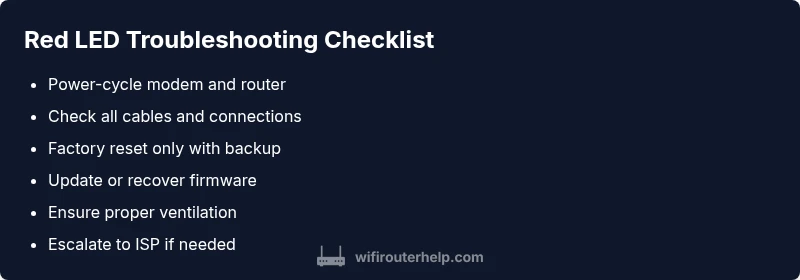
- Power-cycle the entire setup: unplug the modem and router, wait 60 seconds, and plug back in. 2) Re-seat every connection panel and ensure all Ethernet cables are firmly threaded. 3) Do a soft reset via the router’s UI or a hardware reset if you have a backup of configuration. 4) Check for firmware updates or apply a recovery image if the device offers a recovery mode. 5) Ensure the router has adequate ventilation and is not overheating. 6) If the red LED persists, test with a different modem or contact your ISP for line tests. 7) If none of the above works, prepare to replace the device.
Tip: Always back up your current configuration before a reset. This helps you restore settings quickly if the router is red and you must reconfigure.
Safety tips and things to avoid
- Do not attempt to open the device or replace internal components unless you are trained; electric shock risk exists and voids warranty.
- Use the proper power adapter specified by the manufacturer; wrong voltage can permanently damage the router.
- Avoid using aggressive fans or heat sources to cool the device; improper cooling can worsen hardware faults.
- Do not flash firmware from untrusted sources; corrupted firmware can brick the router and intensify red LED issues.
- If you are unsure about the procedure, contact a professional.
The router is red signaling an error—treat the situation with care to avoid data loss or hardware damage.
How to recover from a failed firmware flash
If a firmware flash fails and the router goes red, do not disconnect abruptly. Use the manufacturer's recovery mode if available to reflash a known-good image. If recovery fails, contact support or use a replacement unit under warranty. Always keep a backup of your settings before attempting a flash, and verify the integrity of the image before applying it.
The risk with failed flashes is bricking the device, so follow official recovery steps precisely and do not improvise with third-party firmware unless explicitly supported by your model.
Prevention: how to keep router from turning red again
- Place the router in a well-ventilated area away from heat sources and direct sunlight to minimize overheating.
- Keep firmware up to date with automatic updates or manual checks; enable notifications if offered by the device.
- Use a reliable power supply and avoid power strips that may cause voltage fluctuations.
- Regularly inspect and replace damaged cables; poor connections can cause boot or firmware problems.
- Document changes and maintain a basic recovery plan so you can respond quickly if the router is red again.
WiFi Router Help emphasizes proactive maintenance to reduce red LED incidents.
Documentation and next steps if problems persist
If you still see a red LED after trying the above steps, document the model, firmware version, and error messages you observed. Take photos of LED patterns and timestamped events, and contact your ISP or router manufacturer with this information. If under warranty, request an RMA or replacement unit. The goal is a stable, red-LED-free network, so escalate appropriately if basic troubleshooting fails.
Final note: prevention and steps you can take today
Being proactive matters. Keep a log of LED patterns, firmware updates, and outages. Prepare a simple recovery plan that includes backup configurations and a safe method to perform a factory reset if needed. The most effective defense against the router is to maintain firmware, secure cables, and ensure proper ventilation. Keep your home network running smoothly by following these steps and staying vigilant about unusual LED signals.
Steps
Estimated time: 45-90 minutes
- 1
Power-cycle all devices
Unplug modem and router. Wait 60 seconds. Plug the modem back in, let it stabilize, then power the router. This clears minor boot faults and re-establishes the network handoff.
Tip: Label outlets so you can repeat the sequence if needed. - 2
Inspect and reseat all cables
Check the power adapter, WAN, and LAN cables for visible damage. Reinsert firmly to ensure a solid connection that won’t trigger a red LED due to intermittent contact.
Tip: Swap in a known-good cable to test for cable faults. - 3
Backup and perform a soft reset
If you can access the router UI, back up your current settings. Perform a soft reset to default while preserving your config if possible, then recheck the LED status.
Tip: Take a screenshot of the current settings before resetting. - 4
Check for firmware updates or recovery
Look for a firmware update or use recovery mode if your device supports it. Apply the update or reflash a clean image from the official site.
Tip: Only download firmware from the manufacturer’s site. - 5
Address overheating and ventilation
Ensure the router is in a ventilated area; remove any obstructions blocking vents. If possible, relocate away from heat-producing devices.
Tip: Use a stand or elevated surface to improve airflow. - 6
Test connectivity and, if needed, escalate
After fixes, verify Internet access. If the red LED persists, test with an alternate modem or contact your ISP for line tests or device replacement.
Tip: Document LED patterns and test results to aid escalation.
Diagnosis: Router LED shows solid red and there is no Internet
Possible Causes
- highPower issue
- highFirmware boot error
- mediumOverheating
- lowISP outage or modem incompatibility
Fixes
- easyPower cycle router and modem, then reseat all cables
- mediumReset to factory settings if backups exist, then restore configuration
- mediumUpdate or recover firmware using official tools
- easyCheck ventilation and reduce heat exposure
- mediumTest with alternate modem or contact ISP for line tests
People Also Ask
What does a solid red light on a router mean?
A red LED usually signals a fault that blocks normal operation. Start with power, cables, and firmware checks, then proceed through the diagnostic flow if needed.
A solid red light usually means a fault is blocking operation; start with power, cables, and firmware checks, then follow the diagnostic steps.
Should I reset or power cycle the router first?
Begin with a power cycle of both modem and router. If the red LED persists, back up settings and perform a factory reset if necessary.
Power cycle first, then reset only if needed after backing up your settings.
Can an ISP outage cause a red LED?
Yes, an outage or modem incompatibility can make the router show a red LED. Check your ISP status pages and test with another modem if available.
Outages can cause a red LED; check status pages and test with a different modem if you can.
Is overheating a common cause of a red LED?
Overheating is a common contributor. Ensure ventilation, remove obstructions, and relocate the router if it runs hot.
Yes, overheating is common; improve ventilation and relocate the router if needed.
When should I contact a professional?
If the red LED persists after all safe troubleshooting steps, contact your ISP or a technician for hardware diagnostics or replacement under warranty.
If the red LED won’t resolve after safe steps, contact a professional for hardware diagnostics.
What about firmware updates if the router is red?
Firmware updates can fix boot and stability issues. Use the official site or device UI to update, or perform a recovery flash if supported.
Update firmware from official sources or use recovery options if supported.
Watch Video
What to Remember
- Start with power and cables; red LEDs often point to boot or power issues.
- Back up before factory resets to preserve settings.
- Update firmware only from official sources.
- Ventilate to prevent overheating; avoid placing routers in enclosed spaces.
- If problems persist, escalate to ISP or manufacturer for replacement.