What to Do If Router Is Red: Quick Fixes and Troubleshooting
Urgent, step-by-step troubleshooting for a router showing a red light. Learn safe resets, cable checks, firmware updates, and when to seek professional help.


Very common cause is a connectivity or hardware issue indicated by a red light. Start with a quick power cycle, unplug for 30 seconds, then reconnect. Check all cables, ensure the modem is online, and verify the LED pattern in the manual. If the red light persists after basic resets, update firmware or perform a factory reset as a last resort.
What the red light means and what to do if router is red
When you see a red indicator on your router, it's a warning that something in your home network isn't functioning as expected. If you're wondering what to do if router is red, start with the simplest, safest steps first. According to WiFi Router Help, a red light typically points to a connectivity issue, a power problem, or a failed component inside the device. The goal is to confirm the symptom, rule out easy causes, and prevent unnecessary wear on hardware. Begin with basic checks described in this section, then move to targeted fixes only if the light remains red after you complete safe resets and updates. Keeping a calm, systematic approach helps you avoid guessing and potentially voiding warranties. As you work, note any unusual LED patterns, as many router models encode status into flashing intervals or color changes that map to specific faults.
Quick checks you can perform safely
Before diving into complex troubleshooting, perform quick, safe checks that require no tools. Ensure the router is plugged into a working outlet, and power it off for 30 seconds before turning it back on. Inspect all cables: Ethernet cables between your modem and router should be snug, and the modem's power and data lines should be firmly connected. Look at the modem's status lights; if the modem shows no online signal, your router won't get internet from the source. Verify your computer or phone can reach the router's admin page (often 192.168.x.1); if you can't reach it, the issue may be at the modem or the network upstream. If the red light persists, note the LED pattern (steady, blinking, or alternating colors) as it helps identify the fault in the next steps. Throughout this process, avoid opening the router's chassis or applying non-approved third-party firmware.
Common causes of a red router light
A red router light can stem from several root causes. Common culprits include power issues (a faulty adapter or surge), loose or damaged cables between the modem and router, or an upstream outage from your ISP. Overheating or a hardware fault within the router itself is another frequent reason. Firmware corruption or outdated software can also trigger a red light, as can misconfigured settings like bridge mode or incorrect WAN configurations. Finally, simple placement problems—poor ventilation or blocking airflow—can contribute to overheating and a red indicator. Understanding these causes helps you pick the right fix without unnecessary trials.
How to approach fixes in order (safe, progressive)
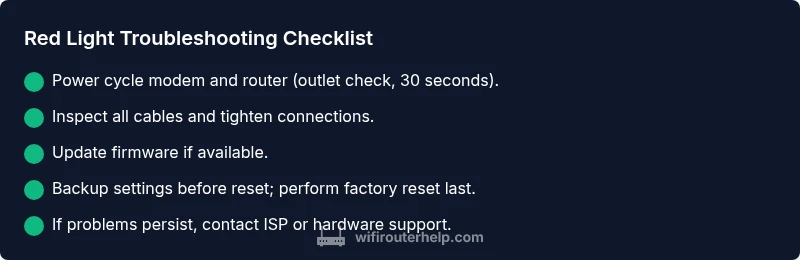
Adopt a progressive, safe approach. Start with the simplest steps, then escalate only if needed:
- Step 1: Power cycle the router and modem in the correct sequence.
- Step 2: Check all physical connections and ensure the modem is online.
- Step 3: Attempt a firmware update from the router's admin page.
- Step 4: If needed, reset the router to factory defaults (after backing up settings).
- Step 5: Re-test the connection and LED status; if it remains red, consider replacing the router or contacting your ISP for upstream issues.
- Step 6: Document each change for future reference and warranty claims. Remember: if the red light persists after these steps, professional help may be required to diagnose a hardware fault or ISP problem.
When to reset vs replace
Factory resets can fix many software-related red-light issues but wipe your customized settings. Use a reset after firmware updates or after simpler fixes fail, and only if you have backup of your configuration. If a reset doesn't restore normal operation, or if the device feels hot, exhibits unusual behavior, or shows hardware faults, replacement may be the most reliable option. Before replacing, test with a known-good spare router or borrow from a friend to verify whether the issue is device-specific or network-related. If the device is under warranty, consult the manufacturer before proceeding with irreversible steps.
Prevention and best practices
Preventing red-light scenarios is easier with good habits. Regularly update firmware and keep your router in a cool, ventilated area away from heat sources and direct sunlight. Use a surge protector to guard against power spikes, and avoid running the network with excessive load during peak hours. Periodically reboot your router to refresh connections, and re-check cable integrity after heavy usage or storms. Finally, document LED patterns and any changes you make so you can quickly reference past fixes if the problem recurs.
Interpreting LED patterns and model differences
LED indicators vary by model, so a red light may carry different meanings across brands. Refer to your model's manual to map colors and flashing patterns to specific faults. If your LED shows a steady red, the problem is likely hardware or ISP-related; blinking patterns may indicate ongoing attempts to reestablish connection. When in doubt, capture the exact pattern (steady, blinking, color) and consult the manual or manufacturer support. WiFi Router Help recommends cross-referencing LED codes with your device's documentation for precise diagnostics.
Steps
Estimated time: 30-45 minutes
- 1
Power cycle the devices
Disconnect the router and modem from power. Wait 30 seconds, then reconnect the modem first, followed by the router. Allow 2 minutes for devices to boot and re-establish connections. Check the LED status again to see if the red light clears.
Tip: Label your power-cycle steps on a sticky note to track progress. - 2
Verify upstream connectivity
Confirm the modem shows online status. If the modem lacks online light or connectivity, the issue likely lies upstream. Contact your ISP for service status or perform a modem reset per their guidelines.
Tip: Use a wired device to test access to the router admin page for reliability. - 3
Update firmware
Access the router’s admin interface and check for firmware updates. If available, install and reboot. Firmware updates can fix known bugs that cause red indicators and improve device stability.
Tip: Only update firmware from the official vendor site or the router’s built-in updater. - 4
Reset to factory defaults (if needed)
If problems persist after updates, perform a factory reset. Back up existing settings if possible, then restore after the reset and reconfigure essential options. This step often resolves deep-seated software conflicts.
Tip: Use the reset button per model instructions; avoid holding it longer than recommended. - 5
Test and reintroduce devices
Reconnect devices one by one and monitor the LED. If the red light returns after a specific device or setting change, isolate that variable. Keep testing until the network stabilizes.
Tip: Document settings you reapply so you can reproduce a stable configuration. - 6
Seek professional help when needed
If the red light persists after all steps, the problem may be hardware or service-related requiring expert diagnosis. Involve your ISP or consider a replacement device under warranty.
Tip: Prepare serial numbers, model info, and screenshots of LED codes for support calls.
Diagnosis: Router shows a red light
Possible Causes
- highPower supply issue or surge
- highLoose or damaged cables
- mediumModem or ISP outage
- mediumOverheating or internal hardware fault
- lowFirmware corruption or outdated firmware
Fixes
- easyCheck power adapter and outlet; replace if damaged
- easyReseat all cables and reboot modem and router in proper order
- easyUpdate router firmware via the admin page, then reboot
- mediumFactory reset after backing up settings if issues persist
- hardConsult ISP or consider hardware replacement if a fault is detected
People Also Ask
What should I do first when my router shows a red light?
Begin with a power cycle, check all cables, and verify the modem is online. If the red light remains, move to firmware updates or a factory reset as needed.
First, reboot everything, check cables, and ensure the modem is online. If it stays red, try updating firmware or resetting the router.
Can a red light indicate a hardware failure?
Yes. A steady red light can point to a hardware fault or overheating. If basic steps don’t help, consider replacement or professional diagnosis.
A red light can mean hardware failure. If simple fixes don’t work, seek professional diagnosis or replacement.
Is there a universal red light pattern?
LED codes vary by model. Check your router’s manual for exact meanings of colors and blinking patterns, then follow model-specific guidance.
LED codes differ by model, so consult your manual for the exact meaning and recommended steps.
When should I contact my ISP about a red light?
If the modem shows offline or the status is degraded after basic resets, contact your ISP to check for outages or upstream issues.
Contact your ISP if the modem is offline or if there’s an upstream outage after basic checks.
Should I reset my router to factory settings?
Only after firmware updates and simpler fixes fail. A reset wipes custom settings, so back up important configurations first.
Only reset to factory settings if other fixes fail. Back up your settings first.
Watch Video
What to Remember
- Start with safe, simple checks before complex fixes
- Identify LED patterns to narrow causes
- Firmware updates can resolve red-light issues
- Factory resets are last resort backups first
- Know when to involve your ISP or replace hardware