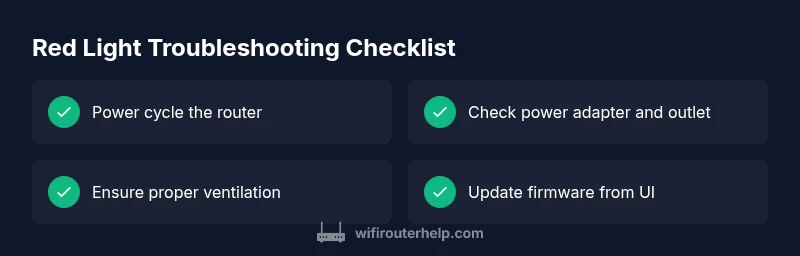
If Router Shows Red Light: Troubleshooting Guide
Learn fast, reliable steps to diagnose and fix a router with a red light. This practical guide covers power checks, overheating, firmware updates, and when to call a pro from WiFi Router Help.


If your router shows a red light, the issue is usually critical: power, overheating, or firmware failure. According to WiFi Router Help, start with a quick power cycle, check the adapter and outlet, and ensure the device isn’t physically hot. If the light stays red, move to a safe reset and then update firmware or contact support.
Why a Red Light Signals a Problem
When you see a red light on your router, it’s a clear signal that something isn’t operating within spec. The indicator is designed to alert you to issues that can range from simple power glitches to serious hardware faults. The phrase if router shows red light is a clue that immediate checks are required. According to WiFi Router Help, most red lights are fixable without special tools, but success depends on acting quickly and methodically. In the sections that follow, you’ll learn how to distinguish power, ventilation, and firmware problems from true hardware failures, and how to escalate when necessary. Keep in mind that the red light often accompanies connectivity outages, so you’ll want to document timestamps and error messages for reference. Start by noting when the light first appeared, what devices were connected, and any recent changes to your network. This baseline helps pinpoint whether the issue is temporary or persistent, which guides your next steps.
Quick, Safe Checks You Can Do Right Now
Before diving into advanced troubleshooting, perform these quick, non-destructive checks. Ensure your device is powered off, unplug the power adapter, and inspect the outlet for stability. Reconnect the adapter firmly and watch the LED as you restore power. If the router warms up quickly or the light changes color, give it a full minute to settle. WiFi Router Help notes that a calm, stepwise re-boot reduces risk of corrupting settings. If you have a spare power adapter that matches the rating, try it to rule out a faulty supply. Also verify the cable connections between the modem and router; a loose Ethernet cable can trigger odd LED behavior even when the device boots normally. If the red light persists after these checks, document the exact pattern and proceed to the diagnostic flow.
Diagnostic Flow: Symptom to Diagnosis
This section outlines a practical decision tree to identify the root cause. Start with the simplest explanation: a power issue or ventilation problem, which have the highest likelihood. If the red light remains after a clean reboot, rule out overheating by feeling the chassis and checking for blocked vents. Next, test firmware state by accessing the router’s web interface and looking for error codes or a stale version. If the interface is inaccessible, or you see consistent error codes after reboot, the issue leans toward firmware or hardware fault. Finally, if you have attempted all steps and the light returns, it is time to consider hardware replacement. WiFi Router Help’s comprehensive approach emphasizes documenting symptoms, timestamps, and the exact steps you took, so you can communicate clearly with support if needed.
Step 1: Power, Cables, and Ventilation
The most common cause of a red light is a flaky power supply. Check that the router’s power adapter matches the model’s rated voltage and amperage. Try a different outlet away from power strips and surge protectors to rule out electrical noise. Re-seat all cables between the modem and router and ensure Ethernet connections are snug. Ventilation matters too; a blocked vent or a warm room can trigger protective LEDs. Place the router upright on a hard surface with at least a few inches of clearance. If the device still shows red, proceed to a soft reset and firmware inspection.
Step 2: Soft Reset and Firmware Check
If you haven’t already, perform a soft reset (power cycle) and then attempt to access the router’s admin interface. Check the current firmware version and apply any available updates. Always back up your existing settings before updating. If the interface is reachable and shows no critical errors, but the red light remains, investigate configuration issues or a corrupted cache. If the interface is unreachable due to the red LED, move to Step 3 for a more robust reset.
Step 3: Hard Reset and Reconfiguration
Proceed with a factory reset only if firmware updates fail or the settings appear corrupted. This clears all custom configurations, so you’ll need to re-enter your network name (SSID) and password, reconfigure security, and reapply any custom rules. Have your ISP settings handy in case they’re required for re-authentication. Perform the reset with the device plugged in to prevent power loss mid-reset, and then test connectivity before restoring backups. If the red light persists after a hard reset, the fault is unlikely to be simple misconfiguration.
Step 4: Hardware Check and Replacement Considerations
If the router still shows red after a full reset and firmware attempt, you should consider possible hardware failure. Look for physical signs like bulging components, cracks, or abnormal heat. Check your warranty status and the model’s age—many manufacturers offer exchanges or discounted replacements for failing hardware. If you rely on critical connectivity, plan a timely upgrade to a newer model with better reliability and security features. In some cases, a refurbished unit or a higher-end router with enhanced cooling is a sensible investment.
Prevention and Safe Habits to Avoid Future Red Lights
To reduce the risk of future red LEDs, implement routine maintenance: keep firmware up to date, place the router in a well-ventilated area, avoid long uptime gaps without reboots, monitor temperature, and schedule periodic reboots. Use a surge protector that provides clean power, and back up configurations before any major changes. WiFi Router Help recommends setting a reminder to check firmware every 3–6 months and to review connected devices for unusual activity. By establishing these habits, you’ll minimize the chance of surprise red lights and outages.
What to Do If the Red Light Persists: When to Call for Help
Even after exhaustive DIY steps, some red lights require professional evaluation. If symptoms persist after updates, resets, and hardware checks, contact your ISP or router manufacturer for a hardware diagnostic. Note any error codes, LED patterns, and timestamps to speed up troubleshooting. The WiFi Router Help team recommends documenting all steps and seeking warranty service when applicable. If you’re unsure about hardware integrity, consult a certified technician or your warranty provider before investing in a replacement.
Steps
Estimated time: 60-90 minutes
- 1
Power cycle and verify
Unplug the router for 10 seconds, then plug back in and observe the LED as it reboots. Confirm the light pattern matches the expected idle state before proceeding.
Tip: Keep a note of the exact LED sequence during power-up. - 2
Check cables and ventilation
Inspect all cables between modem and router. Ensure vents are clear and the device isn’t placed on a soft surface that blocks airflow.
Tip: Place the router on a hard, elevated surface for better cooling. - 3
Access firmware and backup
Log into the router’s admin page. Check firmware version and back up current settings before applying updates.
Tip: If you can’t access the UI, stop and move to a more robust reset. - 4
Apply firmware update
If an update is available, apply it and monitor the reboot process. Don’t interrupt power during the update.
Tip: Use a stable power source during the update. - 5
Hard reset if needed
Perform a factory reset if the red light persists after firmware attempts. Re-enter your network details and security settings after reset.
Tip: Only reset after you’ve saved essential settings. - 6
Assess hardware health
If issues continue, inspect for physical damage or age-related failure; check warranty status.
Tip: If under warranty, replace through official channels.
Diagnosis: Router LED shows red and devices won’t stay online
Possible Causes
- highPower issue (faulty adapter or outlet)
- highOverheating or blocked ventilation
- highFirmware crash or corrupted settings
- lowHardware fault on the router board
Fixes
- easyCheck the power adapter and outlet; try a different outlet
- easyClear vents and ensure adequate cooling; allow device to cool
- easySoft reset, then update or reinstall firmware via the web UI
- mediumFactory reset and reconfigure; if persists, contact support for replacement
People Also Ask
What does a red light on my router mean?
A red LED typically signals a hardware or firmware fault, not just a minor glitch. Begin with power, cooling, and firmware checks before seeking replacements.
A red LED usually means a hardware or firmware fault. Start with power, cooling, and firmware checks before replacing the device.
Should I unplug the router if the light is red?
Yes, perform a safe power cycle by unplugging for a short period, then reconnect. Do not unplug during a firmware update.
Yes, start with a safe power cycle and reconnect. Don’t unplug during a firmware update.
What if the red light goes away after reset?
If the light disappears, monitor the device for a while. If it returns, there may be underlying instability or hardware issues.
If it goes away after reset, watch it closely; if it returns, there may be deeper issues.
Can firmware updates fix red-light issues?
Firmware updates can fix corruption issues that trigger red lights, but you must ensure a stable power supply during the process.
Firmware updates can fix red-light problems if power stays stable during the update.
When should I replace my router?
If the red light persists after all troubleshooting steps and hardware is suspected, replacement is often the best option.
If it still red after all fixes, replacing the router is usually best.
Who should I contact for persistent red lights?
Begin with the manufacturer or ISP support for diagnostics under warranty; escalate to a local technician if needed.
Contact the manufacturer or ISP for diagnostics first; a technician may be needed if under warranty doesn't apply.
Is a red light always an emergency?
Not always, but treat it as urgent. Prolonged red lights can indicate a risk to network security and device integrity.
It's urgent, especially if it lasts; treat it seriously to protect your network.
What indicators should I document for support?
Note LED patterns, timestamps, recent changes, connected devices, and any error codes shown in the router UI.
Document LED patterns, times, changes, connected devices, and error codes for faster help.
Watch Video
What to Remember
- Power cycle first to rule out simple issues
- Check ventilation to prevent overheating
- Back up settings before resets or updates
- Firmware updates fix many red-light problems
- If red light persists, consider replacement or pro help