Red Light on Router: Troubleshooting Guide
Struggling with a red light on your router? This urgent, step-by-step guide helps homeowners diagnose and fix the issue fast, with safety tips, common causes, and prevention for a stable home network.


When you see a solid red light on your router, act quickly: power cycle the unit, inspect cables, and check for overheating or service outages. If the red light persists, progress to the diagnostic flow and step-by-step fixes, prioritizing power and cable integrity first. WiFi Router Help recommends starting with basic checks before more invasive actions.
Understanding the red light on router
According to WiFi Router Help, a solid red light on your router almost always signals a hardware fault or a blocked internet connection. The red light on router status is not universal—different brands use various LED color codes—but a red LED is the most serious color you’ll see. If you’re facing this, act quickly to restore service and prevent potential hardware damage. The WiFi Router Help team found that most red-light problems stem from power problems, cable faults, or overheating, and can often be resolved without factory resets. In this guide, we’ll walk you through a fast, safe diagnostic process that prioritizes safety and stability. You’ll learn how to distinguish between a minor hiccup and a deeper fault, plus practical steps you can take today to regain reliable connectivity.
Quick checks you can do in 5 minutes
- Verify the router is plugged into a known-good outlet and that the power adapter is firmly connected. A loose plug or damaged brick can trigger a red light and a failure to boot. If you notice warmth or unusual smells, power off and let the device cool before testing again.
- Inspect all cables entering the router: power, WAN/LAN, and any fiber or DSL line. Re-seat connections, replace visibly frayed cables, and avoid using damaged splitters. A single loose or damaged cable is a common cause of persistent red lights.
- Ensure the router isn’t overheating. Provide proper ventilation, keep it off soft surfaces like carpet, and remove any obstructions around air vents. Overheating can cause red indicators and degraded performance even if the device boots.
Diagnostic flow: symptom → diagnosis → solutions
A red light usually triggers a short diagnostic loop: first confirm power and cooling, then test connectivity. If power is stable and the device is cool, rule out a misconfigured WAN port or a firmware issue. If multiple LEDs behave differently, there may be a hardware fault. WiFi Router Help analysis shows that firmware problems, power issues, and cabling faults are the most frequent root causes, so start with these areas.
Step-by-step: most common causes
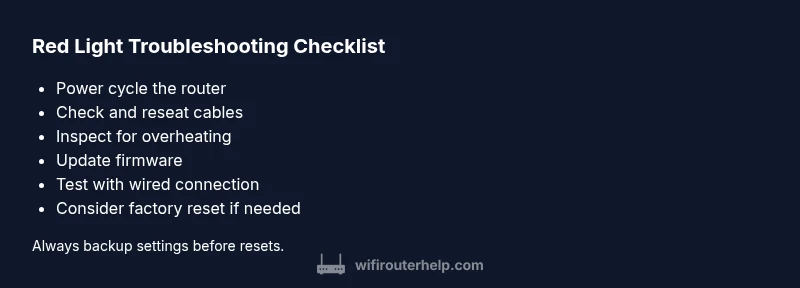
- Power cycle the router: unplug, wait 30 seconds, plug back in. This clears transient faults and reinitializes hardware.
- Check cables: reseat the power, WAN, and LAN cables; replace any frayed or bent connectors to restore a clean signal path.
- Inspect for overheating: ensure the router has space to vent and is not enclosed in a cabinet or covered by a cloth.
- Access the admin interface: confirm WAN status, device uptime, and error logs. If you can login, check for a firewall block or misconfigured DNS.
- Update firmware: install the latest firmware from the manufacturer’s site or admin panel to fix known bugs that trigger red lights.
- Test with a wired connection: connect a computer directly via Ethernet to see if the issue is wireless or broad.
- Factory reset if needed: only after backing up settings; a reset can resolve firmware corruption but will erase custom configurations.
Tip: If the red light keeps returning after a reset, this indicates a hardware fault or an ongoing service problem and will require professional support.
Safety, warnings, and when to call a professional
Always power off the device before inspecting internals or cables beyond the obvious external connections. Do not attempt to open the router’s enclosure while plugged in, and avoid trying makeshift repairs that involve metal tools. If you observe burning odor, smoke, or buzzing, unplug immediately and contact a professional. If steps 1–7 do not restore service, it is time to involve your ISP or a certified technician for deeper diagnostics and potential replacement.
Prevention and maintenance to avoid red lights
Schedule routine maintenance for your network: keep firmware updated, use quality power and network cables, and ensure adequate ventilation. Place routers in open spaces away from heat sources, and periodically review the device logs for unusual activity. By establishing a simple maintenance routine, you’ll reduce the odds of encountering a red light and preserve both performance and longevity.
Steps
Estimated time: 25-40 minutes
- 1
Power cycle the router
Unplug the router, wait 30 seconds, and plug it back in. Listen for startup chimes and watch for LEDs to stabilize. This resets power rails and clears transient faults.
Tip: Keep a consistent 30-second wait to ensure a full reset. - 2
Check external cables
Verify the power brick is correct for the model and that WAN/LAN cables are firmly seated. Replace any visibly damaged cables and avoid using damaged adapters.
Tip: Use the original power adapter if possible. - 3
Assess overheating and environment
Ensure the router has open air around vents and is not trapped in a cabinet or under a stack of books. Move to a cooler, well-ventilated spot if temps seem high.
Tip: Allow 5–10 minutes of fresh air after a power cycle to stabilize. - 4
Check the admin page for status
Log in to the router’s admin interface and inspect WAN status, uptime, and system logs for errors or blocked services. Save a screenshot if you need to share data.
Tip: Know your admin credentials before starting. - 5
Update firmware or perform a reset
If available, apply the latest firmware. If config corruption is suspected, back up settings and perform a factory reset, then reconfigure carefully.
Tip: Back up configurations before reset to speed recovery. - 6
Test with wired connection
Connect a PC directly via Ethernet to determine if the issue is wireless or network-wide. If wired work but wireless fails, focus on WLAN settings.
Tip: Disable guest networks temporarily to simplify testing. - 7
Escalate if needed
If red lights return after all steps, contact your ISP or a trained technician to diagnose hardware faults or line quality.
Tip: Document serial numbers and firmware versions for quicker support.
Diagnosis: Router shows a solid red light and no internet connectivity
Possible Causes
- highPower issue (outlet, adapter, or surge)
- mediumOverheating or hardware fault
- mediumFirmware corruption or misconfiguration
- highWAN/Internet service outage or line issue
- lowLoose or damaged cables
Fixes
- easyPower cycle the router: unplug for 30 seconds, then plug back in
- easyInspect and reseat all cables; replace damaged cables
- easyVentilate the router and remove obstructions to cooling
- mediumUpdate firmware or perform a factory reset if permitted
- easyConfirm service status with your ISP; test with a wired connection
- hardIf issues persist, contact a professional or your ISP for deeper diagnostics
People Also Ask
What does a red light on my router mean?
A red light often signals a hardware fault or a connectivity issue. It varies by brand, but it usually indicates a problem preventing access to the internet. Start with power, cables, and firmware checks before deeper troubleshooting.
A red light usually means a hardware or connection problem. Start with power and cables, then check firmware if needed.
Can a service outage cause a red light?
Yes. If your ISP is experiencing an outage, the router may show a red light due to loss of WAN connectivity. Check service status with your provider and test with a wired connection when possible.
An outage can cause a red light due to WAN loss. Check with your provider and test with Ethernet.
Should I reset my router to fix a red light?
Resetting can fix firmware or configuration issues but will erase custom settings. Always back up your configuration before a factory reset and reconfigure carefully afterward.
Reset if necessary, but back up settings first and reconfigure slowly.
Why does the red light keep returning after fixes?
If the red light returns, the issue is likely hardware fault or external line problem. A technician or ISP diagnostic is often required to replace hardware or fix the line quality.
If it keeps coming back, you probably have a hardware fault or line problem that needs a pro.
Is it safe to open the router to inspect cables?
No. Do not open the chassis or touch internal components. Power down first and rely on external checks and professional service for internal inspection.
Don’t open the router; power down and use external checks first.
When should I contact a professional?
If the red light remains after all standard checks and firmware updates, or if you notice hardware damage or unusual heat, seek professional diagnosis or replacement.
Call a pro if the red light persists after steps, or if you see damage or overheating.
Watch Video
What to Remember
- Power cycle and cable checks first
- Red light usually signals hardware or connectivity faults
- Keep firmware up to date to prevent repeats
- Escalate to ISP or technician if unresolved