What Happens When the Router Turns Red: A Fast Troubleshooting Guide
Learn why a red router light appears, what it signals, and step-by-step fixes to restore your home network quickly. Safe checks, diagnostic flow, and when to call a pro.


When the router turns red, it usually signals a critical connectivity or power issue rather than a routine status alert. Start with a safe power cycle and basic checks: unplug, replug, verify the power adapter, and confirm cables are seated. If the red LED persists after those steps, you’re likely facing an ISP outage, firmware fault, or hardware problem that needs deeper inspection.
What happens when the router turns red
When a router indicator turns red, it’s signaling an abnormal condition that interrupts normal online activity. This isn’t just a cosmetic LED blink; it’s the device’s way of saying something serious is wrong. The phrase what happens when the router turns red captures a situation that homeowners and tech enthusiasts must diagnose quickly. According to WiFi Router Help, red LEDs often point to power faults, overheating, firmware crashes, or an ISP outage. The WiFi Router Help team found that most red-light issues are solvable with a structured checklist, rather than an automatic replacement. Stay focused on safe, incremental steps and document what you try so you don’t miss a pattern that matters.
Key reminder: never bypass basic safety checks. If you smell burning, hear unusual buzzing, or see smoke, unplug immediately and seek professional help. This guide sticks to safe, practical steps you can perform at home.
Common red-light indicators and their meanings
Routers use different LED patterns to communicate status. A steady red light often means there is no internet connection or a device fault. A blinking red light can indicate a boot loop, firmware crash, or failed update. If the red light changes pattern when you perform certain actions (like plugging in a cable or rebooting), it helps narrow down the cause. While each brand has its own conventions, the general rule is: red signals something requiring attention, not a minor warning. If you recently updated firmware and the red light appeared afterward, the update may have failed or left the device in an unstable state. Always cross-check against your router’s manual or official support page for precise LED meanings while you work through the steps.
Quick checks you can perform safely
Before getting into deep troubleshooting, perform a few safe, non-invasive checks:
- Power cycle: unplug the router and modem for 60 seconds, then plug back in and power on.
- Cable sanity: ensure the power adapter is the correct model, and all Ethernet and coaxial cables are firmly seated. Look for frayed cords or discoloration.
- Ventilation: make sure the router is in an open space with adequate airflow. Overheating can trigger red indicators.
- Test wired connectivity: connect a laptop directly to the router with an Ethernet cable to rule out Wi‑Fi-specific issues.
- Disable unnecessary features: if a guest network or VPN is active, try disabling it temporarily to see if the red light clears. If not, proceed with the diagnostic flow.
Diagnostic flow overview: symptom to solution
This section maps a practical troubleshooting path from symptom to solution. Start with the simplest checks and progressively tackle more complex causes. The flow is designed to help you classify the red light as power, connectivity, firmware, or hardware related. For each branch, the recommended fixes escalate from easy (re-seat cables) to medium (factory reset) to hard (replacement hardware). By following a structured path, you reduce guesswork and stay organized. WiFi Router Help emphasizes documenting each step so you can share a log with support if needed.
Step-by-step fixes for the most common cause (power/overheating)
- Step 1: Confirm power supply and outlet functioning. Use a different outlet if the current one seems unstable. Ensure the adapter matches the model’s specifications. Tip: avoid power strips with surge protection when testing.
- Step 2: Check for overheating and improve ventilation. Move the router away from walls and direct heat sources. Remove any obstructions and ensure vents are unobstructed. Tip: place the unit on a hard surface, not a soft cushion.
- Step 3: Reseat all cables and connections. Unplug and re-insert the power, WAN, and LAN cables to ensure firm contacts. Tip: inspect for bent pins or damaged connectors.
- Step 4: Power cycle the modem and router in sequence. Power off the modem first, wait 30 seconds, then power on the modem, wait a minute, then power on the router. Tip: if you have a combination device (modem/router), perform both choke points in the sequence.
- Step 5: Check for firmware issues. If your router has a web interface, view the status page for error logs or a failed update indicator. If a firmware corruption is suspected, proceed to a safe reset.
- Step 6: Perform a factory reset if safe. Only do this if you’ve backed up settings. After reset, reconfigure the essential parameters: WAN type, SSID, password, and security settings. Tip: keep a copy of your current DNS and DHCP settings.
- Step 7: Test WAN connectivity with a wired device. If the wired connection works, the issue is likely wireless; if not, there may be a broader service or hardware problem. Tip: check service status on your ISP’s site or mobile app.
- Step 8: Contact ISP or hardware support. If the red light persists after a full reset and firmware update, you may have a defective device or an outage. Tip: document your steps and the LED behavior to speed up diagnostics.
Safety tips and when to call a pro
- Always unplug devices before inspecting power or cables. Do not use metal tools to poke inside ports.
- If you smell burning or see smoke, power down immediately and contact a professional.
- Do not attempt to bypass safety features or open the device enclosure. Warranty may be affected and internal components can be hazardous.
- If you’re unsure about wiring or service configuration, seek professional help rather than guessing.
Prevention: keeping your router healthy
Proactive maintenance reduces the chances of a red light reappearing. Keep firmware up to date, schedule regular reboots, and monitor temperature. Ensure adequate ventilation and avoid placing routers near heat sources or thick walls. Test your internet connection periodically with a wired device to catch issues early. Consider enabling status alerts via your router’s app so you’re warned before the LED turns red. Regular backups of settings ensure quick recovery after resets.
When to replace vs repair
If your router is several years old and repeatedly flashes red despite multiple resets and firmware updates, it may be past its useful life. A hardware fault in the processor or memory can be costly to fix compared to a replacement. In many cases, upgrading to a newer model with better heat management and newer security features is the most cost-effective solution. Always compare warranty terms and total cost of ownership before deciding.
Conclusion and next steps
A red router light is a clear call to action, not a mystery. By following a structured diagnostic flow and safe step-by-step fixes, you can usually restore service without unnecessary downtime. If the problem persists, enlisting ISP support or professional repair is the prudent route to prevent longer outages and data risks. The WiFi Router Help team recommends keeping a running log of LED patterns and fixes to shorten future troubleshooting sessions.
Steps
Estimated time: 45-60 minutes
- 1
Power cycle the devices
Unplug the router (and modem if separate) for 60 seconds. Plug the modem back in, wait for its lights to stabilize, then power the router. This clears minor glitches and resets connections.
Tip: Timing matters; don’t rush the gap between power cycles. - 2
Inspect power and cables
Check the power adapter for damage and ensure all cables are firmly seated. Replace a frayed power cord or mismatched adapter to rule out simple faults.
Tip: Use the original adapter if possible for compatibility. - 3
Ventilate and test for overheating
Move the router to an elevated, open position with airflow. If it feels hot to touch, give it time to cool before retesting. Overheating can trigger red LED warnings.
Tip: Never obstruct vents or place on soft surfaces. - 4
Test wired connectivity
Connect a laptop directly to the router with an Ethernet cable to determine if the problem is Wi‑Fi specific or system-wide.
Tip: If wired works, focus on wireless settings and interference. - 5
Reset or update firmware
If the admin interface is accessible, check for updates or perform a factory reset after backing up settings. Refreshing firmware can resolve many issues.
Tip: Backup important configs before a reset. - 6
Isolate the issue
Disable guest networks, VPNs, and firewall rules temporarily to see if they affect the LED status or traffic flow. Re-enable them one by one to identify culprits.
Tip: Document configurations to restore later. - 7
Verify service status
Check your ISP's status page or mobile app for outages in your area. An external outage explains a red light even after local fixes.
Tip: If outage is reported, it’s often a waiting game. - 8
Call for help
If the red light remains after all steps, contact your ISP or device manufacturer support. Provide your LED pattern, steps taken, and model number to speed up service.
Tip: Have the serial number handy when you call.
Diagnosis: Router indicator turns red and the device won’t pass traffic
Possible Causes
- highPower issue (faulty adapter or outlet)
- mediumOverheating due to blocked ventilation
- mediumFirmware crash or failed update
- highISP outage or service disruption
Fixes
- easyVerify power supply and outlet; try a different outlet and replace damaged cables
- easyPower cycle modem and router in sequence; wait 60 seconds between power cycles
- mediumUpdate or reinstall firmware via the router’s admin interface; perform a factory reset if necessary
- easyCheck ISP status pages and test with a wired device to confirm whether the outage is external
People Also Ask
What does a red light on my router usually mean?
A red light typically signals a serious issue, such as a power problem, overheating, firmware fault, or an ISP outage. Start with basic safety checks and a power cycle, then follow the diagnostic flow to identify the cause.
A red light usually means a serious issue like power or internet outage. Start with safety checks and a reboot, then work through the steps to identify the cause.
Can a red light indicate a hardware failure?
Yes, persistent red lights after basic troubleshooting can indicate a hardware fault. If the light remains red after firmware updates and resets, replacing the unit may be necessary.
Yes, a persistent red light after basic fixes can mean a hardware failure. If it stays red after updates and resets, consider replacement.
Is it safe to reset my router when the light is red?
Resetting can fix many issues, but you should back up important settings first. A factory reset wipes custom configurations, so you’ll need to reconfigure network name, password, and WAN settings afterward.
Resetting can help, but back up settings first because a factory reset erases custom configurations.
Should I contact my ISP when the light is red?
If the diagnostic flow points to an outage or you cannot restore service after local fixes, contact your ISP. They can verify outages, line issues, and account-specific problems.
If the problem seems external, contact your ISP to check outages or line issues.
How long does it typically take to fix a red light issue?
Fixes can range from 15 minutes for basic reboots to an hour or more for firmware updates or outages. Some issues require waiting on an ISP repair window.
Most fixes take 15 minutes to an hour, depending on the cause and whether an ISP outage is involved.
Can overheating cause a red light?
Yes. Overheating can trigger red indicators. Improve ventilation, keep vents clear, and avoid placing the router on soft surfaces or near heat sources.
Overheating can cause a red light. Improve airflow and keep vents clear.
Watch Video
What to Remember
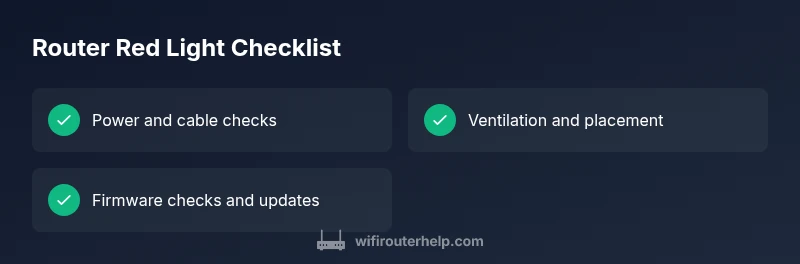
- Act quickly but safely with power cycles and cable checks
- Different red patterns point to different root causes
- Firmware and ISP status are common culprits
- Document steps and LED behavior for faster support