When the Router Displays a Red Light: Fast Troubleshooting Guide
Urgent guide to diagnose and fix a red light on your router, restore connectivity, and prevent outages. Learn safe fixes from WiFi Router Help.


For those asking when router is red light, the quickest fix is to power cycle, check the power adapter, and confirm a solid WAN connection. The red LED usually signals a power or connectivity fault rather than a failing device. Start with basic checks like cables and outlets, then follow the diagnostic flow to resolve the issue quickly. If it persists, move into deeper troubleshooting.
What the Red Light Means on Your Router
The red light on your router is a red flag that something in your home network is currently misbehaving. When router is red light, it often points to a power fault, a lost internet signal, or a hardware fault rather than a simple configuration error. WiFi Router Help emphasizes that the red indicator should trigger a calm, methodical check rather than panic. Start with the basics: confirm the unit is plugged into a known-good outlet, verify the power brick, and inspect the cables leading to and from the device. If the red light persists after a power cycle, you may be dealing with an overheating condition, a firmware crash, or a service interruption from your ISP. Recognizing these common causes helps you triage quickly and avoid unnecessary resets. In most homes, a red light appears after a surge or a temporary loss of signal, not from a single faulty port.
This section will prepare you to interpret the LED patterns and to apply the right fixes without guesswork.
Immediate Actions You Can Take Right Now
When you first notice a red light, act quickly but calmly. Here are immediate actions that usually yield fast results:
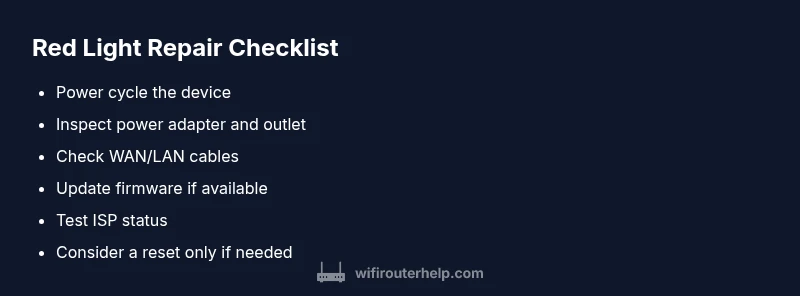
- Power cycle the router: unplug for 30 seconds, then plug back in.
- Check outlets and the power adapter for damage or loose connections.
- Inspect cables (Ethernet and WAN) for wear or loose ends.
- Ensure the router isn’t overheating; vents should be clear and unblocked.
- If the indicator remains red after these checks, proceed with the diagnostic flow.
Do not rush to a factory reset before you’ve ruled out simple issues. This saves time and preserves your settings when possible.
Diagnostic Flow: From Symptom to Solution
This flow guides you from symptom to solution in a repeatable sequence. It helps you diagnose whether the red light is a power, signal, or hardware fault, so you apply the right fix at the right time. Start with power checks, then move to interconnections, then test the service signal. If you reach the firmware or hardware fault stage, escalate to the appropriate fix or professional help.
Key steps include verifying power and LEDs, testing the WAN/Internet light, confirming service status with the ISP, and attempting a firmware update or reset as a last resort. By following a clear path, you avoid unnecessary trials and reduce downtime.
Remember: if the red light indicates a hardware fault or persistent outage, professional support may be needed to avoid further damage.
Step-by-Step Fix for the Most Common Cause: Power-Related Failures
This section provides a detailed, actionable sequence focused on the most frequent cause of a red light: power issues. Each step includes a concrete action and a quick check to confirm progress.
- Power cycle the router: unplug, wait 30 seconds, replug.
- Inspect the power adapter and outlet for damage or looseness.
- Replace the power adapter with a known-good unit if available to rule out a faulty brick.
- Re-seat all cables; ensure the WAN and LAN cables are firmly connected.
- Check for overheating: move the router to a cooler, well-ventilated area and ensure vents are clear.
- If the light remains red, proceed to firmware checks or a factory reset as needed.
Tip: Keep a log of the LED behavior after each step to identify patterns quickly.
Safety, Warnings, and When to Call a Pro
Working with networking hardware is generally safe, but there are key safety notes. Do not open the router’s casing; internal components can be damaged and warranties may be voided. Avoid handling damaged power supplies. If you suspect a hardware fault or the red light persists after all basic fixes, contact the manufacturer’s support or your ISP for service diagnostics. In cases of frequent surges or unusual heat, professional evaluation is advised to prevent fire risk and equipment damage.
Prevention: How to Avoid Red Lights in the Future
Prevention matters as much as troubleshooting. Regularly update firmware to close security gaps and fix bugs that can trigger red indicators. Place the router in an open, elevated location to improve cooling and signal distribution. Use quality power supplies, avoid power surges with a surge protector, and periodically inspect cables for wear. Schedule a quarterly reboot routine and monitor LED patterns to catch anomalies early.
When to Replace Your Router: Signs It’s Time
A red light that returns after multiple fixes may indicate aging hardware or a failing port. If performance remains unstable after firmware updates and resets, or you experience frequent outages despite a healthy service, it may be time to replace. Consider a model with improved power efficiency and better thermal management for future reliability. WiFi Router Help recommends evaluating a replacement based on uptime history, feature needs, and budget rather than chasing symptoms indefinitely.
Steps
Estimated time: 15-25 minutes
- 1
Power cycle the router
Unplug the unit, wait 30 seconds, then plug it back in. Give the device 60 seconds to boot and re-establish connections. Watch the LED sequence for changes.
Tip: If you have a power strip, plug directly into the wall outlet to rule out strip issues. - 2
Verify power and LEDs
Confirm the power indicator is steady and matches the expected color. If the LED color or pattern is inconsistent, the power supply or internals may be failing.
Tip: Take a clear photo of the LED pattern to share with support if needed. - 3
Check all physical connections
Inspect all cables for wear or looseness. Re-seat WAN and LAN cables, and ensure the modem (if separate) is working properly.
Tip: Replace frayed cables to reduce intermittent faults. - 4
Test connectivity with a wired device
Temporary switch a laptop or PC to a wired connection to determine if wireless is the issue or the entire network is down.
Tip: If wired works but Wi-Fi is down, focus on wireless settings later. - 5
Update firmware or reset to factory settings
If the problem persists, perform a firmware update from the router’s admin page. As a last resort, back up your config and reset to factory defaults.
Tip: Back up important settings before a reset. - 6
Reassess service status and hardware health
After fixes, test again and verify service status. If red light recurs, consider hardware diagnosis or professional help.
Tip: Document steps taken to speed up support calls.
Diagnosis: Router shows red light and no Internet
Possible Causes
- highPower issue or unstable power supply
- mediumOverheating due to blocked vents or heavy load
- mediumFirmware crash or corrupt settings
- lowISP outage or line fault
Fixes
- easyUnplug router, wait 30 seconds, and power cycle
- easyCheck power adapter and outlet; try a known-good adapter
- easyInspect ventilation and ensure vents are clear
- mediumUpdate firmware from admin page and reset if needed
- easyCheck service status with ISP or run a line test if outage suspected
People Also Ask
What does a red light on my router indicate?
A red light usually signals a power or connectivity problem. Start with power checks, verify cables, and confirm service status before diving into advanced fixes.
A red light usually means a power or connectivity problem. Start with simple checks like power, cables, and service status before deeper fixes.
My router shows a red light even when powered; what should I do first?
Begin with a power cycle, verify the adapter, inspect cables, and ensure adequate ventilation. If the light persists, follow the diagnostic flow.
Start with power cycling, check the adapter and cables, and make sure the router isn’t overheating. If it stays red, proceed with the diagnostic flow.
Can an ISP outage cause a red light?
Yes. An ISP outage or line fault can trigger the red light if the modem loses signal. Check service status with your provider before further fixes.
Yes, an outage can cause a red light because the connection to your modem is lost. Check your provider’s status page first.
Is it safe to reset the router to fix a red light?
Factory resets can fix corrupted settings but erase custom configurations. Back up settings first and be prepared to reconfigure after the reset.
Resetting can fix it, but you’ll lose custom settings. Back up your config first and be ready to set things up again.
What should I check if overheating causes a red light?
Ensure proper ventilation, remove dust, and avoid placing the router on fabric or in enclosed spaces. Overheating can trigger red indicators.
Make sure the router has airflow and isn’t covered by fabric. Overheating can cause a red light to appear.
When should I contact a professional or the manufacturer?
If troubleshooting fails to resolve the red light or you suspect hardware faults, contact support for advanced diagnostics or replacement options.
If fixes don’t work, reach out to support for professional diagnostics or replacement options.
Watch Video
What to Remember
- Power cycle first; it fixes many red-light issues
- Verify power, cables, and ventilation before resets
- Check ISP status if outages are suspected
- Firmware updates improve reliability and reduce errors