Router blinking red: Fast Troubleshooting Guide
If your router is blinking red, this urgent guide walks homeowners through quick checks, safe fixes, and escalation steps to restore internet access quickly and safely.


Quick answer: A red blinking router usually signals a power or connectivity issue, not a hardware failure. Start with safe checks: confirm the router is plugged in, the power adapter works, and all cables are firmly connected. If the blink persists, perform a reboot. Only consider a factory reset if the device remains unresponsive after a restart.
Why the router is blinking red matters
When the router is blinking red, it usually means something requires your attention right away. The exact pattern can help diagnose the problem, but in most homes a red blink indicates a power issue, a WAN connectivity problem, or a software fault that blocks normal operation. If the router is blinking red, prioritize basic checks before digging into advanced diagnostics. This is not something to ignore, because extended outages can affect work, schooling, and smart home devices.
Common responses like a simple reboot can fix many blink patterns, but others require careful steps to avoid data loss or misconfiguration. For homeowners, understanding the LED behavior helps you decide when to escalate. The router is blinking red message is more actionable when you know what to test first: confirm power stability, verify cables, and rule out ISP problems before diving into settings. If you notice the LED blinks in a particular rhythm, map it to a guide in your manual or this troubleshooting article. The bottom line: treat a red blink as a sign that something is not healthy, and approach the fix systematically.
Quick checks you can perform safely
- Verify the router is plugged into a live outlet and the power indicator is steady after a few seconds.
- Inspect the power adapter for damage and ensure it matches the router’s power requirements.
- Look at the cables: secure Ethernet cables to the correct ports and ensure the modem's coax/line is solid.
- Check the modem status: if the modem shows no online light, contact your ISP or wait for an outage report before testing the router.
- Try a simple reboot: unplug both devices, wait 15 seconds, plug the modem back in, wait for it to initialize, then power on the router.
- Avoid pressing reset unless you’re prepared to reconfigure; a reset can erase custom settings and port forwards.
If you still see a red blink after these steps, move to the next level of checks and consult the official guides for your model.
Diagnostic flow you can follow
This section maps a practical path from symptom to solution. Start with visible cues, then test connectivity, and finally address configuration or firmware.
- Observe: Note the blink pattern (continuous, intermittent, rapid), and whether any other LEDs indicate status.
- Check power and cables: Inspect outlets, adapters, and all physical connections.
- Test connectivity: Can devices reach the router’s admin page? Is the WAN/Internet light on?
- Rule out external issues: Run a quick ISP outage check or contact support if the service is down.
- Iterate: If rebooting helps but issues return, proceed to a firmware check or factory reset as a last resort.
If this doesn’t move the light from red, you may have a hardware fault or firmware corruption that requires professional help to diagnose.
Step-by-step fix: reboot, reset, and reconfigure
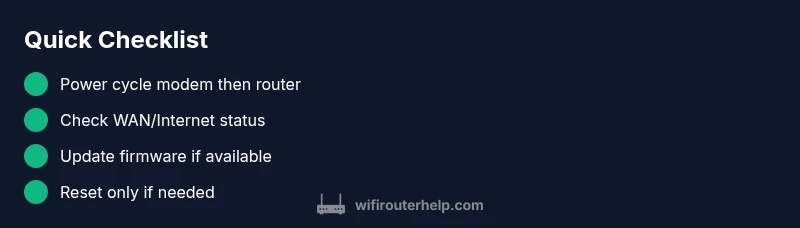
- Power cycle the entire setup: unplug the router and modem, wait 30 seconds, plug the modem back in, wait for it to stabilize, then reconnect the router.
- Check WAN status: ensure the router reports an active Internet connection on the status page.
- Update firmware: if an update is available, apply it from the router’s admin interface and reboot.
- If the issue persists, perform a factory reset: locate the reset button, press and hold for 10–15 seconds with a paperclip, then reconfigure from scratch.
- Reconfigure critical settings: reenter the Wi‑Fi name (SSID) and password, review DHCP, and set up security (WPA3 if available).
- Verify all devices reconnect: ensure phones, laptops, and smart devices regain normal connectivity.
Estimated time: 30–45 minutes.
Safety, caveats, and when professional help is needed
- Do not open the router’s housing or attempt to repair internal components unless you are qualified. This can void warranties and pose shock risks.
- If you smell burning, hear buzzing, or see smoke, unplug immediately and contact support.
- If a factory reset does not restore normal behavior or if the device keeps blinking red after reconfiguration, a hardware fault or misconfiguration may require a technician or your ISP’s support team.
Prevention tips to avoid future red blinking
- Keep firmware up to date and enable automatic updates when possible.
- Use a surge protector and avoid power surges that can damage the router.
- Place the router in a cool, well-ventilated area to prevent overheating.
- Schedule periodic reboots to maintain stable performance, not just during outages.
- Memorize or securely store login credentials and default settings for quick recovery after resets.
Steps
Estimated time: 30-45 minutes
- 1
Power cycle the entire setup
Unplug both the router and the modem. Wait 30 seconds, then plug the modem back in and allow it to initialize. Finally, plug the router back in and wait for it to boot fully.
Tip: Label the order of devices if you often restart to keep it consistent. - 2
Check the status indicators
Log in to the router’s admin page and verify the WAN/Internet status. If you don’t reach the login page, try a wired computer to rule out wireless issues.
Tip: Use a wired connection for the most reliable status check. - 3
Update firmware
If an update is available, install it and reboot. This resolves many software faults that can cause red blinking patterns.
Tip: Back up your settings before updating, if the option exists. - 4
Factory reset if needed
If issues persist, perform a factory reset and reconfigure essential settings from scratch. Do not restore a faulty backup.
Tip: Only reset if you prepared recovery notes like the Wi‑Fi name and password. - 5
Reconfigure core settings
Enter a fresh SSID, strong password, and secure wireless options. Recheck DHCP and basic security features.
Tip: Enable WPA3 if your devices support it for stronger protection. - 6
Test and confirm
Reconnect devices and verify normal connectivity. Monitor for any reoccurrence of the red blink over the next 24–72 hours.
Tip: Keep the router near the center of your home for even coverage.
Diagnosis: Router shows a red blinking LED.
Possible Causes
- highPower issue or loose power connection
- highModem/ISP outage or upstream connection problem
- mediumFirmware corruption or software fault
- lowOverheating or hardware fault
- lowIncorrect or missing configuration after reset
- lowEthernet/WAN port fault
Fixes
- easyCheck that the router is powered on and the power adapter is functioning; replace if damaged
- easyPower cycle the modem first, then the router; confirm the WAN light comes on
- easyCheck for ISP outages or service status; contact provider if necessary
- mediumUpdate firmware via the admin page; reboot after update
- mediumFactory reset and reconfigure only if no other fixes work
- hardTest with a fresh router or replacement if hardware fault is suspected
People Also Ask
What does a blinking red light on my router mean?
A blinking red light typically signals a power or connectivity issue that needs attention. It’s not always a hardware failure, but it does require action to restore service.
A blinking red light usually means a power or internet connection issue that needs checking. Start with basic checks and a reboot.
Should I power cycle the router first?
Yes. Power cycling is the simplest first step and resolves many transient faults. Always reboot in the recommended order: modem first, then router.
Yes—reboot the modem first, then the router. It fixes many common red-light problems.
Is a red blinking light different from a solid red light?
Yes. A blinking red light often points to startup, connectivity, or transient faults, while a solid red can indicate a more serious fault or hardware issue.
Blinking usually means a fault or update in progress; solid red can be more severe.
Can firmware updates fix a red blinking LED?
Firmware updates can fix software faults causing red blinking. If updating isn’t available, a factory reset followed by reconfiguration may be needed.
Firmware updates can solve software faults behind a red blink.
When should I call my ISP or a technician?
If rebooting and firmware updates don’t help, the issue may be from the ISP or a hardware fault that requires professional support.
If fixes don’t work, contact your ISP or a technician for a service check.
Will resetting the router erase all settings?
A factory reset restores the router to default settings. You’ll need to re-enter your Wi‑Fi name, password, and any custom configurations afterward.
Yes, factory reset clears settings. You’ll have to reconfigure afterward.
Watch Video
What to Remember
- Identify red blink patterns and start with power/cable checks.
- Progress from reboot to firmware updates before drastic resets.
- Only reset when all simpler fixes fail to avoid loss of settings.
- If issues persist, hardware faults require professional help.
- Prevent future problems with regular updates and safe reboot practices.