Why is the Router Unreachable on Starlink? A Practical Troubleshooting Guide
Urgent troubleshooting guide to diagnose why your Starlink router is unreachable. Step-by-step checks, diagnostic flow, and safe fixes from WiFi Router Help to restore admin access and internet.


Most often, the router becomes unreachable due to a Starlink syncing issue or a local network misconfiguration. Start with a quick power cycle of the Starlink router and any connected equipment, then verify all cables and IP settings. If you still can’t reach the network, follow the diagnostic flow for targeted fixes and escalation steps.
Understanding the problem and why 'why is router unreachable starlink' happens
When households rely on Starlink for internet, an unreachable router is a frequent headache. If you're asking why is router unreachable starlink, you're not alone. According to WiFi Router Help, the root causes usually involve a mix of satellite syncing delays and local network settings. The WiFi Router Help team found that most cases start with a simple hurdle—the Starlink gateway not handing out IP addresses or a device failing to reach the router's administrative interface. In urgent situations, it's essential to treat the problem as a multi-layer issue: service status, gateway alignment, and device-specific configurations. The goal is to restore path to the router and re-establish both management access and regular internet traffic. By understanding the roles of the Starlink hardware and your home network, you can approach this methodically rather than guessing. This article will guide you through a practical, step-by-step troubleshooting path with clear checks, safe fixes, and when to seek help. WIth a calm, methodical approach, you can often restore access without professional help.
Brand note: The WiFi Router Help team emphasizes user safety and structured troubleshooting to prevent unnecessary downtime.
Starlink networking basics and how they affect reachability
Starlink uses a hybrid system where the dish communicates with satellites and provides a ring of private IP addressing to the home router. The built-in router handles NAT and firewall rules, and many users replace it with a third-party device. For most, the problem stems from the Starlink gateway failing to assign an address, or the local router binding becoming inconsistent with the gateway. When the gateway and the router disagree about the LAN IP pool, devices show as connected but cannot reach the internet, or the admin page times out. Recognize that the terminology matters: the term 'unreachable' often means 'no admin access' or 'no internet path at all.' In practice, treat the Starlink hardware like the primary controller; your home router acts as a downstream device that must be reachable via the LAN.
WiFi Router Help highlights that intermittent syncing can mimic a hardware fault, so ruling out service status early saves time.
Quick checks you can perform in minutes
- Look at the Starlink status indicators: green generally means healthy, while red or yellow can indicate a link issue or outage. If the satellite link isn’t healthy, a reboot may not fix reachability.
- Perform a fast power cycle: unplug the Starlink router, modem, and any connected switches for 60 seconds, then reconnect in order (modem first, then Starlink device, then downstream gear).
- Try to reach the router admin page via a wired PC using common addresses such as 192.168.1.1 or 192.168.0.1; if you can’t access the login, the problem may be upstream or with LAN.
- Check cables: ensure the Ethernet from Starlink to your router is secure and undamaged.
- Temporarily disable VPNs or firewall software on your testing device to confirm it isn’t blocking admin access.
- If you can access the admin page but not the internet, you’ll want to proceed to the diagnostic flow for deeper checks.
Physical and hardware checks
Physical health matters. Inspect power adapters for warmth (avoid overheating), and verify that all connectors are snug. Replace any visibly damaged Ethernet cables between the Starlink unit and your router; a bad cable can masquerade as a network problem. Confirm the Starlink dish has a clear view of the sky and is not obstructed by walls or objects, which can affect syncing. If you recently added a new switch or a long Ethernet run, test with a short, known-good cable to isolate the issue. If the hardware shows signs of wear or overheating, consider swapping the device for testing with spare gear. A hardware fault might be the root cause and requires a replacement unit or professional assessment.
Wireless and device-side troubleshooting
Device configuration can silently fail to acquire an address from the gateway. Ensure your devices are set to obtain an IP address automatically (DHCP). Disable any static IP assignments or incorrect DNS settings on client devices during testing. For mobile devices, forget the network and reconnect to refresh credentials. If you are using a mesh system, verify that the backbone router is not conflicting with the Starlink gateway. Test connectivity on a wired device to determine if the issue is wireless-only or affects the entire network. If the admin page remains unreachable but devices can connect, the problem likely lies with LAN settings or gateway responsiveness.
Advanced network diagnosis and common culprits
Beyond basic checks, consider DHCP scope issues, DNS misconfigurations, or NAT-related problems. Double NAT occurs when two devices perform network address translation; this commonly happens if a third-party router sits behind the Starlink gateway without proper bridge mode. Check for IP conflicts by ensuring two devices aren’t configured to fixed identical addresses. Review firewall rules on the router; overly restrictive rules can block management access. If you’ve recently updated firmware, investigate whether the update caused a temporary compatibility issue with Starlink. In stubborn cases, a factory reset of the router (after backing up settings) can clear corrupted configs and restore a clean baseline.
When to escalate to support
If you’ve completed the basic steps, performed the diagnostic flow, and still cannot reach the router or internet, it’s time to contact support. Provide details such as model numbers, firmware version, LED status, and exact steps you’ve taken. For Starlink service issues, check the official status page first, since outages can affect reachability even when hardware is fine. Support may guide you through a bridge mode configuration or replacement if hardware faults are suspected. WiFi Router Help recommends documenting symptoms with timestamps to assist technicians and reduce back-and-forth.
Preventive practices to avoid future outages
Create a routine maintenance plan: schedule periodic reboots, enable automatic firmware updates where possible, and keep a current backup of your router configuration. Use a single gateway device to minimize potential double NAT issues, especially if you plan to add a third-party router. Maintain a simple network map so you can quickly identify where changes occurred. Finally, set up a basic alert system for service interruptions so you’re not blindsided by outages when you’re away from home.
Steps
Estimated time: 30-45 minutes
- 1
Power cycle all equipment
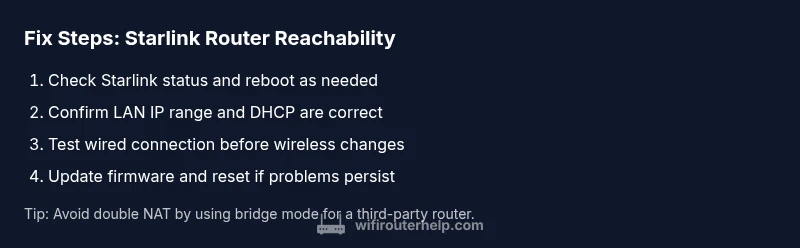
Power off the Starlink gateway, your router, and any switches. Wait 60 seconds, then power them back on in the order: Starlink gateway, router, then switches. This clears temporary configurations and re-establishes a clean handshake.
Tip: Do not rush the reboot sequence; wait for the green lights before proceeding. - 2
Check physical connections
Inspect all Ethernet and coax connections for snug fit and integrity. Replace any damaged cables. Confirm the Starlink device to router link is secured and that there are no loose connectors.
Tip: Use a new, known-good Ethernet cable to rule out a faulty cable as the culprit. - 3
Access the router admin page
From a wired PC, attempt to reach the router’s admin interface at 192.168.1.1 (or 192.168.0.1). If you can’t load the page, there may be an upstream issue or LAN problem. Log any error messages and LED indicators.
Tip: If you forgot login details, try default credentials from the manufacturer, and backup your current config before a reset. - 4
Verify IP and DHCP settings
Ensure devices obtain IP addresses automatically and that the DHCP scope covers the expected range. Disable any static addresses that could conflict with the gateway. If the admin page loads, note any mismatches between WAN/LAN settings.
Tip: Document current DHCP settings before making changes so you can revert easily. - 5
Test with a wired connection
Connect a laptop directly to the Starlink gateway or upstream router with an Ethernet cable. See if you can access the internet and the admin page. If wired access works but Wi‑Fi does not, focus on wireless settings.
Tip: Wired tests isolate the issue to wireless configuration vs. core network reachability. - 6
Firmware and reset
Check for firmware updates on both the Starlink gateway and your own router. If issues persist, perform a factory reset on the router (after saving a backup of settings) and reconfigure from scratch.
Tip: Resetting is a last resort; always back up configurations first. - 7
Decide on bridge mode
If you’re using a third-party router, enable bridge mode on the Starlink gateway to avoid double NAT and ensure your downstream router handles routing.
Tip: Bridge mode reduces complexity and improves stability for many setups.
Diagnosis: Router unreachable from Starlink network
Possible Causes
- highStarlink service outage or satellite sync issue
- mediumIncorrect LAN IP settings or IP conflict
- lowHardware fault (dongle, router, cables)
Fixes
- easyCheck Starlink status page or app for outage/sync status; power cycle equipment
- easyVerify LAN IP range and DHCP settings; remove conflicting static IPs
- mediumTest with a known-good Ethernet cable; perform a factory reset if configurations appear corrupted
- hardUpdate firmware on router and Starlink gateway; reconfigure if needed; escalate if unresolved
People Also Ask
What should I do first when my Starlink router is unreachable?
Begin with a quick power cycle of the Starlink gateway and connected devices, check for outage notices, and test admin page access. If the admin page is reachable but the internet isn’t, continue with deeper checks.
Start with a power cycle, check for outages, and confirm you can access the admin page. If the internet still won’t load, proceed with deeper checks.
Is a Starlink outage the likely cause?
Outages or syncing issues are common causes of reachability problems. Check Starlink’s status page or app for alerts before deeper troubleshooting.
Starlink outages happen. Check the status page to confirm before extensive fixes.
Can I use a third‑party router with Starlink?
Yes, but you may need to enable bridge mode or disable NAT on the Starlink gateway to avoid double NAT. Ensure your downstream router handles routing.
You can, but bridge mode is often required to avoid double NAT.
What is double NAT and how do I fix it?
Double NAT happens when two devices perform NAT. Disable NAT on the gateway or enable bridge mode on the Starlink unit to simplify the network.
Disable NAT or use bridge mode to fix double NAT.
When should I contact support?
If you’ve exhausted the diagnostic flow, checked for outages, and still can’t access the router or internet, contact Starlink support or your router vendor for assistance.
If you’re stuck after trying these steps, contact support.
Watch Video
What to Remember
- Identify if the issue is Starlink-side or local network.
- Start with power cycles and basic connectivity tests.
- Verify DHCP, IP, and gateway settings to avoid misconfigurations.
- Use bridge mode carefully to prevent double NAT.
- Escalate to support if the issue persists after the diagnostic flow.