Know If Your Starlink Router Is On
Learn practical steps to confirm your Starlink router is powered and online. From LED indicators to app checks, this guide covers quick checks, troubleshooting, and when to contact support.


This guide shows you how to confirm that your Starlink router is powered and online. You will verify power, LED indicators, and app status, then try a safe reboot if needed. By following these steps you can quickly determine if the router is on and serving your network.
Understanding the basic concept of a Starlink router on state The Starlink router powers on automatically when it receives power from the adapter and outlet. A successful startup means the device is ready to allocate a WiFi network name and provide internet access. If you do not see activity, you should inspect power delivery and software readiness. Clear signs the device is on include powered LEDs, a functioning WiFi network name, and responsive devices trying to connect. This section helps you understand what to look for when you ask how to know if starlink router is on and actively serving traffic.
Visual cues: LED indicators and ports LED indicators communicate power, boot progress, and network status. A steady light commonly signifies normal operation, while blinking patterns can indicate booting or errors. Inspect both front and back panels for power and Ethernet activity. If LEDs behave abnormally, a power cycle or app check can restore status. Some units differ in color or pattern due to firmware variations, but consistent indicators usually point to a healthy on state.
Using the Starlink app to check status Open the Starlink app on your phone or tablet to see real time status. The app typically shows whether the router is online, the current firmware version, and active connection status. If you cannot connect to the app, verify your device is on the correct network and retry. The app is a reliable tool to confirm if the router is on and distributing service.
Confirming internet activity on connected devices If the router is on, devices should connect to WiFi and load pages. Test by opening a browser on a connected device and visiting a few sites. If pages fail to load, check for DNS issues or IP assignment problems. A powered device does not always imply a healthy internet path; confirm routing and gateway status to ensure traffic is actually flowing.
Troubleshooting when the router won't turn on If the router remains off after power, start with a simple power cycle. Unplug, wait a short moment, replug, and watch for startup indicators. If no lights appear, try a different outlet or adapter. Consider using the Starlink app to rule out firmware lockups and ensure the device is receiving power.
The power chain: cable, adapter, and outlet checks Ensure the adapter is firmly connected to both the router and a live outlet. Inspect the cable for damage and replace if needed. Some outlets, especially in kitchens or bathrooms, may have trip protections; move the router to a known working outlet to test. A faulty power source is a common yet solvable reason the router appears off.
Rebooting the system: safe reset procedures A clean reboot can restore normal startup without data loss. Disconnect power, wait a moment, reconnect, and allow the router to boot fully. If the router still does not respond, use the app to check for updates or settings that may block normal startup.
Distinguishing router vs modem behavior Starlink includes a router with built in NAT and firewall features. If you rely on a separate modem service, ensure the Starlink router is not in bridge mode or bypassed by an external device. Understanding the difference helps you diagnose status readings more accurately and avoid misinterpreting normal modem activity as router status.
Advanced diagnostics: IP address, DHCP, and network tools You can inspect the device IP address and DHCP lease information from a connected device. If you see an assigned IP but pages do not load, investigate DNS and gateway configuration. Use simple tools like ping or traceroute to confirm routing while keeping security in mind.
When to escalate: contact Starlink support If you have followed the steps and still cannot determine if the router is on, contact Starlink support for guided diagnosis. Collect information such as model, firmware version, and recent changes to speed resolution. Support can help identify hardware faults or service outages.
Best practices for keeping your Starlink router on Keep firmware updated, protect your network with strong passwords, and monitor LED patterns monthly. Regular power outlet checks help prevent outages. Document changes you make in case you need to revert settings later.
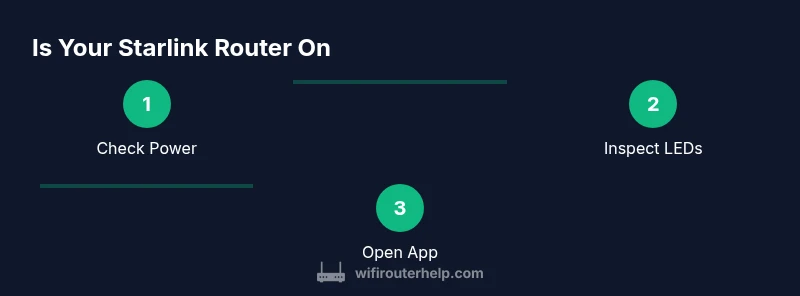
Quick recap: Is My Starlink Router On? To quickly confirm status, check power, observe LEDs, verify app status, and test a connected device. If anything seems off, perform a controlled reboot and re-test before escalating to support.
Tools & Materials
- Starlink power adapter(Original or compatible adapter that matches the Starlink power specification)
- Live power outlet(Plug into a known working outlet (prefer a dedicated circuit))
- Smartphone or tablet with Starlink app(Install and sign in to view device status)
- Testing device (laptop/phone)(Used to browse and verify connectivity)
- Ethernet cable (optional)(If testing wired connectivity, not required)
Steps
Estimated time: 15-30 minutes
- 1
Check power connection
Ensure the Starlink power adapter is firmly connected to both the router and a live outlet. If the light is off, try another outlet to confirm power flow.
Tip: Use a known working outlet, preferably on a dedicated circuit for reliable results. - 2
Inspect LED status
Look at the router LEDs to assess boot and operating status. A solid light often means on; a blinking pattern may indicate booting or errors.
Tip: Refer to your model's LED patterns in the Starlink app to interpret meanings. - 3
Open the Starlink app
Launch the Starlink app and check the device status. The app shows online/offline, firmware version, and signal strength.
Tip: If the app cannot connect, ensure your phone is on the same network and try again. - 4
Test connectivity on a device
Connect a smartphone or laptop to the Starlink WiFi and load several websites to confirm internet access.
Tip: If pages fail to load, test with a known reliable site and note any error messages. - 5
Power cycle the router
If there is no clear status, unplug the router, wait 15 seconds, then plug back in and wait for a full boot.
Tip: Avoid rebooting repeatedly; give the device time to boot fully. - 6
Check for firmware updates
In the app, verify that the router firmware is current. Update if a newer version is available to fix known issues.
Tip: Update during a time when you don’t need immediate service. - 7
Validate DHCP and IP assignment
On a connected device, check that the device has a valid IP address and default gateway assigned by the router.
Tip: If you see an APIPA address, there may be a DHCP issue to diagnose. - 8
Factory reset as a last resort
If the router remains unresponsive, perform a factory reset via the app or hardware button and reconfigure your network.
Tip: Only reset after backing up settings to avoid losing preferred configurations.
People Also Ask
Why doesn't the Starlink app show the router as online even when the LED is lit?
LED indicators can be misleading if there is a firmware issue or a temporary network hiccup. Use the app to verify status and attempt a reboot, then recheck. If the app still reports offline, consider updating firmware.
The LED may be showing a partial status; check the app and reboot if needed, and update firmware if available.
What should I do if the router has no lights at all?
First, verify the power outlet works by plugging in another device. If still off, test with a different adapter or outlet. If power is confirmed but lights are still out, contact support.
If there are no lights, check power supply and outlet; try another adapter or outlet, and contact support if unresolved.
Is it possible to troubleshoot a Starlink router while it’s in bridge mode?
Bridge mode bypasses router features. If you’re troubleshooting connectivity, ensure the Starlink router is in the intended mode. Revert to router mode if necessary to test status.
Bridge mode can conceal status; switch to normal router mode to troubleshoot.
Can a device connected via Ethernet help verify status?
Yes, connecting via Ethernet can help confirm if the router is distributing traffic. If Ethernet devices fail while WiFi appears active, check Ethernet port settings.
Yes, use a wired connection to confirm the router is actively routing traffic.
How long should I wait after reboot for the router to come back online?
Give the router a full boot cycle; wait a few minutes for LEDs to stabilize and apps to reconnect.
Wait a couple of minutes after reboot for everything to come back online.
What if the router still seems off after a reset?
If issues persist, check for service outages in your region and contact Starlink support with model and firmware details.
If problems persist after reset, check for outages and contact support with device details.
Watch Video
What to Remember
- Verify power is active before troubleshooting
- Use the Starlink app for reliable status checks
- A controlled reboot fixes most on/off issues
- Distinguish router status from modem status for accurate diagnostics
- Escalate to support if the router remains unresponsive