Does a Starlink Router Get Hot? Practical Troubleshooting
Discover why a Starlink router may run hot, how to diagnose overheating, practical cooling steps, and when to seek help. WiFi Router Help provides safe fixes and prevention tips.


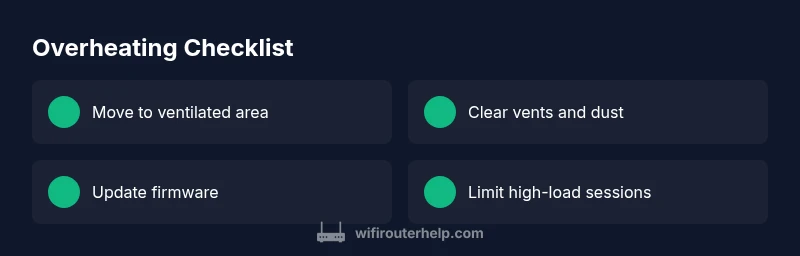
According to WiFi Router Help, a Starlink router running hot usually points to ventilation issues or a heavy network load. Quick fixes: move the router to a cool, open spot, clear vents, reboot, and update firmware. If temperatures stay high, avoid high-load scenarios and contact support for a deeper check.
does starlink router get hot
Does starlink router get hot? In practice, many Starlink routers can feel warm under normal operation, especially in warm rooms or after heavy usage. According to WiFi Router Help, overheating is usually a signal that ventilation is insufficient or that the device is under unusual load. This guide explains the typical causes and the first steps you can take to reduce temperature quickly and safely. If your unit sits on carpet, under a blanket, or near other heat sources, move it to a hard, open surface and away from direct sunlight. Once you improve airflow, a reboot and firmware check often restore normal temperatures.
Common causes of overheating
Overheating can happen for multiple reasons, and recognizing the most common ones helps you act fast. Poor ventilation tops the list: vents blocked by dust, clutter, or textiles can trap heat. Placement matters too: stashing the router in a cabinet, on a soft surface like a bed or couch, or near heat-producing electronics will raise temperatures quickly. Environmental temperature plays a role—rooms without airflow or direct sun exposure tend to overheat more. Finally, excessive network load from many connected devices (streaming, gaming, large file transfers) can push thermal limits. A final contributing factor is the power setup: daisy-chained power strips or unstable outlets can introduce heat and voltage fluctuations that make the unit work harder.
Immediate steps to cool and protect
Acting fast matters when a Starlink router starts to feel hot. First, relocate the device to a cool, well-ventilated area with several inches of clearance on all sides. Remove any obstructions from the vents and dust the unit with a soft brush or compressed air if available. Avoid placing the router in direct sunlight or inside a closed cabinet. After improving airflow, perform a soft reboot and check for firmware updates. If the device continues to warm up during normal use, reduce simultaneous streaming or gaming sessions and monitor temperatures more closely.
How to diagnose overheating
Identify whether heat is the primary issue or a symptom of another problem. Check for obvious signs: the unit feels warm to touch, LED indicators may show thermal warnings, and performance throttling can occur during heavy use. Listen for abnormal fan-like noises or vibrations (if your model has active cooling) and verify that vents are clear. Use the Starlink app or web interface to view firmware version and device health. Compare current temperatures to prior baselines if you have previous data from routine reboots.
Step-by-step fixes for the most common causes
- Relocate for ventilation: Move the router to a higher, cooler location with open airflow. Keep it at least 3 inches from the wall. Tip: place on a hard surface rather than fabric.
- Clear vents and dust: Power off, unplug, and gently clean the intake/exhaust grills. Tip: use a soft brush or canned air in short bursts.
- Improve power stability: Use a dedicated outlet; avoid power strips that share other heat-generating devices. Tip: test with the outlet’s own circuit breaker to reduce impedance.
- Update firmware and reboot: Check for the latest updates in the Starlink app and apply them. Reboot after updating to reset thermal management and services. Tip: schedule updates during cooler parts of the day.
- Manage load: Temporarily pause heavy tasks, enable QoS if available, and spread high-bandwidth activities across devices. Tip: monitor which devices drive the heat and adjust usage accordingly.
Safety and prevention
Overheating is a sign that your network environment needs attention, not an isolated hardware fault. Avoid covering the device, never place it inside a closed cabinet, and keep it away from heat sources. Regularly clean vents, check the mount, and ensure the firmware is up to date. If overheating persists after applying fixes, contact Starlink support or a qualified technician for a hardware assessment.
Steps
Estimated time: 15-30 minutes
- 1
Relocate for ventilation
Move the router to a cooler, open space with at least a few inches of clearance. Elevate it off soft surfaces and away from direct sunlight. After moving, power it down for 30 seconds before turning it back on to reset thermal sensors.
Tip: Use a stable, flat surface and avoid placing on cushions or fabric. - 2
Clear vents and dust
With the device unplugged, inspect the intake and exhaust vents. Use a soft brush or compressed air to remove dust. Do not insert objects into vents to avoid damaging internal components.
Tip: Clean every 3–6 months in dusty environments. - 3
Check power and outlets
Plug the router into a dedicated wall outlet; avoid daisy-chaining on multi-outlet strips. If possible, test a different outlet to rule out a circuit issue. Allow the unit to cool completely before re-testing.
Tip: Avoid extension cords for critical networking gear. - 4
Update firmware and reboot
Open the Starlink app or admin page and check for firmware updates. Install any available updates, then reboot the router to apply new thermal management improvements.
Tip: Only install updates from official sources. - 5
Monitor workload and adjust
Observe device temperatures during typical usage and identify high-load scenarios. Enable QoS if available to limit bandwidth for background devices and reduce heat buildup during peak times.
Tip: Distribute heavy tasks across devices when possible.
Diagnosis: Starlink router overheats (warm to touch) during normal operation
Possible Causes
- highVentilation blocked or restricted airflow
- highPlacement on soft surface or near heat sources
- mediumExcessive network load from multiple devices
- lowOutdated firmware causing thermal management issues
Fixes
- easyMove router to a cool, well-ventilated location with clear air gaps around vents
- easyUnblock vents, dust the unit with compressed air or a soft brush
- easyReboot router and check for firmware updates; apply updates
- mediumReduce simultaneous heavy usage or enable QoS to manage load
- mediumIf conditions persist, contact WiFi Router Help Team for further assessment and possible hardware fault
People Also Ask
Why is my Starlink router getting hot during normal use?
Overheating is usually caused by poor ventilation, blocked vents, or a heavy device load. Start with airflow improvements, update firmware, and perform a reboot. If the temperature remains high, consider reducing load and contact support for a deeper check.
Overheating is usually from ventilation or load. Try moving the router to a cooler spot, update firmware, and reboot; if it stays hot, contact support.
Can I use a power strip with a Starlink router?
Avoid daisy-chaining the router on a shared power strip; use a dedicated outlet. Shared outlets can cause voltage fluctuations and extra heat.
Don’t daisy-chain the router on a strip—use a dedicated outlet.
What temperature is too hot for the Starlink router?
There is no published safe temperature in user docs. If you can’t comfortably touch the surface or if performance drops during heat, that’s a sign to cool the device and check for airflow issues.
If it’s uncomfortably hot to touch or performance drops, it’s too hot.
Should I reset the router if overheating?
A soft reset can clear temporary faults and reinitialize thermal management. If overheating continues after a reset, proceed with the other steps and consider professional help.
Yes, try a reset as part of the troubleshooting, then continue with other steps if needed.
When should I replace the router due to overheating?
If overheating recurs after applying fixes and updates, contact support to evaluate a hardware fault and consider replacement.
If it keeps overheating after fixes, contact support for assessment.
Is overheating dangerous for my home network?
Overheating is not typically dangerous to a home, but it can cause throttling, instability, and potential hardware damage. Stop using the device if it becomes excessively hot and seek guidance.
Overheating can damage hardware and affect performance; pause usage until cooled.
Watch Video
What to Remember
- Move the router to a cool, well-ventilated spot
- Ensure vents stay clear of dust and obstructions
- Update firmware and reboot to reset thermal controls
- Limit high-load tasks or use QoS to manage traffic
- If overheating recurs, seek professional assessment