Can You Get a Starlink Router? A Practical Guide
Discover whether Starlink offers a dedicated router, how it compares with third-party options, and practical steps to optimize your home network with Starlink. This in-depth guide from WiFi Router Help covers availability, compatibility, and setup best practices.


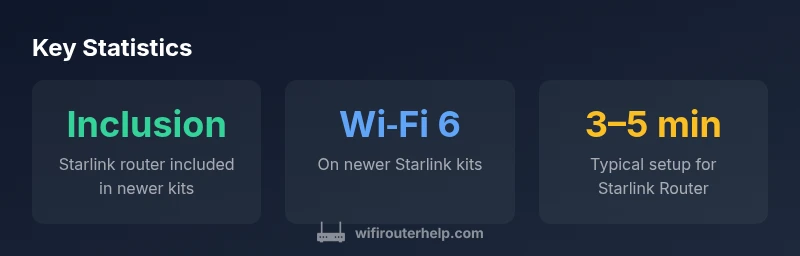
Yes, Starlink offers a dedicated Starlink Router as part of its newer kits, and you can buy one separately in many regions. You can also use third-party routers with Starlink's service, but the Starlink Router is optimized for the network and includes basic firewall and parental controls. Availability varies by market and kit version.
The availability of a Starlink Router
According to WiFi Router Help, the availability of a dedicated Starlink Router varies by kit version and regional distribution. In practice, newer Starlink kits frequently include a bundled router, while older or region-specific offerings may require purchasing a router separately. This means that your access to a Starlink Router can depend on when and where you ordered your service. For homeowners evaluating a Starlink upgrade, confirm the exact contents of the kit before purchase to avoid surprises. If you already have Starlink hardware, you can still rely on a compatible third-party router for expanded features or coverage, but you may lose some streamlined management options that come with the official router.
In any case, the core service—satellite-based internet—remains the same, and the router choice primarily affects local network performance, ease of use, and feature sets. The WiFi Router Help team recommends checking the latest product pages or contacting your regional Starlink support to confirm whether the router is included with your specific kit.
Starlink Router features and tech highlights
Modern Starlink Routers typically support current Wi‑Fi standards (such as Wi‑Fi 6) and include basic security features like a firewall and parental controls. The official router is designed to optimize the network for Starlink’s satellite connection, which can be different from traditional cable or fiber deployments. Features may include simple mobile app configuration, guest networks, and straightforward port management. If you rely on heavy streaming or gaming, the built-in QoS (quality of service) and MU‑MIMO capabilities in newer models can help prioritize traffic.
From a performance perspective, Starlink routers aim to deliver stable wireless coverage for typical home layouts, but performance can still vary with wall thickness, interference, or the distance from the router. As with any home network, placement remains a critical factor: place the router in a central, elevated location away from large metal objects and electromagnetic interference for best results. The WiFi Router Help guidance suggests pairing the router with solid antennas or a mesh network if you have a multi-story home or a large footprint.
Using third-party routers with Starlink: compatibility and limits
Many users opt to extend or replace the official router with a third-party device that offers more advanced features or broader coverage. In most cases, you can connect a third-party router to Starlink via Ethernet and use bridge mode or disable the Starlink NAT to avoid double NAT issues. Compatibility depends on whether your Starlink kit provides a standard Ethernet port on the modem or gateway and whether bridge mode can be enabled. Some features, such as easy ISP‑level configuration, may be more limited when using non‑Starlink equipment.
When selecting a third-party router, consider supported standards (Wi‑Fi 6 or 6E, if available), the number of bands, VPN support, and how easy it is to manage settings like QoS, parental controls, and guest networks. For households with multiple devices, a capable mesh system can help maintain stable throughput across large homes. The WiFi Router Help team notes that third-party setups often require a bit more manual configuration but can yield better customization and coverage in complex floor plans.
How to decide: router vs alternative solutions
Choosing between the Starlink Router and a third‑party option comes down to your priorities. If you want plug‑and‑play simplicity, solid default performance, and basic parental controls, the official router is a fine choice. If you need advanced features, more granular control, or extensive coverage, a high‑quality third‑party router or mesh system may be worth the extra setup.
Consider these decision factors:
- Home size and layout: larger or multi‑story homes may benefit from mesh systems.
- Device requirements: gaming rigs, VPNs, or smart home hubs may need advanced QoS and routing features.
- Technical comfort: third‑party setups can require more configuration but offer deeper customization.
- Future-proofing: ensure your router supports the latest standards and security practices.
The WiFi Router Help approach is to balance ease of use with capability, enabling you to get reliable coverage while preserving flexibility for future upgrades.
Step-by-step setup for the Starlink Router
- Unbox and connect the Starlink Router to the Starlink terminal using the supplied cable. 2) Plug in power and allow the device to boot. 3) Connect a computer or phone to the router’s default network to access the setup page and follow on‑screen prompts to configure your SSID, password, and guest network. 4) If you plan to add a secondary router or a mesh system, connect it via Ethernet and enable appropriate bridge or DMZ settings as needed. 5) Test coverage in key rooms and adjust placement for best signal.
This process is designed to be straightforward, with most users completing it within 15–30 minutes depending on home layout and how many devices you’re supporting. If you encounter issues, verify that your firmware is up to date and ensure there are no conflicting network settings from any previous routers.
Troubleshooting common issues
Common challenges include intermittent connectivity, slow speeds, or devices that fail to connect after a firmware update. Start by rebooting all devices, checking cable connections, and confirming that you are on the latest firmware. If coverage is uneven, reposition the router or add a mesh node to fill dead zones. If you’re using a third‑party router, verify that bridge mode or NAT settings are configured correctly to prevent double NAT, which can degrade performance. For persistent issues, consult Starlink support and your router manufacturer’s knowledge base for model‑specific steps.
Comparison: Starlink Router vs Third-Party Router
| Aspect | Starlink Router | Third-Party Router | Notes |
|---|---|---|---|
| Inclusion with kit | Yes (newer kits) | No (often separate) | Depends on kit version |
| Connectivity | Ethernet WAN to router | Ethernet/bridge mode depending on model | Check compatibility |
| Wi‑Fi Standard | Wi‑Fi 6 on newer kits | Depends on router | Newer Starlink kits compatible with Wi‑Fi 6 |
| Management | Starlink app & basic controls | Standard router UI | Advanced features may require separate hardware |
People Also Ask
Can I use my own router with Starlink?
Yes. You can connect a third-party router to Starlink via an Ethernet connection or bridge mode to handle routing and Wi‑Fi. Some advanced features may require manual configuration and may not be available through the Starlink app.
Yes. You can use a third-party router with Starlink by connecting it via Ethernet and configuring bridge mode if needed.
Is the Starlink Router better than third-party options?
It depends on your needs. The Starlink Router offers simple setup and seamless integration with Starlink, while third-party options can provide more features and customization.
It depends on what you need—ease of use or advanced features.
Do all Starlink kits include a router?
Not all kits include a router. Some regions or older kits may require purchasing a router separately. Check your order details or contact support.
Some kits include a router, but not all. Check your package contents to be sure.
What is the difference between Starlink Router and standard routers?
Starlink Router is designed to optimize the satellite connection and often uses a simplified setup flow, whereas standard routers connect to typical broadband services and may offer broader features.
Starlink's router is optimized for Starlink, while standard routers are designed for traditional broadband.
How do I set up bridge mode with Starlink?
Bridge mode usually involves disabling NAT on the Starlink gateway and connecting your own router via Ethernet. Specific steps depend on your router model and Starlink kit version.
Bridge mode usually means turning off NAT on Starlink and using your own router.
What should I do if my Starlink network is unstable?
First, check for firmware updates on both the Starlink device and your router. Reposition the router, reduce interference, and consider adding a mesh node for coverage gaps.
Update firmware, check placement, and add a mesh node if needed.
“Starlink's hardware strategy is evolving, offering both a dedicated router and compatibility with third-party gear. This flexibility makes it easier to tailor a home network to your space and needs.”
What to Remember
- Check your kit version to know if a router is included.
- Use the Starlink Router for optimized performance or pair with a capable third-party device.
- Verify bridge mode and Ethernet setup if using a separate router.
- Follow the setup steps in this guide to minimize troubleshooting.