What Router Comes with Starlink: A Practical Guide
Learn which router ships with Starlink, how to set it up, and when to upgrade to a third‑party option for broader coverage. Practical guidance from WiFi Router Help.


Starlink standard kits typically ship with the Starlink Router, a compact Wi‑Fi device that provides built‑in wireless and wired connections. According to WiFi Router Help, this router serves as a reliable gateway for most homes, but you can also connect a separate router if you need more features or stronger mesh coverage.
What router comes with Starlink\n\nStarlink’s standard kits typically include the Starlink Router, a compact white device that provides WiFi coverage and a wired Ethernet connection to your devices. According to WiFi Router Help, this router serves as a reliable gateway for most homes, simplifying setup and reducing the need for additional gear. In many cases, it is sufficient for streaming, gaming, and everyday browsing, particularly in smaller homes or apartments. For users who require more advanced features—such as enhanced parental controls, advanced QoS, or broader mesh coverage—the option to connect a separate router remains viable. This article covers when to rely on the Starlink Router and when to consider an external solution, and it explains practical steps to optimize your home network around Starlink.
How the Starlink Router integrates with your home network\n\nThe Starlink Router is designed to be a consumer-friendly gateway that handles both the modem and WiFi duties in a single package. It supports standard dual-band WiFi (2.4 GHz and 5 GHz), which is sufficient for most households. The router provides a single WAN/Ethernet port to connect wired devices and a built-in firewall to help protect traffic. For users who want to use their own routing gear, Starlink offers modes to integrate third‑party routers, either by bridge mode or by bypassing the Starlink WiFi. In practice, enabling bridge mode disables Starlink’s wireless network and lets your own router manage WiFi, firewall, and QoS. This can be preferable for homes with existing mesh systems or where you need more control over IP addressing and guest networks. Always verify the latest steps in the Starlink app, since the exact menu labels can change with updates.
Alternatives: using your own router with Starlink\n\nWhile the Starlink Router is capable for many setups, there are scenarios where a dedicated third‑party router yields tangible benefits. If you live in a large home, rely on multiple devices, or need finer QoS rules for gaming or video conferencing, using your own router can improve performance. The compatibility of third‑party routers with Starlink is generally good, especially when configured in bridge mode or when connected to the Starlink device's WAN port. When selecting a replacement router, look for features like robust QoS, parental controls, VPN support, and a capable CPU for smooth operation. The goal is to create a dependable backbone that can handle traffic prioritization and allow seamless expansion with add-ons like mesh extenders.
Mesh systems and coverage considerations with Starlink\n\nStarlink’s standard router can cover a typical single-story home, but coverage falls off toward far bedrooms or basements. If you’re expanding with a mesh system, ensure your mesh nodes can communicate reliably with Starlink or via your own router. A common approach is to keep the Starlink Router in bridge mode and place mesh satellites around the home to deliver even coverage. Some mesh systems are designed to work with any gateway device, while others require a more hands-on configuration. In all cases, map your coverage goals first: identify dead zones, then place nodes or repeaters to fill gaps. Remember that physical barriers (thick walls, metal appliances) and interference from neighbors’ networks can affect performance more than the gateway choice itself.
Setup steps for adding a third-party router\n\nFollow these practical steps to add a third‑party router to a Starlink setup. 1) Decide whether you will use bridge mode or standard operation with double NAT. 2) If bridging, connect your router’s WAN/Internet port to the Starlink’s LAN port and disable Starlink WiFi. 3) Power cycle both devices and verify that the new router obtains an IP from Starlink. 4) Configure your router’s wireless settings, guest network, and QoS. 5) If you’re using a mesh system, add the satellites and run a site survey to optimize placement. 6) Test speed and reliability, then adjust settings as needed.
Common pitfalls and troubleshooting\n\nWatch out for double NAT, which can occur if you do not enable bridge mode when using a separate router. Some Starlink beta firmware updates may reset bridge mode; recheck after updates. If you experience slow speeds, start by testing a wired connection to the Starlink or to your router to isolate the problem. Check for channel congestion on the 2.4 GHz band and select a less crowded channel if needed. Finally, ensure your firmware is up to date on both the Starlink device and your third‑party router. If issues persist, consult brand-specific forums for model‑specific guidance.
Maintenance, firmware, and future-proofing\n\nKeep your Starlink hardware running smoothly by staying current with firmware updates provided by Starlink and your router vendor. Regularly review security settings, such as firewall rules and UPnP status, and back up your configuration. If you rely on multiple devices and new smart-home gadgets, consider a router with a strong CPU, sufficient RAM, and robust support for QoS and parental controls. When evaluating future upgrades, compare a standalone router vs. a small form-factor mesh system and assess cost vs. coverage gains. WiFi Router Help suggests planning for at least one refresh every few years as technology evolves.
Practical decision guide: which setup is right for you\n\nYour choice hinges on coverage needs, technical comfort, and budget. If you want a simple, maintenance-free experience for a small to medium home, start with the Starlink Router and a basic network. If you need reliable high‑bandwidth gaming, a managed network, or expansive mesh coverage, invest in a third‑party router or a mesh system, and use bridge mode to keep control centralized. Regardless of the path, use wired backhaul where possible and test performance in peak usage times to verify your setup meets your expectations.
Starlink router vs third-party router comparison
| Feature | Starlink Router | Third-Party Router (Recommended) | Notes |
|---|---|---|---|
| Ethernet ports | 1 | 1 | WAN port plus LAN ports; varies by model |
| WiFi bands | Dual-band (2.4 & 5 GHz) | Dual-/tri-band | Features depend on router model |
| Mesh support | Compatible via bridge mode | Mesh-ready with proper configuration | Depends on gateway and mesh system |
| Out of the box simplicity | High | Moderate to high | Requires setup time |
People Also Ask
Does Starlink ship with a router?
Yes, most standard Starlink kits include the Starlink Router. For many users this suffices, but some setups may require bridging to use a separate router.
Yes—Starlink usually includes a router, and you can bridge to use your own if you need more features.
Can I use my own router with Starlink?
Yes, you can use your own router by enabling bridge mode or by connecting it to the Starlink device's WAN port. Follow the Starlink app steps for the exact process.
Absolutely—use your own router by bridging the gateway and configuring your device.
What are the benefits of mesh with Starlink?
Mesh systems help eliminate dead spots in larger homes and provide seamless roaming. Ensure compatibility and place nodes for optimal coverage.
Mesh can reduce dead zones, but plan node placement carefully.
What should I check before upgrading?
Assess coverage gaps, budget, device compatibility, and whether bridge mode is supported by Starlink and your router.
Check coverage, budget, and compatibility before buying.
Is bridge mode safe?
Bridge mode is safe when used as intended; it disables Starlink gateway routing and lets your own router handle routing and firewall.
Bridge mode is safe if you follow the steps to disable Starlink WiFi and secure your own router.
“The Starlink gateway works well out of the box, but a well-chosen third‑party router can unlock stronger coverage and finer control for demanding homes.”
What to Remember
- Start with the Starlink Router for simplicity and reliability.
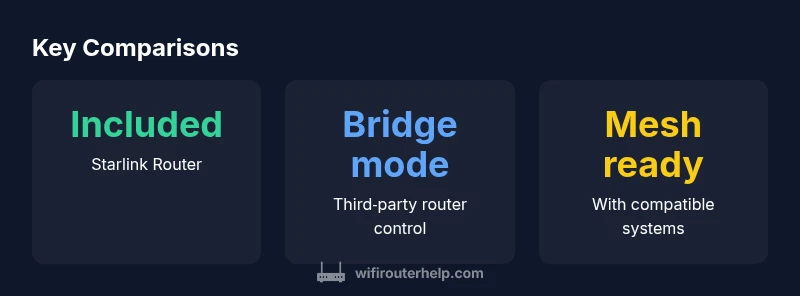
- Bridge mode enables true third‑party router control.
- Mesh systems can extend coverage beyond a single gateway.
- Choose a router with QoS, parental controls, and VPN support for future needs.
- Test performance across rooms and devices to confirm your setup meets expectations.