Can a Router Get Too Hot? An Urgent Troubleshooting Guide
Why can router get too hot, how to diagnose overheating, and proven steps to cool it safely. A concise, urgent troubleshooting guide by WiFi Router Help.


Yes, routers can overheat if they’re placed in a confined space or pushed to handle heavy traffic. The quick fix is improved ventilation, moving the unit away from heat sources, and temporarily reducing load. If the device stays hot after these steps, power it down and let it cool for a while before retesting.
Can a Router Get Too Hot? Why Temperature Matters
The question can router get too hot is more common than many homeowners realize. A hotspot in a closed cabinet or directly against a wall can raise exterior temperature quickly, especially when the router is handling multiple devices or high-bandwidth tasks. Prolonged exposure to heat can degrade wireless performance, shorten hardware lifespan, and trigger automatic safety protections that throttle speeds or shut down features. According to WiFi Router Help, consistent overheating is not a cosmetic issue—it's a signal that airflow or placement needs attention. In practice, temperature management is part of ongoing router maintenance, not a one-off fix. By understanding basic heat dynamics, you can prevent annoying dropouts and ensure your home network remains reliable. Start with simple checks and move toward targeted actions that fit your space and usage patterns.
Common Symptoms and Safe Ranges
Overheating symptoms range from slower speeds to frequent disconnects and unexplained resets. A router that feels warm to the touch after a long gaming session or streaming binge is not unusual, but sustained heat should raise a red flag. A safe operating environment in most homes is a room with reasonable air circulation and no direct heat sources like radiators or ovens nearby. If you notice the router's top or vents humming loudly, or if LED indicators flicker during heavy use, it’s time to investigate ventilation, dust buildup, and clocking-in traffic. The WiFi Router Help team has observed that even healthy devices can run warm under load, but persistent heat is a sign that cooling or relocation is needed. Remember, can router get too hot is not a myth—it’s a practical signal to adjust your setup.
Immediate Quick Fixes You Can Try Right Now
Before diving into hardware changes, start with quick, low-effort fixes. First, relocate the router to a more open area with at least a few inches of clearance on all sides. Ensure there are no thick walls or metal surfaces blocking vents. Clear visible dust from vents with a soft brush or compressed air, taking care not to damage internal components. If the device remains warm during normal load, temporarily reduce bandwidth-heavy activities or enable Quality of Service (QoS) rules to limit simultaneous streams. Finally, power cycle the router if it has cooled only slightly; a full reboot can help reset thermal throttling and stabilize performance. These steps address the most common causes of heat buildup without requiring professional intervention.
The Role of Placement, Ventilation, and Environment
Placement decisions dramatically impact heat dissipation. A router tucked inside a cabinet, crowded with cables, or placed on a soft surface like a sofa, significantly reduces airflow. Elevating the unit off a shelf and avoiding enclosed spaces improves convection and helps maintain a stable temperature. Environmental factors matter too: high ambient room temperature, direct sunlight, and devices that emit heat nearby can raise the router's core temperature. For homes with hot summers or small apartments, consider a wall-mount or open-stand setup in a central, airy location. Small changes in placement can yield outsized improvements in stability when the goal is to prevent overheating.
Power, Load, and Heat: How Traffic Affects Temperature
Heat rises with current flow and processing load. When many devices stream 4K video, participate in online gaming, or run frequent backups, the router's processor and radios work harder, producing more heat. Modern routers typically throttle performance to protect hardware, which can manifest as slower speeds during peak usage. If you notice heat spikes during specific activities, you can minimize strain by staggering large downloads, enabling beamforming, or limiting simultaneous sessions. In homes with persistent heavy usage, investing in a model with better thermal management or upgrading to higher-capacity hardware can reduce heat buildup over time.
How to Test Temperature Safely and Avoid Damage
Testing temperature requires caution. Start by feeling the device after it has had a chance to cool, then again after a moderate period of use. If you have a thermometer, you can monitor ambient vs. device surface temperatures, but avoid direct contact with any internal components. Use a fan to provide temporary airflow, never poke inside the router case or remove panels unless you are comfortable with warranty terms. Regular dusting of vents and keeping cords organized reduces airflow obstruction. If temperatures consistently exceed comfortable touch levels, it’s wise to switch to a lower-traffic moment or schedule a hardware upgrade.
When to Seek Professional Help and What to Expect
If overheating persists after cleaning vents, relocating, and reducing load, it might indicate a hardware fault, aging components, or a defective fan (in models that include one). A professional assessment can diagnose abnormal temperatures, verify power supply integrity, and suggest repair or replacement options. In many cases, manufacturers offer warranty-supported checks that can spare you the cost of a new device. Document symptoms, including load conditions and dates, to share with a technician for faster diagnosis. Timely expert help can prevent longer outages and further damage.
Prevention: Long-Term Tips for Cooler Routers
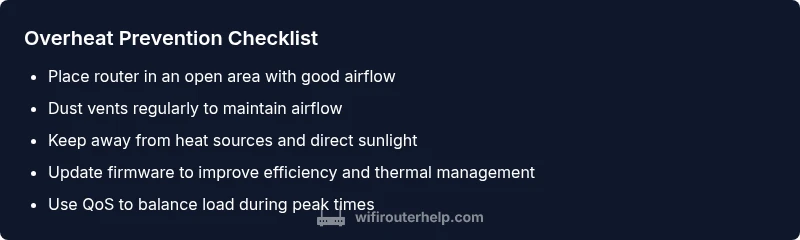
Preventing heat buildup starts with smart habits. Place the router in a well-ventilated area, keep vents dust-free, and avoid stacking devices on top of it. Regularly update firmware to improve efficiency and thermal control, and consider a cooling accessory if your space traps heat. Monitor usage trends and adjust scheduling so heavy tasks occur when air circulation is optimal. For homes with multiple floors, a mesh system or additional access points can distribute load and mitigate hotspot formation. By maintaining airflow, keeping software current, and avoiding heat sources nearby, you reduce the likelihood of overheating and improve overall network reliability.
Steps
Estimated time: 45-60 minutes
- 1
Check ambient environment
Assess room temperature, sunlight exposure, and whether the router sits near heat sources. If the room feels hot or stuffy, create better airflow or relocate the device.
Tip: Open a window or use a room fan to lower ambient temperature before testing changes. - 2
Inspect placement and vents
Move the router away from walls and furniture; ensure vents are fully exposed. Remove any objects covering the device and check for dust accumulation on grills.
Tip: Use a microfiber cloth to wipe the exterior gently; avoid touching internal components. - 3
Clean dust from the unit
Power off the router and disconnect it from power. Use compressed air or a soft brush to clear dust from vents and surrounding areas.
Tip: Do not use liquids; keep fans and openings dry to prevent short circuits. - 4
Reduce load and optimize settings
Temporarily cut back on bandwidth-heavy activities and enable QoS rules to prioritize critical devices. Schedule large downloads for off-peak times.
Tip: Check for devices that unexpectedly hog bandwidth and pause them if possible. - 5
Test with controlled airflow
Place a small, safe fan near the router to verify whether increased airflow lowers surface temperature during use.
Tip: Monitor performance to ensure fans don’t introduce interference with wireless signals. - 6
Power cycle and monitor
After changes, power the router off briefly, then back on and observe if temperatures stay within comfortable ranges during typical usage.
Tip: Document any recurring heat spikes for future reference. - 7
Plan for long-term solution
If heat persists despite fixes, consider upgrading to a model with better thermal management or consulting a technician for warranty options.
Tip: Keep receipts and log issues to simplify warranty or replacement eligibility.
Diagnosis: Router overheats during normal operation or heavy usage
Possible Causes
- highPoor ventilation or blocked vents
- highEnclosed placement (cabinet, closet)
- highDust buildup restricting airflow
- mediumHigh ambient room temperature
- mediumOld or failing hardware or fan (if applicable)
Fixes
- easyMove router to open space with clear vents, away from walls and heat sources
- easyClean dust from vents and case using a soft brush or can of compressed air
- easyReduce load by limiting simultaneous streaming or enabling QoS
- easyUse a small fan or external cooling to increase airflow around the device temporarily
- mediumIf persistent, consult a professional or consider replacement
People Also Ask
Why does my router feel hot to the touch even when I’m not gaming or streaming?
A router can still heat up due to ambient temperature, dust in vents, or internal fan issues. Even idle devices generate heat from standby processes and radio transmissions. Start with ventilation improvements and a dust clean, then monitor behavior.
Your router can get hot even when idle due to ambient heat, dust, or a faulty fan. Improve airflow, clean the vents, and monitor its temperature after changes.
Can a hot router damage my network or devices?
Sustained overheating can shorten the router’s lifespan and cause performance throttling. It’s best to address the heat promptly to maintain reliability and prevent potential damage over time.
Prolonged heat can shorten the router’s life and slow your network, so fix the heat quickly.
Is it safe to use a fan to cool a router?
Using a small external fan for temporary cooling is generally safe, but avoid direct contact with internal components and ensure it doesn’t interfere with wireless signals. This is a temporary workaround, not a fix.
A small fan can help temporarily, just don’t poke inside or touch delicate parts.
Should I upgrade my router to solve overheating problems?
If overheating persists after fixes, upgrading to a model with better thermal design or more solid ventilation can be a long-term solution. Check warranty options before replacing.
Upgrading may be the right move if the current router consistently overheats after fixes.
Do firmware updates affect heating issues?
Firmware updates can improve efficiency and thermal management, but they are not guaranteed to fix overheating. Keep firmware current as part of routine maintenance.
Firmware updates can help efficiency, but they might not solve overheating alone.
When should I call a professional?
If overheating continues after block dusting, airflow improvements, and load management, seek professional help. Warranty-covered diagnostics can identify defective parts or power supply issues.
If heat remains after fixes, consult a professional or the manufacturer.
Watch Video
What to Remember
- Identify heat sources and improve airflow
- Relocate the router away from confinement and heat
- Dust vents and reduce load to prevent throttling
- Consider professional help if overheating persists