Router Is Hot? Quick Troubleshooting for Overheating WiFi Routers
Learn immediate steps to diagnose and cool a router that’s overheating. This WiFi Router Help guide covers safe fixes, airflow checks, firmware updates, and when to call a pro.


Address router overheating quickly by checking ventilation and placement first. If the device is hot to the touch, power it down, unplug, and move it to an open, elevated spot away from walls or fabrics. Ensure vents are clear and firmware is up to date. For ongoing symptoms, follow the full step-by-step guide.
Why the 'router is hot' warning matters in home networks
When a router feels warm to the touch, it sends a warning signal that something in your network is pushing beyond normal operating limits. Overheating can reduce throughput, trigger automatic throttling, or, in extreme cases, shorten the device’s lifespan. A truly hot router may also fan out heat to nearby electronics or surfaces, potentially posing a safety risk if left unchecked. According to WiFi Router Help, consistent overheating is not just a nuisance; it’s a sign that airflow, placement, and load management need attention. The WiFi Router Help team found that many overheating situations are solvable with simple, proactive steps such as improving ventilation, relocating away from soft furnishings, and ensuring firmware is current. In practice, the phrase router is hot should prompt a quick triage: check your placement, test with minimal load, and implement a straightforward heat-management plan. This guide will walk you through a practical, safe approach to cooling your router and maintaining reliable home WiFi.
Immediate safety steps if you notice the router is hot
If you notice the router is hot, treat it as a safety cue. Start by powering down the device and unplugging it from the outlet. Move it to a location with good airflow—ideally on an elevated hard surface, away from walls, fabrics, or other heat sources. Do not touch the metal chassis for long periods and avoid stacking other electronics on top. Once relocated, inspect the vents for dust or blockages and wipe away any debris if safe to do so. After a cooling period, plug back in and power up. If it still feels hot during normal operation, limit device load (pause heavy streaming or gaming) and proceed with the next diagnostic steps. This approach minimizes risk while you identify root causes.
Common causes of overheating in home routers
There are several frequent culprits when a router runs hot. Poor ventilation is the most common: placing the device inside a cabinet or behind objects restricts airflow. Soft surfaces like beds or couches can block vents, especially if the router sits on fabric or foam. High ambient temperatures in the room, a crowded network with many connected devices, and long uptime without a reboot can all contribute. Dust buildup inside the chassis or on the cooling fan (where applicable) reduces cooling efficiency. Finally, certain firmware issues or heavy CPU load from features like QoS or extensive parental controls can push a router beyond its thermal limit. Recognizing these causes helps you target the right fixes quickly.
Diagnostic checkpoints you can do without tools
Start with the basics. Ensure the router sits on a hard, flat surface with several inches of clearance on all sides. Check that vents are unobstructed and free of dust–use a can of compressed air if available. Confirm the device has adequate ambient airflow by temporarily turning off heavy usage and seeing if the heat level drops. Update firmware to the latest version from the manufacturer’s site or app, as software improvements can reduce processor load and heat. If you use features such as QoS, bandwidth limits, or VPNs, test performance with those features disabled to see if heat levels decrease. Keep a log of how often overheating occurs and under what conditions to pinpoint patterns.
How overheating can affect performance and reliability
Overheating can cause slower Wi‑Fi speeds, intermittent disconnects, and increased latency. Some routers automatically throttle performance to protect hardware, resulting in a noticeably weaker signal range and poorer game performance. Reboots after overheating are common, but unaddressed thermal issues may shorten the device’s lifespan or void warranties if heat damage occurs. Consumers often miss the link between ambient room conditions, device placement, and ongoing activity on the network. By understanding how heat relates to performance, you can make smarter placement choices and plan routine maintenance that keeps your network stable.
Simple heat-management strategies you can implement today
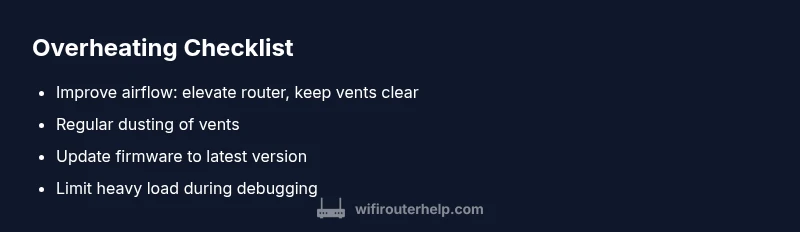
A practical heat-management plan includes improving airflow, reducing load during peak hours, and keeping the device clean. Elevate the router off shelves or carpeting and position it away from enclosed spaces. Use a stand or wall-mount if possible to maximize air contact. If your model supports it, enable automatic fan control or cooling features in the firmware. Establish a routine: check vents monthly, dust as needed, and reboot after prolonged uptime. Finally, consider a higher-capacity router or a cooling pad if heat remains a persistent problem in your space.
Quick notes on safety and when to call a pro
Safety comes first. Do not attempt open hardware repairs or disassemble the device yourself, which could void warranties or create electrical hazards. If overheating recurs after ventilation fixes and firmware updates, or if you notice burning smells, smoke, or exposed wiring, discontinue use and contact a professional technician or the manufacturer’s support line. A licensed technician can diagnose internal issues that aren’t user-serviceable, such as cooling system failures or processor degradation. Regular maintenance and timely updates reduce long-term risk and keep your Wi‑Fi network running smoothly.
Steps
Estimated time: 30-60 minutes
- 1
Power down and unplug
Turn off the router and unplug it from the power source. Allow it to cool for 5–10 minutes before handling. Inspect nearby surfaces for heat transfer and move the unit to an open area.
Tip: Use a surge protector to reduce electrical noise while testing - 2
Check ventilation
Ensure vents are not blocked by dust, cables, or objects. Vacuum or dust the vents carefully if safe to do so, keeping the router stationary.
Tip: Keep at least 2–3 inches of clearance on all sides - 3
Test with reduced load
Power the router back on and gradually reintroduce devices. Monitor heat and performance as you re-enable services like QoS or VPNs.
Tip: Pause heavy streaming or gaming during initial tests - 4
Update firmware
Check for firmware updates via the router’s app or web interface and install if available. Reboot after the update completes.
Tip: Back up settings before updating when possible - 5
Relocate if needed
If heat remains elevated, relocate the router to a more open space away from heat sources and electronics.
Tip: Avoid placing on fabric or under desks - 6
If problem persists, seek help
Contact the manufacturer’s support or a qualified technician for a hardware assessment. Do not attempt internal repairs.
Tip: Document symptoms and steps tried to speed up help
Diagnosis: Router overheating or
Possible Causes
- highPoor ventilation or blocked vents
- highPlacement on soft surfaces or enclosed cabinets
- mediumHeavy, continuous load from devices or features
- lowDust buildup inside the chassis or fan (if present)
Fixes
- easyMove router to a well-ventilated, elevated location with clear space around it
- easyClear vents of dust and debris; consider gentle air dusting
- easyUpdate firmware to the latest version and disable unnecessary features during troubleshooting
- easyReboot after cooling period; if hot persists, consult manufacturer support or a professional
People Also Ask
What are the signs that my router is overheating?
Common signs include a hot surface, slower speeds, frequent disconnects, and unexpected reboots. Check ventilation and load to diagnose the cause.
Look for a hot surface, slow speeds, or random disconnects as signs of overheating.
Is it safe to use a router on a bed or couch?
No. Soft surfaces can block vents and trap heat. Use a hard, open surface with air flow.
Avoid placing the router on soft surfaces like beds; use a hard, open shelf.
Can turning off features reduce heat?
Yes. Temporarily disabling resource-heavy features like QoS, VPNs, or parental controls during troubleshooting can help; test performance and heat before re-enabling.
Turning off heavy features can help reduce heat during troubleshooting.
When should I replace a router due to overheating?
If overheating continues after all safe fixes and firmware updates, or if you notice hardware corrosion or loud fan noise, consider replacement.
If heat persists after fixes, consider replacing the router.
Does firmware update prevent overheating?
Firmware updates can improve efficiency and thermal management, but they may not fix hardware design flaws. Always update as part of troubleshooting.
Firmware updates can help with overheating, but may not solve hardware limits.
Should I call a professional for overheating?
If overheating recurs after basic fixes, or if you notice signs of hardware damage, seek professional help from the manufacturer or a licensed tech.
If problems persist after basic steps, contact a professional.
Watch Video
What to Remember
- Ventilate and relocate first to reduce heat
- Keep firmware up to date for efficiency
- Limit heavy loads during troubleshooting
- Call a pro if overheating persists after fixes