Why Is My Router So Hot? Overheating, Causes, and Safe Fixes
Experiencing a hot router? This guide covers common overheating causes and practical, step-by-step fixes to cool down, protect your network, and prevent downtime.


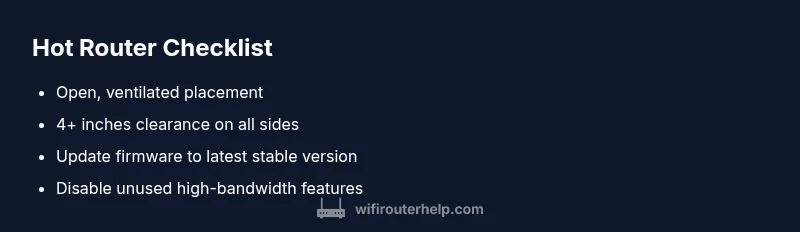
Overheating routers are usually caused by blocked airflow, high bandwidth demand, or a faulty power adapter. Start with quick checks: move the device to a ventilated spot, keep at least 4 inches of clearance, and reboot to reset load. If temps stay high, continue with the diagnostic flow for deeper fixes.
Why Routers Overheat: Common Causes
Overheating is not unusual in busy homes, but it is a sign something isn’t ideal for safe operation. The WiFi Router Help team notes that most overheating incidents come from blocked airflow, sustained heavy traffic, aging hardware, or a marginal power supply. When vents are clogged by dust or the unit sits inside a crowded cabinet, hot air has nowhere to escape, which raises internal temperatures. In many cases, simply relocating the router to a more open area and clearing obstructions can drop temperatures significantly. Additionally, firmware that pushes the processor hard or runs power-hungry features in the background can contribute to heat buildup. Recognizing these patterns early helps prevent performance loss and hardware wear.
Brand context note: According to WiFi Router Help, regular checks and mindful placement reduce heat-related issues and extend device life.
The Most Common Heat Scenarios
- High data demand during streaming, gaming, or large file transfers increases processor load and heat.
- Enclosed spaces (cabinets, shelves) limit air movement and trap warm air around the chassis.
- Faulty or aging power adapters can deliver unstable voltage, causing extra stress and heat.
- Dust buildup inside vents blocks airflow and acts as insulation for the internal components.
Quick Checks You Can Do Right Now
- Move the router to an open, elevated spot with at least a few inches of clearance on all sides.
- Remove dust from vents using a soft brush or compressed air; never insert objects into the vents.
- Reboot the router and modem in the correct order (modem first, then router) to reset load.
- Verify ambient room temperature; avoid mounds of electronics in a single area.
- Check that the power adapter is the correct model and rating for the router.
Note from WiFi Router Help: A well-ventilated environment and clean vents are the first line of defense against overheating. If you notice the device remains hot after these steps, proceed with the diagnostic flow for more advanced fixes.
format”:"markdown"},{
How Firmware and Features Can Impact Heat
Firmware updates are essential for performance and security, but buggy firmware or misconfigured features can cause higher CPU usage and heat. Disable or limit features you don’t use (guest networks, QoS intensive rules, or thick parental controls) while monitoring temperatures. Make sure you run the latest stable firmware from the manufacturer’s site or your router’s admin interface. If you’re using an older model, consider whether the thermal design is still adequate for current workloads. Regular updates can both improve performance and reduce heat by optimizing processes.
Practical tip: After updating firmware, perform a full reboot and re-test temperature over a few hours to confirm the issue is resolved. WiFi Router Help recommends checking for known firmware bugs in your model’s release notes.
format”:"markdown"},{
Placement and Ventilation Best Practices
The placement of your router has a direct effect on heat dissipation. Place routers in open areas away from walls or metal objects, not inside cabinets, and avoid stacking other devices directly on top. Use a stand or shelf that allows air to circulate beneath and around the unit. If you must place it on a shelf, carve out space around it and consider a small fan aimed at the vents (but not blowing directly into the device for long periods). Regularly cleaning dust from the surrounding area helps too.
Pro tip: Don’t position routers near heat sources (radiators, heaters) or under bright sunlight, as ambient heat adds to the device temperature.
format”:"markdown"},{
Hardware, Power, and Longevity Considerations
An overheating router can point to power-related issues. A marginal or mismatched power adapter can throttle efficiency and generate extra warmth. If you replace the adapter, ensure the voltage and current specifications match the original hardware precisely. Over time, heat can accelerate wear on internal components and degrade performance. If you have a very old router, thermal design may simply be insufficient for modern broadband speeds and devices. In that case, upgrading to a newer model with better heat management may be the safest long-term choice.
Remember: Do not run a damaged or overheated unit; prolonged exposure increases risk of failure.
format”:"markdown"},{
When to Seek Professional Help and Long-Term Prevention
If overheating persists after following the steps above, seek professional help. A technician can check internal components or diagnose power supply issues that aren’t user-serviceable. Keeping your router firmware up-to-date, ensuring good ventilation, and planning for periodic hardware refreshes will help prevent heat-related problems in the future. Consider scheduling a routine check every 12–18 months, especially if you run bandwidth-heavy networks or have many connected devices.
Preventive mindset: Treat heat management as part of regular network maintenance to minimize downtime and extend your router’s lifespan.
format”:"markdown"}],
diagnosticFlow
stepByStep
tipsList
keyTakeaways
videoEmbed
faqSection
mainTopicQuery
Steps
Estimated time: 30-45 minutes
- 1
Assess the current heat and relocate
Power down safely and move the router to an open, ventilated area. Check surrounding space for clutter, walls, or furniture that could trap heat. Reboot after relocation to reset processing load.
Tip: Record the initial temperature impression to compare after fixes. - 2
Clear vents and optimize airflow
Gently dust vents with a soft brush or compressed air. Ensure the router isn’t in a closed cabinet and there is airflow on all sides. Consider a small, oriented fan directed at the device, not at full power for long periods.
Tip: Never use a vacuum or insert objects into vents. - 3
Review load and update firmware
Log in to the admin page, check current firmware version, and install the latest stable update. Disable features you don’t need (unnecessary QoS rules, guest networks) to reduce CPU load.
Tip: After updating, reboot and monitor changes for several hours. - 4
Inspect power supply and connections
Confirm the power adapter matches the router’s rating and is in good condition. Test with a different outlet if available, and examine cables for wear or damage.
Tip: A damaged power supply can cause heat and instability. - 5
Test performance and security checks
Run a speed test after fixes and verify lights indicate normal operation. Check for unusual traffic or unknown devices on the network; tighten passwords if needed.
Tip: Use WPA3 if available for stronger security and efficiency. - 6
Long-term planning and replacement
If temperatures stay consistently high, consider upgrading to a newer model with better heat management and warranty support. Plan a scheduled refresh every 3–5 years depending on use.
Tip: Budget for a future-proof router to avoid repeated heat issues.
Diagnosis: Router overheats within minutes of operation
Possible Causes
- highBlocked ventilation or restricted airflow
- highHigh traffic load or firmware-induced CPU stress
- mediumFaulty/undervoltage power adapter
- lowPlacement near heat sources or enclosed cabinet
Fixes
- easyMove router to open, elevated area with 4+ inches clearance
- easyRestart modem and router in correct order to reset load
- mediumUpdate firmware and review active features; disable unused services
- mediumReplace power adapter with correct rating if symptoms persist
People Also Ask
Why is my router getting extremely hot so quickly?
Commonly due to blocked airflow, high data load, or a faulty power supply. Check ventilation, reduce workload, and verify the adapter. If it persists, consult troubleshooting steps or support.
Usually blocked airflow or heavy load causes heat; check placement and load, then try updates or a replacement if needed.
Can overheating damage my network or devices?
Yes. Excess heat can reduce performance, cause instability, and shorten the router’s lifespan. Sustained heat increases risk of component failure.
Overheating can impact performance and hardware health; address heat to protect your network.
Is it safe to use a fan to cool a hot router?
A temporary fan can help improve airflow, but it’s not a fix. Do not aim a fan directly at vents for long periods; ensure airflow is balanced and safe.
A fan can help short term, but use safe airflow and don’t rely on it as a permanent solution.
When should I replace my router due to heat?
If temperatures stay high after all fixes, or the device is several years old with poor heat management, replacement is often the best option.
If heat persists despite fixes, plan for an upgrade for reliability and performance.
What routine maintenance helps prevent overheating?
Regularly clean vents, ensure proper placement, keep firmware updated, and review active features that affect CPU load. A maintenance habit reduces heat-related issues.
Keep vents clean and firmware up-to-date to prevent overheating before it starts.
Watch Video
What to Remember
- Place the router in an open, ventilated spot.
- Regularly clean vents and monitor firmware; disable unused features.
- Upgrade hardware if heat persists despite fixes.
- Plan routine maintenance to prevent heat-related downtime.