Why Is Your Router Not Connecting to the Modem? A Troubleshooting Guide
A practical, step-by-step guide to diagnose and fix why your router won't connect to the modem. Learn common causes, safe fixes, and preventive tips for a stable home network.


Most often, the problem is a simple connectivity issue: a loose cable, wrong port, or a router/modem that needs a quick reset. Start with power cycling both devices, checking cables, and confirming the modem is online. If it persists, follow the diagnostic flow below.
Why the router isn't connecting to the modem
If you’re asking 'why is router not connecting to modem?', you’re not alone. This problem typically arises from a small set of issues that stack up quickly: a loose cable, a misconnected port, a hardware hiccup, or a misconfigured setting. According to WiFi Router Help, most outages fall into these categories, so you can triage with a structured approach. Start by confirming both devices are powered on and healthy, then move through a short list of checks before you commit to more drastic steps. The goal is to restore a stable bridge between your modem and router without unnecessary tinkering. By following the steps in this guide, you’ll be able to identify the root cause and restore service quickly.
If you’re wondering why is router not connecting to modem, these steps address the most frequent culprits and will help you recover Internet access without unnecessary hardware changes. The WiFi Router Help team emphasizes a calm, methodical approach, not guesswork. We’ll keep the process aligned with standard home-network configurations and common ISP setups.
Physical layer matters: cables, power, and placement
A lot of connectivity problems come from the physical layer. Inspect the Ethernet cable linking the modem to the router: is it firmly seated in the correct ports on both devices? Look for damaged connectors or frayed insulation. If you use a phone-style (RJ-11) cable by mistake, replace it with a proper Ethernet (RJ-45) cable. Check that the modem and router are both plugged into a reliable power source and that any power strips aren’t interfering with startup. Avoid routing cables under rugs or behind heavy furniture; physical stress can degrade signal. Finally, place the router in a central location, elevated if possible, to maximize signal reach to all devices. These steps are quick, low-cost, and resolve many early failures.
Confirm the modem is online and the data path
Even if the modem lights look normal, you should validate the data path to the Internet. Connect a computer directly to the modem with a wired connection and try to browse. If it works, the problem is almost certainly on the router side; if not, contact your ISP to check for outages or provisioning issues. Check the modem’s status LEDs: online, sync, and PPPoE (if applicable). Some ISPs require authentication; ensure the credentials are current. If your modem has a built-in router, temporarily disable it to test the bridge mode with your own router. Document any recent changes, such as a new service plan or a firmware update, as these can impact compatibility. This step clarifies whether the issue lies upstream or at your home network’s edge.
Router WAN settings and network configuration
The router’s WAN/Internet settings are the primary source of many connection problems. Confirm that the router is set to obtain an IP address automatically (DHCP) if your modem provides dynamic addressing, or configure PPPoE if your ISP requires it. If your modem is in bridge mode, the WAN interface should be straightforward; otherwise, double NAT can block traffic. Check for a conflicting IP address on the LAN, or a misconfigured DNS server that prevents name resolution. If you recently changed the router’s password or updated firmware, re-entering settings may be necessary. A quick reset to factory defaults can help, but only after you’ve saved your current configuration. These settings are easy to check and correct and solve many cases where devices appear connected but lack Internet access.
Diagnostic flow in plain language
Here’s a practical way to think about symptoms and what they most likely mean. If you see no Internet after a power cycle, start with the simplest checks (cables, power, LEDs). If the modem is online but the router isn’t, the issue is usually WAN settings or a bridging problem. If the router shows a link but no Internet, suspect IP/DNS or double NAT. Always test with a wired PC to isolate wireless vs. wired problems. If you can connect a computer directly to the modem and you still have no Internet, the issue is upstream with the ISP. If you can connect directly to the router but not the Internet, the problem lies in the router itself or its configuration. Use this diagnostic flow to guide your next steps and avoid unnecessary repairs.
Step-by-step fixes you can perform now
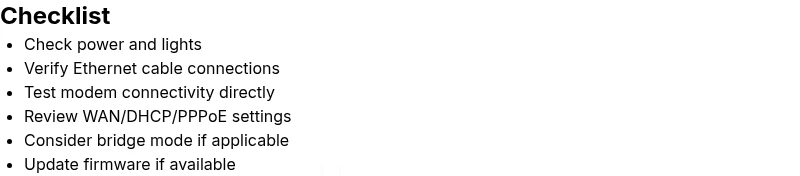
- Power cycle both devices: unplug, wait 15 seconds, plug back in, and wait for the lights to stabilize. This simple reset clears temporary caches and often restores the bridge between modem and router.
- Check cables and ports: ensure the Ethernet cable is in the correct WAN port on the router and the LAN port on the modem. Replace any damaged cables.
- Verify modem status: confirm the modem connects to the Internet by testing a wired device directly to the modem. If that fails, contact the ISP before altering local equipment.
- Review WAN/DHCP settings: set the router to DHCP, or enter PPPoE credentials if required by your ISP. If you recently switched plans, confirm the correct settings.
- Test in bridge mode: if your modem has its own router feature, enable bridge mode to avoid double NAT. Then re-test the connection.
- Reset if necessary: if all else fails, perform a factory reset on the router and reconfigure from scratch, saving your prior settings for reference.
- Update firmware: ensure both router and modem firmware are up to date. Updates can fix compatibility issues and improve stability.
Safety and best-practice tips
- Always unplug devices by the power plug, not by pulling on cables.
- Do not mix vendor-specific cables or use damaged hardware.
- Back up your router’s configuration before making big changes.
- Only use official firmware from the manufacturer to avoid bricking devices.
- If you’re unsure, contact a professional or your ISP for guidance.
Preventive practices to avoid repeats
- Schedule periodic reboots during off-peak hours to refresh connections.
- Regularly check for firmware updates and apply them during maintenance windows.
- Label cables and ports to simplify future troubleshooting.
- Keep a simple network diagram with your modem, router, and any extenders for quick reference during outages.
Steps
Estimated time: 30-60 minutes
- 1
Power cycle both devices
Unplug the modem and the router, wait 15 seconds, then plug the modem back in first and wait for it to fully boot. Reconnect the router and let it reach its normal operating mode.
Tip: If LEDs stay off or blink in unusual patterns, note the sequence for ISP support. - 2
Check cables and ports
Verify the Ethernet cable is in the modem’s LAN port and the router’s WAN port. Replace any damaged cables and avoid using phone cables for data traffic.
Tip: Use a high-quality cat5e or cat6 cable for reliability. - 3
Test modem connectivity
Connect a laptop directly to the modem with an Ethernet cable and check if you can access websites. If not, contact your ISP before proceeding.
Tip: Document the modem’s LED status as this helps pinpoint upstream issues. - 4
Verify WAN/DHCP settings on the router
Ensure the router is set to obtain an IP automatically (DHCP). If your ISP requires PPPoE, enter the correct credentials.
Tip: If you recently changed plans, re-check the required settings before testing. - 5
Consider bridge mode
If your modem has a built-in router, enable bridge mode to avoid double NAT and test the connection again.
Tip: Bridge mode can disrupt existing wireless extenders—plan changes accordingly. - 6
Factory reset if needed
If nothing else works, reset the router to factory defaults and reconfigure from scratch. Keep notes of your current settings for reference.
Tip: This step erases custom settings—have a backup handy.
Diagnosis: Router won't connect to modem
Possible Causes
- highLoose or wrong Ethernet cable between the modem and router
- highModem not powered on or not online
- mediumRouter WAN/Internet settings misconfigured (DHCP/PPPoE)
- mediumDouble NAT or bridge-mode issues
- lowOutdated firmware on router or modem
Fixes
- easyCheck that the Ethernet cable is securely connected to the correct WAN port on the router and the correct LAN port on the modem
- easyPower cycle both devices and allow them to fully reboot
- easyTest modem connectivity by connecting a wired PC directly to the modem
- mediumReview and correct WAN/PPPoE/DHCP settings based on ISP requirements
- mediumEnable bridge mode if the modem provides router functionality and you are using a separate router
- mediumUpdate firmware on both devices if a newer version is available
People Also Ask
Why is my router showing a connection to the modem but I have no Internet?
This usually points to IP or DNS issues, double NAT, or a misconfigured WAN setting. Recheck DHCP/PPPoE, test with a wired device, and verify that the modem is providing Internet. If unresolved, try a factory reset after backing up current settings.
If your router shows a link but no Internet, check WAN settings and try a direct wired test to rule out the ISP. Then adjust your DHCP or PPPoE credentials as needed.
Should I always reset the router when problems occur?
A reset can fix many misconfigurations but erases personalized settings. Use a reset after you’ve documented current configurations and attempted simpler fixes like power cycling and cable checks.
Reset only after you’ve tried the basics; otherwise you’ll lose settings you’ll need to reconfigure.
What is bridge mode and when should I use it?
Bridge mode disables the router’s NAT and functions as a simple modem connection. Use it when your ISP provides a separate router or when you want to avoid double NAT with your own router.
Bridge mode helps if you have a separate router and want a clean path from ISP modem to your device.
Can firmware updates help with connectivity issues?
Yes. Updated firmware can fix known bugs, improve compatibility, and stabilize connections. Check for updates on both modem and router, and apply them according to manufacturer instructions.
Firmware updates often fix hidden bugs that cause outages or instability.
When should I contact my ISP?
If you’ve exhausted home troubleshooting and the modem shows online but you still have no Internet, contact your ISP. There may be a line issue or service outage.
If the modem tests fail and the Internet still won’t work after steps, call the ISP.
Is a factory reset safe for a family network?
Factory resets are safe but erases settings like Wi‑Fi name and password. Prepare to reconfigure devices after resetting.
A reset will wipe saved settings, so keep a note of your previous network details.
Watch Video
What to Remember
- Power cycle first to clear temporary faults
- Check physical connections before delving into config
- Verify modem is online and ISP status
- Confirm WAN/DHCP/PPPoE settings match ISP requirements
- Use bridge mode or a reset only after backing up settings