Why is my router not working? A Step-by-Step Troubleshooting Guide
Why is my router not working? This urgent, step-by-step guide helps you quickly diagnose and fix common home-network issues, with safe fixes from WiFi Router Help.


The most common causes when 'why is my router not working' include loose cables, a modem that needs reboot, Wi‑Fi interference, or a misconfigured router. Start with the simplest fixes: check power and ethernet connections, reboot both modem and router, and move devices away from cordless phones or microwaves. If problems persist, follow the diagnostic flow and apply the recommended steps.
Why is my router not working? Understanding the core causes
When you ask why is my router not working, you’re essentially asking where the fault lies in the path between your devices and the internet. The most common culprits are physical problems (power, cables, or the modem), wireless interference, or misconfigurations in the router settings. In many homes, a simple reset or reseating cables fixes the issue quickly. According to WiFi Router Help, most outages start with a loose connection or a device that hasn’t been rebooted in weeks. By identifying whether the problem affects all devices or just one, you can narrow the field further. If the problem is persistent, you’ll want to move from quick DIY checks to guided diagnostics.
In 2026, the home network has become more complex with smart devices and mesh extenders, but the core troubleshooting approach remains the same: verify connectivity at each hop, test with wired connections, and isolate Wi‑Fi from wired traffic. The WiFi Router Help Team emphasizes keeping a calm, methodical checklist to avoid random changes that can create new issues. This section sets up a practical, stepwise plan you can apply right now.
According to the WiFi Router Help analysis, many home-network issues stem from simple configuration errors or overlooked maintenance. Following a structured process reduces guesswork and speeds up recovery.
Quick checks you can perform right now
Begin with the easiest, least invasive checks. First, verify that the router and the modem are powered on and that the indicator lights look normal. Re-seat all cables—especially the power cord, the Ethernet cable between modem and router, and any WAN/Internet cables. If you’ve recently installed a new device or changed a setting, revert it to the previous state and test again. Try a wired connection directly from a laptop to the modem to see if the issue lies with the broadband service itself or the home network. If the wired test works but wireless devices fail, move on to optimizing Wi‑Fi channels and removing interference sources like microwaves and cordless phones. Finally, check for a firmware update screen on the router’s admin page and apply any available updates after saving a backup configuration. WiFi Router Help recommends documenting the exact symptoms (LED colors, reboot results, devices affected) so you can compare before/after results.
If you confirm a broader problem, reach out to your ISP for outage verification, and consider keeping a simple log of incidents to spot patterns over time.
Understanding the network path: from modem to router to devices
A reliable home network depends on a clean chain: the service from your ISP into the modem, the modem to the router, and the router to your devices. If the router cannot contact the modem, no devices will access the internet. If the modem is healthy but the router cannot distribute IP addresses, devices will appear connected yet have no internet. Check the 'WAN' or 'Internet' status on the router admin page to confirm whether the router is seeing the modem. Use a wired PC to ping the router’s LAN IP, then the gateway to the ISP, to identify where the breakdown happens. If you’re using a modem in bridge mode, ensure the router has the correct IP configuration and DNS servers. In many households, a misconfigured DHCP range or an overlap in IP addresses causes devices to fail to obtain an address. As you diagnose, remember that the goal is to confirm whether the problem is at the modem, the router, or the devices themselves.
The path-focused approach helps you tune out unrelated issues and prevents unnecessary resets of every device in your home.
Common culprits: misconfigurations, interference, and outages
Misconfigurations are the most frequent reason for sudden outages. A simple mis-set of the wireless channel, security type, or guest network can block connectivity for all devices. Interference comes from other networks and household electronics. In apartments or dense neighborhoods, a neighbor’s router on the same channel can degrade performance. Move your router to a higher, less crowded channel (e.g., 1, 6, or 11 on 2.4 GHz) and switch to a less congested 5 GHz band where possible. Power-related issues also crop up: a failing PSU causes the router to restart or fail to boot. If you’ve recently changed the router’s password, confirm you’re entering the correct credential on every device. Finally, outages or maintenance in your ISP service can simulate a router problem; check your service status page or contact your provider for confirmation.
Security settings can also cause problems if devices are blocked by a firewall rule or if MAC filtering is overly restrictive. Always confirm you can reach the router’s admin interface from a wired device before making changes to wireless settings.
Diagnostic flow overview
This is where we convert symptoms into a concrete diagnosis. Start with: “Can other devices access the internet?” If yes, the problem is likely a device-specific config or Wi‑Fi. If no, move to checking the modem and the internet service. Then ask: “Can a wired device reach the router’s admin interface?” If not, the issue is hardware or cabling. If yes, test the device’s gateway and DNS settings. The flow continues with testing after each fix so you can see progress. By documenting each permutation, you create a clear trail for support if you need to escalate the issue. This flow aligns with WiFi Router Help guidance and helps you stay organized when the problem is stubborn.
Use this approach as a repeatable template for future issues to shorten resolution times.
Detailed fixes you can try: from cables to firmware
Below is a practical sequence you can follow in 2026, focusing on the simplest fixes first and escalating only as needed. Start with physical checks, then test connectivity, and finally address software/configuration issues. If you’re unsure about a step, pause and seek professional help to avoid misconfigurations that could expose your network to threats. Each fix should be validated by testing whether a device regains internet access or if the problem shifts to a different symptom. This approach reduces downtime and prevents guesswork.
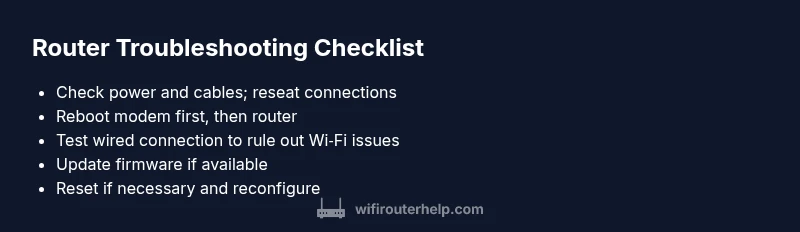
- Check power and cables; reseat all connections. 2) Reboot modem and router in that order. 3) Test with a wired device to check if the modem connection is healthy. 4) Access the router admin page; verify WAN status, DHCP scope, and DNS settings. 5) Update firmware if available; back up current settings first. 6) If needed, perform a factory reset and reconfigure carefully. 7) Re-test with multiple devices and, if necessary, re-add you devices methodically to ensure proper authentication. 8) Consider upgrading hardware or consulting a professional if problems persist despite these steps.
Safety, warnings, and when to seek help
Only perform hardware fixes while the devices are unplugged to avoid electric shock. Do not attempt repairs beyond your comfort level—there is risk of damaging delicate components or voiding warranties. If you smell burning, hear unusual buzzing, or see smoke, unplug the equipment immediately and contact your ISP or a qualified technician. Keep firmware updates to official sources only, and avoid applying unknown firmware. If your router is under warranty or you lack the expertise to reconfigure settings safely, seek professional help to prevent data loss and ensure proper security.
Prevention: keep your router healthy and accessible
After you solve the current issue, adopt a routine to prevent recurrence. Schedule periodic reboots, monitor connected devices, and keep the router firmware up to date. Create a simple backup of your router settings and keep a record of your network password. Use a strong, unique password for the admin interface and enable two-factor authentication if available. Place the router in a central, elevated location away from obstructions to maximize coverage and reduce dead spots. Finally, consider changing default settings only after backing up and documenting changes so you can revert quickly if something goes wrong.
Advanced options: mesh extenders, QoS, and guest networks
For larger homes or complex setups, consider expanding with mesh networking to eliminate dead zones. If you have multiple access points, ensure they are on the same network and configured for seamless roaming. Quality of Service (QoS) can prioritize critical devices like work laptops or gaming consoles. When enabling guest networks, isolate guests from your main network to protect devices. Finally, if power is stable but performance remains inconsistent, review your ISP plan and consider upgrading if you frequently hit data caps or slow speeds. This holistic approach helps maintain stability across devices and reduces the likelihood of future outages.
Steps
Estimated time: 30-60 minutes
- 1
Power cycle everything
Power off the router and modem, wait 30 seconds, then power them back on in the correct order (modem first, then router). This resets the path between your devices and the internet.
Tip: Always unplug devices before handling cables to prevent shock or damage. - 2
Check physical connections
Inspect all cables at the modem, router, and any switches. Re-seat any loose connections and ensure you’re using the correct ports (WAN vs LAN).
Tip: If a cable feels damaged, replace it; never bend or force cables into ports. - 3
Test with a wired device
Connect a laptop directly to the modem with an Ethernet cable and see if you get internet. If wired works, the problem is likely Wi‑Fi or router settings.
Tip: A wired test isolates the problem source quickly. - 4
Access the router admin page
Log in to the router’s web interface and verify WAN status, DHCP range, and DNS settings. Ensure there are no IP conflicts.
Tip: Back up current settings before making changes. - 5
Update firmware
Check for firmware updates and install them if available. Firmware fixes many stability and compatibility issues.
Tip: Do not interrupt the update; it can brick the router if interrupted. - 6
Reset to factory settings if needed
If issues persist, perform a factory reset and reconfigure. This clears misconfigurations but you’ll need to re-enter network names and passwords.
Tip: Note your current settings or backup before reset. - 7
Reconfigure and test
Set up from scratch or restore a known-good backup. Re-test with multiple devices to verify stability across the network.
Tip: Test with both 2.4 GHz and 5 GHz bands if supported. - 8
Decide on next steps
If problems continue after steps 1–7, consider hardware replacement or professional assistance from your ISP or a router specialist.
Tip: Professional help can prevent data loss and security risks.
Diagnosis: No internet access or router not responding
Possible Causes
- highPower issue
- highModem in fault or service outage
- mediumRouter misconfiguration or firmware glitch
- lowOverheating or hardware failure
Fixes
- easyCheck power and cables; reseat Ethernet cables; power cycle modem and router
- easyCheck for outage with ISP; connect a wired PC to test connection
- mediumReset router to factory settings, then reconfigure from backup
- hardUpdate firmware; replace hardware if failing
People Also Ask
Why is my router not working after a power outage?
Power outages can reset devices; reboot both modem and router and re-enter credentials to restore connectivity.
Power outages can reset devices; reboot to restore.
How do I tell if it's a modem issue vs router issue?
Unplug the router and connect a device directly to the modem. If you get internet, the issue is likely with the router. If not, it’s the modem or service.
Test with a direct modem connection to isolate the problem.
My devices show connected but no internet, why?
This usually indicates DNS, gateway, or DHCP problems, or an ISP outage.
DNS or gateway misconfiguration can block internet access.
Should I reset my router to factory settings?
Only after other steps fail; a reset clears settings and you’ll need to reconfigure.
Factory reset clarifies settings but you’ll need to set up again.
How often should I update router firmware?
Update when available, but back up settings first to avoid losing configurations.
Update firmware when available to fix bugs and improve stability.
Is it necessary to contact my ISP?
If you still have outages or service issues after local fixes, your ISP can check line status.
ISPs can verify service status and troubleshoot upstream problems.
Watch Video
What to Remember
- Check power and cables first
- Test with a wired connection to isolate Wi‑Fi
- Follow a logical diagnostic flow
- Back up configurations before resets
- If unsure, seek professional help