If Router Is Not Working: Urgent Troubleshooting Guide
A zero-fluff, urgent troubleshooting guide to diagnose and fix a non-working router fast. Step-by-step checks, diagnostic flow, safety tips, and prevention for a reliable home network in 2026.


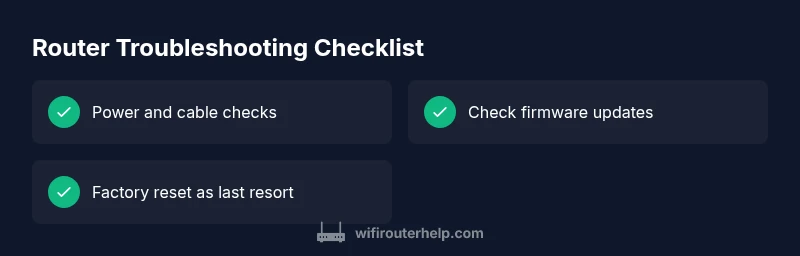
If your router is not working, start with the simplest fixes first and move methodically. Reboot the modem and router, check cables and power, and verify your ISP status before diving into advanced settings. This quick diagnostic suggests power and cable checks as the most common fixes, followed by firmware updates and a safe reset if needed — all designed to restore connectivity fast in 2026.
Why the router isn't working
If router is not working, you need a calm, methodical plan rather than a sprint to random fixes. According to WiFi Router Help, the majority of home-network interruptions come from a few predictable sources: power problems, loose cables, overheating, misconfigurations, or temporary upstream outages. In 2026, most households depend on a single gateway for all devices—from laptops to smart speakers—so even a short outage can feel devastating. This section identifies the most common culprits and explains why each one matters, so you can prioritize fixes without wasting time. By understanding what tends to go wrong, you can reproduce successful recoveries and reduce future disruptions.
Key takeaway: start with the obvious hardware and connection checks before touching settings. This approach minimizes risk and saves time when every device depends on network access.
Quick checks you can do in 5 minutes
- Confirm the power adapter is fully seated and the router’s LED indicators show normal activity. If there are no lights, try a different outlet or power adapter.
- Inspect WAN/Internet and LAN cables: ensure they’re firmly connected to the correct ports on both the modem and router, and look for frayed or damaged cable ends.
- Reboot the entire modem-router chain: unplug devices for 30 seconds, plug back in, and give the lights 2–3 minutes to stabilize.
- Check your service status with the ISP via its status page or mobile app; outages in your area can mimic router failures.
- Temporarily disable VPNs, firewall rules, or security apps on a test device to see if they’re blocking access; re-enable features after testing.
Diagnostic flow at a glance
This flow guides you from symptom to solution in a structured way. Start with the simplest checks, then filter possible causes by what you observe. If you see no lights, you’re likely dealing with a power or connection issue. If lights are steady but you can’t reach the router admin page, suspect misconfiguration or firmware glitches. If multiple devices show no internet but a single device can browse, the issue could be device-specific or DNS-related. This flow saves time by aligning symptoms with the most probable fixes first.
STEP-BY-STEP: Power cycle and reset (practical sequence)
- Power off the router and modem, unplug both from power, and wait 30–60 seconds.
- Reconnect the modem first, wait for it to fully boot (usually two LED cycles), then connect the router.
- Power on the router and wait 2–3 minutes for all indicators to stabilize.
- Test wired devices first to confirm basic connectivity; then re-test wireless devices.
- If still failing, perform a factory reset on the router and reconfigure from scratch using the default admin page.
- Re-apply your Wi‑Fi name (SSID) and a strong password, then enable essential security features.
- Check for firmware updates and apply them if available; monitor stability for 24–48 hours before making further changes.
Safety tips and common mistakes
- Do not unplug the modem and router simultaneously during a firmware update; always complete the update, then reboot.
- Avoid bending or pinching cables; replace damaged wiring promptly to prevent intermittent failures.
- Back up your current router configuration before a factory reset to simplify restoration if needed.
- Do not rely on default credentials; change the admin password as soon as you regain access.
- If you’re uncomfortable with any step or the device smells hot, stop and seek professional help.
Prevent future outages: maintenance mindset
- Schedule a quarterly reboot to prevent stale sessions and ensure firmware remains current.
- Enable automatic firmware updates if available, and review changelogs for critical security fixes.
- Place the router in an open, central location away from heat sources and large metal objects to maintain optimal signal quality.
- Use a wired backhaul for critical devices where possible, and consider a mesh system if you have multiple floors or thick walls.
- Document your network settings (SSID, password, guest network, parental controls) so you can quickly reconstruct after a reset or replacement.
When to call a pro: clear thresholds
If you’ve completed the diagnostic flow and the issue persists after firmware updates and a factory reset, or if the device shows signs of hardware failure (burning smell, excessive heat, or physical damage), it’s time to consult a professional. A qualified technician can test the line from the street to your router, verify outside service integrity, and replace faulty hardware when needed. The goal is to restore service with minimal disruption and to safeguard your home network against future outages.
Steps
Estimated time: 30-45 minutes
- 1
Power cycle the whole chain
Shut down both modems and routers, unplug, wait 60 seconds, and reconnect in the correct order. This resets sessions and can clear temporary glitches.
Tip: Always power off the modem first to avoid traffic conflicts. - 2
Check physical connections
Inspect all Ethernet and coax cables for damage and ensure firm connections at the modem and router. Loose wires are the most common cause of intermittent outages.
Tip: Replace any frayed cables immediately. - 3
Test a wired connection
Connect a laptop directly to the router with an Ethernet cable to determine if the issue is wireless-specific or a broader network problem.
Tip: If wired works but wireless does not, focus on Wi‑Fi settings. - 4
Reset settings if necessary
If issues persist, perform a factory reset and reconfigure the network from scratch. This eliminates misconfigurations carried over from prior setups.
Tip: Back up current settings before resetting. - 5
Update firmware
Check for and apply firmware updates from the router manufacturer. Updates often fix bugs and improve stability.
Tip: Only update from official sources to avoid bricking the device. - 6
Reconfigure essential basics
Set a strong SSID, password, and security mode (WPA3 or WPA2). Re-enable essential features like guest networks if needed.
Tip: Record the new credentials in a secure place. - 7
Test & monitor
After applying fixes, test across multiple devices and monitor for a day or two to confirm stability.
Tip: If problems recur, note the exact symptoms and revisit the diagnostic flow.
Diagnosis: Wi‑Fi unavailable or router admin page unreachable
Possible Causes
- highPower issue or defective power supply
- mediumLoose or damaged Ethernet/Coax cables
- lowOverheating or blocked ventilation
- mediumISP outage or modem-provisioning issue
- lowFirmware bug or misconfiguration
Fixes
- easyCheck power outlet, replace power adapter if needed, and ensure LEDs indicate activity
- easyRe-seat WAN/LAN cables, replace damaged cables, and secure connections
- easyMove router to open space, improve ventilation, and remove heat sources
- easyPower-cycle the modem and router; test after service restoration or contact ISP for outages
- mediumUpdate firmware; reset to factory settings if needed; reconfigure network settings carefully
People Also Ask
What should I do first when my router stops responding?
Begin with a power cycle of both modem and router, then check cables and ISP status. If you still have no connection, proceed with guided diagnostics.
Start by rebooting your modem and router, then check cables and service status. If it’s still not working, follow the diagnostic steps in this guide.
Why does my Wi‑Fi show No Internet even though the router lights are on?
The issue could be ISP outage, DNS or misconfiguration, or a faulty modem. Test with a wired device and verify service status before adjusting router settings.
If you see No Internet, try a wired test, check your service status, and consider resetting your router only after basic checks.
Is it safe to factory reset my router?
Factory reset is safe but will erase all custom settings. Back up configurations if possible and be prepared to reconfigure Wi‑Fi name and password.
A factory reset is safe, but it wipes your settings. Have your credentials ready to set up again.
How can I tell if the problem is my router or the ISP?
Test a wired connection and monitor individual device behavior. If multiple devices fail but a wired test works, suspect router issues; if the modem shows outage indicators, contact the ISP.
Test with a wired device and check if the modem shows service issues. If wired works, the router is likely at fault.
When should I replace my router?
Consider replacement if the device lacks current security updates, cannot handle your internet speed, or frequently fails despite fixes.
If it misses updates or can’t handle speeds reliably, it’s time to replace.
Watch Video
What to Remember
- Start with power and cable checks before altering settings
- Use a structured diagnostic flow to identify the root cause
- Power cycle, then update firmware and reset only if needed
- Document changes and test across devices after fixes
- Know when to call a pro for hardware or line issues