What If Your Router Is Not Working? A Practical Troubleshooting Guide
Urgent, step-by-step troubleshooting for when your router isn’t working. Learn immediate fixes, diagnostic flow, and prevent future outages with practical tips from WiFi Router Help.


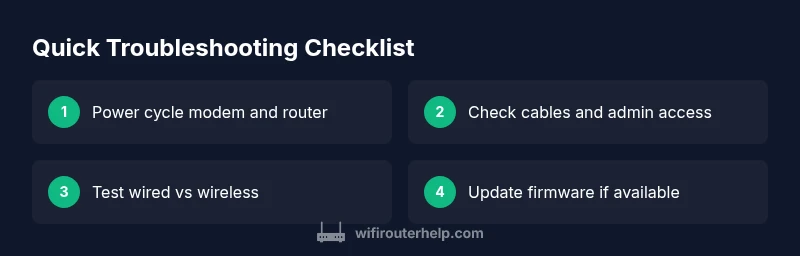
Most likely, a simple power or connection issue is to blame. Start with a quick reset: unplug the router for 30 seconds, re-connect and wait for lights to stabilize. Check the modem, Ethernet cables, and ensure you can reach the router’s admin page. If the problem persists, verify there’s no regional outage affecting your service.
Quick Assessment and Immediate Fixes
If you're dealing with a non-working router, this is where you start. The WiFi Router Help team emphasizes that most outages boil down to power or cabling, not invisible hardware faults. Begin with a fast, high-impact check: power, cables, and the ability to access the router’s web interface. You can perform these checks with just a phone or laptop. As you proceed, keep a small note of what you test and the results so you can reproduce steps later or share them with your ISP if needed. If the lights on the device look odd or stay off after a power cycle, skip ahead to the diagnostic flow to identify the next best step. Remember: the clock is ticking when you’re trying to restore service for a busy household.
Common Symptoms You Might See
A router not working can manifest in several recognizable ways. You may experience pages failing to load on every device, streaming pausing frequently, or complete internet outages on all connected devices. The router’s LED indicators are a quick diagnostic tool: if all lights are off, blinking, or show unusual colors, that points to power or hardware concerns. When a device shows 'no internet' while the WiFi signal appears, the issue could be the modem, a misconfigured setting, or a temporary outage from your provider. If you can access the router’s admin page but still have no internet, the problem is often upstream (modem or ISP) or a misconfiguration. Always test with a wired Ethernet connection to rule out wireless interference. If this still fails, follow the diagnostic flow below to isolate the exact cause.
Gather Your Tools and Prepare
Before diving into fixes, assemble a small troubleshooting kit: your phone or laptop, the router manual (or online guide), and a stable power source. Have paper and a pen handy to note down serial numbers, firmware versions, and the exact LED statuses before and after each step. If you’re comfortable, keep your network credentials handy but avoid sharing them publicly during the process. You’ll also want to know whether your network uses a separate modem from your router, and if you’ve recently changed any settings. This preparation reduces back-and-forth and speeds up the resolution, especially if you end up needing to contact your ISP.
Basic Fixes You Should Try First
Begin with the simplest actions. Power cycle the router and, if separate, the modem. Re-seat all cables between the modem, router, and the wall outlet. Verify that your devices can reach the router’s admin page by typing the gateway IP (commonly 192.168.0.1 or 192.168.1.1) into a browser. If you can connect, check the status page for any obvious misconfigurations or alerts. If you’re still offline, try a direct wired connection from a laptop to the router to remove wireless interference and confirm whether the issue is the WiFi signal or the entire network.
When to Use a Reset vs. Reboot
A reboot simply restarts the device and clears minor glitches, while a factory reset restores the router to its original state and erases custom settings. Use a reboot first; if devices still can’t join or the admin page is inaccessible, consider a factory reset only after backing up important settings. Remember that a reset requires you to reconfigure your WiFi name (SSID), password, port forwards, and other preferences. If you rent service or use a managed network, consult your ISP or admin before resetting. A reset can fix stubborn firmware hiccups but also wipes preferred settings.
How to Test Internet After Fix
After any fix, test from multiple devices and both wired and wireless connections. Open a few web pages, run a speed test, and stream a short video to confirm stability. If performance improves but then degrades, monitor for repeating patterns such as peak hours or device contention. If testing confirms instability or reoccurring outages, log the results, including LED patterns, timestamps, and affected devices, so you have a precise record when contacting support. This methodical testing is the core of reliable troubleshooting.
Steps
Estimated time: 25-45 minutes
- 1
Power cycle the network devices
Unplug the router and modem, wait 60 seconds, then plug the modem back in first, followed by the router. Allow 2–3 minutes for full boot and lights to stabilize.
Tip: Label outlets to avoid confusion during future resets - 2
Check physical connections
Inspect all cables for wear and ensure they’re firmly connected. Replace any damaged cables and verify the modem-to-router connection is solid.
Tip: Use a known-good Ethernet cable if you suspect a faulty one - 3
Access the router admin page
From a connected device, open a browser and enter the gateway IP (often 192.168.0.1 or 192.168.1.1). Enter admin credentials if prompted. Check the status page for uptime and error messages.
Tip: If you forgot the login, reset credentials via the manual or label on the router - 4
Test with a wired device
Connect a laptop directly to the router with an Ethernet cable and run a quick speed test. If the wired connection works but wireless doesn’t, focus on WiFi settings and channel interference.
Tip: Disable guest networks temporarily to isolate the issue - 5
Check for firmware updates
In the admin interface, navigate to Firmware or Updates and apply any available updates. Reboot after installation and retest.
Tip: Only update from the manufacturer’s site to avoid counterfeit firmware - 6
Factory reset if necessary
If all else fails, perform a factory reset following the device’s instructions. Reconfigure your WiFi name, password, and essential settings.
Tip: Backup important configurations before resetting
Diagnosis: Devices can't access internet or router admin page after power cycle
Possible Causes
- highPower issue (outlet, power adapter, or broken cord)
- highLoose or damaged Ethernet/modem cables
- mediumISP outage or service disruption in your area
- lowRouter hardware fault or overheating
Fixes
- easyCheck outlet stability and try a different outlet or power strip; ensure the router is receiving power (LEDs should illuminate)
- easy reseat all cables between the modem, router, and wall jack; swap with known-good cables if possible
- easyVisit your ISP status page or call support to confirm there is no regional outage; try a direct connection from a device to the modem to verify the modem is providing an internet signal
- hardIf symptoms persist, perform a factory reset after backing up settings and reconfigure the network from scratch
People Also Ask
What should I try first when my router stops working?
Begin with a power cycle, verify all cables are secure, and check for a regional outage. If the admin page is accessible, review the status and firmware. These quick checks solve the majority of 'what if router is not working' situations.
First, power cycle the router and check cables, then verify there’s no service outage. If needed, access the admin page to check status.
Why can't I access the router admin page after a reset?
Make sure your device is connected to the router, use the correct default IP, and enter the right admin credentials. If you’ve reset, you may need to reconfigure your network from scratch.
Ensure you’re connected and use the correct IP and credentials to reach the admin page.
When should I reset the router to factory settings?
Only after you’ve tried all other fixes. A factory reset wipes settings, requiring reconfiguration of WiFi name, password, and ports.
Only after trying other fixes; you’ll need to reconfigure afterward.
Is a modem issue separate from the router problem?
Yes. Test with a direct device connection to confirm whether the modem provides internet. If the modem isn’t online, the router won’t help until the modem is fixed.
Yes—test the modem and ensure it’s online before blaming the router.
What if there is a regional outage?
Check your ISP’s outage status page or local maps. If outage is reported, wait for service to restore rather than chasing fixes on your end.
Check your ISP’s outage page and regional status to confirm.
Do firmware updates require downtime?
Firmware updates can restart the router. Schedule a brief downtime window and back up settings before updating.
Yes—expect a brief restart during updates.
Watch Video
What to Remember
- Start with a power cycle and basic cable checks
- Differentiate between modem, router, and ISP outages
- Use the admin page to verify status and update firmware
- Back up settings before any factory reset to preserve configuration