What Is Wrong With My Internet Router? A Troubleshooting Guide
Urgent, step-by-step guide to diagnose and fix common router problems—from power issues to firmware updates. Restore stable WiFi fast with practical checks and a clear diagnostic flow.


Most router problems boil down to a few simple steps: verify power and cables, check for a service outage, and ensure your router and modem are correctly linked. If issues persist, reboot the devices and update firmware, then reset only as a last resort. For ongoing problems, follow the diagnostic flow and consult WiFi Router Help for a guided plan.
Quick checks you can perform now
If you’re asking, what is wrong with my internet router, start with the simplest explanations. In most homes, a loose cable, a dead power port, or a temporary ISP outage causes the majority of outages. Begin with these checks:
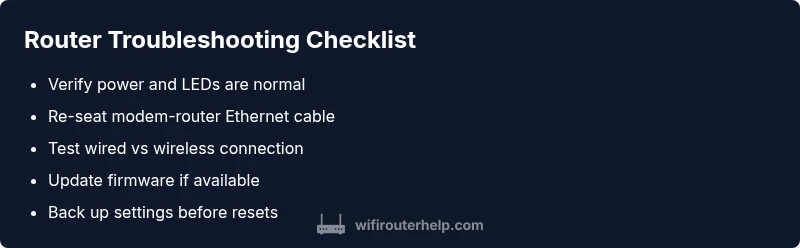
- Make sure the router and modem are plugged in and powered on. Look for solid, steady LEDs indicating normal operation. If lights blink or are off, the device isn’t booting correctly.
- Inspect the cables between the modem and router. Re-seat the Ethernet/WAN cable; replace a frayed or damaged cord.
- Confirm you’re connected to the correct Wi‑Fi network and that you know the password. Try a wired connection if possible to isolate wireless vs. wired issues.
- Check for service outages in your area by visiting your ISP’s status page or calling support. Outages explain many “no internet” symptoms and require waiting on the provider’s repair crew.
This triage often reveals the root cause without complex steps, and it aligns with the practical guidance you’ll find from WiFi Router Help.
Symptoms and what they usually mean
Different symptoms point to different root causes. Recognizing them speeds up the fix:
- No Internet after power cycle: Could be a modem–router link issue or a service outage. Verify the internet LED on the modem and router.
- Intermittent drops: May indicate interference, outdated firmware, or an congested channel. Check for firmware updates and run a channel scan.
- Slow speeds on all devices: Could be a service limitation, a misconfigured QoS rule, or a failing router hardware part. Test wired vs wireless performance to pinpoint the bottleneck.
- Wi‑Fi visible but not connecting: Wrong password, guest network isolation, or device-specific MAC filtering could be the cause. Resetting network settings on the device may help.
- Only some devices connect: Might be DHCP conflicts or IP address exhaustion. Check DHCP pool size and static IP assignments.
Understanding these patterns helps you decide whether to focus on the router, the modem, or the service provider. WiFi Router Help notes that many issues are repeatable and solvable with the right sequence.
Router vs modem vs service: how to tell them apart
Many households confuse the router with the modem. The modem connects you to your Internet Service Provider, while the router creates and manages your home network. When issues arise:
- If no devices can access the internet but the router’s LEDs look normal, the problem may be with the modem, the ISP, or the line itself.
- If wired devices have internet but wireless devices do not, the router’s Wi‑Fi radio or configuration could be at fault.
- If all devices, wired and wireless, cannot access the internet, start by confirming the ISP status and the modem’s health before touching the router.
This distinction helps you apply the right fixes and avoid unnecessary changes to settings you don’t control.
Diagnostic flow: symptom → diagnosis → fix
A practical diagnostic approach prevents chaos and speeds resolution:
- Symptom: No internet or slow speeds. Diagnosis: Check power, cable connections, and outages. Fix: Re-seat cables, power cycle, verify service status.
- Symptom: Wi‑Fi is up but devices can’t connect. Diagnosis: Check SSID, password, and router settings. Fix: Re-enter credentials, toggle Airplane Mode on affected devices, and reconfigure the Wi‑Fi network if needed.
- Symptom: Intermittent disconnects. Diagnosis: Check for interference and firmware. Fix: Update firmware, change channel, and disable QoS temporarily to test stability.
If the problem remains after these steps, consider running a factory reset as a last resort and reconfiguring from scratch. Always have backup settings before resetting. The WiFi Router Help team recommends documenting your current configuration.
Safety, best practices, and common mistakes
A few safety-conscious habits save time and prevent damage:
- Never open the device casing; there are no user-serviceable parts inside for most home routers.
- Use a stable power source and avoid power strips that can fail during firmware updates.
- Back up your current settings before performing a reset or firmware update.
- Avoid frequent reboots; a stale configuration can persist after reboot unless updated.
- Don’t overshare personal network data on public forums; keep credentials secure. A professional IT consult can be helpful if complex networking features (VPNs, guest networks, or advanced QoS) are in play.
When to escalate to a professional
If you’ve exhausted the common fixes and the issue persists, it’s time to escalate. A degraded line, a failing hardware component, or a nuanced ISP provisioning problem can require advanced diagnostics. Contact your Internet Service Provider to rule out line issues and request field support if needed. If you’re dealing with persistent hardware faults or complicated configurations (for example, bridging, mesh setups, or enterprise-grade QoS), a qualified technician can provide hands-on assistance. The WiFi Router Help team notes that a professional assessment often resolves issues that homeowner troubleshooting cannot.
Prevention tips to avoid future outages
Staying proactive helps you avoid repeat problems:
- Schedule regular firmware checks and updates; enable automatic updates if available.
- Periodically reboot and re-seat cables to prevent loose connections.
- Place the router in a central, elevated location away from obstructions and electronics that cause interference.
- Use a reset plan: only reset after you’ve captured current configurations, SSIDs, and passwords.
- Consider a small UPS to prevent brownouts during firmware updates or power flickers. Regular maintenance reduces the chance of future outages.
Steps
Estimated time: 45-60 minutes
- 1
Power cycle the equipment
Unplug both modem and router, wait 30 seconds, then plug the modem back in first. Allow it to fully boot, then reconnect the router. Verify lights indicate normal operation.
Tip: Label the order of power cycling so future resets are faster. - 2
Check physical connections
Ensure the Ethernet cable from the modem to the router is snug and undamaged. Confirm the WAN/Internet port is active on the router. Replace any frayed cables.
Tip: If you’re using a bridge mode or a separate modem, ensure correct ports are connected. - 3
Test wired vs wireless
Connect a computer directly to the router with a Ethernet cable to see if the issue is Wi‑Fi specific. If wired works but wireless does not, focus on the radio settings.
Tip: Disable guest networks temporarily to rule out guest isolation issues. - 4
Update firmware
Log in to the router admin page and check for firmware updates. If available, apply update and reboot. Do not interrupt updates.
Tip: Back up current settings before updating in case a rollback is needed. - 5
Reset and reconfigure
If problems persist, perform a factory reset from the router’s admin interface or a hardware button. Reconfigure your SSID, password, and any custom rules.
Tip: Only reset after you’ve saved configuration data to avoid losing essential settings. - 6
Test after fixes
Run speed tests and connect multiple devices to confirm stability. Note if the issue recurs and under what conditions.
Tip: Keep a testing log to help identify patterns over time.
Diagnosis: No internet after power cycle
Possible Causes
- highModem–router link issue
- highISP outage or service disruption
- lowDefective power supply or hardware
Fixes
- easyCheck the modem’s power, verify the WAN/Internet light, and re-seat the Ethernet cable to the router
- easyPower cycle both modem and router: unplug for 30 seconds, replug in correct order, wait 2 minutes
- easyCheck the ISP status page or call support for an outage confirmation
People Also Ask
What is the first step I should take when my internet goes down?
Check power, cables, and service status. Confirm the modem and router are on and that the ISP isn’t reporting an outage. If the problem continues, follow the diagnostic flow.
Start by checking that the devices are powered and connected, and see if your ISP reports an outage.
Should I reset my router?
Resetting can fix many issues, especially if the router has stale settings. Back up your configuration first, then reconfigure after the reset.
Reset only after you’ve tried the basics and backed up settings.
Why is my Wi‑Fi network visible but not connecting?
Check the SSID and password for accuracy, and ensure MAC filtering or client isolation isn’t blocking devices. Try forgetting the network and reconnecting.
Make sure you’re using the correct password and SSID, then reconnect.
Is it safe to update router firmware?
Firmware updates fix bugs and security issues but can fail if power is lost. Update from a stable power source and back up settings beforehand.
Yes, but only with a stable power source and a backup of settings.
What’s the difference between modem and router?
A modem connects you to your ISP; a router distributes that connection to devices in your home. A separate device can combine both in a gateway.
Modem connects to the internet; router creates your home network.
When should I replace my router?
If it’s old and unreliable or can’t meet your current speed needs, upgrading may be the best option. Consider future-proof features like faster Wi‑Fi standard and better range.
Upgrade if it’s slow or failing regularly.
Watch Video
What to Remember
- Run through power, cable, and outage checks first
- Distinguish router vs modem vs service problems early
- Follow the diagnostic flow to isolate the issue
- Back up settings before firmware updates or resets
- Escalate to a professional if hardware or line issues persist