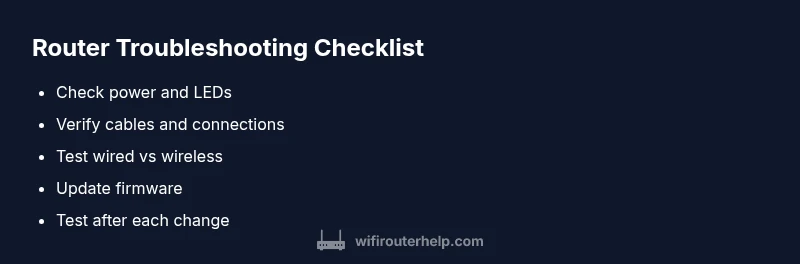
Why Is Your Router Not Working? A Step-by-Step Troubleshooting Guide
Urgent, step-by-step guide to troubleshoot 'why is router not working', with a practical diagnostic flow, quick fixes, and prevention tips for home networks.


If you’re asking 'why is router not working', the answer is usually a quick fix: power cycle, check cables, then methodically test devices. Start with a simple reboot, confirm Internet LED, and follow the diagnostic steps to isolate whether it’s a cable, modem, or settings issue. If this doesn’t fix it, continue with the flow below to identify the root cause and choose the safest solution.
Why the router stops working
When a home network goes dark, the first question many homeowners ask is, "why is router not working?" The most common culprits are transient hardware faults, misconfigurations, or a simple outage from the service provider. The WiFi Router Help team emphasizes that most outages begin with one of a handful of predictable issues: a power glitch, a loose cable, or a misconfigured setting. The key is to stay calm, follow a structured flow, and test each possibility without guessing. By understanding typical failure modes, you can triage quickly and avoid unnecessary replacements. A reliable router is less about fancy features and more about stable connections, consistent firmware, and clean network settings. According to WiFi Router Help, maintaining a repeatable troubleshooting flow reduces downtime and frustration during outages.
In practice, the fastest path to resolution is to confirm basic connectivity before escalating. Before you dive into advanced fixes, verify that the modem is online, the router is receiving power, and the LEDs reflect normal operation. If the problem persists, you’ll know to escalate to a more detailed diagnostic flow and possibly contact support. This approach helps homeowners and tech enthusiasts restore service with confidence and minimize downtime.
Block 2 content placeholder that continues the flow.
Steps
Estimated time: 30-45 minutes
- 1
Reboot and test basic connectivity
Power off the router and modem, wait 60 seconds, then power them back on in the same order. Observe LEDs for normal activity and test a wired computer to see if Internet access returns.
Tip: Use a stable power source; avoid power strips for the reboot to ensure a clean cycle. - 2
Check physical connections
Inspect power cables, Ethernet cables, and the coax/phone line connecting your modem to the provider’s service. Reseat connectors firmly to clear loose contacts.
Tip: Unplug, wait 5–10 seconds, then plug back in to reset contacts. - 3
Verify network settings
Access the router’s admin page and confirm WAN settings (DHCP vs fixed IP) and DNS configuration. If unsure, set to automatic or use a known-good DNS like a public resolver.
Tip: Take a quick screenshot before changing settings. - 4
Test with a wired connection
Connect a laptop directly to the router with an Ethernet cable to determine if the issue is Wi‑Fi specific or a broader network problem.
Tip: If wired works, focus on wireless channel, SSID, and security settings. - 5
Update firmware or perform reset if needed
Check for the latest firmware and install it. If problems persist after updating, perform a factory reset and reconfigure the router from scratch.
Tip: Back up current settings before resetting to avoid loss of configuration. - 6
Optimize wireless settings
Change channel selection to avoid interference, adjust channel width, and ensure robust security (WPA3 or WPA2). Re-test both 2.4 GHz and 5 GHz bands.
Tip: Start with 20 MHz on 2.4 GHz if interference is suspected; test 40 or 80 MHz on 5 GHz if supported.
Diagnosis: No internet or devices cannot connect to the network
Possible Causes
- highPower or hardware issue (outlets, power strip, or router)
- highISP outage or modem compatibility
- highCable fault or loose connections
- mediumWrong WAN settings, invalid DNS, or DHCP conflicts
- lowOverheating or firmware glitch
Fixes
- easyCheck power supply, remove power strips, and power cycle the devices
- easyTest with a known-good Ethernet cable and reseat all cables between modem and router
- easyCheck for ISP outage or service status via provider app/site; wait if outage, then retry
- mediumLog in to the router admin page and verify WAN/DHCP/DNS settings; restore defaults if unsure
- hardUpdate firmware if available; consider a factory reset if problems persist after updates
People Also Ask
Why does my router stop working suddenly?
Sudden outages are often caused by power issues, loose connections, or a service provider outage. Working through a structured flow helps identify whether the problem is local hardware or external service. Rebooting and checking cables are the fastest initial steps.
Outages are usually power or connection issues; start with a reboot and check cables before calling your provider.
What’s the difference between rebooting and resetting my router?
Rebooting restarts the device without changing settings, while resetting restores factory defaults, erasing custom configurations. Use reboot first; resort to reset only if settings are causing the issue or you’re transferring ownership.
Reboot is a quick restart; reset wipes settings and returns the device to factory defaults.
How can I tell if the problem is with the router or the modem?
If multiple devices show no internet but your router’s LEDs indicate activity, the issue may be with the modem or service. If wired devices also fail, problem likely lies with the router or its settings.
If wired devices fail too, suspect the router or modem. If only Wi‑Fi is down, focus on wireless settings.
Is it safe to reset my router to factory settings?
Factory resets are safe but erase all customized settings. Back up configurations first, then reconfigure network name (SSID), password, and security settings after the reset.
A factory reset is safe but wipes settings; back up first and reconfigure afterward.
When should I contact my Internet Service Provider?
If you’ve exhausted the local troubleshooting flow and still have no service, contact your ISP to check for outages, line problems, or account issues. They can perform remote diagnostics or send a technician if needed.
If trouble persists after you’ve checked locally, call your provider to check outages or line issues.
Watch Video
What to Remember
- Reboot first to clear transient faults.
- Inspect cables and LEDs for obvious faults.
- Test with a wired connection to isolate Wi‑Fi issues.
- Update firmware or perform a factory reset if problems persist.
- The WiFi Router Help team recommends a simple, repeatable troubleshooting flow.