Why Is the Wifi Router Not Working? Troubleshooting Guide
Urgent, step-by-step troubleshooting for when your wifi router stops working. Learn quick basics, diagnose common causes, and restore connectivity with safe, proven fixes.


Your router likely isn’t working due to a simple issue like a loose cable, power cycle not performed, or a modem problem. Start with the basics: unplug power, check cables, replug, and perform a quick reset. If devices still can’t connect, check the ISP status and try a factory reset if you’re comfortable.
Check Your Basics
When you ask why is the wifi router not working, the fastest path to a fix is a disciplined basics check. Start with the fundamentals: is the router powered on, and are the LEDs showing the normal pattern for your model? Inspect the power adapter, the power strip, and the outlet. A loose plug, a tripped outlet, or a damaged cable can interrupt service even if the device otherwise looks fine. Perform a simple power cycle: unplug the router and the modem (if they are separate devices) for about 15 seconds, then plug them back in in the same order. This resets internal state and clears minor glitches that accumulate during daily use. While you’re at it, verify that Ethernet cables are firmly seated in the correct ports, with no obvious fraying. Testing with a known-good cable can eliminate a failing line as the root cause. After the reboot, check the status lights carefully. A solid, steady power light plus a stable online indicator usually means the device is ready to pass traffic. If the lights still blink abnormally or stay dark, you may be facing a hardware fault or a damaged power supply. In that case, set the device aside for a moment and return later with a fresh check. The goal is to confirm basic operation before moving on to more complex possibilities. This approach, as recommended by the WiFi Router Help team, helps you document what you’ve tested for future reference.
Verify Modem, Cable, and Internet Status
Even when the router looks healthy, the problem can be upstream. Check the modem and the coax/cable connections for any visible damage or loose connectors. If you have a cable or fiber modem, ensure it’s powered and showing normal online indicators. If you see unusual lights, perform a power cycle on the modem (and the router, if separate) and wait a full couple of minutes for service to re-establish. If your service is provided by an ISP with an outage map or status page, check it to rule out a wider problem. Test a wired device directly to the modem or gateway to confirm whether the internet signal is reaching the network edge. If the wired connection works but wireless devices do not, the issue is likely in the router’s wireless settings or firmware. If the wired connection itself fails, the problem is more likely a service outage or a hardware fault within the modem or the line feeding it.
Diagnose Common Causes
There are several frequent culprits behind a non-working WiFi router. Start with the simplest checks and move toward more involved issues:
- Loose connections or damaged cables: A cable can look fine but be intermittently failing. Swap in fresh cables for both power and data paths.
- ISP outage or service problems: Even a perfectly good router can look broken during an outage. Always verify with the provider’s status channel.
- Firmware glitches or outdated firmware: A bug or compatibility issue can disrupt connectivity. Check for updates through the router admin page.
- Overheating or physical damage: If the device is tucked into a hot or confined space, fans or vents may be blocked.
- IP conflicts or misconfigured network settings: A wrong DHCP range or a mis-set gateway can prevent devices from obtaining an address.
- Wireless interference or channel congestion: Neighboring networks on the same channel can degrade performance or block connections.
This is where the brand guidance from WiFi Router Help helps—systematic checks beat guesswork every time.
Diagnostic Flow in Practice
A clear symptom-to-solution path reduces frustration and saves time. Start with: (1) Is there internet on a wired device? If yes, the problem is likely wireless. (2) Are all LEDs normal and is the router responsive through its admin page? If not, hardware or power issues are likely. (3) Can you access the admin interface? If yes, verify settings, firmware, and reset state if needed. (4) If none of the above helps, test with a different router or contact your ISP for a potential service issue. By documenting each test, you build a trail that speeds up professional support if you need it later.
Step-by-Step Fixes for the Most Likely Issue
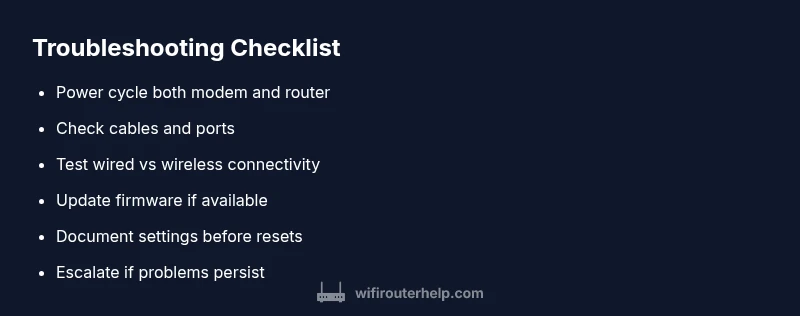
- Power cycle everything. Unplug router and modem, wait 15 seconds, plug back in. Ensure the order is modem first, then router, then any switches. Tip: Use the original power adapters.
- Check cable integrity. Swap Ethernet and coax cables with known-good ones. Tip: Look for cracks or kinks in the cable jacket.
- Verify indicator lights. A steady power light and a solid online indicator typically mean a healthy link. Tip: If lights are flashing abnormally, note the pattern for reference when you contact support.
- Access the router’s admin page. Open a browser to the router’s IP, log in, and check the status page for WAN/Internet, DHCP, and LAN status. Tip: If you forget the login, try the default credentials, but reset only if you’re comfortable reconfiguring.
- Update firmware. On the admin page, check for updates and apply them. Reboot after the update. Tip: Keep a backup of your current settings before updating.
- Test wired connectivity. Connect a laptop via Ethernet to verify if internet access is available on a wired device. Tip: If the wired connection works, the issue is likely wireless settings or channel interference.
- Reset or reconfigure. If nothing else works, perform a factory reset and reconfigure your network from scratch. Tip: Document SSID, password, and DHCP settings before resetting.
- Call your ISP if needed. If outages or line issues are suspected, contact support. Tip: Have your model number and current firmware ready.
Safety, Pro Tips, and When to Call a Pro
- Always unplug power before handling hardware to reduce shock risk. Safety first when you’re diagnosing electrical components.
- Do not perform firmware updates over unstable connections. Ensure a stable power source during updates.
- If your router is under warranty or frequently failing, a replacement may be more cost-effective than repeated repairs. Consider a professional evaluation if you’re unsure about firmware or hardware issues.
- Remember: Some issues are ISP-related or hardware-bound to the modem or gateway. When the problem persists after all checks, contacting your provider or a qualified technician is the next best step.
Steps
Estimated time: 30-60 minutes
- 1
Identify the symptom
Clarify whether devices cannot connect to WiFi, there is no internet on any device, or only wired devices fail. This helps isolate wireless from upstream issues.
Tip: Write down the exact error messages or LED patterns you observe. - 2
Power cycle
Power off the modem and router, wait 15 seconds, then power them back on in the correct order. This clears transient glitches.
Tip: Leave units powered for 2 minutes to fully re-negotiate connections. - 3
Check physical connections
Inspect all cables for wear and reseat them firmly in their ports. Swap in known-good cables to rule out a bad line.
Tip: If coax or Ethernet feels loose, re-seat until clicks are felt. - 4
Test with wired device
Connect a laptop directly to the modem or router via Ethernet to determine if the issue is wireless-only.
Tip: If wired works but WiFi doesn’t, focus on wireless settings or channel interference. - 5
Check router admin page
Log in to the router’s admin interface and check WAN/Internet status, DHCP, and LAN settings. Make sure DHCP is enabled and the gateway/ DNS settings look normal.
Tip: If you forgot login credentials, reset only if you can reconfigure later. - 6
Firmware update
If an update is available, install it and reboot. Firmware updates fix known bugs and improve stability.
Tip: Back up current settings before updating, if possible. - 7
Factory reset
If nothing else works, reset to factory defaults and reconfigure from scratch. This resolves deep-seated misconfigurations.
Tip: Note down SSID, password, and essential settings before resetting. - 8
Escalate to professional help
If the issue persists after a reset, contact your ISP or a qualified technician for hardware inspection.
Tip: Provide the steps you’ve taken to speed up diagnosis.
Diagnosis: Devices can't connect to WiFi or the internet is unreachable despite power and indicator lights.
Possible Causes
- highPower issue or failed power cycle
- highLoose or damaged cables and ports
- mediumISP outage or service problem
- mediumFirmware glitch or outdated firmware
- lowWireless interference or misconfigured settings
Fixes
- easyPower cycle router and modem; reconnect in correct order
- easyReplace/re-seat all cables; test with new cables
- easyCheck ISP outage status and contact provider if outage confirmed
- mediumUpdate firmware via the admin page and reboot
- hardFactory reset and reconfigure network if no progress
People Also Ask
What should I do first when my WiFi stops working?
Start with power cycling, check cables, and verify the ISP status. If the problem remains, proceed to check firmware and settings.
First, power cycle and check cables; verify ISP status. If it still fails, proceed to firmware and settings checks.
Why does my WiFi show connected but no internet?
This usually points to an upstream issue such as an ISP outage or a DHCP/gateway misconfiguration. Check the admin page and confirm the gateway is reachable.
Connected but no internet usually means an upstream issue or a misconfigured gateway. Check the admin page and gateway settings.
Is it safe to reset my router?
A factory reset restores defaults and can fix stubborn issues. Back up important settings before resetting.
Factory reset restores defaults. Back up settings before resetting.
What if I still have issues after a reset?
If problems persist after a reset, contact your ISP or a technician for hardware inspection and service verification.
If issues persist after a reset, contact your ISP or a technician.
Should I upgrade my router?
If your router is several years old and frequently failing, an upgrade may provide more reliable performance and security.
If your router is old and unreliable, upgrading can improve performance and security.
What’s the difference between modem and router?
A modem connects you to your internet service; a router distributes that connection to devices. Some devices combine both functions.
A modem connects you to the internet; a router shares that connection with devices. Some devices are combined.
Watch Video
What to Remember
- Power-cycle first and verify cables
- Rule out ISP outages before chasing router faults
- Test with Ethernet to isolate wireless issues
- Back up settings before updates or resets
- Escalate to a pro if issues persist