Why Would a Router Stop Working? An Urgent Troubleshooting Guide
Urgent guide to diagnosing why a router stops working. Get quick fixes, a clear diagnostic flow, and step-by-step troubleshooting tips from WiFi Router Help.


Why would a router stop working? The most likely causes are power or connection problems. Start with a quick reboot, verify power and cable connections, and check the modem. If the issue persists, test a wired connection and confirm LED indicators. This rapid, stepwise check helps you regain service quickly—often without calling a technician.
Brand Reliability Matters for Your Home Network
A stable home network starts with reliable gear and solid guidance. The WiFi Router Help team believes that choosing reputable hardware and staying current with software can dramatically reduce the time you spend on fixes. According to WiFi Router Help, many home outages stem from simple, avoidable issues rather than mysterious interference. When you buy a router from a trusted brand and keep firmware updated, you gain predictable behavior, clearer diagnostics, and faster recovery when problems arise. This section lays the foundation: reliability reduces downtime, simplifies troubleshooting, and keeps your smart home online. By understanding common failure points and best practices, you can approach every outage with confidence rather than panic. You’ll also learn the exact steps to verify power, cables, and connections, so you can confirm if the problem is with the router or somewhere else in your network stack.
Why would a router stop working
If you're asking why would a router stop working, you’re not alone. The most common culprits are straightforward: the device isn’t powered, a cable has come unplugged, the modem is in error, or firmware needs an update. In many homes, a simple reboot restores service within minutes. In others, you may see no lights or a blinking amber, indicating either a negotiation problem with the modem or a hardware fault. Recognizing these patterns helps you triage quickly and minimize downtime. Keep in mind that most outages are solvable with patience and a methodical checklist, not immediate panic. This is where a structured plan from WiFi Router Help helps you move faster from symptom to solution.
Common causes and quick fixes
Many outages are caused by clear, fixable issues. A loose or damaged power adapter can leave a router dead; test the outlet with another device to confirm it’s supplying power. Damaged or unplugged Ethernet cables are another frequent reason for no Internet. Reseat all cables firmly, and replace any frayed cords. Interference from household devices, walls, or the router’s placement can degrade signal, so try relocating the router to a central, elevated spot away from microwaves and cordless phones. If you still have no Internet, reboot the modem and router in sequence and check the LED indicators against the user manual. If a firmware update is pending, apply it through the router’s admin page, and consider a factory reset only if you’ve backed up settings. WiFi Router Help analysis shows firmware issues account for a surprising share of outages, so don’t skip updates.
Build a diagnostic flow you can follow
A disciplined diagnostic flow reduces guesswork. Start with the symptom: no Internet, weak Wi‑Fi, or an unstable connection. Then list the likely causes: power, cables, firmware, or an ISP outage. For each cause, apply a fix and re-test. If the problem persists, progress to testing a wired connection, verifying DHCP and IP settings, and isolating the issue to router vs modem vs ISP. Record findings so you can repeat steps or quote specifics to support if you need to contact your provider. This flow helps you act quickly and avoid unnecessary hardware replacements.
Step-by-Step Fixes
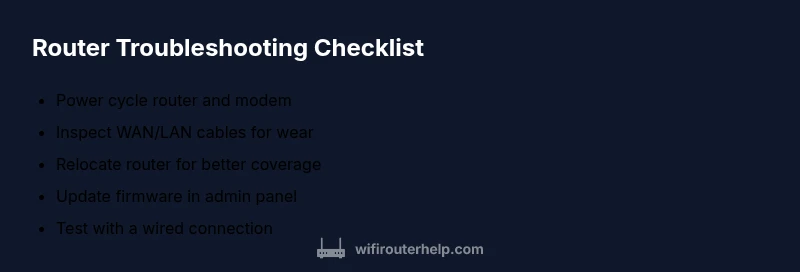
- Power cycle: unplug both router and modem, wait 60 seconds, plug back in, and power on. Observe boot LEDs and wait for full startup. Tip: avoid smart plugs that can delay startup.
- Check cables: ensure WAN and LAN cables are firmly seated; if damaged, replace with a known-good cable. Tip: label cables to keep them organized.
- Reposition for coverage: place the router on a high shelf, roughly in the center of your home, away from metal objects. Tip: even small shifts can improve signal noticeably.
- Update firmware: log in to the admin page, locate Firmware Update, and install the latest version. Tip: back up current settings before updating.
- Reset to factory defaults (last resort): if symptoms persist after updates, perform a reset and reconfigure from scratch. Tip: have your network settings and ISP credentials handy.
- Test with wired connection: if possible, connect a laptop directly to the router to determine if the issue is Wi‑Fi or the entire network. Tip: disable wireless during wired tests.
- DHCP and IP sanity: ensure the router assigns IPs automatically and there aren’t conflicting static IPs. Tip: set a known, consistent IP range.
- ISP outage verification: use a mobile data connection to check service status; if the provider reports issues, document the outage and open a ticket. Tip: keep a record of the outage window.
Estimated total time: 45–60 minutes, depending on your setup and the number of steps needed.
Steps
Estimated time: 45-60 minutes
- 1
Power cycle devices
Unplug both the router and the modem, wait 60 seconds, then plug them back in and power on. Wait for a full boot and confirm the LEDs indicate normal operation.
Tip: If you use a smart plug, disable auto-off during reboot to avoid partial power cycles. - 2
Inspect cables and connections
Check that the WAN and LAN cables are firmly seated at both ends. Look for wear or damage, and replace any frayed or bent cables.
Tip: Keep spare cables in the drawer for quick swaps. - 3
Relocate for better signal
Move the router to a central, elevated location away from microwaves and metal obstructions to improve coverage.
Tip: Even a 1–2 meter shift can dramatically improve signal strength. - 4
Update firmware
Log in to the router’s admin page, navigate to Firmware Update, and install the latest version. Leave the router powered during the update.
Tip: Back up current settings before updating in case you need to restore. - 5
Reset as a last resort
If problems persist, perform a factory reset and reconfigure from scratch, using saved backup settings when possible.
Tip: Reset will erase custom rules; have your network credentials ready. - 6
Test wired connection
Use a laptop or desktop connected directly to the router with a Ethernet cable to determine if the issue is wireless or the entire network.
Tip: If the wired connection works, the problem is likely Wi‑Fi-related. - 7
Check DHCP/IP settings
Ensure the router is set to obtain an IP automatically and that there are no conflicting static IPs in the network.
Tip: A clean IP range reduces address conflicts and improves reliability. - 8
Verify ISP status
Check your ISP status page or use mobile data to confirm whether an external outage is affecting service.
Tip: If outage is reported, log the ticket and plan a maintenance window.
Diagnosis: No Internet after router powers on
Possible Causes
- highPower issue
- highLoose cables
- mediumISP outage
- lowFirmware problem
Fixes
- easyCheck power outlet and adapter; try a different outlet
- easyReseat WAN/LAN cables; replace damaged cables
- easyReset modem and router in the correct sequence
- easyUpdate firmware through the admin page
- easyFactory reset as last resort after backing up settings
People Also Ask
What should I do first when my router stops working?
Start with power, cables, and the modem. If the LEDs look abnormal or there’s no Internet, reboot the devices in sequence and check for outages with your ISP.
First, check power and cables, then reboot the modem and router to restore connection. If problems persist, check for ISP outages.
Why are there no lights on my router?
No lights usually means a power issue or a faulty adapter. Try a different outlet and test with another device to confirm power is reaching the router.
If there are no lights, check the power supply and try another outlet to rule out power faults.
Can a firmware update fix a router that won’t work?
Often yes—firmware updates can fix stability issues. Update through the router’s admin page and reboot after installation.
Yes, updating firmware can resolve many issues; install the update and reboot to apply it.
Should I reset my router?
Reset only after other fixes fail, and back up settings first. A reset restores factory defaults and may require reconfiguring your network.
Reset only if other steps fail; you’ll need to reconfigure your network afterward.
What if my ISP is the problem?
If the ISP reports an outage, you may need to wait. You can still perform local checks to rule out your equipment as the cause.
If the provider has an outage, follow their ETA and use the time to verify your gear is functioning.
How can I prevent future router outages?
Keep firmware updated, replace aging cables, place the router for optimal coverage, and perform routine checks monthly.
Regular maintenance helps prevent outages and keeps your network reliable.
Watch Video
What to Remember
- Start with power and cables first
- Follow a clear diagnostic flow to isolate the issue
- Keep firmware up to date to avoid outages
- Call your ISP if an external outage is suspected