Why did router stop working? A Fast Troubleshooting Guide
Urgent guide to diagnose why did router stop working and fix it fast. Learn step-by-step checks, common causes, and when to contact your ISP for reliable home WiFi.


The router likely stopped working due to a power or cable issue. Power cycle both devices, check LEDs, and reseat cables. If this doesn’t resolve it, follow our full step-by-step guide for deeper diagnostics. The answer to why did router stop working often lies in simple fixes that you can complete in minutes.
Why did router stop working? Common causes and what this guide covers
If you’ve ever asked yourself why did router stop working, you’re not alone. A sudden drop in home internet can be infuriating, but most issues are fixable with a calm, structured approach. The WiFi Router Help team has found that many outages stem from straightforward causes—power, connections, or a simple misconfiguration—rather than a total hardware failure. This section outlines the scope of the guide and what you can expect to learn: a fast triage, a practical diagnostic flow, and safe steps you can repeat until your network returns. By the end, you’ll understand how to tell whether you’re dealing with a device issue, an ISP outage, or something in between, and you’ll have a clear path toward restoration.
Quick checks you can perform in minutes
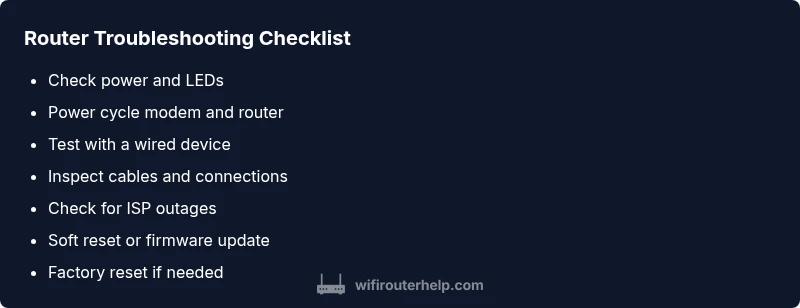
The first actions should be fast and non-technical. Start with the power indicators: is the power LED on? If not, plug the router directly into a wall outlet, bypassing power strips. Unplug both the router and modem, wait 60 seconds, then plug them back in in the correct order. While you’re at it, inspect cables for damage and reseat any loose Ethernet or coax connections. Testing with a wired device can help determine if the problem is Wi‑Fi specific or a broader connectivity issue. If your LEDs show unusual colors or patterns, consult the manual for that model. According to WiFi Router Help, most interruptions are resolved with a clean power cycle and verified cabling.
Distinguishing device issues from service problems
A critical skill is separating router problems from modem or ISP issues. If wired devices stop working as well, the fault may lie with the modem or service provider. Check the internet light on the modem; if the modem itself isn’t online, the router won’t provide internet. Try accessing the router’s admin page from a connected computer or phone to see if you can reach the interface. If you can reach the page but still lack internet, suspect ISP or misconfigured settings. If the issue appears only on Wi‑Fi, you’re likely dealing with wireless interference or a router configuration problem.
Common hardware and wiring problems explained
Hardware faults are less common than simple misconfigurations, but they happen. Loose power adapters, damaged cables, or a router overheated by heavy load can all cause failures. Check that the router sits on a flat, cool surface and isn’t crammed into a tight space. If you’re using a thick case or a vented cover, ensure airflow isn’t restricted. Replace a frayed Ethernet cable and try a different LAN port. Dust and debris can also cause overheating or poor contact; a quick, gentle cleaning can help. If you’ve recently moved the router, verify the orientation of antennas and placement away from walls or metal objects that could block signals.
Diagnostic flow: symptom → diagnosis → fix
Using a symptom-first approach helps you quickly converge on the right fix. Start with the most common symptoms: no internet, no Wi‑Fi, or isolated device connectivity. For each symptom, map to a plausible diagnosis (power issue, ISP outage, bad cable, or misconfiguration) and apply the corresponding fix. For example, a complete power cycle maps to a power issue fix, while a blank admin page maps to a potential misconfiguration or firmware problem. Keep a short log of what you tested and the outcomes to avoid repeating steps. If the symptom persists after basic checks, escalate to more advanced steps or seek professional help.
Step-by-step fixes for the most likely cause
If the most likely cause is a power or cable issue, begin with the easy fixes and progress to more involved steps only as needed. Step 1: power cycle both modem and router. Step 2: reseat all cables and verify the WAN/LAN lights. Step 3: test with a wired device to confirm the problem isn’t strictly Wi‑Fi. Step 4: check for ISP outages and status pages. Step 5: perform a soft reset of the router settings via the admin interface. Step 6: if no improvement, back up configurations and perform a factory reset, then reconfigure. Step 7: monitor performance after reconfiguration and adjust as needed. Each step should be done methodically to isolate the root cause.
Safety, backup, and when to call a pro
Never attempt internal repairs or disassembly of the router; this can void warranty and pose safety risks. Always back up your configuration before resets, especially if you rely on custom DNS, port forwarding, or QoS rules. If you detect buzzing sounds, a burning smell, or you cannot restore power safely, stop immediately and contact professional support or your ISP.
Prevention: keep your network reliable
To minimize future outages, keep firmware up to date, enable automatic updates when available, and document your router’s login credentials. Place the router in a well-ventilated area and avoid placing it behind bulky objects that block signals. Regularly inspect cables for wear and replace aging components. Consider a simple surge protector for the power supply and a basic backup plan for your home network, such as a spare router or a reliable modem if supported by your provider.
Quick recap of the diagnostic mindset
A disciplined approach—start with obvious fixes, verify connections, and verify service status—dramatically reduces downtime. Maintain a short troubleshooting log, check both hardware and service factors, and escalate when necessary. This mindset helps you respond quickly the next time your router stops working and keeps your network stable over time.
Next steps and escalation plan
If basic checks don’t restore service, move through the diagnostic flow to identify the root cause. Use the step-by-step guide to perform targeted fixes, and consult your ISP for outage confirmations. When you’re ready to reconfigure, ensure you have backups and documentation ready. The goal is a quick restoration and a reliable network going forward.
Steps
Estimated time: 25-40 minutes
- 1
Power cycle the modem and router
Unplug both devices, wait 60 seconds, then plug the modem back in first and let it stabilize, followed by the router. Check for steady LED indications before testing connectivity.
Tip: Power cycle order matters; always start with the modem. - 2
Inspect power and LAN/WAN indicators
Look for unusual LED colors or blinking patterns. Note any lights that don’t match the normal startup sequence. If LEDs stay off, there may be a power issue.
Tip: Consult the device manual for LED codes. - 3
Test with a wired device
Connect a laptop or desktop directly to the router via Ethernet to determine if the issue is Wi‑Fi specific. If wired internet works, focus on wireless settings or interference.
Tip: Disable Wi‑Fi temporarily to isolate the problem. - 4
Check for physical damage and overheating
Feel the router for excessive heat and inspect for cracked casings or damaged cables. Overheating can force a protective shutdown.
Tip: Ensure proper ventilation and keep the area dust-free. - 5
Check for outages and service status
Visit your ISP’s status page or call support to confirm there’s no service outage in your area. A service outage explains many “router stopped working” symptoms.
Tip: Record outage times and notifications for future reference. - 6
Soft reset and firmware check
If you can access the router admin page, perform a soft reset or check for firmware updates. Updates can fix known bugs that cause connectivity loss.
Tip: Back up your current settings before any reset. - 7
Factory reset and reconfiguration
Only proceed if softer steps fail. Restore to factory defaults, then reconfigure from scratch using saved settings or a known-good backup.
Tip: Don't rush the reconfiguration; document each setting as you go. - 8
Re-test and monitor
After applying fixes, test all devices, recheck Wi‑Fi performance, and monitor for repeat outages. If issues recur, escalate to professional support.
Tip: Keep a troubleshoot log for patterns.
Diagnosis: Router stops providing internet or WiFi unexpectedly
Possible Causes
- highPower issue (outlet, adapter, or power strip)
- mediumISP outage or service degradation
- mediumLoose or damaged cables (power, Ethernet, coax)
- lowOverheating or hardware fault
- lowFirmware glitch or misconfiguration
Fixes
- easyCheck power connections; plug directly into a wall outlet; replace damaged adapter if needed
- easyPower cycle the modem and router; unplug for 60 seconds, then plug back in
- easyInspect cables and reseat connections; swap in a known-good Ethernet cable
- easyCheck for ISP outages via status page or by calling support
- easyReset firmware or perform a soft reset via the router admin page
- mediumFactory reset and reconfigure if no fix from softer steps
People Also Ask
Why won't my router turn on at all?
Check the power outlet and adapter first. If the router doesn’t power up after swapping adapters, the device may have a hardware fault or need professional service.
First check the power and adapter. If it still won’t turn on, you may need professional help.
My internet is down but the router lights are normal. What now?
This usually indicates an ISP outage or a modem issue. Test another device wired to the router and check your ISP status page or contact support.
If the lights look normal but internet is down, check your ISP status and test a wired device.
Should I reset my router to factory settings?
Only after softer fixes fail. A factory reset erases all customized settings; back up important configurations first to minimize reconfiguration time.
Factory reset should be a last resort after trying softer steps.
How can I tell if there’s an outage in my area?
Visit your ISP’s status page, use their mobile app, or call support to confirm outages. Weather or maintenance can also affect service.
Check your ISP status page or call support to confirm outages.
What safety steps should I follow if the router overheats?
Unplug the router, let it cool, and ensure it has space for ventilation. Do not cover the vents or place it on soft surfaces.
Unplug, cool it, and improve ventilation before using again.
Can a firmware update fix connectivity problems?
Yes, firmware updates can resolve bugs that cause drops in connectivity. Update from the router’s admin page or the manufacturer’s app.
Updating firmware can fix bugs that cause drops.
Watch Video
What to Remember
- Start with the simplest fixes (power/cables)
- Differentiate device vs. ISP issues early
- Back up configurations before resets
- Keep a troubleshooting log for patterns