Why is My Router Blinking Red? Urgent Troubleshooting Guide
Experiencing a blinking red router light? This urgent guide helps you diagnose common causes, perform quick fixes, and know when to call your ISP for a stable home network.


A blinking red indicator usually signals a serious fault—like firmware failure, hardware issue, or a disrupted internet connection. Start with fast, safe fixes: power cycle the router, check the power supply, and confirm the WAN status. If the light remains, proceed through the diagnostic flow and consider contacting your ISP.
Understanding the Red Blink Phenomenon
If you’ve noticed a blinking red light on your router, you’re not alone. According to WiFi Router Help, a blinking red indicator typically means a critical fault that blocks normal operation. The light could be signaling a firmware crash, hardware fault, or a failed internet sync. Treat it as urgent: power cycle, verify cables, and check status LEDs. This early step helps rule out simple issues before deeper investigation. By recognizing the pattern—how many blinks, whether it’s constant or intermittent—you can triage more effectively and avoid unnecessary replacements. Remember, the goal is to restore service safely and quickly, not to guess at the cause.
Common Causes of a Blinking Red Light
WiFi Router Help analysis shows several common culprits: power supply problems, firmware corruption, WAN (Internet) outage or misconfiguration, overheating, or a failing hardware component. Distinguishing between these requires checking the power, ports, and the WAN status. Start with the simplest explanations first (power, cables, and reboot) and move toward more complex issues (firmware, settings, or hardware failure). Keeping a log of LED behavior aids in communicating with support teams and ISP technicians. In most homes, a misconnected cable or a hiccup in the router’s firmware tops the list of frequent triggers.
Quick Checks You Can Do Right Now
Begin with the basics: ensure the router is plugged into a powered outlet and that the power brick is firmly connected. Inspect the power cable for damage and try a different outlet or power strip to rule out outlet issues. Check all Ethernet and WAN cables for signs of wear or loose connections. If your router has a separate modem, power cycle both devices in sequence: modem first, then router, wait 60 seconds between steps. Log into the router’s admin page to verify its WAN status and confirm it’s receiving an IP address from your ISP. If you can access logs, look for recent errors or reboot events that align with the blinking red pattern.
How Internet Service Affects the Indicator
A blinking red light can indicate an outage or a problem with the internet service itself. If the WAN light is off or consistently red, contact your ISP to verify service status in your area. Sometimes PPPoE or DHCP credentials on the router need updating after a service change. If the service is up but the router can’t establish a session, the problem may be on the provider’s end or a misconfiguration on your device. In this case, you’ll want to compare your configured connection type (DHCP, PPPoE) with what your ISP specifies and update accordingly.
Diagnostic-Flow Preview (What to Expect)
This section summarizes the path from symptom to solution. Start by confirming physical connections and power, then test the WAN status. If the WAN shows a valid IP and internet lights still blink red, focus on firmware integrity or hardware health. If a simple reboot doesn’t fix the issue, your diagnostic flow moves toward updating firmware, resetting configuration, or replacing the device. In all cases, document the LED pattern, recent changes, and any error messages to share with support.
Safety, Warnings, and When to Call Help
Never attempt to open the router chassis yourself; internal components carry electrical risks. If you smell burning plastic or hear buzzing, disconnect power immediately and seek professional help. For persistent blinking red lights, especially after updates or resets, contact your ISP or a trusted technician. Remember to back up important settings before performing resets and firmware updates, and avoid aggressive multifunction resets that could erase critical configurations.
Prevention and Routine Maintenance
Preventive steps reduce future red-blink scenarios. Regularly check for and install firmware updates from the vendor’s official site or admin UI. Place your router in a well-ventilated, dust-free area to prevent overheating. Use a reliable power supply and avoid outlets with fluctuating voltage. Periodically recheck cables and ports, keep a simple change log of configurations, and schedule quarterly reboots to keep firmware and security features current. By building these habits, you’ll minimize outages and keep your home network stable.
Final Checklist Before You Call ISP
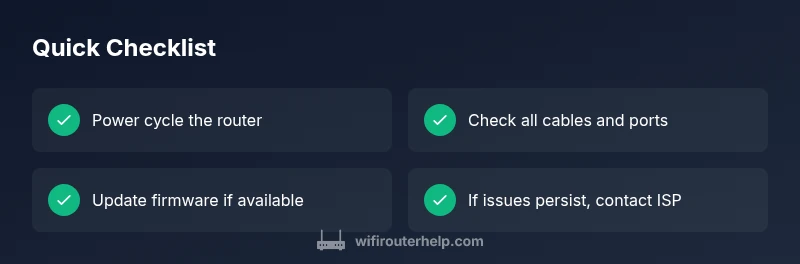
- Confirm all power connections and reboot sequence.
- Verify WAN status and ISP service availability.
- Check for outages and firmware updates.
- If the red blink persists, collect error messages and LED patterns for your support call. This will help technicians diagnose the issue faster and possibly avoid a site visit.
Steps
Estimated time: 45-90 minutes
- 1
Power cycle the router
Unplug the router from power for 30 seconds, then plug it back in. Wait for the device to fully boot and observe the LED pattern. This simple step clears many temporary faults and reconnects devices cleanly.
Tip: Use an uninterruptible power supply (UPS) if you have sensitive equipment or frequent outages. - 2
Check physical connections
Inspect all power and Ethernet cables for wear or loose connections. Ensure the WAN/cable modem is connected correctly and that the modem is receiving a signal from the ISP if you have a separate device. Re-seat cables firmly.
Tip: Avoid using damaged cables; replace them to prevent intermittent faults. - 3
Access the router admin page
Open a browser and log into the router’s admin interface (common addresses are 192.168.1.1 or 192.168.0.1). Check the WAN/Internet status and confirm the router has a valid IP address from the ISP. Look for error messages or abnormal logs.
Tip: Have your admin password handy; export a configuration backup if available. - 4
Run a firmware check and update
If a newer firmware version is available, install it via the admin page. Firmware updates fix known bugs and may resolve red-LED issues. After updating, reboot and recheck the LED pattern.
Tip: Only use official firmware from the manufacturer to avoid bricking the device. - 5
Test with a factory reset if needed
If the light remains red after updates, perform a factory reset to restore default settings. This should be a last resort after backing up any important configurations.
Tip: Document your current network name (SSID) and password to ease reconfiguration after reset. - 6
Call your ISP or replace hardware if unresolved
If the problem continues, contact your ISP to verify service status or request a technician. If hardware failure is suspected, plan for device replacement.
Tip: Have a log of LED patterns, timestamps, and steps you’ve taken to speed up support.
Diagnosis: Router shows blinking red light
Possible Causes
- highPower issue
- mediumFirmware crash or corruption
- highWAN/internet outage or misconfiguration
- mediumOverheating or hardware fault
Fixes
- easyCheck power outlet and adapter; reseat cables and try a different outlet
- easyLog in to the router, refresh WAN settings, and reboot; update firmware if available
- mediumReset to factory defaults only after backing up settings; reconfigure from scratch
- hardIf the red light persists, contact ISP or replace the router if hardware failure is suspected
People Also Ask
What does a blinking red light on my router mean?
A blinking red light usually indicates a critical fault affecting operation. Start with power, cables, and WAN status, then progress to firmware updates or resets if needed.
A blinking red light typically means a serious fault; begin with power, cables, and WAN checks, then move to updates or resets as needed.
Should I reset my router when I see a blinking red light?
Reset only after safer steps fail. Back up settings first, then perform a firmware update or a factory reset if necessary.
Reset only after trying safer steps; back up data first, then reset if the issue persists.
What is the first thing I should check?
Power connections and cables are the first things to verify. Ensure the router, modem, and power supply are secure and not damaged.
Start by confirming power and cable connections are secure and intact.
When is it time to contact the ISP?
If the WAN status shows no connection despite basic fixes, or there’s an area outage, contact your ISP for service status or a technician visit.
If WAN is still down after checks, contact your ISP for status or a technician visit.
Can overheating cause a blinking red light?
Yes, overheating can trigger faults. Ensure proper ventilation and clean any dust from vents and fans.
Overheating can cause red lights; improve ventilation and clean vents.
Is a firmware update risky?
Firmware updates are generally safe when downloaded from official sources and installed via the router’s UI. Back up settings first.
Updating firmware is usually safe if you use the official source and back up first.
What to Remember
- Identify the red blink cause early with simple checks.
- Power cycle and verify WAN status first.
- Update firmware before hardware replacement.
- If unresolved, contact ISP or WiFi Router Help for guidance.