Why Is My Router Red Instead of Blue? An Urgent Troubleshooting Guide
Urgent guide to interpret a red router LED, diagnose causes, and apply fast, safe fixes to restore your home network. Step-by-step checks, diagnostic flow, and prevention tips from WiFi Router Help.


A red router LED usually signals a fault or warning state that requires attention. Start with quick, safe checks: power cycle, verify cables, and ensure proper ventilation. If the red light persists and you lose internet, consult the manual for color meanings or contact support. This guide provides a safe, step-by-step diagnostic to restore connectivity and prevent future outages.
What the red router LED typically signals
If you’ve just noticed a red LED on your router, you’re probably asking: why is my router red instead of blue? In most consumer devices, red means a warning or fault rather than normal operation. That makes it urgent to diagnose before your home network goes down. The WiFi Router Help team emphasizes practical, safe checks you can perform without opening the device. Start by confirming basic power, cables, and ventilation; these fundamentals often resolve transient faults and prevent unnecessary service calls. You should also map the LED color codes to your model’s manual because different manufacturers use red to indicate different states: overheating, firmware problems, or a loss of service. If your model uses a two-color LED or has blinking patterns, note the sequence as these details speed up troubleshooting.
In this article we’ll focus on the most common red states and provide a repeatable workflow that helps homeowners and tech enthusiasts recover connectivity quickly. You’ll learn how to interpret the LED signals, run non-invasive checks, and decide when it’s time to escalate to firmware updates or professional support. Remember: never ignore a persistent red light, because it’s your network’s first indicator that something needs attention.
wordCountNotes
Steps
Estimated time: 30-60 minutes
- 1
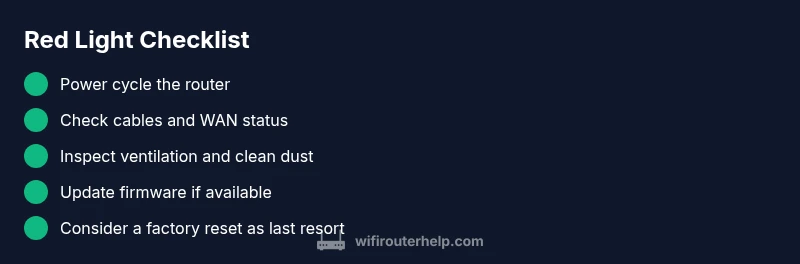
Power cycle the router
Unplug the router from power, wait 30 seconds, then plug it back in. Allow the device to fully boot and observe the LED pattern for 1–2 minutes.
Tip: A full boot clears most transient faults. - 2
Inspect cables and connections
Confirm the power adapter is securely connected and the WAN/LAN cables are firmly seated. Swap cables if you have a known-good spare.
Tip: Loose cables are a common cause of red lights. - 3
Check ventilation and temperature
Place the router in an open area with airflow. If it feels hot to the touch, improve airflow and avoid stacking with other devices.
Tip: Dust removal can dramatically improve cooling. - 4
Review WAN status in admin page
Log in to the router’s dashboard and check the WAN status. Look for signs like “connected,” “no upstream,” or error codes.
Tip: Note any error codes to share with support. - 5
Apply a firmware update
If an update is available, apply it. If the update fails, retry or use a manual upgrade method from the vendor site.
Tip: Firmware updates fix known issues and improve stability. - 6
Consider a factory reset if needed
Back up your settings, then perform a factory reset. Reconfigure the essential settings and test connectivity before restoring other configurations.
Tip: A reset should be a last resort after firmware and hardware checks.
Diagnosis: Router shows a red LED and internet connectivity is unavailable.
Possible Causes
- highOverheating or poor ventilation
- highPower supply issue or unstable outlet
- mediumFirmware fault or failed update
- lowISP outage or modem/bridge mode issue
- lowFaulty WAN/Ethernet port
Fixes
- easyPower cycle the router (unplug, wait 30 seconds, plug back in)
- easyMove the router to a ventilated area and remove dust from vents
- easyCheck all cables and reconnect firmly (power, WAN, LAN)
- mediumUpdate or reapply firmware via the admin page
- mediumTest with a different power adapter if available
- hardFactory reset after backing up settings if light remains red
People Also Ask
What does a red LED on a router typically indicate?
A red LED usually signals a fault or warning. Start with power, cable, and ventilation checks, then move to firmware updates or support if it persists.
A red LED usually means a fault or warning. Start with the basics, then update firmware or contact support if it stays red.
Should I unplug the router when the LED is red?
Yes. Power cycling is the first recommended step, followed by cable checks and ventilation improvements.
Yes. Start by unplugging and replugging after 30 seconds, then check cables.
What if the red light stays after I reset the router?
If the red light persists after a reset, consider overheating, power issues, or firmware faults. Check for updates or contact support.
If it stays red after reset, check for overheating or firmware issues, and contact support if needed.
Can an ISP outage cause a red LED?
Yes. A loss of upstream connection can trigger red indicators; verify with the service provider and modem status.
An ISP outage can trigger red lights; check with your provider and verify the modem.
Is it safe to open the router housing to inspect wiring?
No. Do not open the housing while powered. This can cause shock or damage; rely on non-invasive checks first.
No. Don’t open the router; use non-invasive checks first.
When should I contact support?
If the red LED persists after updates and ventilation, or if you observe unusual LED patterns, contact support with model, firmware, and steps tried.
If it stays red after updates and ventilation, contact support with your details.
How can I prevent red lights in the future?
Keep firmware up to date, ensure good ventilation, use surge protection, and perform regular reboots and health checks.
Keep firmware updated, ventilate the area, and reboot regularly to prevent red lights.
Watch Video
What to Remember
- Identify red LED signals quickly and act fast
- Start with power, cables, and ventilation
- Follow a logical step-by-step path from simple fixes to firmware updates
- Back up settings before any factory reset
- Escalate to support if the red LED persists