Why Is the WiFi Router Red? Troubleshooting Guide
Discover why your WiFi router shows a red light and learn a practical, step-by-step process to diagnose, fix, and prevent issues, with trusted guidance from WiFi Router Help.


According to WiFi Router Help, a red indicator light usually signals a fault or alert. The WiFi Router Help team found that red LEDs commonly point to overheating, a lost internet connection, or hardware issues. Start with basic checks: power cycle, inspect cables, and review the router manual for LED codes. If red persists after these steps, escalate to the next level of troubleshooting.
Why is the WiFi Router Red: A Quick Overview
If you're seeing a red light or red indicator on your WiFi router, you're probably asking: why is the wifi router red? The short answer is that many manufacturers use red LEDs to signal a fault, alert, or safety condition. In practice, red can indicate anything from overheating and power problems to a failed internet connection or hardware fault. Because LED color schemes vary by model, it's essential to consult your user guide for the exact meaning of the red light. According to WiFi Router Help, understanding LED codes is the first step toward a fast fix. The WiFi Router Help team found that most red alerts share a common set of root causes: power reliability, thermal stress, firmware issues, or a pending outage from your ISP. When you approach a red LED, you should stay calm, document symptoms, and follow a structured troubleshooting flow rather than guessing. This not only speeds up resolution but also reduces the risk of accidentally voiding warranties or causing further damage. We'll walk through a practical, step-by-step approach you can apply today.
Common Scenarios That Trigger a Red LED
Red LEDs are typical in several scenarios. A router that overheats due to poor ventilation will often show a red light to protect its internal components. A loose Ethernet cable or a failing power adapter can also trigger a red status. Some models flash red during firmware updates or when a watchdog reset occurs after a crash. Additionally, a red LED may indicate a hardware fault or a service disruption reported by the gateway device. The exact sequence can vary by brand, so it's important to consult the LED legend in the manual or on the underside of the device. If you recently added a new modem, changed the cable, or enabled new security features, those changes can momentarily trigger a red LED while the system stabilizes. Keep a log of changes to help isolate the trigger if the red light returns.
First, Do the Basics: Quick Checks You Can Do in Minutes
Starting with the basics saves time and reduces confusion. Ensure the router is plugged directly into a reliable outlet, not a surge-protected strip that could fail during load. Power cycle the device by unplugging for 30 seconds and plugging back in. Check all cables: modem to router, and any WAN/LAN cables for secure connections. Verify the router’s power LED and other status indicators per the manual. If the device stays red after reboot, test a device on the network to confirm whether the issue is isolated to WiFi or affecting the gateway. Document results and any recent changes, such as new firmware or new devices, to help trace the cause. These steps are quick and often resolve common red-light scenarios.
Diagnostic Flow: How We Determine the Cause
This section translates symptoms into a practical decision tree you can follow. The most common symptom is a persistent red LED after basic checks. From there, the likely causes range from power issues and overheating to firmware faults and ISP outages. A structured approach—start with power, then wiring, then firmware, then service status—minimizes guesswork. If you identify a specific symptom (for example, red LED during boot, but normal traffic afterward), tailor fixes accordingly. If the red light continues after steps, proceed to the Step-by-Step fixes with caution and consider professional help. According to WiFi Router Help analysis, most red-light issues resolve with a simple sequence of checks and updates.
Step-by-Step Fix for the Most Common Cause
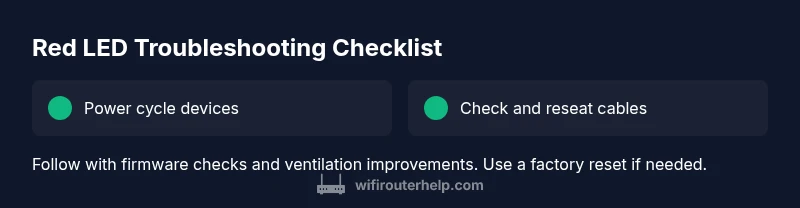
- Power cycle the router and modem: unplug both, wait 60 seconds, plug the modem back in first, then the router. 2) Check and reseat all cables: ensure the ethernet and power cables are secure and undamaged. 3) Verify ventilation: relocate the router to a cooler, more open space to prevent overheating. 4) Update firmware: access the admin UI, check for updates, and install if available. 5) Factory reset if necessary: back up settings, perform a reset, and reconfigure from scratch. 6) Test connectivity: reconnect devices and verify whether the red LED persists. If the red light returns, contact the manufacturer or your ISP for next steps.
Safety, Warnings, and Prevention
Never attempt unsafe repairs or open the router chassis. Avoid running the device in an enclosed space with heat sources. Frequent reboots are not a substitute for firmware updates. Keep firmware current to prevent known bugs from triggering red LEDs. Consider using a surge protector and an uninterruptible power supply for critical devices. Document LED codes and preserve vendor documentation for warranty protection. If you suspect hardware failure, consult professional service rather than attempting hazardous repairs.
Safety, Warnings, and Prevention (Continued)
Proactively monitor for overheating: keep vents clear, avoid placing routers in closets, and ensure adequate airflow. Regular maintenance—firmware updates, password hygiene, and network health checks—can prevent red LED occurrences. If you are unsure or uncomfortable performing any step, seek professional help promptly to avoid voiding warranties or damaging other equipment.
Steps
Estimated time: 25-35 minutes
- 1
Power cycle the router and modem
Unplug both devices, wait 60 seconds, plug the modem back in first, then the router. Allow a full boot cycle and test the LED. This often clears temporary faults and restores normal operation.
Tip: Label the ports and keep a simple network diagram for reconfiguration. - 2
Check and reseat cables
Inspect all power and Ethernet cables for damage or loose connections. Unplug and reseat each cable firmly, ensuring the connectors click into place. Replace any frayed or bent cables.
Tip: Do not bend cables at sharp angles; use cable management to prevent stress. - 3
Ventilation and cooling check
Place the router in an open, elevated area away from heat sources. Ensure air can circulate around the vents. If the device has become unusually warm, give it time to cool before testing again.
Tip: Avoid stacking devices directly on top of the router; allow at least a few inches of clearance. - 4
Firmware update
Log into the router’s admin page, navigate to Firmware Update, and install any available updates. A stale firmware can trigger instability, including red LEDs. Reboot after the update completes.
Tip: Only download firmware from the official vendor site or the router's built-in update feature. - 5
Factory reset and reconfiguration
If all else fails, perform a factory reset. Back up your configuration first, then reconfigure the network from scratch. This often resolves deep-seated software issues that cause persistent red LEDs.
Tip: Document your SSID, password, and custom settings before resetting.
Diagnosis: Router LED turns red or stays red after power cycle
Possible Causes
- highPower issue or unreliable outlet
- mediumOverheating due to poor ventilation
- lowFirmware fault or crash
- lowISP outage or service disruption
Fixes
- easyCheck power outlet and power adapter; try a different outlet if available
- easyPower cycle both modem and router and wait for full boot
- easyInspect cables and reseat connections; replace damaged cables
- mediumUpdate router firmware from the admin interface
- mediumPerform a factory reset if issues persist and reconfigure
People Also Ask
What does a red light on my router mean?
A red light typically signals a fault or alert. It can indicate overheating, a weak or lost internet connection, or a hardware issue depending on the model. Start with basic checks and consult the LED legend in the manual.
A red light usually means a fault or alert. Begin with basic checks and consult your manual for LED codes.
Should I unplug and plug back in when the light is red?
Yes. Start with a simple power cycle: unplug, wait 60 seconds, and plug back in. This clears transient faults and can restore normal operation in many cases.
Yes, try a power cycle first; unplug for about a minute, then plug back in.
What if the red LED remains after basic checks?
If the red light persists, check for firmware updates, inspect cables, and consider a factory reset if necessary. If problems persist after these steps, contact the manufacturer or your ISP for service.
If it stays red after basics, update firmware and inspect cables, then consider a reset or contact support.
Is overheating the most common cause of a red LED?
Overheating is a frequent culprit when ventilation is poor. Improve airflow and remove heat sources; if the device remains hot, power it down and seek professional help.
Overheating is common if vents are blocked or the device is crowded with other gear.
When should I contact my ISP or manufacturer?
If basic steps and firmware updates don't resolve the red LED, contact your ISP or the router manufacturer for warranty, replacement, or service options. They can diagnose service outages or hardware faults remotely.
If it still shows red, contact your ISP or router maker for service or warranty options.
Can a factory reset fix a red light?
A factory reset can resolve deep software issues. Back up settings first, then restore to factory defaults and set up your network again. If the problem returns, there may be a hardware problem.
A factory reset can fix software issues; back up first and reconfigure after reset.
Watch Video
What to Remember
- Start with basics: power, cables, and ventilation.
- Check for firmware updates before hardware replacements.
- If red persists, consider a factory reset with backup.
- Document LED codes and firmware to aid support.
- Seek professional help if hardware failure is suspected.