How to Fix Router Blinking Red: Quick Troubleshooting Guide
Urgent, step-by-step guide to diagnose and fix a blinking red router light. Learn safe power cycling, firmware updates, resets, and when to contact your provider.


To fix a router blinking red, start with a safe power cycle and verify proper ventilation. If the light remains unstable, back up settings and perform a factory reset, then reinstall firmware. If problems persist, contact your ISP or router manufacturer for advanced diagnostics and potential hardware replacement today, please.
What a blinking red light means on your router
A blinking red LED on consumer routers is more than a cosmetic sign; it usually flags a problem that needs attention. It can indicate a power fault, an overheating condition, a firmware crash, or a problem communicating with your modem. If you're here because you want to know how to fix router blinking red, you're in the right place. According to WiFi Router Help, a blinking red light often signals a power or firmware issue that you can fix quickly with safe steps. A blinking red LED is a signal, not a failure of your entire network. If you act calmly and methodically, most issues resolve with simple checks and resets. The goal is to restore a stable connection while preserving your settings whenever possible. In this guide, we’ll cover practical checks, safe procedures, and clear next steps you can follow without risking your device. If at any point you feel unsure, pause and seek support from the brand’s help resources.
Common causes of a blinking red router
A blinking red light is most often related to four root causes: power problems, overheating, firmware instability, and issues with the modem or ISP. Other times the LED color may reflect model-specific indicators that differ from generic signals. Listen for patterns: a rapid blink may indicate processing or boot activity, while a slow blink could point to a link issue. If you’re asking, “how to fix router blinking red,” you’re not alone. WiFi Router Help analysis shows that most cases resolve with a structured approach: confirm power stability, improve airflow, perform firmware updates, and isolate whether the issue is local or provider-side. When diagnosing, you’ll test each cause in order of likelihood, starting with the simplest fix and moving toward the more involved options. Remember that brand differences matter; consult your router’s manual for LED behavior to avoid misinterpretation.
Safety first: power, ventilation, and basic resets
Before you touch the device, unplug the router if you must inspect the power supply. Place the unit on a flat, open surface to improve airflow and prevent overheating. Use only the original power adapter and avoid daisy-chaining power strips that can cause voltage drops. To begin the fix for router blinking red, perform a simple power cycle: unplug both the router and modem, wait 60 seconds, plug the modem back in, wait for all lights to stabilize, then plug the router back in. If the red blink continues, proceed to the next steps. This approach aligns with best-practice troubleshooting and reduces risk of static or electrical damage. If you recently backed up settings, keep them handy for later reconfiguration. In this phase, you’re confirming whether a simple reset resolves the issue without altering user data.
Diagnostic flow you can follow to isolate the problem
The most efficient way to diagnose a blinking red router is a structured, step-by-step flow. Start by checking power and cabling, then verify the modem status and WAN link. If the lights stabilize after a cycle, monitor for stability over 5–10 minutes. If the problem recurs, test a firmware update and perform a factory reset if necessary, but only after backing up settings. Each step narrows the field: is this a power/ventilation issue, a firmware fault, or a provider-side problem? The goal is to identify the root cause without guessing. If the red blink persists after these steps, escalate to a professional.
Step-by-step fixes for the most frequent causes
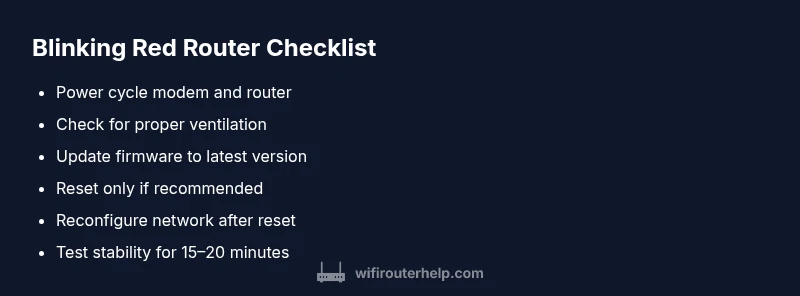
- Power issues: swap in a known-good power adapter and ensure the outlet is working; use a different outlet if the LED flickers or dims. 2) Ventilation: move the router away from heat sources, clear obstructed vents, and ensure airflow around the device. 3) Firmware stability: access the router’s admin panel, check for updates, and apply them. 4) Modem/ISP problems: power cycle the modem and verify service status with your provider. 5) Factory reset: if all else fails, perform a factory reset and re-enter your network settings. Each fix should be tested with a quick connectivity check after application. 6) Ongoing maintenance: enable automatic firmware updates where possible and schedule periodic reboots to prevent recurrent issues. The end result should be a stable connection and a solid LED indicator.
When to contact your ISP or router manufacturer and prevention tips
If the blinking red light persists after trying these fixes, don’t hesitate to contact your Internet Service Provider or the router manufacturer for deeper diagnostics. Persistent red blink can indicate a hardware fault or an external outage beyond your control. To prevent recurrence, keep firmware up to date, ensure adequate ventilation, and avoid overloading the network with high-demand devices during peak hours. Regularly monitor signal strength across rooms and consider upgrading to a more capable router if coverage is inconsistent. Finally, keep a recent backup of your settings so that a factory reset won’t erase critical configurations. The goal is to maintain a reliable network you can trust, minimizing downtime and frustration for everyone at home.
Steps
Estimated time: 30-60 minutes
- 1
Check power and outlet
Unplug the router, inspect the power adapter for any damage, and try a different outlet. Reconnect and watch the LED indicators for stability over 5–10 minutes.
Tip: Use the original adapter to avoid voltage mismatches. - 2
Improve ventilation
Move the router away from heat sources and clear any dust around vents. A cooler device reduces thermal throttling that can trigger red LEDs.
Tip: Keep at least 2 inches of clearance on all sides. - 3
Power cycle the devices
Power off both modem and router, wait 60 seconds, then power them back on in sequence: modem first, wait for full boot, then router.
Tip: If your ISP provided a gateway, include it in the reboot order. - 4
Check for firmware updates
Log into the router admin page and check for firmware updates. Apply any available updates, then reboot and test connectivity.
Tip: Back up configuration before updating if possible. - 5
Factory reset if needed
If the light remains red after updates, perform a factory reset and reconfigure your network from scratch.
Tip: Only reset after backing up settings; you’ll lose custom rules. - 6
Test connectivity and monitor
Reconnect devices and run speed tests. Observe LED status over 15–20 minutes to confirm stability.
Tip: Document any IP address or DNS issues for support.
Diagnosis: Router blinking red light with no internet access
Possible Causes
- highPower issue or unstable outlet
- mediumOverheating due to blocked vents or crowded cabinet
- mediumFirmware crash or corrupted settings
- lowModem/ISP outage or incorrect WAN configuration
Fixes
- easyInspect the power supply and outlet; use a known-good adapter and ensure LED indicates power
- easyReposition the router for airflow and remove obstructions
- easyPower cycle the modem and router; unplug, wait 60 seconds, plug back
- mediumRun a factory reset if no other fix works; reconfigure afterwards
- mediumUpdate firmware via the admin interface or USB update if supported
People Also Ask
What does a blinking red light on my router mean?
A blinking red light typically signals a fault related to power, firmware, or hardware. It’s a warning to investigate further using a structured troubleshooting approach.
A blinking red light usually means there’s a hardware or firmware issue, so follow the step-by-step guide to troubleshoot.
Is a blinking red light dangerous?
No, it isn’t dangerous, but it indicates a fault that could worsen without action. Treat it as a signal to troubleshoot promptly.
No danger, but you should troubleshoot to restore reliability.
Should I reset my router?
Only after safer steps like power cycling and checking firmware. A factory reset is a last resort because it wipes custom settings.
Reset only after trying power cycle and firmware checks.
How long does a firmware update take?
Firmware updates typically take a few minutes, during which you should avoid interrupting the process. Follow on-screen prompts to complete the update.
Usually just a few minutes with no interruptions.
What if the problem persists after updates?
If the red blink continues after updates and cycles, consider a factory reset or contact your ISP/manufacturer for deeper diagnostics.
If unresolved after updates, contact support.
When should I call tech support?
If the red blinking light remains after all fixes or you experience persistent WAN issues, escalate to your provider or the router maker for advanced help.
Call support if unresolved after steps.
Watch Video
What to Remember
- Power cycle first; most red blinks resolve quickly.
- Ventilation matters; overheating triggers safety signals.
- Keep firmware updated to prevent stability issues.
- Back up settings before resets to avoid data loss.
- If unresolved, escalate to ISP or manufacturer with logs.