When the Router Is Blinking: Quick, Safe Troubleshooting
Urgent, practical steps to diagnose and fix a blinking router. Learn patterns, safe power-cycles, firmware checks, and when to seek professional help. WiFi Router Help guides you through a clear, step-by-step plan to restore stability.


The most likely cause is a startup or firmware issue, and the quickest fix is a safe power cycle, plus checking cables and the WAN connection. If the light still blinks after reboot, follow the diagnostic flow to identify the pattern and apply the appropriate step-by-step fix. Treat blinking as urgent: a stable connection matters for all connected devices in your home.
What blinking means and how to interpret patterns
When you observe the LED on your router blinking, it is a practical cue that something in the hardware, firmware, or network configuration needs attention. The phrase when router is blinking signals that you should move from guesswork to a structured check. Different patterns point to different root causes—steady blinking, rapid flashing, or color changes each carry a hint about boot status, updates, or faults. WiFi Router Help has found that most blinking indicators fall into a handful of common states. Recognizing the pattern helps you pick the right next step quickly, protecting your network from extended downtime. Throughout this guide, we focus on safe, repeatable steps you can perform without specialized tools, so you stay productive while preserving hardware integrity.
Remember: this is about practical recovery, not mystery diagnosis. If you see a blinking pattern that looks unfamiliar or persists after standard checks, proceed to the diagnostic flow in this article for a clear path forward. We emphasize slow, methodical actions so you never damage cables or ports in the process.
Quick checks you can do before touching advanced settings
When the router is blinking, start with basic, non-destructive actions. Unplug the router from power for 30 seconds, then plug it back in and watch the LED as it reboots. While it powers up, inspect every physical connection: the power adapter, the WAN/ethernet cables, and any connected devices. If the blinking persists after a clean power cycle, verify that your modem is online and that the WAN port is receiving a signal. This initial pass resolves many transient boot faults. If you observe any signs of overheating, unplug and let the device cool before retrying. This preserves hardware health and safety.
Common blinking patterns and their likely causes
A steady blink often indicates normal boot progress, while a rapid blink can mean a firmware update in progress or a failed update. A single blink per second that never settles may suggest a hardware fault or a power issue. Alternating patterns, such as a color change from amber to white, can signal a temporary conflict with connected devices or an auto-recovery mode. Documenting the exact pattern helps you match it to the most probable cause. WiFi Router Help notes that the majority of blinking scenarios fall into a small set of root causes—power, cables, firmware state, or modem compatibility. Recognizing the sequence allows you to apply the right fix quickly.
Power supply, cables, and hardware sanity checks
A common culprit for blinking is a marginal power supply. Inspect the power adapter for warmth, distortion, or an unplug-resume cycle that feels unstable. If you have a spare compatible adapter, swap it to see if the LED pattern changes. Next, reseat or replace any loose Ethernet cables, especially the WAN cable to your modem and any LAN cables. Check that the router sits on a hard, stable surface away from heat sources. If you notice physical damage, or if the brick adapter shows scorch marks, discontinue use and replace components. These checks prevent misinterpretation of blinking caused by simple hardware faults.
Safe reset and reconfiguration steps you can perform
If the blinking persists after power and cable checks, a guarded reset can clear stuck states. Back up any important settings before performing a factory reset. Locate the reset button (often recessed) and press it with a paperclip for about 10 seconds or until the LEDs flash differently. After the reset, reconfigure settings from scratch or restore from a backup if you produced one previously. For many users, this resolves flashing or blinking caused by corrupted settings. If you use a guest network or multiple SSIDs, consider simplifying to a single SSID during testing to eliminate configuration conflicts.
Firmware updates and why they matter for blinking
Firmware issues can cause blinking during updates or after failed updates. Check the router’s admin interface for the current firmware version and any available updates. If an update is pending, allow it to complete without interrupting the process. If the update fails, wipe the update path by performing a manual upgrade using a clean file from the manufacturer’s site, or revert to a stable previously released version if the option exists. In many cases, applying a fresh, compatible firmware resolves persistent blinking caused by software state inconsistencies. Always download firmware from the official source to avoid bricking the device.
When blinking persists: escalation and professional help
If the LED continues to blink after all safe fixes, the issue may be hardware-related or due to a stubborn firmware fault that requires vendor assistance. Contact your ISP if the modem or WAN connection appears unstable, and collect LED pattern details, model numbers, and recent changes to share with support. Prepare to answer whether the device has overheated, whether there were any surges, and what troubleshooting steps you already performed. The WiFi Router Help team recommends escalating promptly when basic checks fail, to minimize downtime and protect connected devices.
Post-fix stabilization: tips to prevent blinking
After you stabilize the router, implement a simple maintenance routine. Keep firmware up to date, monitor the LED patterns weekly for the first month, and ensure cables remain snug. Place the router in a cool, central location away from obstructions to improve cooling and signal consistency. Consider a regular reboot schedule on days with heavy network use to smooth boot processes. These habits reduce the chances of recurring blinking and improve long-term stability for the household network.
Troubleshooting flow and best practices
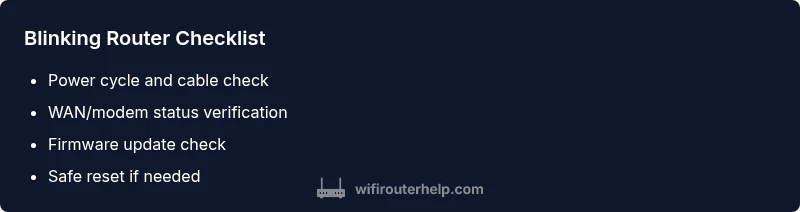
A disciplined troubleshooting flow reduces guesswork. Start with power and cables, verify WAN status, check firmware, and reset only after those checks. Use a calm, methodical approach, documenting each pattern and outcome. If the blinking stops at any point, retest by toggling devices to confirm stability. Always safeguard important configurations and logs. If you’re unsure about any step, pause and seek professional guidance to avoid unintended damage. This approach helps you recover quickly and keeps your network reliable.
Steps
Estimated time: 40-60 minutes
- 1
Power cycle the router
Unplug the router from power for 30 seconds, then plug it back in and observe the LED as it reboots. If the blinking stops, test internet connectivity on a few devices to confirm stability. If it returns to a problematic pattern, proceed to Step 2.
Tip: Always unplug before handling cables to avoid static or damage. - 2
Check all cables
Inspect the power adapter, WAN cable to the modem, and any LAN cables. Reseat connections, replace damaged cables, and ensure the modem is powered and online. A loose or damaged cable is a frequent cause of blinking patterns.
Tip: Use the same type and length of cable for predictable performance. - 3
Verify modem status
Confirm the modem is online and syncing with your ISP. If the modem shows warnings or no link, contact your ISP or try a different modem if available. A modem issue often manifests as a persistent blinking on the router.
Tip: If possible, place the modem and router in a centralized location for better signal distribution. - 4
Check firmware state
Log into the router’s admin interface and check the firmware version. If an update is pending or failed, attempt a new, official upgrade or revert to a stable version if available.
Tip: Only download firmware from the manufacturer’s site to avoid bricking the device. - 5
Perform a safe reset
If issues persist after updates, perform a factory reset after backing up settings. Reconfigure from scratch or restore a known-good backup. Test for a stable pattern before restoring all custom configurations.
Tip: Document your settings ahead of a reset so you can recreate them quickly. - 6
Test and monitor
After fixes, reboot and monitor LED patterns for 24–72 hours. Observe whether blinking returns under load or during specific times of day. If stability holds, you are likely past the issue.
Tip: Create a simple weekly mood check: reboot once a week and verify connectivity.
Diagnosis: Router LED blinking in an unusual pattern (e.g., continuous blinking, color change, or alternating patterns) when powered on or during operation.
Possible Causes
- highPower issue (faulty adapter, unstable outlet)
- highLoose or damaged Ethernet cables
- mediumFirmware update in progress or failed update
- lowModem incompatibility or failing signal
- lowHardware fault or overheating
Fixes
- easyCheck the power adapter and outlet; try a different outlet or replace adapter if warm or damaged.
- easyReseat or replace Ethernet cables and WAN cable; ensure connections are snug.
- easyRestart the router after verifying firmware status; perform a firmware update if available via the admin UI.
- mediumPerform a safe reset to factory settings if issues persist; back up configs first.
- mediumIf blinking continues after steps, contact support; provide LED pattern and model details.
People Also Ask
What does a blinking router light usually indicate?
A blinking light often signals boot, update, or fault states. Start with identifying the pattern and perform safe checks before moving to more advanced steps.
A blinking router light usually means the device is booting, updating, or in a fault state. Start by identifying the pattern and doing safe checks.
Is blinking red worse than blinking amber?
Yes. Red commonly indicates a hardware fault or overheating, while amber often signals a firmware update or status issue. Treat red blinking as a higher-priority problem.
Red blinking usually means hardware fault or overheating; amber blinking often relates to updates or status checks. Red blinking is more urgent.
Can I fix blinking without a tech?
Many blinking issues can be addressed with safe steps like power cycles, cable checks, and firmware updates. If the problem persists, don’t hesitate to contact support.
Yes, often you can fix blinking at home with basic checks; if it persists, contact support.
When should I contact my ISP?
If the modem or WAN signal shows no link or if the router cannot achieve internet access after resets, your ISP can verify line status and assist with compatibility issues.
Call your ISP if the modem shows no link or you can't access the internet after resets.
What safety steps should I take?
Unplug power before handling cables, avoid opening the device, and use proper ESD precautions. If unsure, seek professional help.
Unplug power before touching cables and avoid opening the device. If unsure, get help.
Watch Video
What to Remember
- Start with safe power cycling and cable checks.
- Identify the blinking pattern to guide fixes.
- Update firmware or reset only after basic checks fail.
- Escalate to support if blinking persists after all steps.