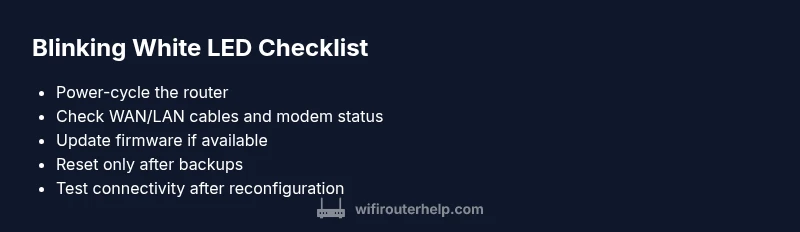
Router is Blinking White: Step-by-Step Troubleshooting
Urgent guide to fix a router is blinking white light. Learn checks, a diagnostic flow, and step-by-step fixes to restore stability from WiFi Router Help.


Blinking white on your router typically signals startup, a firmware update in progress, or a reset. Start with a quick power cycle, verify all cables are secure, and check for a firmware update. If the light continues to blink, follow the diagnostic flow and the step-by-step fixes to restore network stability.
Understanding the router is blinking white light
When you see a router is blinking white, it usually means the device is in a boot sequence, applying a firmware update, or recovering from a reset. Different brands use similar LED colors but with distinct blink patterns. The critical thing to know is that most blinking-white LED scenarios are resolvable without expensive components. According to WiFi Router Help, a blinking white LED is one of the most common indicators homeowners encounter during setup, after a power outage, or when a firmware update is in progress. The goal is to distinguish between a normal boot sequence and a fault condition. If the LED just flickers in sync with the router’s activity and you can access the admin page, you’re likely in a normal operation or handling a minor update. If the light blinks irregularly or for long periods, that’s a sign to proceed with deeper troubleshooting and the steps outlined below.
In most homes, you’ll see a blinking white LED during:
- Power cycling after a loss of power
- Firmware updates that require router reboot
- Resetting the router to factory defaults
- Pairing to a mesh system or extender
Understanding these contexts helps you avoid unnecessary steps. The key is to anchor your troubleshooting in safe, reversible actions and to keep your settings backed up before making changes. WiFi Router Help emphasizes that most blinking-white scenarios resolve with simple checks and controlled restarts, but persistent blinking may indicate a deeper issue with the modem, firmware, or hardware.
},
Quick checks you can perform now
- Ensure the router is plugged into a surge-protected outlet and that the power indicator is stable before you act.
- Inspect cables: confirm the WAN/Internet cable from your modem is firmly connected, and the power and LAN cables are secure.
- Power cycle the router: disconnect from power, wait 60 seconds, reconnect, and observe the LED sequence.
- Check for firmware updates from the admin console and schedule updates during off-peak hours to minimize disruption.
- If you have a separate modem, ensure it’s working properly by power-cycling the modem itself and testing with a wired device.
- Review any recent configuration changes (new SSID, parental controls, or firewall rules) that could trigger the LED to blink during boot.
- If you recently added a mesh satellite or extender, temporarily remove it to see if the blinking stops when the router runs solo.
These checks address the most common, easily fixable causes and help you avoid unnecessary resets or service calls. If any step fails to resolve the blinking issue, move to the diagnostic flow and the formal fix list below.
},
Reading the LED pattern: diagnostic clues
- Quick blink on startup: normal boot, likely resolves after a power cycle.
- Fast, constant blinking: firmware update in progress or stuck boot; allow time or initiate a safe reboot from the admin page.
- Irregular, lengthy blinking with no access: potential hardware fault or corrupted firmware; proceed to step-by-step fixes.
- Steady white light after a series of blinks: device is stable but may need manual refresh or a login to confirm status.
Interpreting the pattern helps distinguish between routine maintenance and an issue that requires a reset or replacement. If you can access the admin interface, check the system log for recent events (boot sequence, firmware update, or a failure message). WiFi Router Help notes that logs can reveal the exact cause of a prolonged blinking sequence and guide your next action.
},
Step-by-step Fixes for the Most Common Causes
When the router is blinking white, start with the easiest fixes and gradually move to more involved steps. For each fix, verify the LED pattern after completion to confirm progress.
- Power cycle and cable reseat
- Unplug the router, wait 60 seconds, reinsert power, and ensure all cables are securely connected.
- After power restoration, observe the LED pattern for 2-3 minutes. If the blinking stops, you’ve resolved a transient issue. Tip: Use a different power outlet if the original one is loose or unstable.
- Verify modem connectivity
- If you have a separate modem, reboot the modem first, then the router.
- Confirm the modem’s status lights indicate online. Try a direct wired test to your PC to rule out Wi-Fi issues. Tip: If the modem is in bridge mode, ensure the router is the only device handling DHCP.
- Check for pending firmware updates
- Log into the router’s admin page and look for firmware updates.
- If an update is available, schedule it and avoid changing other settings during the process. Tip: Do not interrupt an update; loss of power during firmware installation can brick the device.
- Reset to factory defaults (only if other fixes fail)
- Back up your current configuration, then perform a factory reset via the router’s reset button or admin panel.
- Reconfigure the network from scratch to avoid restoring a problematic setting. Tip: If you have guest networks, copy essential settings before resetting.
- Reconfigure and test
- Recreate your Wi-Fi name (SSID) and password, connect a few devices, and test both 2.4 GHz and 5 GHz bands.
- Verify internet access by loading multiple websites and streaming a video to test stability. Tip: Document your old settings so you can revert if needed.
- When to contact support
- If the LED continues blinking white after a factory reset and firmware reinstallation, the device may have a hardware fault.
- Contact your router manufacturer or ISP support with the exact LED pattern and the steps you’ve already tried. Tip: Keep your serial number handy and note the model and firmware version.
Estimated total time: 25-30 minutes (typical cases), longer if firmware updates require long install times.
},
Safety, warnings, and when professional help is needed
- Do not open or disassemble the router; capacitors can retain charge and static electricity can damage circuitry.
- Back up configurations before performing factory resets to prevent loss of custom settings.
- Avoid making multiple changes at once; a staged approach helps identify the exact fix and reduces risk.
- If you’re using a ISP-provided gateway, confirm whether the device is the source of the blinking light before replacing it.
- If the router still blinks after a factory reset and firmware reinstall, seek professional help or contact the manufacturer’s support line for a possible hardware replacement.
In urgent situations, working with a professional ensures your network is securely configured and minimizes downtime. WiFi Router Help recommends documenting changes and keeping a recovery plan so you can quickly restore service in the future.
},
Prevention tips to avoid future blinking issues
- Schedule firmware updates during low-traffic periods and ensure reliable power during the update window.
- Use a quality surge protector and avoid hot environments that could cause equipment throttling or overheating.
- Regularly check cables for wear and replace any frayed connectors immediately.
- Keep a simple backup of your router’s configuration, especially after major changes like enabling QoS or parental controls.
- Periodically review network logs for unusual activity or frequent disconnects, then address issues before they escalate.
By following these prevention tips, you reduce the chance of future blinking white LED events and maintain a stable home network.
}],
diagnosticFlow
stepByStep
tipsList
keyTakeaways
videoEmbed
faqSection
mainTopicQuery
Steps
Estimated time: 25-30 minutes
- 1
Power cycle the router
Unplug the router from power, wait 60 seconds, then plug it back in. Give the device 2–3 minutes to boot and reach a stable state.
Tip: Label the power cable and use a single, reliable outlet to avoid future power issues. - 2
Check physical connections
Inspect the WAN/Internet cable, power adapter, and LAN cables. Reseat any loose connections firmly and verify the modem is online.
Tip: Try a different Ethernet cable if you suspect a faulty one. - 3
Look for firmware updates
Log into the router’s admin page and check for firmware updates. Install if available and avoid multi-tasking during the process.
Tip: Back up current settings before updating. - 4
Reset to factory settings if needed
If the light remains blinking white after updates, perform a factory reset. Back up config first, then reconfigure from scratch.
Tip: Reset quietly and document your previous settings for future reference. - 5
Reconfigure network and test
Set up your SSID and password, rejoin devices, and test internet access on multiple devices.
Tip: Run a speed test and streaming test to verify stability. - 6
When to call support
If the problem persists after all steps, contact the manufacturer or ISP with LED pattern details and steps already tried.
Tip: Have your model, firmware version, and failure timeline handy.
Diagnosis: Router is blinking white
Possible Causes
- highPower issue
- mediumFirmware update in progress
- highLoose or damaged cables
- lowHardware fault
Fixes
- easyUnplug router, wait 60 seconds, plug back in
- easyCheck and reseat all cables (power, WAN, LAN)
- mediumUpdate firmware via admin page and reboot
- hardReset to factory settings if needed and reconfigure
People Also Ask
What does a blinking white light on a router mean?
A blinking white light often means the device is booting, applying an update, or recovering from a reset. Check the LED pattern and re-run basic checks before deeper troubleshooting.
A blinking white light usually means the router is booting up or updating. Start with a power cycle and basic checks.
Should I power cycle the router when it blinks white?
Yes. Power cycling is the first and safest step. If the light continues to blink after a cycle, proceed with the diagnostic flow.
Yes, start with a simple power cycle and see if the issue clears.
Is it safe to perform a factory reset?
Factory reset is safe if you back up settings and understand you will need to reconfigure the network. Use it only after other fixes fail.
Factory reset is safe if you’ve backed up your settings and are prepared to reconfigure your network.
When should I contact the manufacturer or ISP?
If the blinking white light persists after a factory reset and firmware reinstall, there may be a hardware fault requiring professional support.
If it keeps blinking after resets and updates, contact support with the LED pattern details.
Can a modem issue cause a router to blink white?
Yes. A problem in the modem or its connection can trigger the router to blink white as it tries to establish a link.
A modem issue can cause the router to blink white while it tries to connect.
Watch Video
What to Remember
- Start with power cycling and cable checks
- Read the LED pattern to guide diagnosis
- Back up settings before resets
- If unresolved, contact support for hardware evaluation