Why is My Router Blinking Blue? A Step-by-Step Troubleshooting Guide
Urgent, step-by-step guide to decode a blue blinking router LED and restore reliable Wi‑Fi. Learn quick checks, diagnostic flow, fixes, and safety tips from WiFi Router Help.


A blue blinking LED on most routers signals an active process, such as a firmware update or pairing mode. Do not panic if the blink aligns with a scheduled update; check the model manual for the exact pattern. If the blink persists beyond 15 minutes, power cycle the router, verify the Internet light, and follow the next steps in this guide.
LED Status Basics: What a Blue Blink Signals
In most home routers, the color and pattern of the LED indicator is your first clue about what's happening inside. A blue blink is not a universal alarm; it often marks an active process like a firmware update, a new device pairing, or a background maintenance cycle. The exact meaning depends on the brand and model, so your first step is to consult the user manual or the manufacturer’s support page for the LED legend specific to your router. Commonly, a slow, regular blink indicates data transmission in progress, while a rapid or irregular blink can signal an error state or a reboot sequence. If the blue LED remains solid for a time, or the pattern changes unexpectedly, you should escalate to more in-depth checks.
Key considerations:
- Pattern matters: slow vs fast blinks convey different tasks.
- Other LEDs (Internet, power, WAN) provide corroborating signals that help you interpret the blue blink.
- Firmware update windows: avoid unplugging or pressing reset during an expected update window.
Common Blink Patterns by Brand (and What They Usually Mean)
There isn’t a universal standard for blue LED blink patterns across all router brands. Some manufacturers reserve blue for active connections, others use it specifically for updates or pairing. For example, a slow, steady blue blink might indicate ongoing data traffic or a software update, while a rapid blink could mean a reset sequence or a firmware check routine. It’s essential to cross-check with your router’s manual or the official support page to map the exact pattern to a defined state. If you recently initiated a setup or performed a manual reset, blue blinking could be a normal part of the process. If the pattern changes abruptly or the blue blink becomes erratic, that’s a red flag and warrants further troubleshooting.
Tips to compare patterns:
- Note whether other LEDs (Internet, power, Wi‑Fi) reflect compatible statuses.
- Check if the pattern coincides with a device pairing or a new firmware rollout.
- Look for accompanying messages in the router’s management app or web interface.
Quick Checks You Can Do Right Now
Starting with the simplest steps maximizes your odds of a quick fix. If the blue blink appears during or after a firmware update, let the process complete before taking action. If you’re unsure, proceed with these checks:
- Confirm you have an active power connection and the router is not overheating.
- Ensure all cables are firmly connected, especially the power and WAN/DSL lines.
- Check your admin page (often 192.168.0.1 or 192.168.1.1) for update status, current firmware version, and the LED legend for your model.
- If you recently changed settings, revert recent changes to see if the LED behavior stabilizes.
- Run a quick speed test to verify internet connectivity, and inspect the router’s event log for recent actions or errors.
- Look for any notifications about a failed update and try updating again or rolling back if possible.
Diagnosing the Cause: A Practical Flow
This section helps you map the blue blink to a likely cause and a corresponding fix in a structured way. Start with the most common scenario and proceed to less frequent ones.
Symptom → Likely cause → Immediate action:
- Blue blink during a recent firmware update → Cause: update in progress → Action: wait, then reboot if stuck.
- Blue blink after a fresh setup or reset → Cause: pairing mode or initial configuration → Action: complete setup or exit pairing mode.
- Irregular or long-running blue blink → Cause: potential hardware fault or power issue → Action: power cycle and check logs; if persists, contact support.
If none of these patterns fit your situation, or you’re unsure, proceed to the next steps in the guide and consider a professional check.
Step-by-Step: Safe Fixes for a Blue Blink
Follow these steps in order to maximize safety and effectiveness. Beginning with easy fixes helps you avoid unnecessary resets and data loss.
- Identify the exact LED pattern and check the router’s LED legend in the manual. 2. Power cycle the router by unplugging for 30 seconds, then plug back in. 3. Inspect all cables for security and integrity; reseat connectors if needed. 4. Access the admin interface and review current firmware version and update history. 5. If an update is pending or in progress, wait for completion; do not interrupt. 6. If the issue persists, perform a factory reset only after backing up settings and attempting a firmware reflash. 7. Reconfigure the network from scratch, restoring essential settings.
Tip: Save a backup of your settings before any reset, and document your network configuration for a smooth restore.
Firmware Updates: How to Verify and Schedule a Safe Update
Firmware updates can cause a blue blink that signals progress. To verify status, log in to the router’s admin panel and find the firmware section; compare the installed version to the latest available on the manufacturer site. If your router isn’t updating automatically, trigger a manual update during a known maintenance window. After updating, reboot and recheck the LED pattern. If the LED continues blinking blue abnormally after a successful update, you may need to perform a clean reflash or roll back to a stable version.
Caution: Always back up configuration before updating, and ensure a stable power supply throughout the process.
Preventing Blue Blinks: Maintenance Habits
Prevention reduces the frequency of uncertain blue blinks. Keep your router in a well-ventilated area away from heat sources and direct sunlight. Schedule regular firmware checks and enable automatic updates if supported. Maintain a clean network map: label devices, limit unknown connections, and use a robust password policy. Periodically reset the router’s settings to factory defaults if you notice unresolved anomalies, but only after backing up your configuration. Monitor the LED patterns after each change to learn what’s normal for your model.
When to Seek Professional Help
If the blue blink persists after following the steps above, or if you notice intermittent connectivity, repetitive reboots, or suspicious activity in the logs, escalate to professional support. Contact the router manufacturer’s customer service, or your ISP if the device is provided by them. Have your model number, firmware version, and a log of LED patterns ready to speed up diagnosis. In rare cases, a hardware fault may require replacement.
Steps
Estimated time: 30-60 minutes
- 1
Identify LED pattern and model legend
Consult the router’s manual or official support page to map the blue blink to its exact meaning for your model. This is crucial because a blue blink can signify different states across brands.
Tip: If you can, take a photo of the LED pattern to compare with the model’s guide. - 2
Power cycle the router
Unplug the router, wait 30 seconds, then plug it back in. Give it 2–5 minutes to reset and reestablish connections. Look for a stabilized LED pattern after reboot.
Tip: Avoid unplugging during a firmware update or when the device reports a critical error. - 3
Check physical connections
Inspect all cables: power, WAN, and Ethernet. Reseat connectors firmly and ensure no loose or damaged cables are present. Poor connections can cause erratic LED behavior.
Tip: If a cable is frayed, replace it before proceeding. - 4
Review firmware status in admin panel
Log in to the router’s admin interface and navigate to the firmware or update section. Confirm whether a update is downloaded, in progress, or failed, and note the current version.
Tip: Back up settings before any update actions. - 5
Attempt a controlled firmware refresh
If an update is pending or if you suspect corruption, attempt a manual update from the official site or the admin panel. Do not interrupt a live update.
Tip: Use a stable power source during this process. - 6
Factory reset as a last resort
If all else fails, perform a factory reset after backing up configurations. Reconfigure your network from scratch and reapply essential settings.
Tip: This is a last resort; you’ll need to re-enter your ISP credentials if required.
Diagnosis: Router LED blinking blue continuously or in unexpected patterns
Possible Causes
- highFirmware update in progress
- mediumDevice in setup/pairing mode
- lowHardware fault or power issue
Fixes
- easyWait for the firmware update to complete, then reboot if needed
- easyPower cycle the router and confirm all cables are secure
- easyCheck the admin page for update status and recent events; reflash firmware if available
People Also Ask
What does a blue blinking LED mean on my router?
A blue blink usually signals an active process like a firmware update or pairing. Patterns vary by model, so check the user manual or support page for your specific device.
A blue blink usually means a process is running, like an update or pairing. Check your manual to be sure.
Is it safe to reset my router if the blue LED is blinking?
Resetting should be a last resort after trying power cycling and firmware checks. Back up settings first, then reset and reconfigure.
Resetting is a last resort. Back up settings and only proceed if other steps fail.
How long should a firmware update take on a typical router?
Most updates finish within a few minutes, but some can take longer depending on the device and the internet connection. If it appears stuck, consult the manufacturer’s guidance.
Updates usually take a few minutes; if it’s stuck, check the manual for guidance.
Can a blue blink indicate a security issue?
A blue blink alone is rarely a security breach. If you notice odd behavior or unknown devices, review security settings and run a malware check.
Usually not a sign of security breach, but review settings if anything looks off.
When should I contact support or my ISP?
If the blue blink persists after all troubleshooting steps, or if you experience repeated drops in service, contact the manufacturer or your ISP with model, firmware, and LED details.
If it keeps blinking after trying these steps, contact support with your device details.
Watch Video
What to Remember
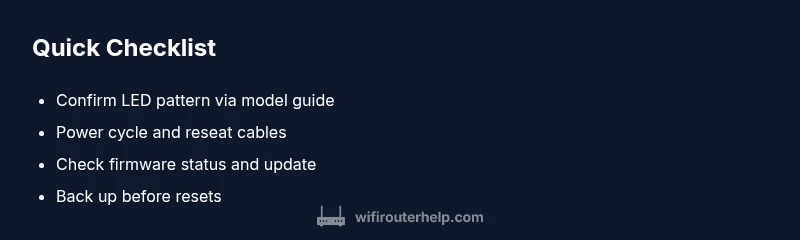
- Identify LED pattern per model
- Power cycle and check connections
- Verify firmware status and update if needed
- Back up settings before resets
- Seek professional help if unresolved