Troubleshooting a Router That Is Blinking Blue
Learn why your router is blinking blue and how to fix it fast with a step-by-step troubleshooting guide from WiFi Router Help. Includes a diagnostic flow, step-by-step fixes, safety tips, and when to call a pro.


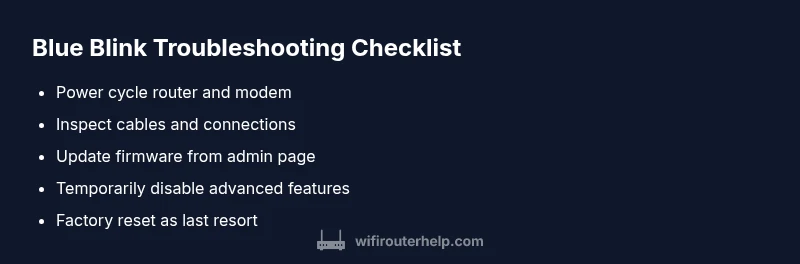
Most often, a blinking blue LED means the router is in setup, updating firmware, or booting. Start with a quick power cycle: unplug for 30 seconds, replug, and check that the modem is online. Then check for a firmware update in the router’s admin page. If the blink persists, perform a cautious reset or contact support.
Understanding the blue blink
The sight of a router that is blinking blue can feel alarming, but it’s often a sign of the device entering a transitional state rather than a fatal failure. When you notice a blue blink, you should think in terms of a process that the router is completing: boot, assign, update, or reconfigure. According to WiFi Router Help, a blinking blue LED often signals the device is preparing a connection, performing a software update, or waiting for user input. This means your first moves should be non-destructive and focused on verifying basic states such as power, cabling, and network availability. By keeping expectations realistic and following a structured approach, you’ll minimize downtime and protect your home network.
Common causes of a blinking blue LED
A blinking blue LED can occur for several reasons, ranging from routine setup to urgent firmware recovery. In many cases, the blink is temporary: the router is in setup mode after a reset, or it’s applying a firmware update. WiFi Router Help analysis shows that a sizable share of blue-blink issues are resolved with a simple power cycle and stepping through basic checks. Less common but plausible causes include a startup fault, a crowded network with devices contending for limited bandwidth, or a misconfigured bridge/modem setup. Understanding these potential origins helps you triage without guessing.
Quick checks you can perform before deeper troubleshooting
Before delving into advanced settings, perform a sequence of safe, low-risk checks. Ensure the power adapter is secure and the outlet is stable. Inspect all cables between the modem and router; loose Ethernet leads can cause intermittent boot signals that manifest as a blue blink. Confirm the modem is showing online status and that the router’s LAN ports are not physically damaged. If you’ve recently changed the router’s location, move it back to a central, open spot to improve ventilation and signal propagation. Finally, access the router’s admin page to see current firmware version and the last update timestamp. Avoid making multiple changes at once; document each step so you can revert if needed.
How to read LED indicators on most routers
LED indicators can differ by model, but several patterns are common. A steady blue usually means normal operation, a blinking blue often indicates activity like setup or firmware updates, and a solid red or amber can signal an error or overheating. Some routers show a sequence during boot: a blue blink turns into a solid blue, then transitions to green or white when ready. Recognize that indicators are a guide, not a guarantee. If the blue blink persists beyond expected timeframes, proceed to a structured diagnostic flow rather than randomly changing settings.
Diagnostic flow: symptom → diagnosis → solutions
Symptom: router is blinking blue. Diagnosis options include: 1) firmware update in progress (high), 2) setup mode active (high), 3) boot loop due to power issues (medium), 4) modem connectivity problems (medium), 5) hardware fault or overheating (low). Solutions range from safe, quick fixes to more involved steps. Start with power cycling and cable checks, then verify firmware status, and proceed to a controlled reset if needed. If none of these steps stabilize the device, seek professional help.
Step-by-step fix: firmware update loop
- Power cycle both modem and router: unplug, wait 60 seconds, plug back in to reset boot sequence. 2) Check the router admin interface for a pending firmware update and apply it fully. 3) If the update seems stuck, stop and force a clean reboot, ensuring the device has a stable power source. 4) Disable features that could cause loops (e.g., WDS, bridge mode) temporarily to isolate the issue. 5) If the LED still blinks blue after a full update, perform a controlled factory reset and reconfigure from scratch using a backup if available. 6) Test with a wired connection to verify stability before reconnecting wireless devices. Tip: back up your configuration before resets. Estimated time: 30-60 minutes.
Safety, resets, and when to call a pro
Resetting a router erases custom settings; proceed with caution and only after you’ve exhausted non-destructive steps. Never handle the device with wet hands or while plugged in; ensure you are in a dry, ventilated space. If you observe signs of physical damage, overheating, or a complete lack of power after a reset, contact a professional technician or the manufacturer for warranty-assisted service. Persistent blue blinking that does not resolve with updates or resets may indicate a hardware fault requiring repair or replacement.
Prevention tips to keep a stable connection
Regular maintenance reduces future blue blinks. Ensure firmware is set to automatic updates or check on a monthly basis. Maintain clear space around your router, away from heat sources, and avoid chaining multiple power-sensitive devices on the same outlet. Use a UPS (uninterruptible power supply) for critical networks to prevent a blink caused by sudden outages. Periodically review your network map to remove unused devices and verify that DHCP settings are consistent across your home.
When all else fails: warranty, support, and final steps
If the router continues blinking blue after factory resets and firmware updates, it may warrant professional assessment. Check your warranty status and reach out to the manufacturer’s support line or your retailer. Document the LED behavior, outages, and any error codes observed on the admin page. Prepare your model number, serial, and firmware version before you call. The WiFi Router Help team emphasizes that maintaining updated firmware, proper power, and clear network configurations is key to minimizing downtime and preserving security. If replacement is necessary, consider upgrading to a newer model that supports your ongoing bandwidth needs and provides longer-term reliability.
Steps
Estimated time: 30-60 minutes
- 1
Power cycle the devices
Unplug the router and modem, wait 60 seconds, then plug the modem back in first, followed by the router. This clears temporary faults and reinitializes the boot sequence.
Tip: Use a surge-protected outlet to avoid power-related interruptions. - 2
Check physical connections
Inspect all cables between your modem and router for wear or loose connections. Ensure the Ethernet cable is firmly seated in the correct ports.
Tip: Replace frayed cables to rule out intermittent signal loss. - 3
Access the admin page to verify firmware
Log into the router’s web interface or mobile app and check for a firmware update. If one is available, run the update and let the router reboot.
Tip: Backup current settings before applying updates if possible. - 4
Isolate features that could cause loops
Temporarily disable advanced features (bridge mode, WDS, QoS rules) to see if the blue blink resolves, which helps identify the root cause.
Tip: Re-enable features one by one to isolate the culprit. - 5
Perform a controlled reset if needed
If the LED remains blue after updates, perform a factory reset through the admin page or a physical reset, then reconfigure from scratch using a known-good backup.
Tip: Only reset after saving essential settings. - 6
Test connectivity and monitor
Connect a device via Ethernet to verify stability, then test wireless devices. Confirm internet access is reliable and the LED behavior remains normal.
Tip: Document any recurring blinks for support reports.
Diagnosis: Router is blinking blue
Possible Causes
- highFirmware update in progress
- highSetup mode active after reset or factory default
- mediumBoot loop due to power or hardware issues
- mediumModem connectivity problems
- lowOverheating or hardware fault
Fixes
- easyPower cycle router and modem; wait 60 seconds and reconnect
- easyCheck and reseat Ethernet cables; verify modem status
- easyUpdate firmware from the admin page; ensure update completes
- mediumIf update is stuck, perform a controlled reset and reconfigure
- hardConsult support for hardware fault or warranty replacement
People Also Ask
What does a blinking blue light typically mean on a router?
A blinking blue light usually indicates the device is in a transitional state, such as setup, boot, or firmware updates. It’s not always a failure, but it warrants a quick diagnostic flow to confirm normal operation or identify a fault.
A blinking blue light usually signals setup, boot, or an update. Run the basic checks to confirm normal operation or move to troubleshooting if the blink persists.
Should I reset my router if the blue blink won’t stop?
If updates finish and the blink remains, perform a controlled reset as a last resort. Remember to back up configurations first, then reconfigure. If the issue recurs, contact the manufacturer’s support.
Reset only after backing up settings; if it repeats, seek official support.
Can a blinking blue LED mean my internet is dead?
Not necessarily. A blue blink can occur even when some services work. Test with a wired device to confirm whether basic connectivity is intact, then verify whether you can reach external sites.
A blue blink doesn’t always mean no internet; test wired connectivity and then test websites.
What should I check first if the LED turns blue after a power outage?
After a power outage, ensure the router and modem fully boot, with all LEDs stabilizing. If the blue blink continues, review firmware and bridge settings and consider a factory reset if needed.
Boot fully, check firmware, and consider reset if issues persist.
Is a blue blink always a sign of a hardware problem?
No. Blue blinking often relates to software or setup processes. A hardware fault is possible but less common; rule out software issues first before contacting support.
Usually not hardware—try software-focused fixes first.
When should I call a professional?
If you’ve exhausted safe troubleshooting steps, firmware updates, and resets, and the blue blink persists or the router overheats, contact customer support or a qualified technician.
Call support after trying safe fixes and firmware updates.
Watch Video
What to Remember
- Power cycle first to clear transient faults
- Check firmware and update promptly
- Back up settings before resets
- Isolate problematic features to identify root cause
- Contact support for hardware faults or warranty claims