Why Is My Router Blinking Orange? A Practical Troubleshooting Guide
Diagnose and fix a router that blinks orange with a practical, step-by-step guide. Learn safe resets, cable checks, firmware updates, and when to contact your ISP. WiFi Router Help shares expert guidance for a stable home network.


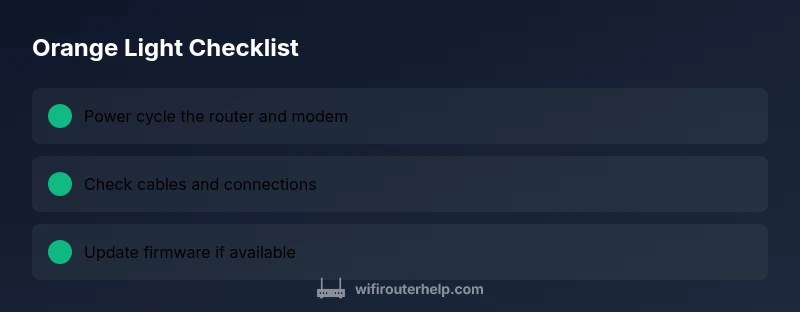
A blinking orange light usually signals a connectivity or hardware fault. Start with a quick reset and reconnection: power cycle the router and modem, reseat all cables, and ensure the device is placed away from obstructions. If the light remains orange after 60 seconds, consult the manual or contact your ISP for next steps.
What the orange blink means
An orange blinking router is not a typical status light. It often signals a hardware fault or a problem in the connection path that requires attention. According to WiFi Router Help, the most common triggers are power issues, firmware glitches, or a disrupted Internet service from the provider. In 2026, many users resolve orange blinks with safe, incremental steps, but some situations demand professional diagnostics. Treat this as a structured troubleshooting session where the goal is to restore service quickly while protecting router warranty and network security. Start with calm, methodical checks, collect model information, and move through the diagnostic flow to avoid unnecessary delays. Your home network depends on a stable link between your modem, router, and devices.
Quick checks you can perform now
Before diving into deeper fixes, run through a few safe, no-cost checks. First, unplug the router and modem, then wait 60 seconds and reconnect in the same order. Verify all cables are firmly seated—especially the power brick, the WAN/Internet cable, and any Ethernet patches to wired devices. Ensure the router sits in a ventilated area with ample space around vents. If your power outlet is controlled by a wall switch or a smart power strip, confirm it’s on and delivering stable voltage. Finally, check for obvious signs of wear or damage on cables. These simple steps fix many orange-blink scenarios without opening the device.
Common causes and how to spot them
Orange blinking can stem from several root issues. Power issues (outlets, adapters, surge protectors) are a frequent culprit, followed by loose cables or a loose modem connection. A firmware glitch can also trigger abnormal LED behavior after an update or a failed boot. If the Internet service is down in your area, the router may display orange while attempting to re-establish a link. Inspect the modem’s status lights, too, and note the exact blink pattern (steady vs. pulsing vs. alternating) as different patterns indicate different problems. Remember to keep a log of what you observe for faster support if needed. WiFi Router Help analysis, 2026, emphasizes starting with power and cabling checks, then advancing to firmware and provider checks.
Safe troubleshooting order you can follow
Adopt a top-down approach that begins with the simplest fixes. Step 1: Power-cycle both router and modem. Step 2: Reseat all cables and swap a known-good Ethernet cable if possible. Step 3: Move the router away from obstructions and heat sources. Step 4: Check for firmware updates and apply them if available. Step 5: Reboot the modem and verify you have a stable Internet connection. Step 6: If the problem persists, try a factory reset only after saving your configuration details. This systematic flow minimizes downtime and reduces the risk of unnecessary resets. If you’re uncomfortable performing a reset, skip to step 6 and contact support.
Firmware and hardware checks
Firmware issues can cause abnormal LED signals, especially after an update. Connect to the router’s admin interface and verify the current firmware version against the manufacturer’s latest release. If a newer version exists, update and reboot. If you’re unable to reach the admin page due to the orange blink, perform a soft reset (power cycle) and try again. Inspect the router’s physical hardware for signs of damage, overheating, or a loose power connector. If you notice any damaged parts, avoid attempting repairs yourself and seek professional service. Regularly updating firmware and avoiding end-of-life hardware reduces future orange-blink occurrences.
Prevention and best practices for a stable network
A stable network starts with planning. Place your router in a central, elevated spot with ample space for airflow, away from heat sources and large metal objects. Keep firmware up to date and routinely check for outages in your area with your ISP. Use a consistent power source and a quality surge protector. Consider a wired backhaul for critical devices or a mesh system for large homes to minimize congestion and LED anomalies. Schedule periodic reboots to refresh connections, and document any persistent issues with dates and patterns to help a technician diagnose faster. Proactive maintenance significantly lowers the odds of repeated orange blinks.
Quick wrap: next steps and escalation
If you’ve methodically worked through the steps above and the orange blink persists, you’re likely facing a deeper fault that warrants professional support. Gather your router model, firmware version, and the LED pattern description, then contact your Internet Service Provider or the device manufacturer’s support line. The WiFi Router Help team recommends tracking response times and noting any improvements after each fix attempt. In some cases, replacing aging hardware offers the most reliable long-term solution.
Steps
Estimated time: 15-25 minutes
- 1
Power cycle devices
Unplug the router and modem. Wait 60 seconds, then plug the modem back in first and allow it to boot fully. Then plug in the router and wait for the lights to settle.
Tip: Avoid unplugging while the devices are emitting error tones to minimize boot conflicts. - 2
Check cable integrity
Inspect all cables for wear or damage. Re-seat the WAN port and ensure Ethernet cables are snug. If possible, substitute a known-good cable to test the link.
Tip: Use the shortest possible cable that reaches your device to reduce signal loss. - 3
Confirm power stability
Plug the router into a dedicated outlet or surge protector that you know is reliable. Ensure the outlet isn’t controlled by a wall switch or smart plug that could cut power intermittently.
Tip: If the outlet feels warm, move to a different circuit and monitor for overheating. - 4
Check Internet path
Access the router’s admin page and check WAN status. If the status shows disconnected, contact your ISP or try rebooting the modem again.
Tip: Document the WAN status banner for faster support. - 5
Update firmware
If you can reach the admin page, check for and apply any firmware updates. Reboot after installation and watch for the LED pattern to change.
Tip: Back up settings before updating in case you need to rollback. - 6
Test with a different device
Connect a smartphone or laptop via Wi-Fi and via Ethernet to see if the issue affects all devices or just one.
Tip: If only one device is affected, the problem could be device-specific rather than network-wide. - 7
Factory reset (last resort)
If steps above fail, perform a factory reset using the reset button. Reconfigure the network from scratch and verify LED status after setup.
Tip: Only reset if you can re-enter your network credentials and ISP settings. - 8
Test after reset
Post-reset, verify all lights follow the expected boot sequence and confirm Internet connectivity before restoring any custom settings.
Tip: Document the new settings so you can reproduce the original configuration later if needed. - 9
Know when to seek help
If the orange blinking continues despite all steps, contact your ISP or the router manufacturer’s support with the error pattern and log notes.
Tip: Keep your proof of purchase and warranty info handy.
Diagnosis: Router blinking orange after boot
Possible Causes
- highPower issue (outlet, adapter, surge protector)
- highLoose or damaged cables (WAN/Internet, Ethernet, power)
- mediumFirmware glitch or failed update
- lowISP outage or modem issue
Fixes
- easyPower cycle router and modem, then re-seat all cables
- easyTry a different power outlet and ensure proper ventilation
- easyCheck for and apply firmware updates in the admin interface
- easyTest with a known-good Ethernet cable and verify WAN status
- hardFactory reset if no other fixes work and reconfigure from scratch
People Also Ask
What does an orange blinking router light mean?
An orange blink usually signals a connectivity or hardware fault. It can indicate power issues, cable problems, or a failed update. Follow a structured flow, starting with safe resets and cable checks, then investigate firmware and provider status.
An orange blink usually means a connectivity or hardware fault. Start with resets and cable checks, then review firmware and provider status.
Is an orange blink always a sign of an outage?
Not always. Outages can cause related LED behavior, but many orange blinks resolve with power cycling and cabling fixes. Check your ISP status page and modem lights to differentiate.
Outages can cause similar lights, but often orange blinks are fixable with resets and cable checks. Check your ISP and modem lights too.
Can a firmware update fix the orange blink?
Yes, a firmware update can resolve glitches that trigger orange indicators. Apply any available updates via the router’s admin page and reboot to confirm.
A firmware update can fix glitches behind the orange blink. Update through the admin page and reboot.
When should I reset my router to factory settings?
Only after trying safe resets and firmware checks, and if the orange blink persists. A factory reset clears settings, so you’ll need to reconfigure your network.
Only after other fixes fail; a factory reset clears the settings, so be prepared to reconfigure.
If the problem continues, who should I contact?
If issues persist, contact your ISP or the router manufacturer support. Provide the LED pattern, steps you've taken, and any error messages to speed up resolution.
If the problem persists, contact your ISP or router maker with details of the LED pattern and steps you've tried.
Watch Video
What to Remember
- Start with safe resets and cable checks.
- Different orange blink patterns point to different fixes.
- Firmware and ISP status matter as much as hardware checks.
- Backup settings before major resets.
- Escalate with documented evidence if needed.