When Your Router Shows Orange Light: Urgent Troubleshooting
Urgent guide to interpret orange light on your router, diagnose common causes, and apply quick fixes to restore WiFi. Learn safe, step-by-step procedures with WiFi Router Help.


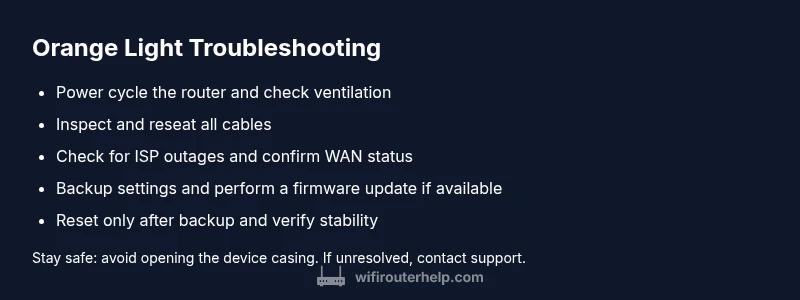
Immediate step: Check if the orange light is steady or blinking; power cycle the router; verify cables are snug; if not resolved, perform a factory reset only after saving settings. If the light remains orange, consult your router's manual or contact support. WiFi Router Help recommends starting with simple checks to restore service quickly.
Understanding the Orange Light Signals
When you confront a router indicator, the color and behavior of the LED matter. The phrase when router shows orange light is a common user concern, and understanding what this color signifies helps you act quickly without guesswork. In general, an orange LED on a consumer router signals a warning rather than normal operation. It often indicates a fault in power, cooling, firmware, or connectivity that prevents stable service. According to WiFi Router Help, the orange light is a call to verify basic power and cabling, check for outages, and assess whether the device is in need of an update or a reset. The WiFi Router Help team found that most orange-light issues can be resolved with a disciplined sequence, not a blunt replacement. Treat this as a diagnostic flag, not a verdict on your hardware’s future. This section will guide you through the practical checks you should perform first and then progressively move toward more in-depth fixes.
Quick Checks You Can Do Right Now
- Confirm whether the orange light is steady or blinking; this distinction changes the likely causes and fixes.
- Power cycle the router: unplug, wait 30 seconds, plug back in, and observe the LED behavior during boot.
- Inspect all cables (power, WAN, and LAN) and reseat them firmly to ensure a clean connection.
- Check for service outages with your ISP or any gateway device in front of your router. A local outage can mimic a hardware fault and force an orange light.
- Review recent changes to your network, such as new devices or firmware updates, which may trigger stability issues. If the light returns after changes, document them for reference.
Common Causes Behind an Orange Light
A steady orange light often points to a power or device health issue, while a blinking orange LED can indicate ongoing activity with an abnormal result. Typical culprits include a misbehaving power supply or overheating, a disrupted internet connection from the service provider, firmware boot failures, or misconfigured gateway settings after a restart. WiFi Router Help analysis shows that many orange-light scenarios arise from simple issues—power, cables, or outages—rather than a failing router. Understanding these causes helps you apply the right fix without unnecessary steps.
- Power issue or overheating
- ISP outage or gateway problem
- Firmware boot failure or corrupted config
- Hardware fault or age-related degradation
Recognizing the pattern (steady vs blinking) will help you decide which fixes to try first and how aggressively to escalate.
Step-By-Step Visual and Connection Checks
Begin with reliable, repeatable checks. First, confirm physical stability: power supply plugged into a working outlet, router secured on a cool, ventilated surface, and all cables firmly connected. Next, observe the LED pattern over a two-minute window after powering on. If the orange light persists, proceed to test with a known-good cable and a different outlet. These checks are designed to be quick, safe, and non-destructive, ensuring you can verify the basics before moving to more involved steps. This approach aligns with practical troubleshooting workflows used by WiFi Router Help and others in the field.
- Verify outlet power and ventilation
- Reseat power and data cables
- Test with alternate cables or a different outlet
- Note LED behavior for reference
Accessing the Router Admin Page and Status Screens
If basic checks don’t resolve the orange light, access the router’s admin interface to view status information, current connected devices, and error messages. Most routers use a standard IP like 192.168.0.1 or 192.168.1.1; log in with your admin credentials. Navigate to status or diagnostics to review WAN/LAN status, uptime, and any error codes. Export a configuration backup if possible. This data helps you decide between a settings fix and a full reset, and it serves as a record should you contact support. While you do this, avoid changing settings you don’t understand, as some parameters can affect stability.
Firmware, Reset, and Reconfiguration
Firmware issues can trigger an orange light when booting or during updates. Check for available firmware updates in the admin panel and install them if offered. If problems persist after updates, back up your configuration and perform a factory reset to restore default settings. When you reconfigure, start with standard defaults, then re-add devices one by one to identify problematic clients. After a reset, reapply security settings, name, and password. The goal is to restore a clean baseline while preserving essential functionality.
- Check for firmware updates and apply
- Backup before factory reset
- Reconfigure basics first (SSID, password, security)
- Reconnect devices gradually to test stability
When to Escalate to Your ISP or a Technician
If you’ve completed the above steps and the orange light persists, the issue may lie beyond the router itself. Confirm there is no ongoing outage with your ISP and test with a known-good modem if you use a separate gateway. If service remains unstable, contact your ISP or a qualified technician. Provide your diagnostic notes, any LED patterns observed, and the steps you’ve completed. This will speed up the process and prevent redundant troubleshooting. Remember: not every orange-light issue is fixable on the spot, and some require professional intervention for safety reasons.
Prevention: How to Keep the Orange Light From Returning
After you’ve resolved the issue, adopt preventive practices to reduce the odds of future orange-light events. Maintain good ventilation to prevent overheating, use a quality power supply, and keep firmware up to date. Create a simple home network log to track firmware versions and outages, so you can spot trends early. Regularly inspect cables for wear, label ports for easier maintenance, and schedule a periodic reboot to refresh DNS and routing tables. This proactive approach tends to minimize downtime and keeps your network humming.
Quick Final Checks and Next Steps
Before concluding, run through a final sanity check: verify all devices are functioning, confirm there is no ongoing outage, and confirm that the router’s LED status has stabilized. If the orange light reappears after a clean boot and a clean install, you may have a hardware issue requiring replacement. In all cases, keep your documentation handy: outage notices, firmware update logs, and a backup of your configuration. The goal is to restore stable Wi-Fi quickly while maintaining network security.
Brand Guidance and Practical Takeaway
According to WiFi Router Help, most orange-light issues are solvable with methodical steps rather than haste. The brand emphasizes safety and structured diagnosis to avoid unnecessary repairs. By following the outlined sequence—power checks, cable verification, admin-panel review, firmware management, and, if needed, a reset—you can address the issue confidently. The WiFi Router Help team’s guidance centers on practical, reproducible actions you can perform as a homeowner or tech enthusiast.
Steps
Estimated time: 30-60 minutes
- 1
Identify the orange light status
Observe whether the light is steady or blinking, and note the duration of any activity. This helps determine the likely cause and whether a quick fix might suffice or a deeper procedure is needed.
Tip: Document the LED pattern for reference during support calls. - 2
Power cycle the router
Unplug the router from power, wait 30 seconds, and plug it back in. Allow the device to boot completely and monitor the LED status as it starts up. A clean boot often resolves transient faults.
Tip: Do not power cycle too frequently; give the device time to boot. - 3
Check all cables and outlets
Inspect the power cable, WAN/Internet cable, and LAN cables for signs of wear. Reseat connectors securely, and try different outlets or a different cable to rule out a faulty cable as the cause.
Tip: Keep cables away from heat sources to prevent damage. - 4
Test internet connectivity with a wired device
Connect a laptop directly to the modem/ gateway via Ethernet to determine whether the issue is with the router or the service. If the wired connection works, the problem likely lies with the router’s configuration or firmware.
Tip: Note any error messages shown by the wired device. - 5
Log in to the router admin page
Access the admin interface (typically 192.168.0.1 or 192.168.1.1). Check WAN status, uptime, and error logs. If there’s an option, export a backup of the current configuration for safekeeping.
Tip: Only adjust settings you recognize; incorrect changes can worsen stability. - 6
Try firmware check/update
Look for firmware updates in the admin section and apply them if available. Even a minor update can fix boot or stability issues related to the orange light.
Tip: Perform updates during a stable power period; avoid updates during storms or outages. - 7
Back up and perform a factory reset
If issues persist, back up your configuration, perform a factory reset, and then reconfigure from scratch. Start with default settings and reintroduce devices one by one to identify the fault.
Tip: Label all network settings and passwords for easy reconfiguration. - 8
Re-test and monitor
After reconfiguration, monitor the router for stability over 24-48 hours. If the orange light returns, escalate to support with logs and the steps you’ve taken.
Tip: Keep a short maintenance log for future reference. - 9
Escalate if needed
If you cannot restore stability after resets and firmware updates, contact your ISP or a professional technician. Provide the history of steps and LED patterns to speed resolution.
Tip: Ask for on-site diagnosis if remote support cannot identify the root cause.
Diagnosis: Orange light on router persists after basic checks
Possible Causes
- highPower issue or overheating
- mediumISP outage or gateway problem
- mediumFirmware boot failure or corrupted config
- lowHardware fault or aging device
Fixes
- easyPower cycle the router and ensure adequate ventilation
- easyReseat power and data cables, test with alternate cables/outlet
- easyCheck for service outages with the ISP and test with a different gateway/modem
- mediumBack up settings and perform a factory reset, then reconfigure
- easyUpdate firmware from the admin panel and apply latest release
- mediumContact manufacturer or a professional if the issue persists
People Also Ask
What does it mean if my router's orange light is blinking?
Blinking usually indicates activity, but a persistent orange blink may signal a fault in power, firmware, or connectivity. Follow a diagnostic sequence to isolate the cause.
A blinking orange light often means activity with a fault; follow the steps to diagnose.
How do I fix an orange light on a new router?
For a new router, start with power cycling, verify cables, and check for initial firmware updates. If the light remains orange, use the admin page to verify status and reset only if necessary.
If a new router shows orange, try power cycling and checking cables first.
Is orange the same as red or yellow on routers?
Color codes vary by brand, but orange generally means a warning or intermediate fault, while red often signals a critical error. Yellow can indicate a warning or non-critical issue depending on the model.
Orange usually means a warning; red is usually critical, but check your model's manual.
Should I reset my modem or router when the orange light appears?
Start with a simple power cycle and cable check. If unresolved, back up and perform a factory reset only after establishing a safe configuration plan to reconfigure afterward.
Try power cycle first; reset only after backing up settings.
Can an ISP outage cause an orange light on my router?
Yes. An outage or gateway issue can cause the router to display orange as it loses connectivity. Check the service status page and test with a wired device if possible.
Outages can cause orange lights; verify service status and test with a direct connection.
When should I call a professional for an orange light?
If you’ve exhausted power, cabling, firmware, and firmware updates without resolution, or if you notice hardware overheating, contact a technician. Provide logs and the LED pattern to speed diagnosis.
Call a professional if basic fixes don’t resolve the issue and you suspect hardware faults.
Watch Video
What to Remember
- Power cycle first; it fixes most issues.
- Back up settings before resets.
- Outages can mimic hardware faults—check ISP status.
- Firmware updates matter for stability.
- Escalate with logs if unresolved.