TP-Link Router Orange Light Troubleshooting
Urgent, step-by-step guide to diagnose and fix an orange LED on TP-Link routers. Learn quick checks, firmware updates, WAN tests, resets, and prevention tips from the WiFi Router Help team.


An orange light on a TP-Link router usually signals a firmware update in progress or a startup/diagnostic state. If you see orange, power cycle the device, then check for a firmware update via the web interface. If the light stays orange, verify WAN connectivity and consider a factory reset if necessary.
Understanding the orange light on TP-Link routers
The orange LED on TP-Link devices is a cue that something in the boot, update, or WAN sequence is out of the ordinary. In many models, an orange light appears during firmware updates or when the device is performing startup diagnostics. The exact meaning can vary by model and firmware version, so always cross-check with your specific TP-Link manual. According to WiFi Router Help, the tp link router orange light often indicates one of two primary states: an ongoing update or a boot/diagnostic sequence. If the LED transitions from blinking orange to solid orange or remains steady orange for an extended period, you should start a systematic troubleshooting flow rather than guessing.
Quick checks you can do before touching settings
Before diving into complex solutions, perform a quick set of non-destructive checks. Ensure the router is physically powered, plugged into a stable outlet, and not in a surge-prone strip. Look for a steady, blinking, or alternating pattern in other LEDs as well; this can indicate auxiliary issues. Verify that all cables are firmly connected, especially the WAN/Internet cable, and confirm your modem is online. If you’re currently connected via Wi‑Fi, try a wired laptop connection to the router’s admin interface to rule out wireless client issues. While you work, keep a log of LED behavior to spot patterns over time.
Firmware updates and LED indicators
Firmware updates are a common source of an orange LED. Ideally, updates occur automatically, but interruptions (power loss, unstable internet, or interrupted downloads) can leave the LED in an orange state. Check the TP-Link web management page (usually at http://tplinkwifi.net or 192.168.0.1) for a firmware status. If an update is queued or in progress, allow it to complete uninterrupted. If the update failed, the router may show a degraded LED state and require manual reinstallation. Always back up settings before initiating updates to avoid losing preferences.
Accessing the TP-Link admin interface safely
Safely accessing the admin interface is critical when diagnosing LED states. Use a wired computer plugged into a LAN port (not wireless) to minimize interference. Open a browser and enter the default gateway (commonly 192.168.0.1) or the TP-Link domain (tplinkwifi.net). Log in with your admin credentials. If you don’t recall credentials, try the default (user: admin, pass: admin) only if you have not previously changed them; otherwise, you may need to reset. Never perform admin actions while the router is in a critical state without confirming the current firmware version and settings.
Diagnostic flow overview for orange LED scenarios
A structured diagnostic flow helps you isolate causes without guessing. Start with basic power checks, then firmware status, then WAN integrity. After each step, test Internet access on a device to confirm whether the issue improves. If the orange LED persists post-update and WAN checks, you can escalate to a factory reset as a last resort. Remember, if you’re uncomfortable performing resets or firmware re-flashes, seek professional help from a network technician or TP-Link support.
Step-by-step fixes for the most common causes
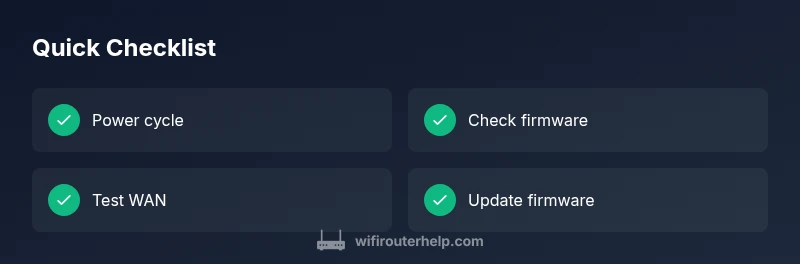
When the orange light appears, the most common causes are firmware activity, boot state, or WAN issues. Start with simple fixes first, then progress to more involved actions. Power cycle, verify firmware status, and inspect WAN cables. If updates are available, apply them. If issues persist, reset to factory defaults and reconfigure. At every stage, verify Internet connectivity on a wired device. If the issue remains after reset, contact TP-Link support or a qualified technician.
When to reset and how to reset safely
Factory reset is a last resort and should be used when all other steps fail. To reset, hold the reset button for 5–10 seconds until the LEDs flash. After the reset, you’ll need to re-enter network name (SSID) and password and reconfigure your settings. Back up or note important configurations before resetting. If you rely on custom security rules or port forwarding, prepare to re-create them. If you’re unsure, contact TP-Link support for guided reset procedures.
Prevention: keeping your TP-Link router healthy
Preventing orange-light scenarios is easier than fixing them. Regularly check for firmware updates and enable automatic updates if supported. Use strong admin credentials and disable features you don’t use (UPnP, WPS) to minimize risk. Place the router in a ventilated area away from heat and dust. Maintain physical security and avoid power interruptions during updates by using an uninterruptible power supply (UPS) where feasible. Document changes so you can revert if needed.
What to do if nothing works: escalation and service options
If you exhaust the above steps without resolving the orange light, escalate to professional help. Contact TP-Link support with model number, firmware version, and a detailed description of LED behavior. If your device is under warranty, pursue an RMA option. WiFi Router Help recommends keeping a written log of steps taken and outcomes to speed up troubleshooting with a technician or support line.
Steps
Estimated time: 45-60 minutes
- 1
Power cycle the router
Unplug the router, wait 30 seconds, plug back in, and wait for a full boot (2-3 minutes). Observe the LED pattern as it stabilizes.
Tip: Avoid multiple quick restarts; give it time to boot fully. - 2
Check for firmware updates
Access the admin page and navigate to Firmware Update. If an update is available, download and install, ensuring the connection stays stable.
Tip: Back up current settings before updating. - 3
Test WAN and cables
Inspect the WAN port and ethernet cables; replace if frayed or loose, and try a different port on the router.
Tip: Test with a wired device to isolate wireless issues. - 4
Factory reset if needed
If the orange light persists, perform a factory reset by holding the reset button for 5-10 seconds, then reconfigure.
Tip: You will lose custom settings—note important configurations. - 5
Disable risky features
Temporarily disable QoS, parental controls, and UPnP to see if LED behavior stabilizes.
Tip: Re-enabled later with documented changes. - 6
Re-test connectivity
After each step, check Internet access on at least one wired device to confirm progress.
Tip: Keep a running log of steps and outcomes.
Diagnosis: TP-Link router shows an orange LED light
Possible Causes
- highFirmware update in progress
- highStartup/diagnostic sequence during boot
- mediumWAN/internet connection issue causing LED mismatch
- lowHardware fault or port issue triggering error state
Fixes
- easyPower cycle the router (unplug, wait 15-30 seconds, plug back in)
- easyLog in to the admin interface and check for firmware updates; apply if available
- easyVerify WAN status and cables; try a different Ethernet cable and port
- mediumIf the LED remains orange, perform a factory reset and reconfigure from scratch
- hardIf issues persist after reset, contact TP-Link support or a professional technician
People Also Ask
What does an orange LED mean on a TP-Link router?
An orange LED typically signals a firmware update in progress or a startup/diagnostic state. Model-specific meanings can vary, so consult your manual for exact indicators.
An orange LED usually means the router is updating or starting up. Check for updates and wait; if it stays orange, follow the troubleshooting steps.
Should I reset if the orange light sticks around?
Only after you’ve tried power cycling and updating firmware. A factory reset erases custom settings, so backup first.
If the orange light remains after updates, consider a reset, but back up settings first.
How can I access the admin page with an orange light?
Use a wired connection and enter the router’s gateway (usually 192.168.0.1 or tplinkwifi.net). If you can’t log in, power cycle and try again.
Try a wired connection to the router’s admin page and log in. If you can’t access it, reboot and retry.
Is firmware updating safe if the light is orange?
Yes, but only perform updates from the official TP-Link site or admin page. Avoid interrupting the process and ensure stable power.
Updating from TP-Link’s site is safe; keep power steady and don’t interrupt the update.
What if WAN is down but the orange light is on?
Check the modem status, swap cables, and try a direct connection to rule out the modem or ISP issue. If needed, reboot both devices.
If WAN is down, check the modem and cables, reboot devices, and verify ISP status.
Can a hardware fault cause an orange light?
It’s possible but uncommon. If the orange light persists after all troubleshooting, contact support for a hardware assessment.
Persistent orange light may indicate hardware issues; contact support if steps don’t help.
Watch Video
What to Remember
- Follow a logical flow from power to firmware to WAN.
- Always back up settings before updates or resets.
- Reset only after all non-destructive steps fail.
- Seek professional help if the orange light persists.