Cox Router Blinking Orange: Troubleshooting Guide
Discover why your Cox router blinks orange and follow a step-by-step troubleshooting plan from WiFi Router Help. Diagnose outages, reset safely, optimize performance, and prevent future issues.


The Cox router blinking orange usually signals a startup or connection issue that needs quick checks. Quick fix: power cycle the gateway, verify the coaxial and Ethernet cables are secure, and check for any service outages. If the light remains orange after these steps, proceed with the diagnostic flow below.
What does the Cox router blinking orange mean?
If your Cox router blinking orange has you reaching for answers, you're not alone. The orange LED typically signals a warning in the router's startup or connection state. In many homes, a steady orange after boot indicates a problem with the line or service, while a pulsing orange can mean the device is trying to negotiate a connection but can't complete it. The signal can vary by model, but the underlying issue is generally the same: the gateway is not communicating reliably with the Cox network.
According to WiFi Router Help, this pattern often points to a fault in the physical connection, a temporary service outage, or a firmware hiccup. The good news is that most orange-blink problems are solvable with a systematic checklist. Start with the simplest checks and progress to safer resets if needed. By staying methodical, you can avoid unnecessary replacements and get your home network back online quickly.
Common culprits include loose coaxial connections, damaged cables, a malfunctioning splitter, an outdated firmware version, or an outage in your area. If you see a solid orange after boot or a prolonged orange blink, treat it as a sign to troubleshoot rather than panic. This guide walks you through the quickest tests and fixes to restore service.
Quick checks you can do before deeper troubleshooting
- Power cycle the gateway: unplug from power, wait 30 seconds, then plug back in. A fresh boot often clears transient errors and resets LED states.
- Inspect all coax and Ethernet cables: ensure coax is snug at both ends, avoid damaged connectors, and remove unnecessary splitters that degrade signal.
- Check for service outages: visit Cox's status page or contact your region's outage map to confirm if the problem is on the provider side.
- Note the LED pattern: is the orange blinking steady, pulsing, or alternating with white? Different patterns point to different causes.
- Avoid changes you can't undo: if a recent firmware update or new device coincides with the issue, that might be related.
Diagnostic-flow overview
This section outlines a practical flow to diagnose an orange LED issue without guessing. Start with the simplest, most likely causes, then move to targeted fixes. Each step includes a quick check, the likely diagnosis, and a recommended action. If you reach a step that requires professional help, skip ahead to the contact guidance at the end. The goal is to confirm whether the problem is physical (cables/line), service-based (outage, config), or device-based (firmware or hardware fault).
Step-by-step fix for the most common cause: coax and physical connections
- Power cycle the gateway to reset the device after any physical checks. 2) Disconnect and reseat the coax cable at the wall, at the modem, and at the router (if applicable). 3) Remove any extra splitters or adapters; replace damaged cables with a known-good one. 4) Inspect the coax line for visible damage or kinks; if the signal path looks poor, temporarily bypass nonessential components. 5) Reconnect everything firmly and power the unit back on. 6) Observe the LED pattern for improvements; if orange persists, proceed to the next section. Tip: take a photo of your connections before disconnecting so you can reassemble correctly.
Step-by-step fix for firmware, reboot, and outage-related issues
- If the orange light persists after a cycle, access the gateway's admin page to check for firmware updates and apply any available updates. 2) If you cannot access the admin interface due to the orange LED, perform a controlled reset (not a full factory reset) using the reset button for 10 seconds, then reconfigure from scratch. 3) Check for local outages on Cox's status page and with neighbors to rule out a provider-side issue. 4) Reboot again after updates and outages are confirmed; give the system 5–10 minutes to settle. 5) If nothing changes, consider restoring a previous backup config or performing a factory reset as a last resort. 6) After any reset, re-provision the gateway by following your ISP's setup wizard.
When to contact Cox or a technician
If the orange LED remains after you complete the above steps, or if you notice intermittent outages, call Cox customer support and reference the exact LED pattern. Have your device model number, account number, and recent change history ready. Schedule a technician visit if you detect hardware damage, persistent signal loss, or inconsistent modem performance across devices. Remember: some issues require professional line testing or provisioning changes that only a technician can perform.
Preventing future orange-blink issues
- Keep cables and splitters in good condition; replace worn components proactively.
- Place the gateway away from heat sources, moisture, and power surges; use a surge protector with the modem.
- Regularly check for firmware updates and security patches; enable automatic updates if available.
- Monitor signal strength and network usage to identify if new devices or heavy streaming cause drops.
- Create a simple maintenance schedule: once a quarter, run a reset and check connections to keep the network reliable.
Safety and common mistakes to avoid
- Do not yank cables; unplug devices gently and avoid forcing connectors.
- Never attempt high-voltage repairs on the gateway; this device uses low voltage but can still be damaged by wrong handling.
- Avoid opening the gateway cover; this can void warranty and expose you to static discharge.
- Do not ignore a recurring orange light; repeated issues may indicate a failing line or hardware fault that needs professional attention.
- If you smell burning or hear crackling, unplug immediately and contact support.
Troubleshooting flowchart quick reference
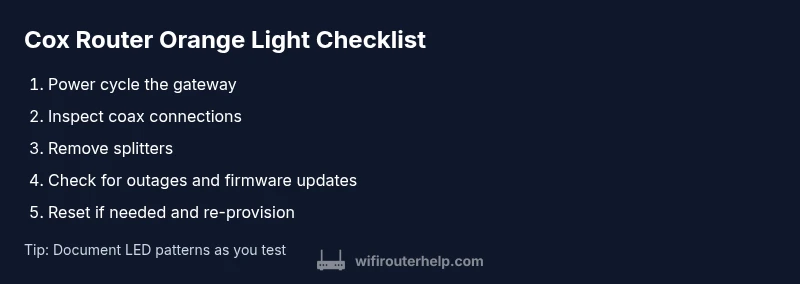
- Observe the LED pattern. If it’s blinking orange, proceed with basic checks. 2) Confirm power and reboot sequence; if the light remains orange, inspect coax connections. 3) Rule out outages by checking Cox status. 4) If outages are ruled out, check for firmware updates or reset the gateway. 5) If the problem persists after a reset, contact Cox support for on-site testing.
Steps
Estimated time: 15-25 minutes
- 1
Power cycle the gateway
Turn off the gateway, unplug the power, wait 30 seconds, then plug it back in. Allow 5–10 minutes for the device to boot and re-establish connections. Observe the LED during boot to see if the orange light clears.
Tip: Set a timer to ensure you wait long enough for a full boot. - 2
Verify coax connections
Disconnect and reseat the coax cable at the wall, at the gateway, and at any intermediate devices. Ensure the connectors are tight but not overtight. Look for visible damage and replace if needed.
Tip: Take a photo of the setup before loosening anything. - 3
Remove splitters/test direct line
Eliminate intermediate splitters by connecting the wall coax directly to the gateway. If the orange light clears, the splitter was likely the culprit. If not, continue troubleshooting.
Tip: Only reintroduce a splitter after confirming the direct-line works. - 4
Check for outages and firmware updates
Visit Cox’s outage/status page to rule out a provider issue. If you can access the admin panel, check for and apply any available firmware updates.
Tip: Note the firmware version and update time for future reference. - 5
Controlled reset if needed
If issues persist, perform a controlled reset (10 seconds hold on the reset button). Reconfigure from scratch rather than restoring old settings until you verify stability.
Tip: Back up important settings if the device allows. - 6
Test and monitor
Power cycle after changes and test from multiple devices. If the orange light returns, escalate to Cox support for on-site testing.
Tip: Document LED patterns and timing to share with support.
Diagnosis: Cox gateway shows orange blinking light
Possible Causes
- highLoose or damaged coaxial connection
- mediumTemporary Cox service outage in your area
- lowFirmware boot issue or hardware failure
Fixes
- easyPower cycle the gateway: unplug, wait 30 seconds, plug back in
- easySecure coax connections, remove splitters, replace damaged cables
- easyCheck Cox service status; apply firmware update via admin page if available
- hardFactory reset and re-provision as a last resort
People Also Ask
What does a blinking orange light on a Cox router mean?
A blinking orange light usually signals a startup or connection issue. Start with power cycling, check cables, and verify service status before moving to deeper fixes.
A blinking orange light typically means a startup or connectivity problem. Begin with a simple reboot, inspect cables, and check for service outages before proceeding.
Is a steady orange light different from blinking?
Yes. A steady orange often indicates a persistent line or hardware issue, while blinking patterns usually reflect startup or negotiation attempts.
Steady orange often means a persistent problem; blinking usually means startup or negotiation is in progress.
Should I reset my Cox gateway to fix the orange light?
Resetting is a last resort because it erases custom settings. Try less disruptive steps first and back up configurations if possible.
Resetting should be your last resort; it will erase your settings, so try other fixes first.
What if there is a service outage?
Check Cox's status page to confirm outages in your area. If outages are reported, the orange light may clear once service resumes.
If Cox reports an outage in your area, wait for service restoration and then re-test your gateway.
Can I fix this myself, or do I need a technician?
Many fixes are DIY, starting with power cycling and cable checks. If issues persist after these steps, a technician may be required.
You can handle many fixes yourself, but persistent issues may require a technician.
How long should a reboot take to complete?
Most reboots finish in 5–10 minutes. If it takes longer, there could be a deeper problem.
Reboots typically take about 5 to 10 minutes; longer durations warrant further checks.
Watch Video
What to Remember
- Start with simple power and cable checks.
- Outages can mimic hardware faults—verify service status.
- Isolate signal loss by removing splitters from the path.
- Factory reset is a last resort and will erase custom settings.