Verizon Router Blinking White Troubleshooting Guide
Urgent, step-by-step guide to diagnose and fix a Verizon router blinking white LED. Learn common causes, safe fixes, and when to contact support to restore your home network quickly.


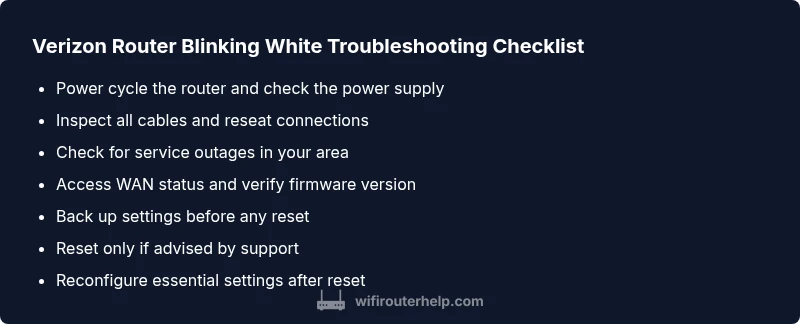
Most often, a Verizon router blinking white indicates a boot glitch or a temporary service issue. Start with quick, safe fixes: power cycle the router, check all cables, and verify there’s no outage in your area. If the LED remains blinking, perform a factory reset and reapply essential settings. If the problem persists, contact Verizon support for guided troubleshooting.
Understanding the Verizon router blinking white LED
The phrase verizon router blinking white describes a common but frustrating symptom that home networks encounter. A blinking white LED typically signals that the device is in a transitional state—such as booting up, applying a firmware update, or trying to establish a connection with the service provider. It’s not always a serious hardware failure, but it does require careful observation and a methodical troubleshooting approach. According to WiFi Router Help, beginning with safe, non-destructive steps is essential to avoid data loss and service interruptions. In most households, this symptom appears during startup or after a power interruption, and recognizing the pattern (how fast it blinks, uniformity, or if it slows down) guides the next steps. For homeowners, keeping calm and following a structured flow reduces downtime and preserves the network you rely on every day.
Common causes of a blinking white LED on Verizon routers
There are several plausible explanations for a Verizon router blinking white. A temporary boot glitch or a stalled firmware update is a frequent culprit, especially after a recent auto-update. Power issues—such as an unstable outlet, a damaged power adapter, or a surge during storms—can also cause the LED to blink as the device attempts to boot. A loose or damaged ethernet or coaxial cable, or a misconnected ONT (optical network terminal) in FiOS setups, can interrupt the device’s handshake with the ISP. Finally, a regional service outage or line fault will trigger the router to repeatedly retry connections. By mapping the LED pattern to these causes, you can prioritize fixes that require no service visits.
Quick fixes you can try safely
Start with the simplest checks first to quickly rule out obvious issues. Ensure the router is firmly plugged into a known-good outlet and that all cables are securely connected. If you recently moved equipment, re-seat cables and power cords. Perform a full power cycle: unplug the router, wait 30 seconds, plug it back in, and allow a few minutes for the device to reboot. If the white light continues to blink, proceed to diagnostic checks and consider a controlled reset if advised by Verizon. Throughout, avoid pressing the reset button repeatedly, which can complicate recovery. These steps are designed to restore normal startup behavior without risking data loss.
Diagnostic checks to run before contacting support
Before calling for help, perform a structured set of checks to collect useful information. Check the My Verizon app or the status page for outage alerts in your area. Confirm that your WAN/ONT connection is active and that the LED pattern matches the documented phases (boot, updating, handshake). Inspect every cable for visible damage or wear and replace if needed. Try a different power outlet or a lightweight surge protector to stabilize the supply. If the router’s LED still blinks white after these checks, you’ll be prepared to proceed with more definitive fixes.
When to reset and reconfigure
A factory reset is a powerful tool, but it erases all personalized settings. Only perform this if you have exhausted safer steps or if Verizon support specifically recommends it. Before resetting, write down the current Wi‑Fi name (SSID) and password, admin login, and any custom port forwarding or QoS rules. After the reset, you’ll need to reconfigure: rejoin the network, set a strong password, and re-establish parental controls or firewall rules as needed. If you rely on a network-wide mesh system, check whether you still need to rejoin each node. This section explains why a reset can resolve stubborn boot loops and firmware issues, but also highlights the risk of losing configurations that can be time-consuming to recreate.
Firmware updates and outages: how to verify and update
Firmware updates can cause temporary blinks as the device reboots into new software. Always verify the version and release notes from Verizon or the router’s admin interface before applying updates. If a known outage exists, updates may be deferred until connectivity stabilizes. For FiOS customers, ensure the ONT and router are both healthy, as a mismatch can present as a blinking white LED. If the LED pattern improves after an update, monitor the device for a few more minutes to ensure stability. If not, a reset and reconfiguration may be necessary, or you may need to engage Verizon support for a line-level check.
Preventive steps to avoid future blinking issues
Prevention is better than remediation. Keep firmware up to date, but avoid applying updates during storms or power instability. Use a reliable power supply and, if possible, a UPS for critical networking gear to prevent power-related glitches. Regularly inspect cables for wear and replace damaged connectors; label cable paths to simplify future maintenance. Create a simple maintenance routine: check status lights once a week, back up configurations quarterly, and document any changes you make so you can revert quickly if problems arise.
Final checks before calling support
When you’re ready to contact Verizon, have the following information ready: the exact LED blinking pattern, the time the issue started, and any recent changes to your network. Note the model number and firmware version, and confirm whether other devices in the home experience similar issues. If you have a spare router, try swapping it in to rule out device-specific faults. If the blinking white LED persists after all recommended steps, Verizon support can perform line tests and may arrange a technician visit to restore service with minimal downtime.
Steps
Estimated time: 25-40 minutes
- 1
Power cycle and inspect power connection
Unplug the router, wait 30 seconds, plug it back in, and observe the LED as it boots. Check the power cable and outlet for damage or looseness. Give the device 3–5 minutes to complete the reboot and re-establish connections.
Tip: Using a different outlet or a surge-protected strip can stabilize power delivery. - 2
Check all cables and ONT connections
Ensure all cables are securely connected: power, WAN/ONT, and any Ethernet cables to connected devices. Replace visibly damaged cables, and reseat connectors firmly to eliminate loose contacts that can cause intermittent signaling.
Tip: Label cables to simplify future maintenance. - 3
Verify service status and outages
Log in to the My Verizon app or visit the outage status page to confirm there is no region-wide service interruption. If an outage is reported, wait until it’s resolved before pursuing further fixes.
Tip: Document outage IDs or notes provided by the carrier. - 4
Access the router admin page and check WAN status
Open the router’s web interface or app and verify the WAN/Internet status. Look for any error messages or failed handshake indicators that point to a line or authentication problem.
Tip: Keep a backup of the current settings before making changes. - 5
Perform a controlled factory reset (if advised)
If advised by Verizon support, perform a factory reset to restore default configurations. Follow the official reset procedure and allow the device to boot fully before reconfiguring.
Tip: Only reset after saving essential settings like SSID and admin password. - 6
Reconfigure essential settings
Re-create the Wi-Fi network name and password, re-enter admin credentials, and re-enable necessary security features. Reapply any port forwards or QoS rules you used prior to the reset, if needed.
Tip: Test connectivity after each reconfiguration step. - 7
Test connectivity and LED status
With the network configured, test from multiple devices to confirm stable connectivity. Observe the LED pattern for a return to solid or steady blinking instead of random flashes.
Tip: Document any changes in LED behavior across devices. - 8
Contact Verizon support if unresolved
If the blinking white LED continues after all steps, contact Verizon support for advanced diagnostics, including line tests or technician visits if required.
Tip: Provide a concise trouble summary and your procedure log.
Diagnosis: Verison router blinking white
Possible Causes
- highPower issue or unstable supply
- mediumFirmware update in progress or corrupted update
- lowService outage or line problem
Fixes
- easyPower cycle the router and check power cables
- easyInspect and reseat all cables (WAN, LAN, coax/ONT)
- mediumCheck outage status and perform a cautious reset if advised
People Also Ask
What does a blinking white LED on my Verizon router mean?
A blinking white LED usually indicates the unit is booting, updating firmware, or trying to re-establish a connection. It isn’t always a fault, but it signals that you should run through a structured troubleshooting flow.
A blinking white LED usually means the router is booting or updating. Run through a few safe checks, then contact support if it continues.
Should I reset my router if it keeps blinking white?
Only reset if you have exhausted non-destructive steps or a technician advised it. A factory reset erases custom settings, so back up your Wi-Fi name, password, and admin credentials first.
Reset only if advised or if other fixes fail. Remember to back up settings first.
Can a service outage cause a blinking white LED?
Yes, a regional service outage can cause the device to repeatedly try to establish a connection, showing as a blinking LED. Check the carrier status page or app to confirm.
Outages can cause blinking lights as the device tries to reconnect. Check your carrier's status pages.
How do I check for outages in my area?
Use the My Verizon app or the official status page to view current outages and estimated restoration times. You can also contact support for real-time updates.
Open the Verizon app or status page to see if there’s an outage in your area.
Will a factory reset erase my Wi-Fi name and password?
Yes. A factory reset restores the router to default settings, including the Wi-Fi name and password. You must reconfigure them after the reset.
A factory reset resets the device to default settings, so you’ll need to reconfigure your Wi-Fi name and password.
Watch Video
What to Remember
- Start with power cycle and cable checks
- Confirm outages before resets
- Backup settings before factory reset
- Monitor firmware updates and outages
- Contact Verizon support if unresolved