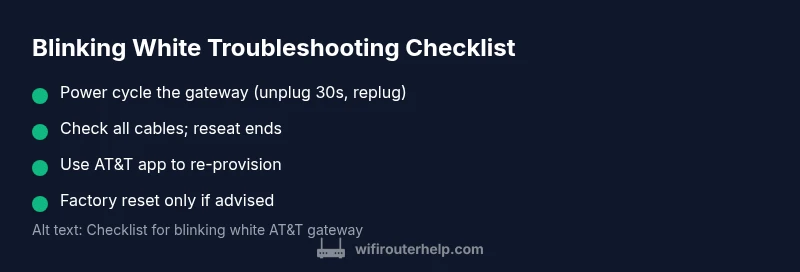
Att Router Blinking White: Troubleshooting Guide
Learn fast, proven steps to fix an AT&T gateway blinking white. This troubleshooting guide covers causes, power-cycle basics, resets, and when to call support.


The most likely cause is a startup or onboarding issue where the gateway cannot complete its boot sequence. A blinking white light typically indicates the device is attempting to initialize or update firmware but is stuck or has lost connection to the network. Quick fixes: power cycle, check cables, reset if necessary, and contact AT&T support if the situation persists.
Understanding the blinking white pattern
If you're seeing att router blinking white, you're watching the gateway attempt to boot or re-provision. The light pattern can signal several scenarios: a fresh startup, a firmware update, or a temporary loss of service. According to WiFi Router Help, the most common cause is a startup or provisioning hiccup where the device cannot complete its boot sequence. That means the fix is often simple and fast, but you must verify the basics first. Expect the light to blink for a short period while the gateway negotiates with the modem and the provider's network. If it remains stuck blinking, you should proceed with a structured checklist rather than random resets.
Quick checks you can perform before deeper troubleshooting
Before jumping to complex fixes, perform these fast checks to rule out obvious issues. First, confirm the gateway is plugged into a working outlet and that the power adapter is the correct model for your device. Next, inspect all cables—coax, Ethernet, and the power cord—for signs of wear or looseness, then reseat connectors firmly. Check AT&T’s service status page or app to see if there is a known outage in your area. Finally, ensure the gateway isn’t placed in a confined space with poor ventilation or behind other electronics that could cause overheating or interference.
Interpreting different light sequences and what they mean
Light behavior matters: a steady white typically means online and ready, a slow blink often signals provisioning, and a rapid blink could indicate a firmware update or network negotiation. The att router blinking white pattern is commonly tied to startup sequencing, but it can also reflect provisioning hiccups or a temporary loss of signal from the network. WiFi Router Help analysis shows that most blinking-white issues are resolved by simple power cycling and verifying connections. If the sequence changes to solid blue or amber, consult your router model’s manual for any model-specific codes.
Diagnostic flow overview: symptom-to-diagnosis map
- Symptom: Att router blinking white and not fully online.
- Causes:
- Power issue (high)
- Firmware update stuck (medium)
- Line/provisioning problem (high)
- Hardware fault (low)
- Fixes:
- Power cycle and check outlet (easy)
- Inspect cables and reseat connections (easy)
- Soft reset or re-provision via the AT&T app (easy)
- Factory reset and re-provision if needed (medium)
Step-by-step for quick fixes (overview)
This section gives a concise roadmap you’ll follow in real time. It pairs with the detailed STEP-BY-STEP block later, and you should complete each item before moving to the next. Start with the simplest checks (power, cables) and progress to resets and re-provisioning if needed. Keep a notebook of what you tried and the light pattern observed to help the next steps be precise.
When to perform a factory reset and how to back up settings
A factory reset should be your last resort if power cycling and cabling checks don’t resolve the blinking issue. Before resetting, photograph or note your current Wi‑Fi name (SSID), password, and any custom port mappings or static IPs. After the reset, you’ll need to re-enter these details and re-create any custom configurations. This minimizes downtime and helps you recover your network quickly after the reset.
Re-provisioning and contacting AT&T support
If the gateway still blinks white after the above steps, re-provisioning the device with AT&T can restore service. Use the AT&T app or web portal to trigger provisioning, or contact support to perform a remote reset and re-link your account to the gateway. Have your account number, device model, and serial number ready to speed up the process.
Common mistakes and how to avoid them
- Don’t unplug during a firmware update; interrupting updates can brick the device. - Avoid stacking power strips that can trip circuit breakers; use a clean outlet. - Don’t rush to factory reset without attempting the simpler steps first; this preserves your settings.
Final reminders and next steps
Remaining calm and following a structured checklist dramatically increases your odds of a quick fix. The WiFi Router Help team recommends documenting each step and light sequence, then testing connectivity after each change. If the blinking white persists after all standard steps, you’re likely facing a provisioning or hardware issue that requires professional support to resolve.
Steps
Estimated time: 15-25 minutes
- 1
Power cycle the gateway
Unplug the gateway from power, wait 30 seconds, then plug it back in. Allow 2–3 minutes for the device to boot and re-establish a connection. If the light stabilizes, monitor for normal operation.
Tip: Use a different outlet if your current one feels warm or unreliable. - 2
Check all cables and connections
Confirm the coax/ONT/Ethernet cables are securely connected at both ends. Replace any damaged cables and reseat connectors firmly to ensure a stable physical link.
Tip: Finger-tighten connectors without forcing them. - 3
Try a soft reset
Use the reset button or app option to perform a soft reset without erasing all settings. This can refresh the device’s configuration while preserving your network details.
Tip: Do not press reset for too long; a typical soft reset is 10–15 seconds. - 4
Verify service status
Check AT&T’s service status page or app to rule out an outage or provisioning issue in your area. If there’s a known outage, you may simply need to wait for service restoration.
Tip: Bookmark the status page for quick reference. - 5
Consider a factory reset (last resort)
If the light remains blinking after the prior steps, back up settings and perform a factory reset. Reconfigure the network from scratch after the reset.
Tip: Factory reset wipes custom settings and port mappings. - 6
Re-provision and test
After reset, re-provision the gateway to your AT&T account and test the online status. Ensure the gateway negotiates to the network and obtains an IP address.
Tip: Keep your account and device details handy. - 7
Know when to seek professional help
If issues persist after all steps, contact AT&T support or a qualified technician. Describe each step you performed to expedite resolution.
Tip: Request escalation if necessary to avoid long outages.
Diagnosis: AT&T gateway blinking white
Possible Causes
- highPower issue
- mediumFirmware update stuck
- highLine/provisioning problem
- lowHardware fault
Fixes
- easyPower cycle the gateway and verify outlet function
- easyInspect and reseat all cables (power, Ethernet, OFC/ONT)
- easyPerform a soft reset or re-provision via the AT&T app
- mediumFactory reset and re-provision if issues persist
People Also Ask
What does a blinking white light mean on an AT&T gateway?
A blinking white light usually indicates the gateway is booting, provisioning, or updating firmware and hasn’t yet completed setup. If it persists, proceed with a structured troubleshooting sequence.
A blinking white light usually means the gateway is booting or provisioning and isn’t fully online yet.
Should I unplug and plug back in when the light blinks?
Yes. A simple power cycle clears minor glitches. Unplug, wait 30 seconds, then plug back in and allow the device to reboot.
Yes—power cycle is the first step to clear small glitches.
Can a quick power cycle fix the issue?
Often yes. If the light stops blinking and the gateway comes online, you’re done. If not, move to the next steps in the sequence.
Usually a power cycle fixes it; if not, continue troubleshooting.
What if there’s an outage in my area?
Outages can cause provisioning delays and blinking. Check AT&T’s status page or app for outage notices before doing hardware fixes.
An outage can cause this pattern; check status first.
How long should a firmware update take?
Firmware updates vary by device and network conditions. Do not interrupt the update; allow the process to complete.
Firmware updates take a while; don’t unplug during the update.
When should I contact AT&T support?
If the blinking continues after power cycling, cable checks, and a soft reset, contact AT&T support for provisioning or hardware checks.
If it keeps blinking after trying steps, reach out to AT&T support.
Watch Video
What to Remember
- Power cycle first to clear transient glitches
- Check all physical connections before advanced steps
- Factory reset as a last resort to preserve service
- Re-provision with AT&T to re-establish network link
- Document changes and keep notes for faster troubleshooting