AT&T Router Blinking Red: Quick Fixes and Pro Tips
Urgent troubleshooting guide for an AT&T router blinking red. Learn quick checks, diagnostic flow, and step-by-step fixes to restore your home network fast.


A blinking red light on an AT&T router usually signals a line or startup problem. Start with a power cycle, check all cables, and verify the WAN/line connection. If the red blink persists after these basics, escalate to AT&T support or a qualified technician for deeper diagnostics.
Understanding the red light codes on AT&T routers
If you’re seeing an AT&T router blinking red, it’s a clear indicator that something in your home network is not functioning correctly. The WiFi Router Help team understands how stressful this can feel, especially when work and streaming depend on a stable connection. In many models, a red blink points to either a startup boot issue or a loss of service on the line. According to WiFi Router Help, these indicators are urgent but usually resolvable with a structured approach. Recognize the pattern: some models blink rapidly, others pulse slowly; identifying the pattern helps you pick the right troubleshooting path and avoids wasted steps. Acting quickly while staying organized is the best path forward.
First, confirm you’re using the correct AT&T gateway for your service and that the device has not been physically damaged or misplaced in a location with poor ventilation. If the blinking red appears immediately after power on, you’re most likely dealing with a boot issue or a line fault rather than a roaming problem. Keep a calm, methodical checklist in hand as you proceed to ensure you don’t miss any critical step.
Quick checks you can perform before calling support
Before you pick up the phone or open a chat, perform these fast checks to rule out the most common causes. Start with the simplest, lowest-effort steps and progress to more involved actions if needed. The goal is to restore service or, at minimum, gather information for support. Ensure the outlet is live and the router is firmly plugged in. Inspect all cables for snug connections, especially the coax/DSL line and the Ethernet cable linking the router to your modem or computer. If your device sits near other electronics, move it to improve airflow and prevent overheating. If your router has a removable battery or backup power option, remove it for 60 seconds and re-insert it after power cycling. Finally, check for any reported outages in your area with AT&T’s status pages or app.
Common causes and how to verify them
There are several frequent culprits behind a blinking red LED. A power issue or hardware fault is a common offender; test the adapter with another compatible unit or try a known-good outlet. A line outage or service disruption can also manifest as a red blink, so confirm whether your neighborhood is affected using AT&T’s outage tools or third-party outage trackers. Misconfigured network settings, such as incorrect PPPoE credentials or an outdated gateway configuration, can trigger a red indicator if the router cannot establish a session. Finally, firmware glitches or a failing hardware component may cause boot loops or instability that present as blinking red; check for firmware updates if you can access the admin interface, or prepare to reinstall firmware via official methods.
Deep dive: power, line, and firmware interactions
Power stability is foundational: an unstable or underpowered adapter can cause repeated reboots that show as a blinking red light. Ensure you’re using the original power supply and that the cable is not damaged. The line itself matters: a loose coaxial connector or degraded line from the wall can prevent the router from syncing, yielding a red blink. Firmware health matters too; occasionally, a failed boot or corrupted config triggers a red LED; when possible, apply the latest firmware or perform a clean boot to clear corrupted settings. In some cases, the issue remains even after firmware updates, signaling a possible hardware fault that requires replacement.
When to escalate and how to document evidence
If you cannot resolve the blinking red issue with basic steps, it’s time to escalate. Prepare your account number, router model and serial, firmware version (if visible), and a concise description of LED patterns and timestamps. Take photos of the LED behavior, note the time of outages, and record any diagnostic results you observe in the admin interface. Contact AT&T support or a certified technician with this information to speed resolution. Documenting attempts helps prevent repeated steps and speeds up the troubleshooting process. The WiFi Router Help team recommends maintaining a simple troubleshooting journal for persistent problems to build a clear history for future incidents.
Safety considerations and preventive practices
Always unplug equipment by gripping the plug, not the cord, to avoid damaging the power cord. Keep routers in a well-ventilated area away from heat sources and moisture. Avoid using third-party power adapters unless explicitly approved by the manufacturer. Regular maintenance—checking cables, verifying firmware, and monitoring outage alerts—can prevent red-light incidents. Consider setting up a basic outage notification so you’re prepared for service interruptions and can document patterns that may indicate a broader issue. In most cases, blinking red is a solvable problem with measured steps and timely escalation when needed.
Steps
Estimated time: 20-40 minutes
- 1
Power cycle the router
Unplug the router from the power source, wait 60 seconds, then plug it back in. Allow 2–3 minutes for the device to reboot and re-establish connections. Observe the LED pattern during startup.
Tip: Use the original power adapter and a known-good outlet to avoid supply issues. - 2
Check cables and connections
Inspect the coaxial/DSL line for damage and ensure it’s firmly connected to the wall and the router. Verify the Ethernet cable between the router and any computer or modem is secure and not frayed.
Tip: If you use a surge protector, remove it temporarily to rule out power filtering. - 3
Test service status and settings
Log into the router’s admin page (if accessible) or AT&T account to check for outage notices. Confirm that the correct gateway, PPPoE credentials (if applicable), and network settings are in place.
Tip: Document any alert messages or error codes shown in the interface. - 4
Try a firmware update or a soft reset
If the interface is accessible, check for firmware updates and apply them. If not, perform a soft reset as instructed by AT&T support, which preserves your settings.
Tip: Back up current settings before any reset. - 5
Factory reset as a last resort
If the problem persists, reset the router to factory defaults following the manufacturer’s instructions. Reconfigure from scratch after the reset.
Tip: A factory reset erases custom settings; have your Wi-Fi password and account details ready. - 6
Call support with evidence
If none of the above steps resolve the issue, contact AT&T support with your diagnostic notes, LED pattern, and timestamps. Request a line check or device replacement if needed.
Tip: Provide model number, serial number, and recent firmware version to speed up diagnosis.
Diagnosis: AT&T router blinking red LED
Possible Causes
- highPower issue or hardware fault
- highLine outage or service disruption
- mediumMisconfigured settings or firmware glitch
Fixes
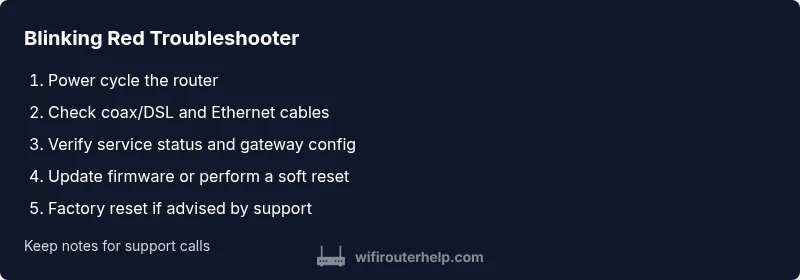
- easyPower cycle the router (unplug, wait 60 seconds, plug back in)
- easyCheck all connections (coax/DSL, Ethernet, power) and reseat
- mediumVerify service status/outages and ensure correct gateway configuration
- hardUpdate firmware or reset to factory settings if advised by support
People Also Ask
What does a blinking red light mean on an AT&T router?
A blinking red LED usually indicates a startup or line/service issue preventing normal operation. It signals an urgent problem that should be diagnosed methodically.
A blinking red light means there’s a startup or service issue that needs attention; start with basic checks and escalate if it persists.
Is blinking red worse than a solid red light?
Yes, blinking patterns typically indicate an active fault that may recur, whereas a solid red can imply a more persistent outage or hardware fault. Both require prompt attention, but blinking often allows interim troubleshooting.
Blinking is usually a fault that can be worked through with checks, while a solid red may mean a persistent outage or hardware fault.
Can I fix a blinking red light myself?
Many blinking red issues can be resolved with power cycling, cable checks, and verifying service status. More complex problems may require a firmware update or professional support.
You can often fix it with basic steps, but if it keeps blinking after those, contact support.
How long should I wait after reboot for service to restore?
Give the router 5–10 minutes after reboot to re-sync with the network and re-establish a stable connection. If it still blinks red after this window, seek further diagnostics.
Wait about 5–10 minutes after reboot for the connection to re-establish; if it’s still blinking, it’s time to escalate.
What information should I have ready for support?
Have your account number, router model and serial, firmware version (if visible), and a record of LED patterns and outage checks. This speeds up diagnosis and potential replacement decisions.
Have your account number, device model, and the LED pattern details ready when you call support.
Watch Video
What to Remember
- Power cycle first; it fixes many red-light issues.
- Verify line integrity and service status before hardware replacement.
- Document symptoms and steps when contacting support.
- Avoid unsafe DIY fixes; escalate if the issue recurs after basic steps.