AT&T Router Red Light Troubleshooting: Quick Guide
Learn how to diagnose and fix an at&t router red light with a practical, step-by-step guide. Quick checks, diagnostic flow, and when to contact support to restore home network.


According to WiFi Router Help, the at&t router red light usually signals a hardware fault or service interruption. Start with the basics: verify your power supply, check that all cables are firmly connected, and ensure the gateway is online. If the light stays red, reboot the gateway for 60 seconds, check for service outages, and perform a cautious factory reset only if you can reconfigure your network. This quick guide helps you triage quickly.
Why the at&t router red light matters
A red light on your AT&T gateway is more than a cosmetic warning—it signals an underlying issue that can range from power problems to a service outage. The WiFi Router Help team emphasizes that recognizing what this indicator typically means helps homeowners triage quickly and efficiently. In many households, a solid red light points to a power fault, an incorrect WAN connection, or a temporary service disruption. Understanding these nuances enables you to respond without unnecessary trials, saving time and preserving your network's reliability. By treating the indicator as a sign of trouble, you set the stage for faster restoration of internet access and a more stable home network environment.
Beyond the obvious, some red-light states may accompany other symptoms like a steady versus blinking pattern, which can hint at different root causes such as a faulty router, a failing power adapter, or a wiring issue at the entry point.
To make sense of the LED codes, keep your gateway in a centralized, ventilated spot away from heat sources and avoid stacking it with other electronics that could cause interference. Regularly checking for firmware updates and keeping the device in a stable environment can reduce the odds of recurring red-light events.
What the red light color signals on AT&T gateways
Not all red lights are created equal. Some AT&T gateways use a solid red to indicate a critical fault that requires immediate attention, while a pulsing red can signal a temporary connectivity issue that may be resolved with a simple reset. The exact meaning can vary by model and firmware, but the practical implication is consistent: power, connection, or service are compromised. In many cases, a red LED is accompanied by a fault code on the device’s web interface or app, aiding pinpointing the issue.
If you notice a red light after a power outage or a service interruption, the fault often resolves itself once service is restored or the device completes a power cycle. However, if the red light persists, it’s a strong signal to run through the troubleshooting steps outlined here. Staying calm and following a methodical approach helps prevent unnecessary replacements or service calls.
Quick checks you can perform immediately (no tools required)
- Ensure the router is plugged into a live power outlet and the power switch is on. A loose plug or dead outlet is a common culprit.
- Inspect all cables (power, Ethernet, and any coax/phone line) for visible damage and verify they are firmly connected.
- Confirm the modem status is online in the router’s dashboard. If you cannot access the dashboard, try connecting a device directly via Ethernet to test local connectivity.
- Restart the gateway by unplugging for at least 60 seconds and plugging back in. This allows the device to refresh its firmware and reset the connection to the ISP.
- Check for a service outage in your area by visiting AT&T’s status page or using the official app. If there’s an outage, you may need to wait for service to be restored.
- If you recently changed power or network settings, revert to prior configurations or perform a factory reset as a last resort.
Diagnostic flow overview: symptom → diagnosis → solutions
A red light can stem from multiple causes. Start with the most common and least invasive checks (power, connections, reboot). If the issue persists, narrow down with the following progression: confirm power stability, then test the WAN link, then assess whether the issue is local to your home network or part of a wider service outage. This flow minimizes guesswork and speeds up resolution.
Step-by-step fixes for the most common causes (in-depth)
- Power cycle and outlet check: Unplug the gateway, wait 60 seconds, plug into a known-good outlet, and power on. Observe if the red light clears. If not, proceed to the next steps.
- Cable verification: Ensure the power adapter, Ethernet cables, and any coax connections are snug and undamaged. Replace any frayed cords if visible.
- WAN and LAN checks: If you have multiple devices, disconnect all but one. Try a direct Ethernet connection to test local network functionality.
- Service status confirmation: Look up AT&T service status for your area. If there’s an outage, you may need to wait until service is restored.
- Firmware and login sanity checks: Access the gateway’s admin page to confirm firmware is current and the login credentials haven’t been changed or compromised.
- Factory reset (last resort): If all else fails and you’re comfortable reconfiguring, perform a factory reset. Back up settings first, as this will restore default configurations.
Safety notes, warnings, and when to call for professional help
Do not attempt to open the gateway housing or poke at internal components. High-voltage parts inside can be dangerous. If you hear buzzing noises, notice overheating, or smell burning, disconnect power immediately and contact AT&T support or a qualified technician. If the red light persists after you’ve performed all basic checks and the device is out of warranty, consider requesting a replacement through AT&T customer service.
Prevention: keep red lights from returning
- Place the router in an open area with good air circulation to prevent overheating.
- Keep firmware up to date and apply official updates promptly.
- Use surge protection to guard against power spikes that can trigger faults.
- Regularly check cables for wear and replace damaged components before they fail.
- Create a simple backup plan for network continuity, such as a spare gateway or a secondary access point in mesh setups.
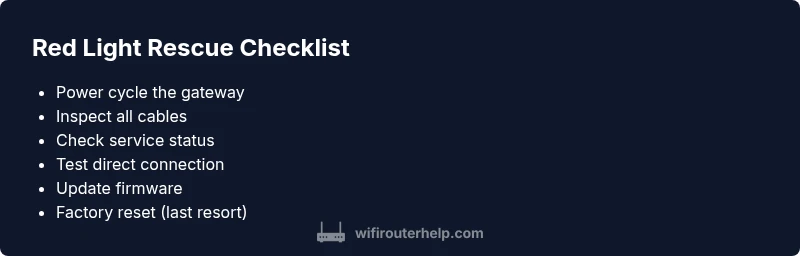
Steps
Estimated time: 20-45 minutes
- 1
Power cycle the gateway
Unplug the gateway, wait 60 seconds, then plug it back in. Allow 2–3 minutes for the device to boot and re-establish a connection. Observe whether the red light clears and if service returns.
Tip: Use a known-good outlet and avoid power strips that could cause voltage fluctuations. - 2
Check all cables
Inspect the power adapter, Ethernet cords, and any incoming line connections. Re-seat each connector firmly and look for damaged insulation or bent pins. A loose or damaged cable is a common source of red-light issues.
Tip: Replace any visibly damaged cables; do not bend or twist cords aggressively. - 3
Test a direct connection
If you have a second device, connect a computer directly to the gateway via Ethernet to test for local network issues. If devices can access the internet, the problem may be Wi-Fi specific.
Tip: Disable any VPNs or firewall rules temporarily to rule out software blocks. - 4
Check service status
Visit AT&T’s official status page or use the app to verify there’s no outage in your area. A service outage can produce a red light even if your hardware is fine.
Tip: Document outage times and any official notices for future reference. - 5
Firmware check and login sanity
Log in to the gateway’s admin interface and ensure firmware is up to date. Confirm that the actual login credentials have not been changed by someone else.
Tip: Back up configurations if the interface offers export options. - 6
Factory reset (last resort)
If all prior steps fail, perform a factory reset. This restores default settings but will erase custom configurations. Reconfigure carefully and test again.
Tip: Only use factory reset after backups and when you’re ready to reconfigure.
Diagnosis: AT&T router red light persists after power cycle
Possible Causes
- highPower issue or faulty power adapter
- mediumService outage in your area
- lowOverheating or hardware fault
Fixes
- easyCheck power supply and outlet; replace adapters if necessary
- easyReboot gateway by unplugging for 60 seconds and reconnecting
- easyCheck for service outage status and wait if needed
- easyInspect cables and reseat connections; replace damaged cables
- mediumIf the issue persists, contact AT&T support for hardware inspection or replacement
People Also Ask
What does a solid red light mean on an AT&T router?
A solid red light typically indicates a hardware fault or a service issue. Start with basic checks (power, cables) and then verify service status before escalating to a replacement if the fault persists.
A solid red light usually means a hardware or service issue. Begin with basic checks and confirm service status before seeking replacement.
Is a blinking red light different from a solid red light?
Yes. A blinking red light often signals a transient issue requiring a reboot, while a solid red indicates a more persistent fault. Follow the diagnostic flow accordingly and escalate if needed.
Blinking red usually means a temporary issue; solid red is a persistent fault. Reboot first, then follow the steps to escalate if needed.
Should I factory reset the gateway?
Factory resets should be a last resort because you lose custom settings. Always back up configurations and reconfigure carefully after resetting.
Only perform a factory reset if all other fixes fail and you’re ready to reconfigure your network.
What if there’s a service outage in my area?
If there’s an outage, the red light may simply indicate a disruption in service. Monitor AT&T’s status page and wait for authorization from your provider.
If there’s an outage, the red light may reflect that service is down. Check status pages and wait for service restoration.
How can I contact AT&T for hardware issues?
Use the AT&T support app or call their hardware assistance line. Provide model details, firmware version, and a description of the issue to speed up troubleshooting.
Contact AT&T via the official support app or call. Have your model and symptoms ready.
Can a replacement router fix the red light?
If the issue is hardware-related and the device is under warranty or eligible for replacement, a new router can resolve the red-light condition.
A replacement router can fix red-light issues if the fault is hardware-related and you're eligible for replacement.
Watch Video
What to Remember
- Follow the diagnostic flow from power checks to service status.
- Only reset as a last resort after backing up config.
- Call AT&T support for hardware evaluation if persists.
- Protect your network with regular firmware updates and safe placement.