Router Blinking? Quick Troubleshooting Guide
Urgent, practical guide to diagnose and fix a blinking router indicator light. Learn common causes, step-by-step fixes, safety tips, and when to call a pro.


Blinking indicates a state change (firmware update, power issue, or reset). Start with a safe reboot and verify the power supply. If it remains blinking after the reboot, follow the full troubleshooting guide for deeper fixes.
Why the Blinking Light Signals a Problem
According to WiFi Router Help, a blinking indicator isn’t always catastrophic, but it’s a signal you shouldn’t ignore. LEDs are designed to convey status: a steady light can mean normal operation, while blinking often indicates a transition or fault state. When you see a blinking router indicator, you’re looking at a hint about what’s happening inside, whether it’s software updating in the background, a startup sequence, or a power fluctuation. Treat blinking as a warning that requires your attention, not a minor annoyance. By understanding the common patterns, you can triage quickly and restore service without guessing.
Common Blinking Patterns and Their Meanings
Many routers use a few recognizable LED patterns. A slow blink usually signals normal boot or a pending update, while a rapid blink may indicate data activity or a stuck process. An alternating blink between two colors or between two LEDs can point to a hardware fault or a failed self-check. By mapping patterns to likely causes, you can narrow down fixes before attempting resets. If your router is blinking in an unusual pattern, consult the user manual or your brand’s troubleshooting portal for model-specific meanings.
Quick Checks: Power, Cables, and Outlets
Before you dive into diagnostics, perform basic safety checks. Ensure the router is plugged into a stable outlet and that the power adapter is the correct model for your unit. A loose cable or frayed power cord can produce a fluctuating current, which triggers blinking lights. If you have a power strip, test directly at the outlet to rule out strip issues. Also verify that any attached modem has a solid link to the router, as a flaky connection can manifest as blinking on gateway devices.
Diagnostic Flow: Symptom to Diagnosis
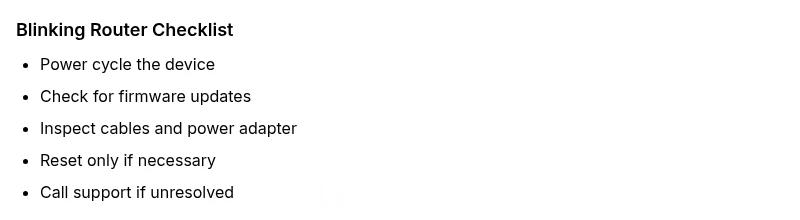
A structured diagnostic approach helps avoid guesswork. Start with physical checks (power, cables), then reboot, observe LED behavior, and, if needed, test firmware status. If the blinking persists after safe reboot and basic checks, proceed to a firmware update or factory reset (only after backing up settings). This flow reduces downtime and protects your configuration.
Step-by-Step Guide: Most Likely Cause (Power and Firmware)
In most homes, a blinking light stems from power irregularities or a pending firmware action. This section walks you through a concise sequence to restore stability. Do not rush through steps, and only continue to the next step if the previous one doesn’t solve the issue.
Safety Tips and Common Mistakes
Safety comes first. Never poke at exposed ports or attempt physical repairs on a device still under warranty. Avoid plugging the router into a damaged outlet or a power strip that has overloaded circuits. Don’t repeatedly reset the device during a firmware upgrade, and never disconnect power while an update is in progress. These errors can brick the device or void warranties.
Firmware Updates: When to Update and How
Firmware updates address bugs, security, and performance, but they can also temporarily disrupt service. If blinking coincides with a software update, allow the process to complete uninterrupted. If you suspect a failed update, use the admin interface to check the update status and retry if needed. Always download firmware only from the official manufacturer site to avoid counterfeit software.
When to Seek Professional Help
If you complete the steps above and the router continues to blink, it’s time to escalate. A persistent blink could indicate a hardware fault, a failing power supply, or a damaged port. Contact the manufacturer’s support, or schedule a repair if the device is under warranty. In some cases, a replacement may be the most cost-effective solution.
Prevention: Keeping Your Network Stable
Preventive practices reduce blinking incidents. Keep firmware up to date, provide adequate ventilation, avoid power surges with a surge protector, and schedule periodic reboots during low-usage hours. Document model numbers and serials for quick support if issues recur. Regular maintenance helps you enjoy a reliable home network with fewer interruptions.
Steps
Estimated time: 60-90 minutes
- 1
Power check and cable inspection
Inspect the power adapter, unplug and re-seat, and ensure the outlet is stable. Check for frayed cables or warmth indicating overload.
Tip: Use a dedicated outlet or a surge protector to guard against spikes. - 2
Perform a safe power cycle
Unplug the router for 30-60 seconds, then plug it back in. Watch LEDs during startup and note any unusual patterns.
Tip: Avoid turning off during firmware activity. - 3
Check for firmware activity
Log in to the router’s admin interface to see if a firmware update is in progress or scheduled. If an update is running, let it complete.
Tip: Back up configuration before major updates. - 4
Apply firmware update or reflash
If a newer version is available, apply it and reboot. If the update is stuck, perform a clean reinstall following the official guide.
Tip: Only download firmware from the manufacturer. - 5
Reset as a last resort
If blinking persists, perform a factory reset to restore default settings. Reconfigure after reset and test connectivity.
Tip: Restore from backup to preserve settings. - 6
Evaluate environment and connections
Check for overheating, relocate to better ventilation, and verify that the modem gateway link is stable.
Tip: Ensure proper airflow around the router.
Diagnosis: Router indicator blinking continuously after startup
Possible Causes
- highPower issue or flaky power supply
- mediumFirmware update in progress or failed update
- lowHardware fault or overheating
- lowFaulty Ethernet or modem link causing device instability
Fixes
- easyPower cycle the router (unplug for 30 seconds, then plug back in)
- easyTest with a known-good power adapter and different outlet
- mediumCheck for firmware updates and apply them; reboot after update
- mediumPerform a factory reset if issues persist (after backing up config)
- hardConsult support if blinking continues after all steps
People Also Ask
What should I do first when the router is blinking?
Start with a safe power cycle and check the power supply. Then verify cables and connections before moving to firmware checks.
First, power cycle and check cables, then verify firmware and settings.
Can a blinking light mean a power outage?
Yes. A blinking light can reflect unstable power or a recent outage. Ensure a stable outlet and test with a different adapter if needed.
Yes, it can indicate unstable power; check the outlet and adapter.
Is blinking always a hardware fault?
Not necessarily. Blinking often signals software activity or a minor fault. If it persists after updates and resets, it could be hardware-related.
Not always; persistent blinking after steps could indicate hardware issues.
Should I reset my router during a firmware update?
No. Resetting during an update can brick the device. Let the update complete, then reboot if needed.
Don't reset during an update; wait for it to finish.
When should I replace my blinking router?
If the device is old or blinking persists after all fixes, replacement may be more cost-effective than repairs.
If persistent blinking after fixes and the device is old, consider replacement.
Can a blinking router affect internet security?
A blinking light itself doesn’t reduce security, but it can indicate unstable firmware. Keeping firmware up to date is essential for protection.
Unstable firmware can be a security risk; update regularly.
Watch Video
What to Remember
- Power cycle first; most blink issues resolve.
- Check firmware status before resetting.
- Avoid interrupts during updates and resets.
- Ensure proper ventilation to prevent overheating.
- Seek support if blinking persists after steps.